Managing Favorites
If you keep coming back to the same tables, bookmark them. The Favorites tab puts all your bookmarks in one place so you don't have to hunt through catalogs every time.
Adding and Removing Favorites
Bookmarking a table takes one click. Open its detail page and click the Bookmark button (star icon) in the header. The icon fills in to confirm the bookmark.
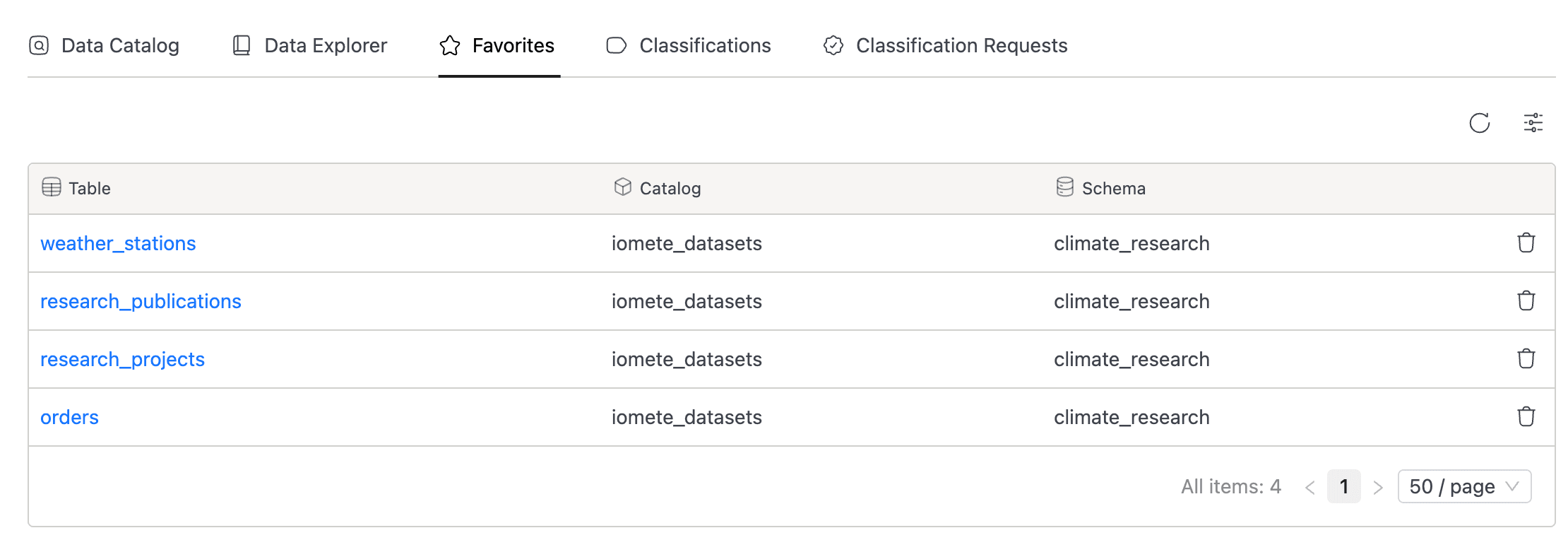
To remove a bookmark, click the star icon again on the detail page. You can also remove favorites from the Favorites tab using the delete icon next to each row.


Viewing Your Favorites
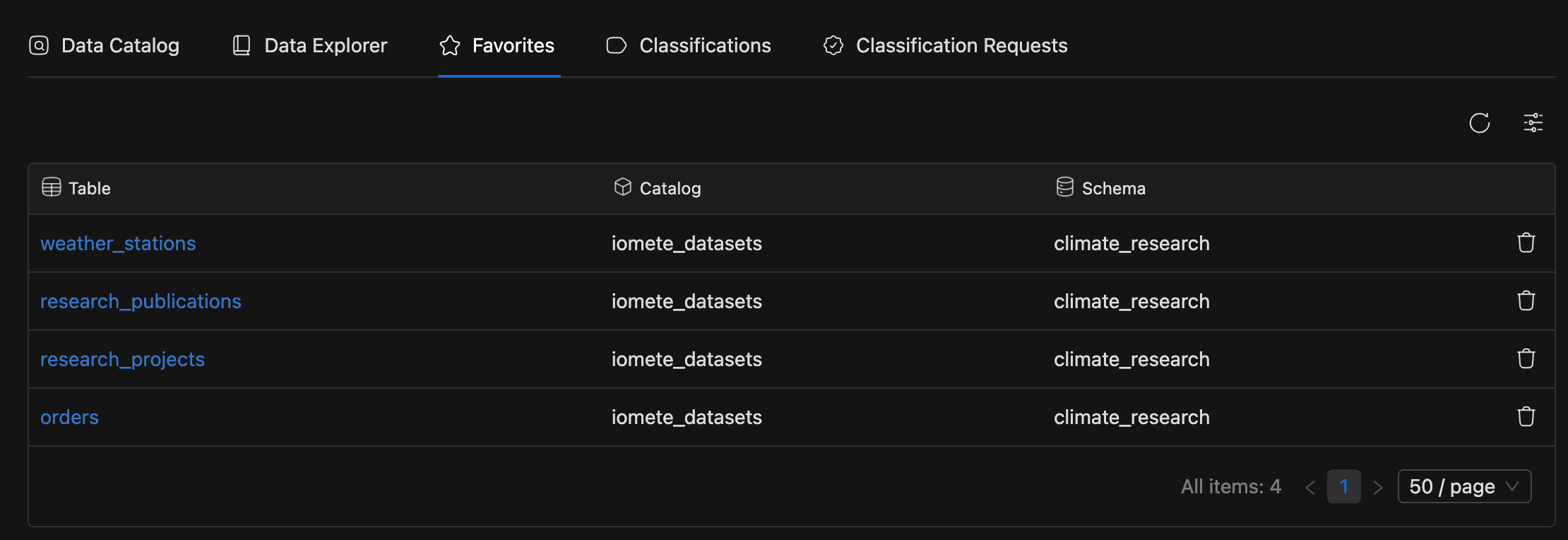
Once you've bookmarked a few tables, the Favorites tab gives you quick access to all of them. Each row displays the Table name (linked to its detail page), along with its Catalog and Schema. The list paginates at 50 per page.
Favorites are personal, scoped to your user and domain. Other users won't see yours.