Webhook Notifications
Webhooks send job alerts to a Slack channel, a Microsoft Teams channel, or any HTTPS endpoint you run. Setup has two steps: add a webhook to the domain, then subscribe jobs to it.
| Type | Sends | Use it for |
|---|---|---|
| Slack | A chat message to one channel | Team alerts in Slack |
| Teams | A card to one channel | Team alerts in Microsoft Teams |
| Generic | Signed JSON to any HTTPS URL | Your own services, on-call tools, automation |
Domain owners and domain managers add and change webhooks. Every domain member can see them and subscribe jobs to them.
Getting a Webhook URL
Get the URL from your chat tool first. You paste it into IOMETE in the next section.
Slack
- Go to api.slack.com/apps and click Create New App → From scratch.
- Open Incoming Webhooks and switch it on.
- Click Add New Webhook, pick the channel, and click Allow.
- Copy the URL. It starts with
https://hooks.slack.com/services/.
Microsoft Teams
- In the Teams channel, open the ⋯ menu and choose Workflows.
- Pick the Send webhook alerts to a channel template, then finish the wizard.
- Copy the URL it shows. Its host ends in
logic.azure.comorpowerplatform.com, and its path contains/workflows/.
Generic
Any https:// URL that accepts a POST with a JSON body. Your administrator can limit which hosts Generic webhooks may use; if a URL is refused, ask them.
Adding a Webhook
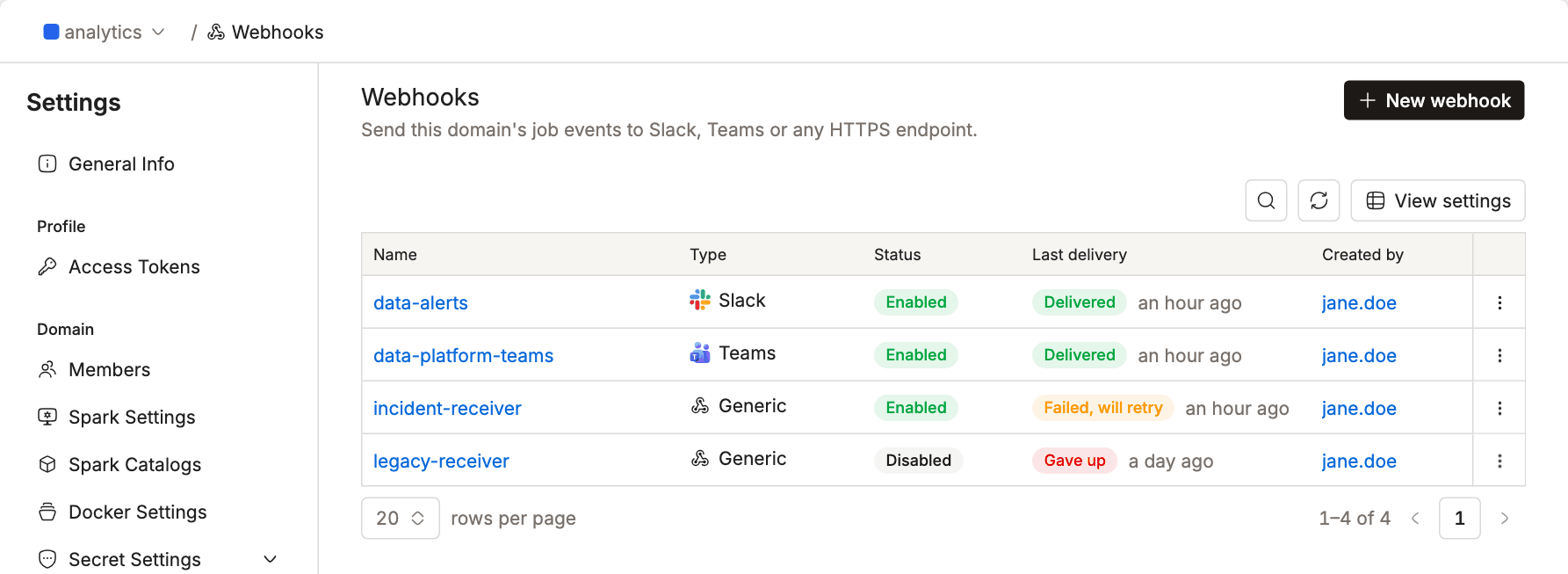
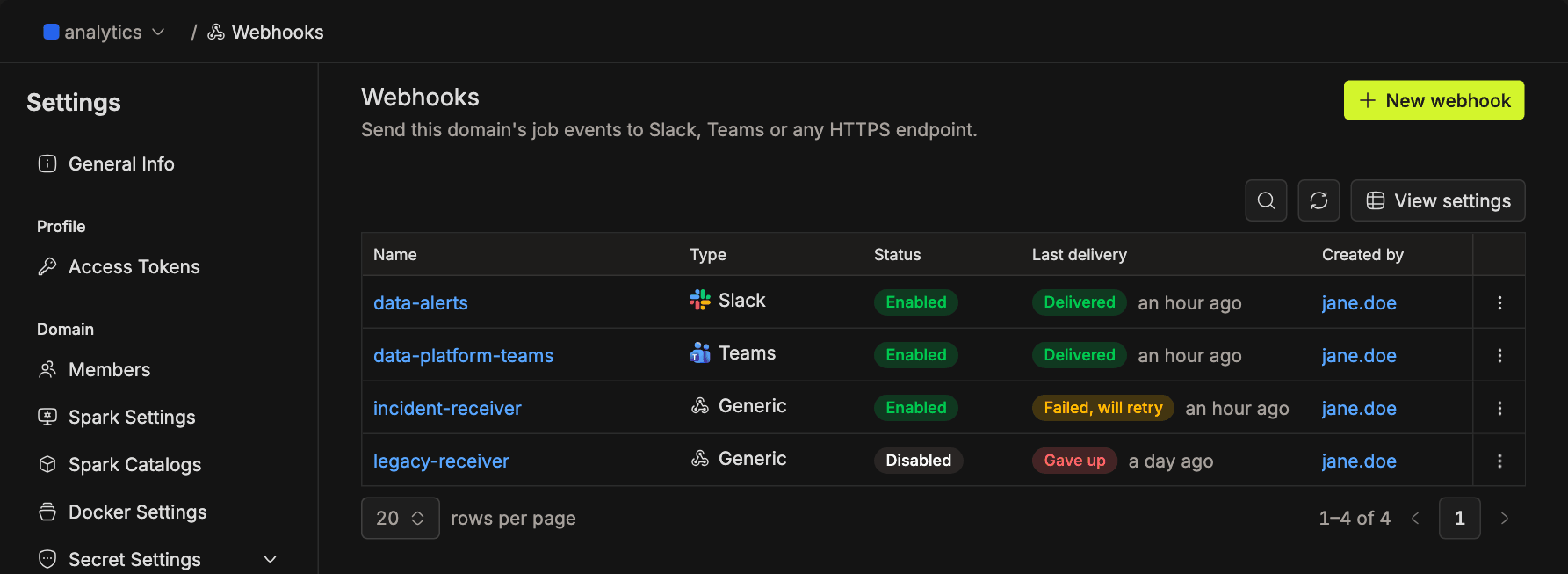
- Go to Settings → Webhooks and click New webhook.
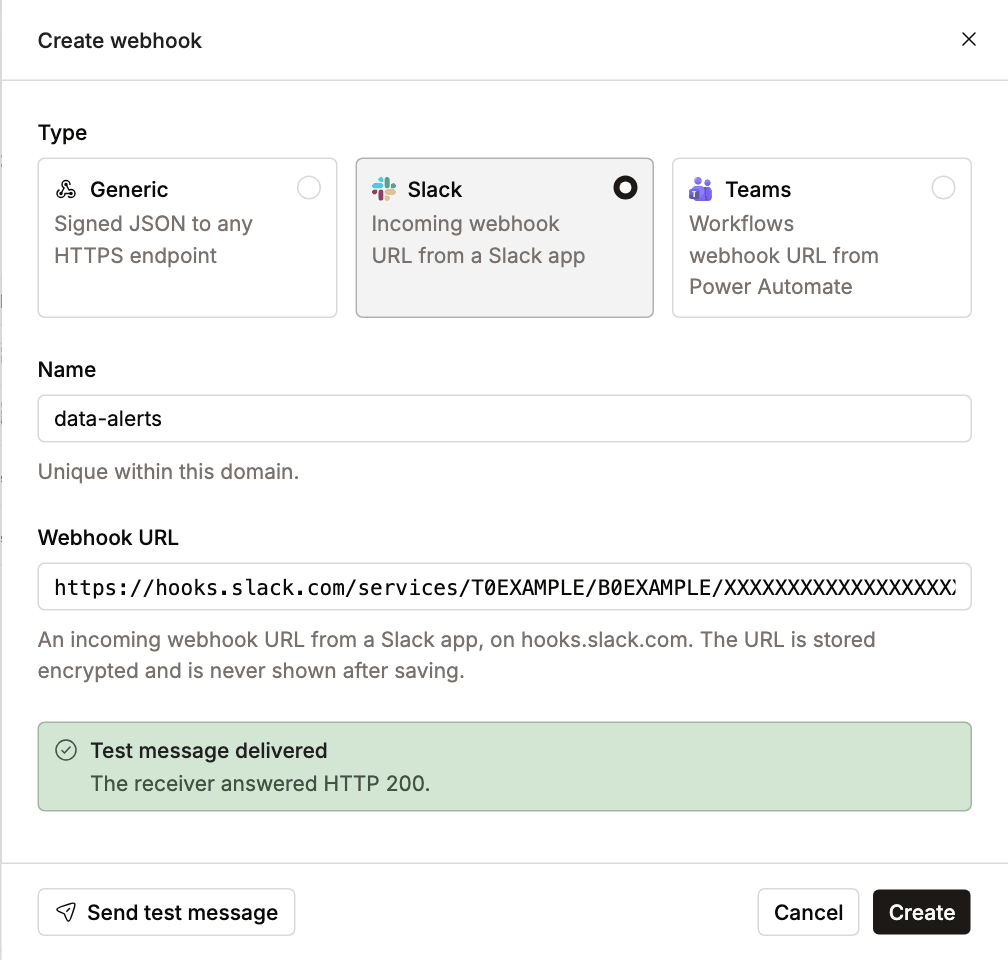
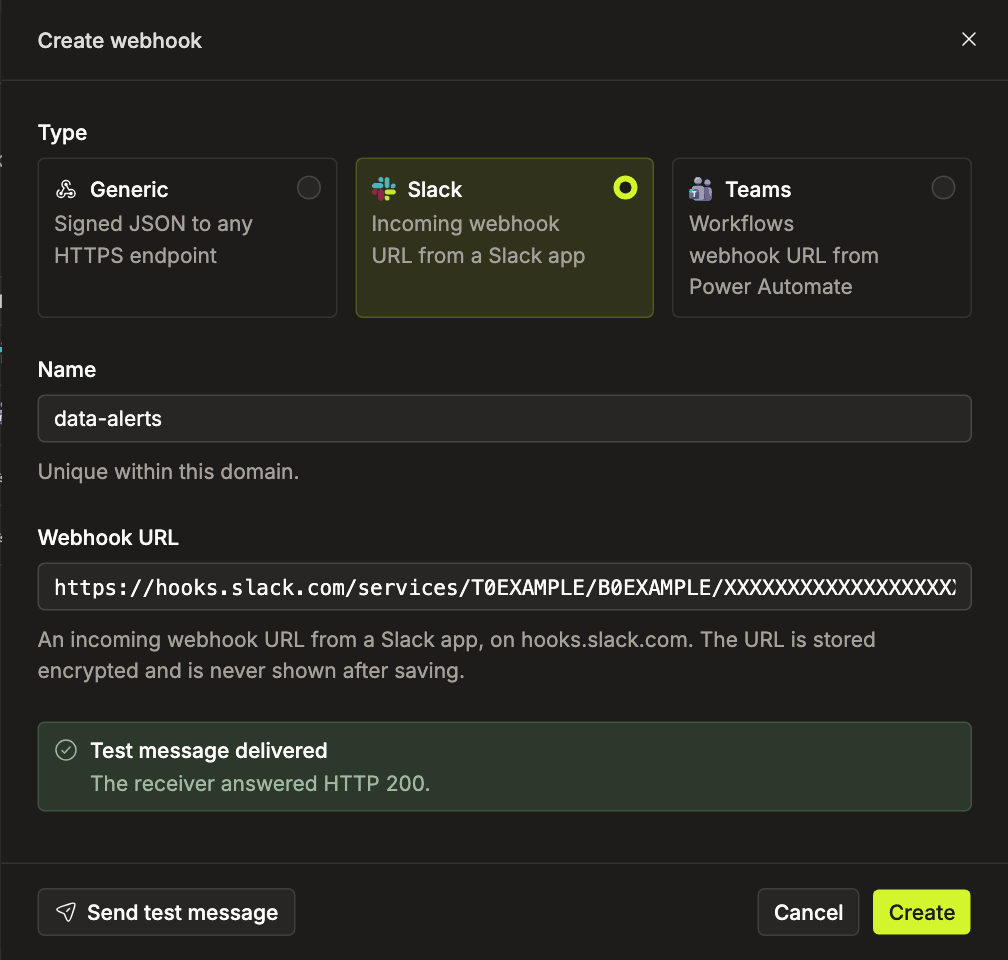
- Pick the Type, enter a Name, and paste the Webhook URL.
- Click Send test message. A green Test message delivered box means the URL works.
- Click Create.
For a Generic webhook, IOMETE shows a signing secret once, right after you click Create. Copy it to your receiver now. You need it to verify requests.
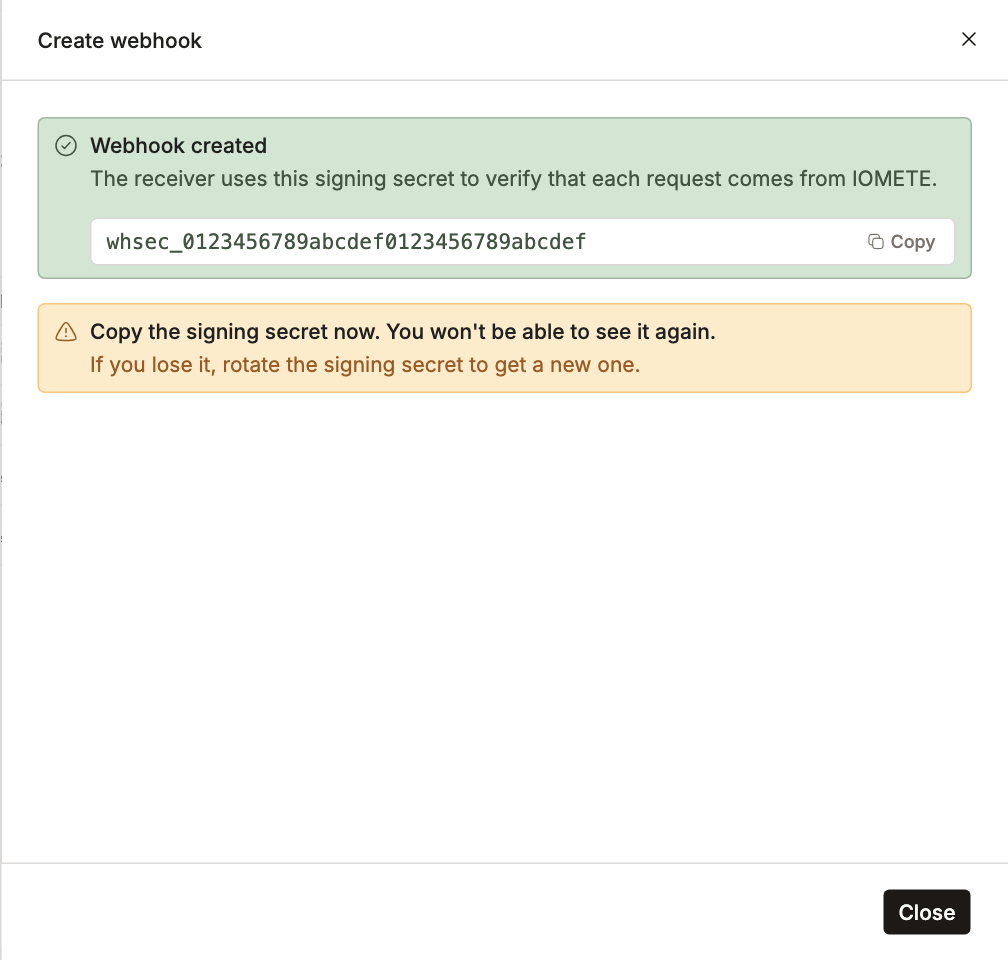
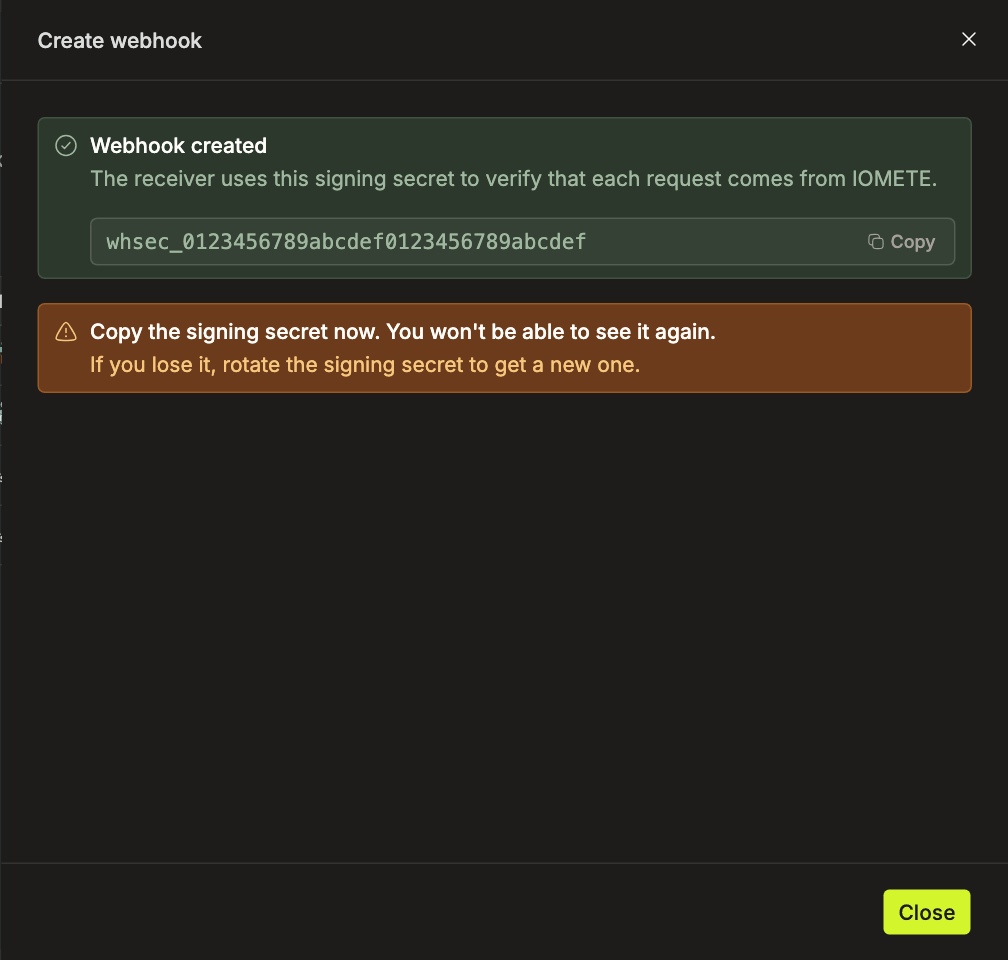
IOMETE stores the URL encrypted and never shows it in full again. To point a webhook somewhere else, open it, click Configure, and paste a new URL.
Subscribing a Job
- Open the job and go to the Notifications tab.
- Click Subscribe and choose the Webhook channel.
- Pick a webhook and the events to send, then click Subscribe.
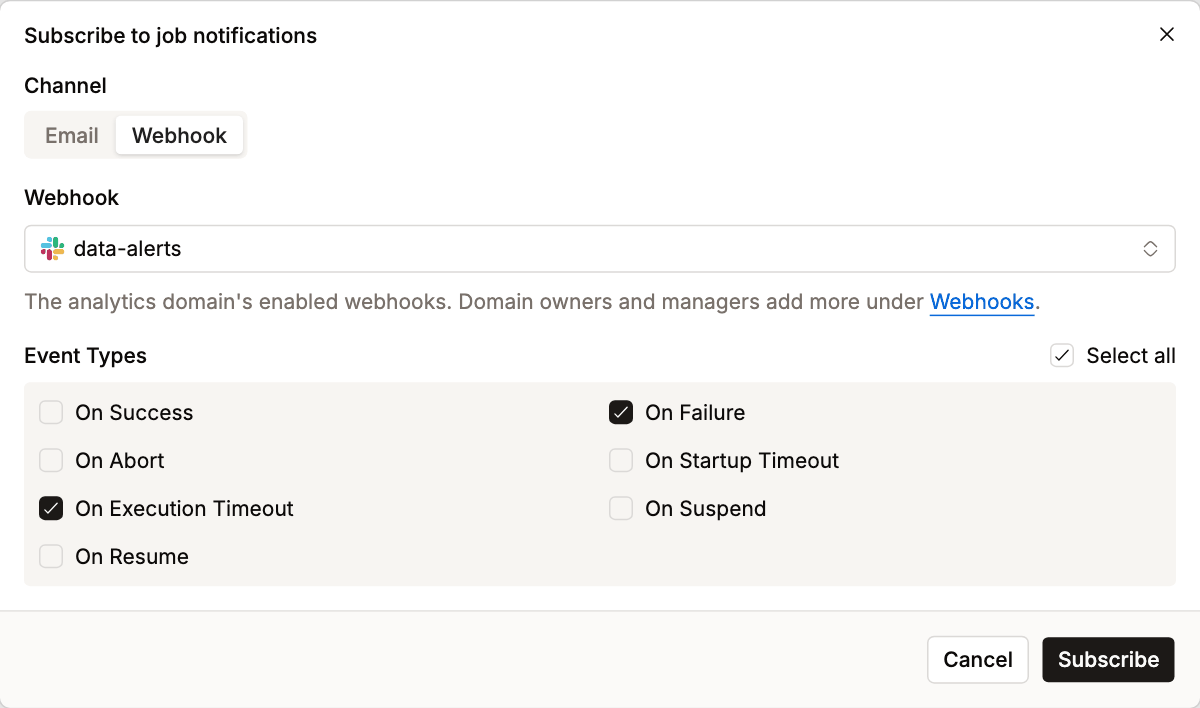
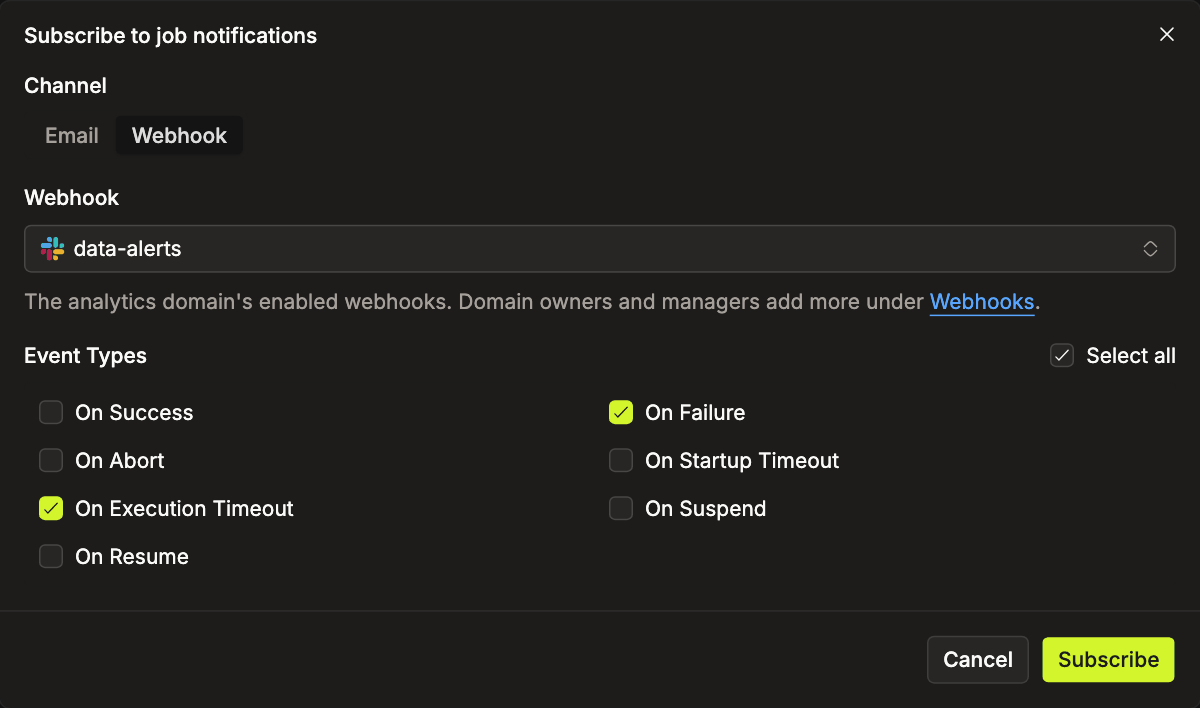
Only enabled webhooks show up in the list. Silence on the Notifications tab pauses webhook alerts too, the same as email. See Spark Job Notifications for silencing and editing subscriptions.
Verifying Generic Webhook Requests
Each Generic request has an X-Iomete-Signature header:
X-Iomete-Signature: t=1792656000,v1=5f2b...e9a1
t is the send time in Unix seconds. v1 is an HMAC-SHA256 of <t>.<raw request body>, keyed with the signing secret, in hex. To check a request:
- Reject the request if
tis more than 5 minutes off your clock, so old requests cannot be replayed. - Rebuild the HMAC from the raw body, before any JSON parsing.
- Accept the request only if it matches one of the
v1values.
import hashlib
import hmac
import time


def is_from_iomete(secret: str, header: str, body: bytes) -> bool:
    pairs = [part.split("=", 1) for part in header.split(",") if "=" in part]
    timestamps = [value for key, value in pairs if key == "t"]
    signatures = [value for key, value in pairs if key == "v1"]
    if len(timestamps) != 1 or not timestamps[0].isdigit() or not signatures:
        return False

    timestamp = timestamps[0]
    if abs(time.time() - int(timestamp)) > 300:
        return False

    expected = hmac.new(secret.encode(), f"{timestamp}.".encode() + body, hashlib.sha256).hexdigest()
    return any(hmac.compare_digest(expected, signature) for signature in signatures)
To replace the secret, open the webhook's ⋯ menu and click Rotate signing secret. For the next 24 hours each request carries two v1 signatures, one per secret, so you can update the receiver without dropping alerts.
Payload
A failed run sends a body like this:
{
  "id": "evt_1b4e28ba-2fa1-31d2-883f-0016d3cca427",
  "apiVersion": "v1",
  "type": "job.run.failed",
  "eventType": "FAILED",
  "resourceType": "SPARK_JOB",
  "resourceId": "b51e2f4c-...",
  "occurredAt": "2026-10-22T08:00:00Z",
  "title": "IOMETE - Spark Job 'daily-sales-etl' Failed",
  "body": "Spark job has failed. Please check the logs for error details.",
  "data": {
    "domain": "analytics",
    "jobId": "b51e2f4c-...",
    "jobName": "daily-sales-etl",
    "runId": "a7c3...",
    "startedAt": "2026-10-22T07:41:12Z",
    "endedAt": "2026-10-22T07:59:58Z",
    "error": "...",
    "runUrl": "https://<your-iomete-host>/..."
  }
}
typeis one ofjob.run.succeeded,job.run.failed,job.run.aborted,job.run.startup_timeout,job.run.execution_timeout,job.suspended,job.resumed, orwebhook.testfor test messages.idis the same on every retry of one event. Use it to skip duplicates.- Answer with any
2xxstatus within 10 seconds.
Checking Delivery
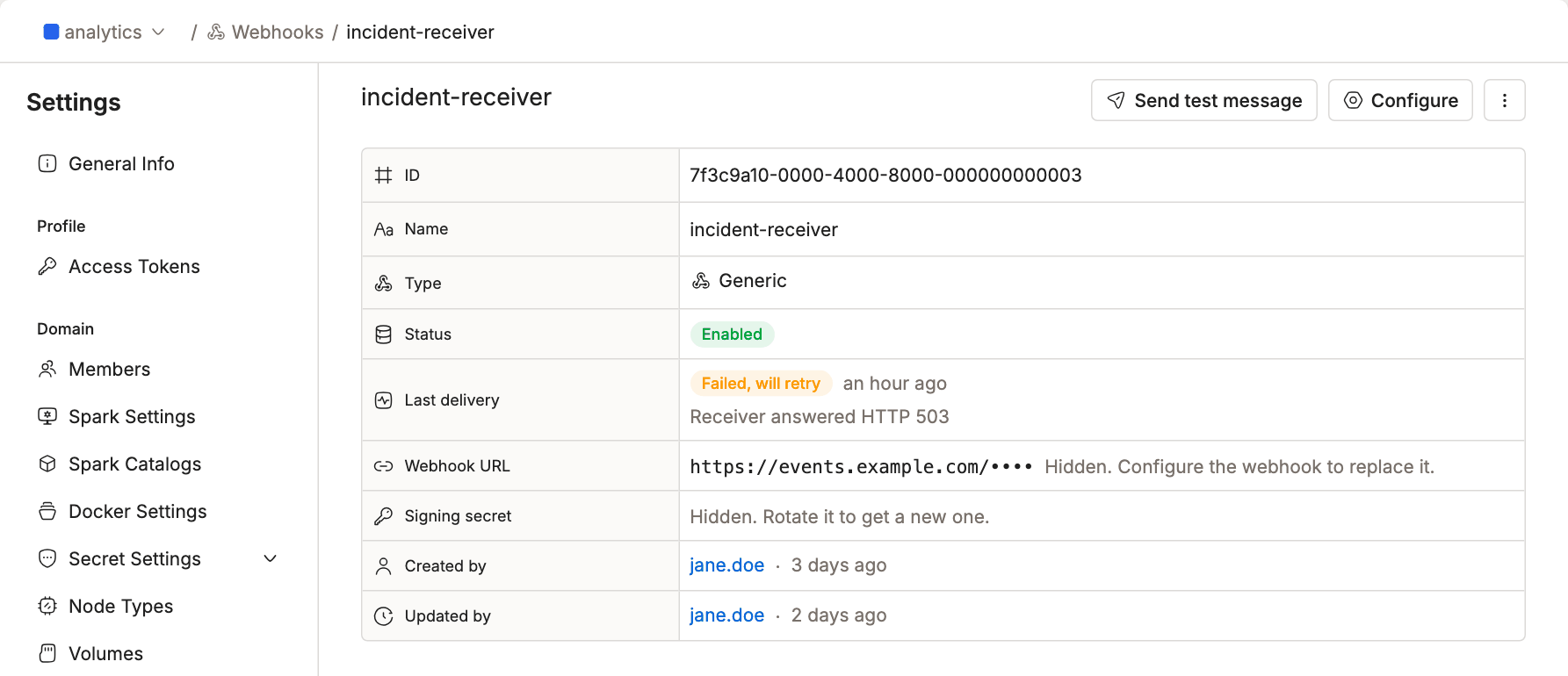
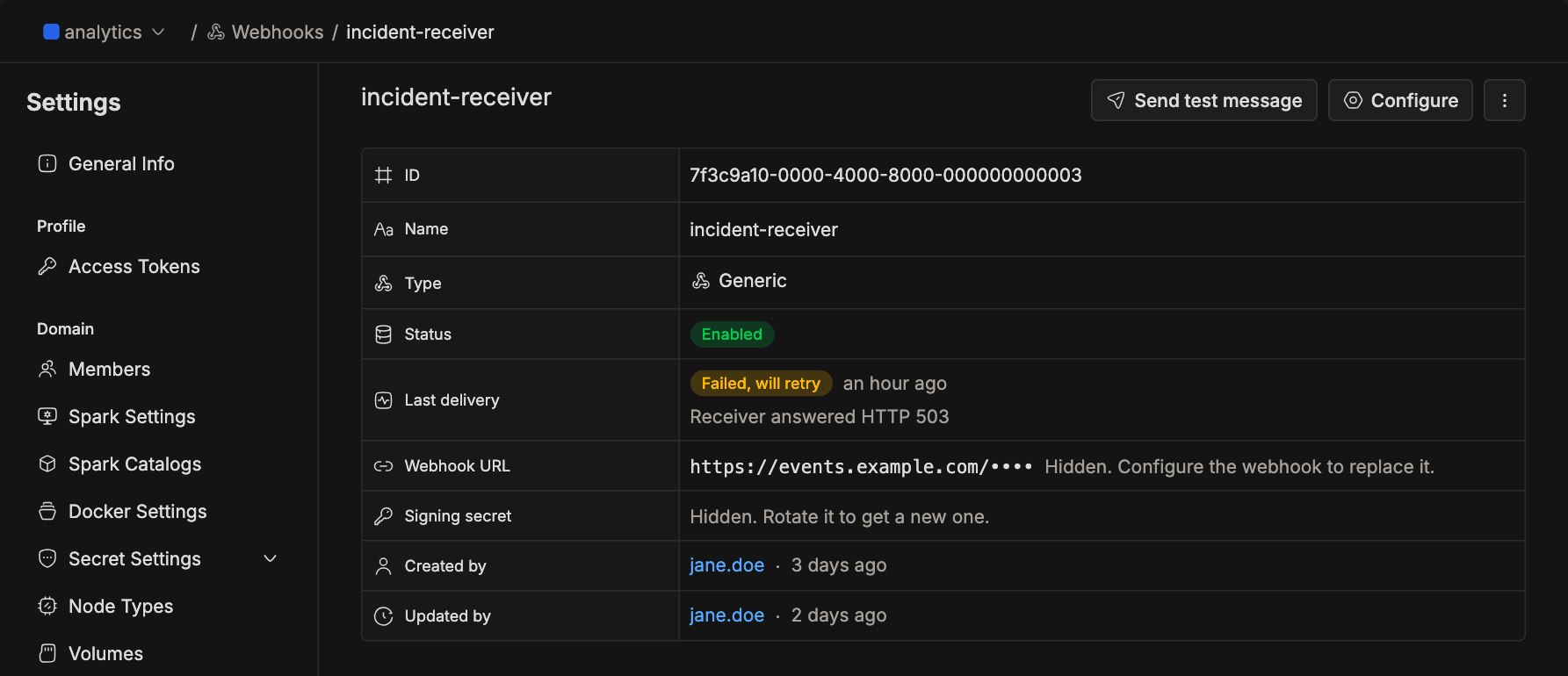
The Last delivery column on the Webhooks page shows how the latest alert went. Open a webhook to see the error in full.
| Status | Meaning | What to do |
|---|---|---|
| Delivered | The receiver answered 2xx. | Nothing. |
| Failed, will retry | No answer, a timeout, 408, 429 or 5xx. IOMETE retries for about a day. | Fix the receiver; the next retry picks it up. |
| Gave up | Retries ran out, or the receiver answered another 4xx. The alert is dropped. | Check the URL and the receiver, then Send test message. |
After 20 alerts in a row end in Gave up, IOMETE disables the webhook and emails the domain owners. Fix the receiver, then open the webhook's ⋯ menu and click Enable.
Account admins can see every domain's webhooks, with a Failures in a row count, under Admin → Webhooks.