Compute Clusters
A compute cluster gives you dedicated CPU and memory, powered by Apache Spark, for running queries. Table data lives in S3-compatible object storage, separate from compute, so multiple clusters can share the same data without interfering with each other. IOMETE uses the Apache Iceberg table format for reliable ACID transactions.
Since storage and compute are decoupled, you can size each cluster for its workload (batch ETL, interactive analytics, a dedicated BI connection) and shut it down when it's idle to stop accruing costs.
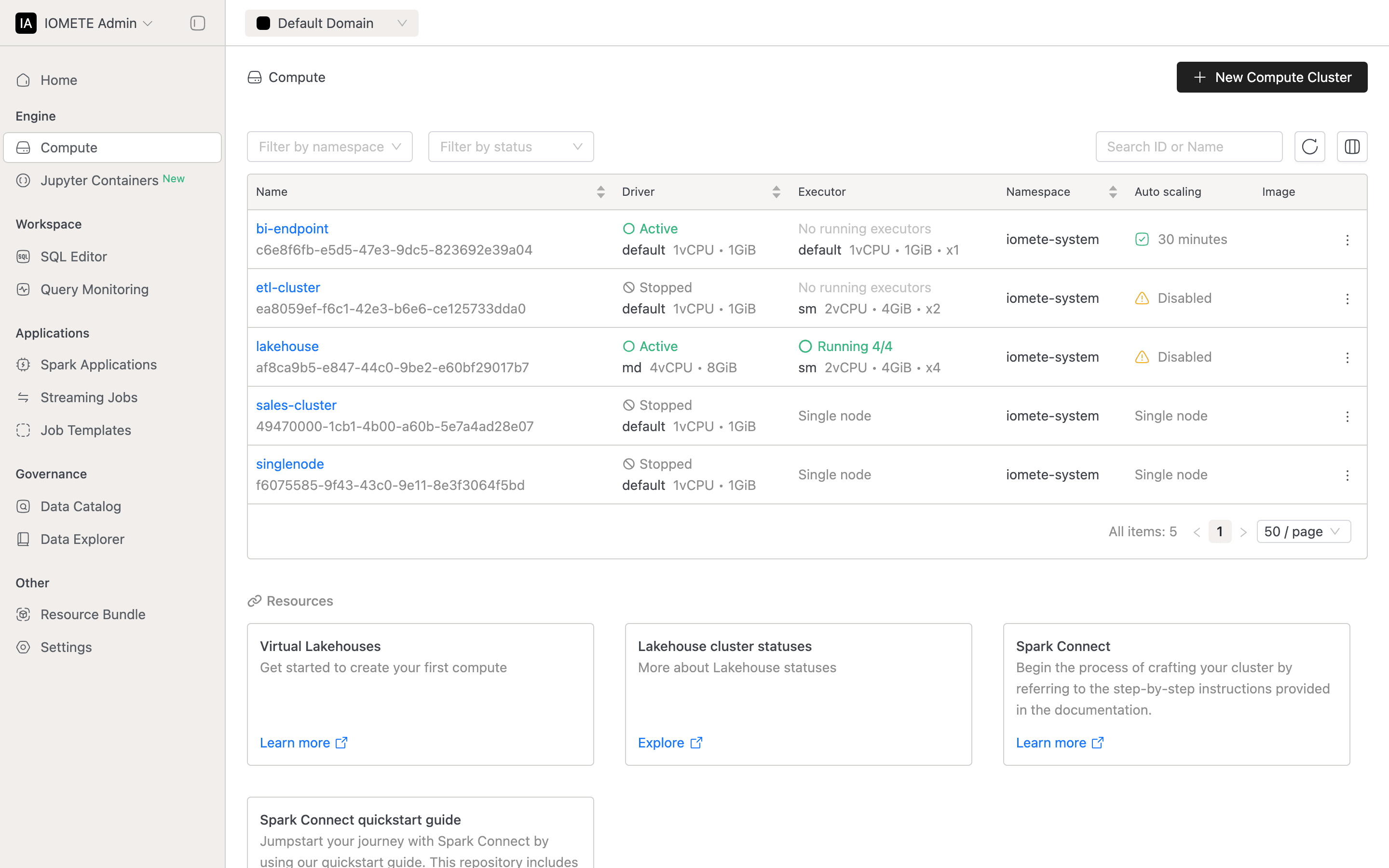
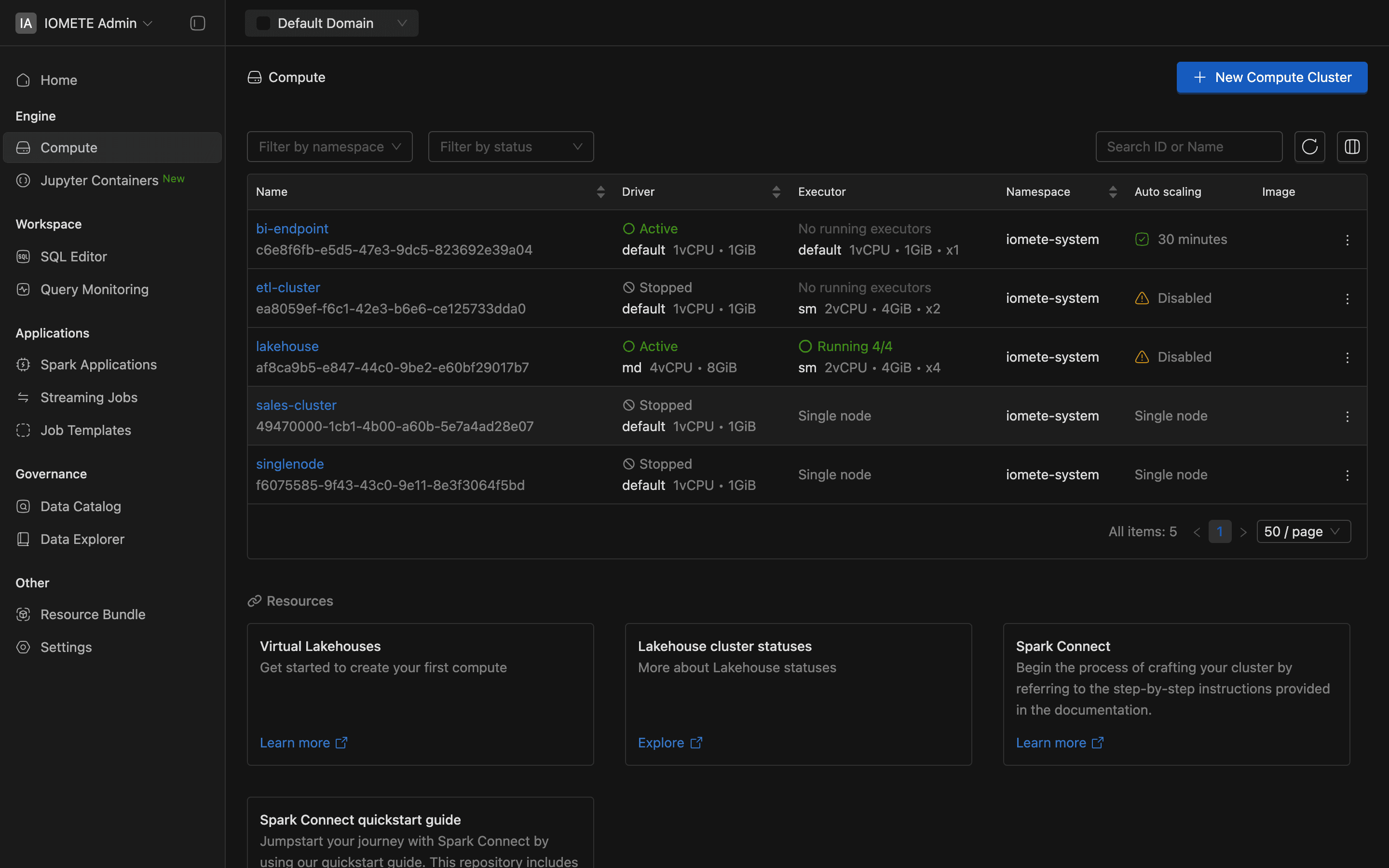
Viewing the Cluster List
Before you create or modify anything, the cluster list gives you an at-a-glance view of every compute resource and its current state. Open it by selecting Compute in the left sidebar.
Each row represents one cluster:
| Column | Description |
|---|---|
| Name | Opens the cluster detail page. The cluster ID appears below the name (hover to copy). |
| Driver | Driver status (STARTING, ACTIVE, STOPPED, FAILED) and node type. Sortable by status. |
| Executor | Executor state (for example, Running 2/4) and node type. Shows Single node for single-node clusters. |
| Namespace | Kubernetes namespace where the cluster runs. Sortable. |
| Auto scaling | Idle timeout for auto-suspend. Shows Single node for single-node clusters. |
| Image | Docker image name. Hidden by default; use the column selector to reveal it. |
| Actions | Ellipsis menu with state-dependent actions. See Managing a Compute Cluster. |
Filtering the List
Controls above the table narrow the list:
- Namespace: deployment namespace.
- Status: driver state (
Starting,Active,Stopped,Failed). - Search: cluster name or ID.


Access Permissions
Who can see and interact with a cluster depends on permissions granted to users or groups at two levels:
-
Domain level The Create Compute permission lets a user create new clusters. Admins assign it through Roles.
-
Resource level Per-cluster permissions (
VIEW,EXECUTE,CONSUME,UPDATE,DELETE) come from the cluster's resource bundle.CONSUMElets a user submit queries against the cluster. The cluster list only shows clusters where you have at leastVIEWpermission. See Resource Bundles for bundle-based access control.
Next Steps
- Creating a Cluster: walk through the six-tab creation form.
- Managing Clusters: view cluster details, monitor state, and run lifecycle actions.
Related Resources
- Node Types: manage the node types available for driver and executor pods.
- Volumes: attach persistent volumes via the Volume field on the General tab.
- Secrets: reference secret values in environment variables and Spark config.
- Private Docker Registry: register Docker registries so their images appear in the Docker settings tab.
- Roles: manage role-based permissions for users and groups.
- Resource Bundles: control per-resource access through bundle permissions.