Troubleshooting Compute Cluster Failures
When a compute cluster shows Failed, keeps cycling back to Starting, or stops accepting connections, three places in the UI tell you why. A fourth tells you who to ask if you can't fix it yourself.
Read the Status First
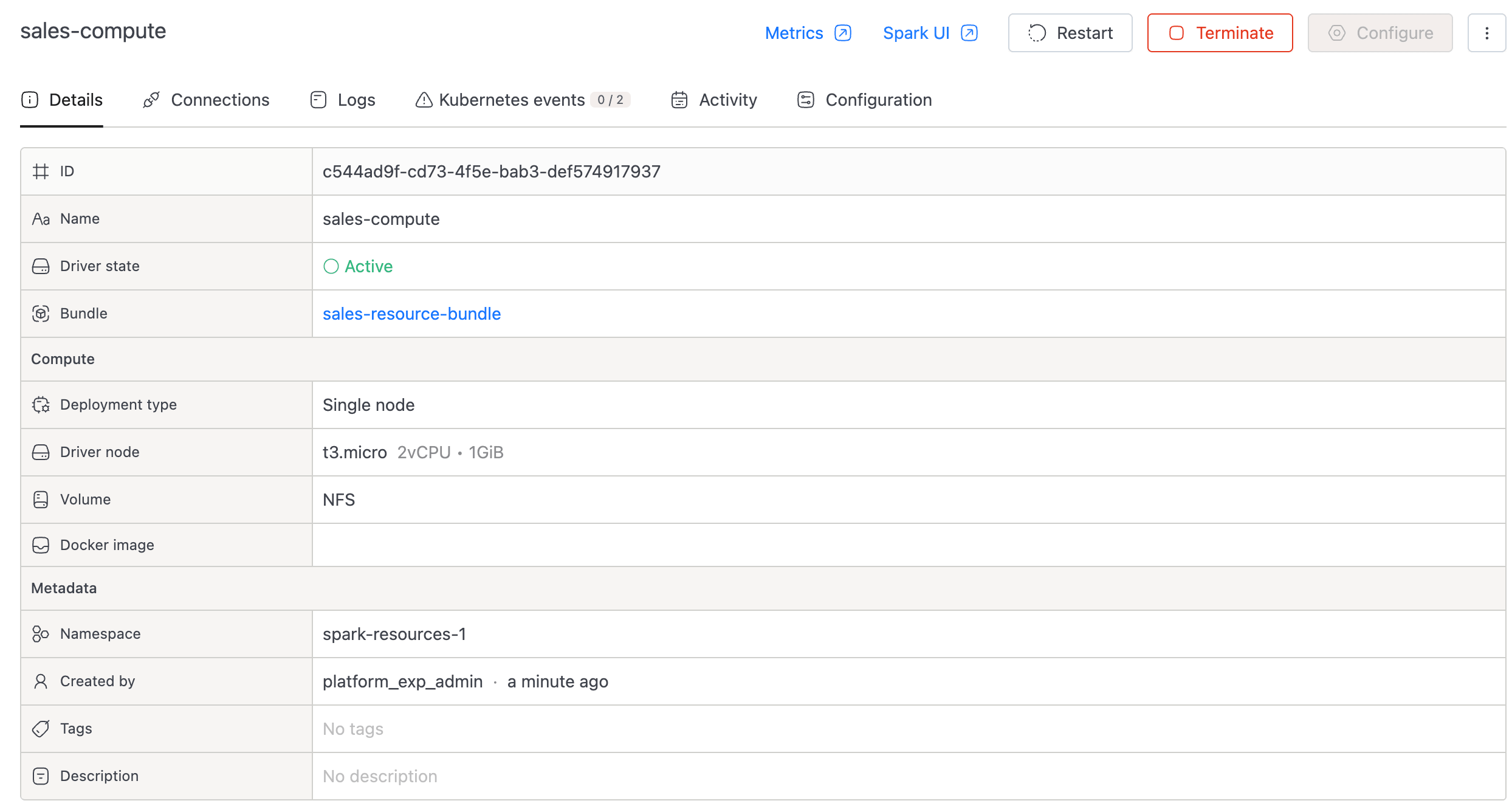
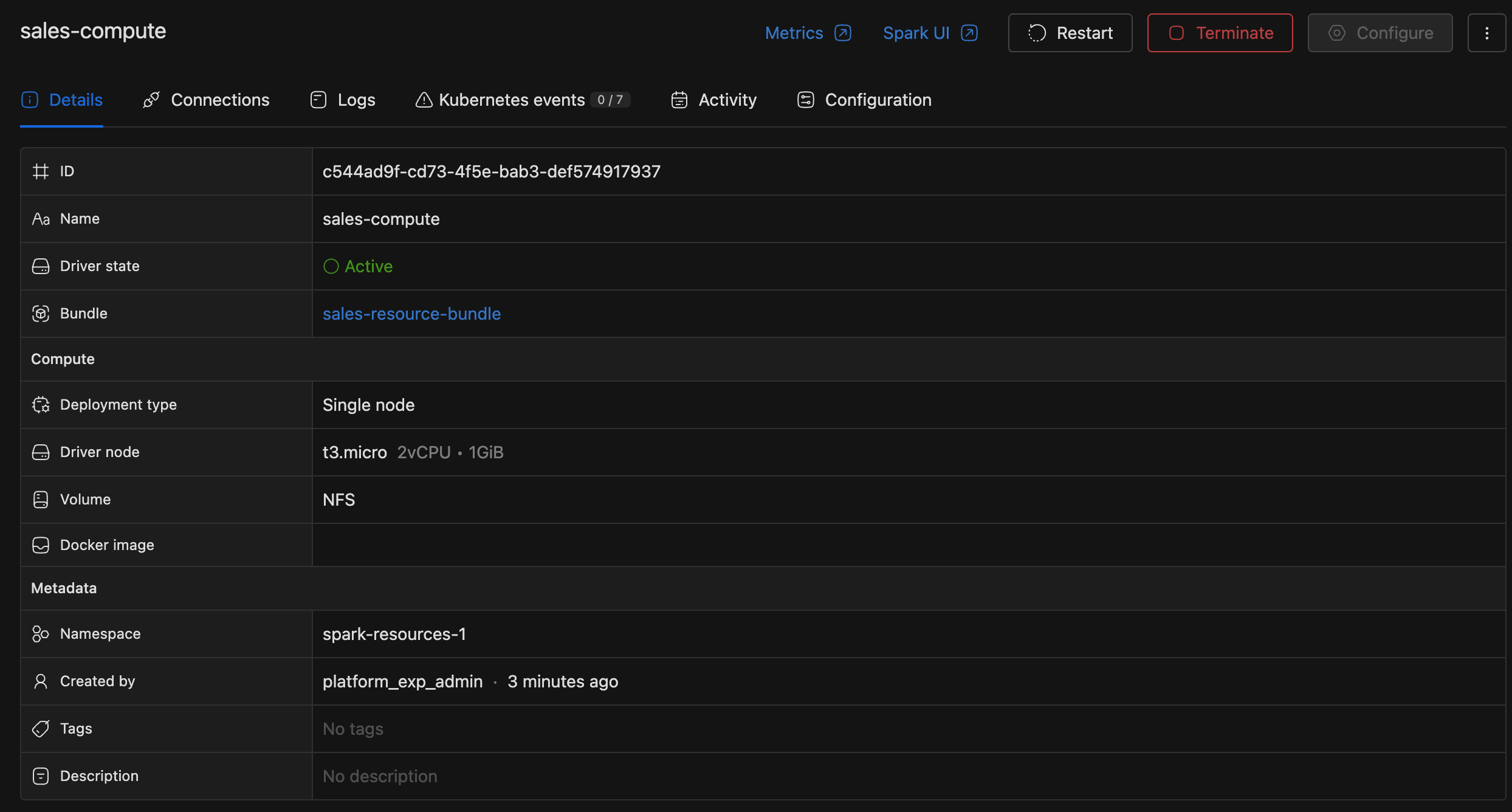
Open the cluster from the compute list and look at the Details tab.
The driver-state badge near the top reads Failed with a red alert icon when something has gone wrong. Hover the badge to see a tooltip with the underlying error message returned by the Spark operator (for example, a Kubernetes scheduling error, an image pull failure, or a driver crash).
That tooltip is often enough. If it isn't, move on to the Logs and Kubernetes events tabs.
Open the Logs Tab
The Logs tab streams driver logs from the pod. For multi-node clusters, an Instance dropdown above the viewer lets you switch to individual executor pods.
Other controls above the viewer:
- Time range — pick a window around the failure.
- Auto-refresh interval — keep logs live, or freeze them.
- Manual refresh — pull the latest lines on demand.
- Settings menu — line wrap, fullscreen, Download visible logs, Download all logs, Copy as text.
If the log viewer reads "Waiting for logs..." or "No logs available in the specified timeframe.", the pod hasn't produced anything in the selected window. Widen the range, or check whether the driver pod ever started. A scheduling or image-pull failure leaves no log output at all; in that case the answer lives on the Kubernetes events tab instead.
For deep Spark-side tuning (driver memory, event logs, GC logs, heap dumps), see Troubleshooting OOM kills on the Lakehouse driver pod.
Open the Kubernetes Events Tab
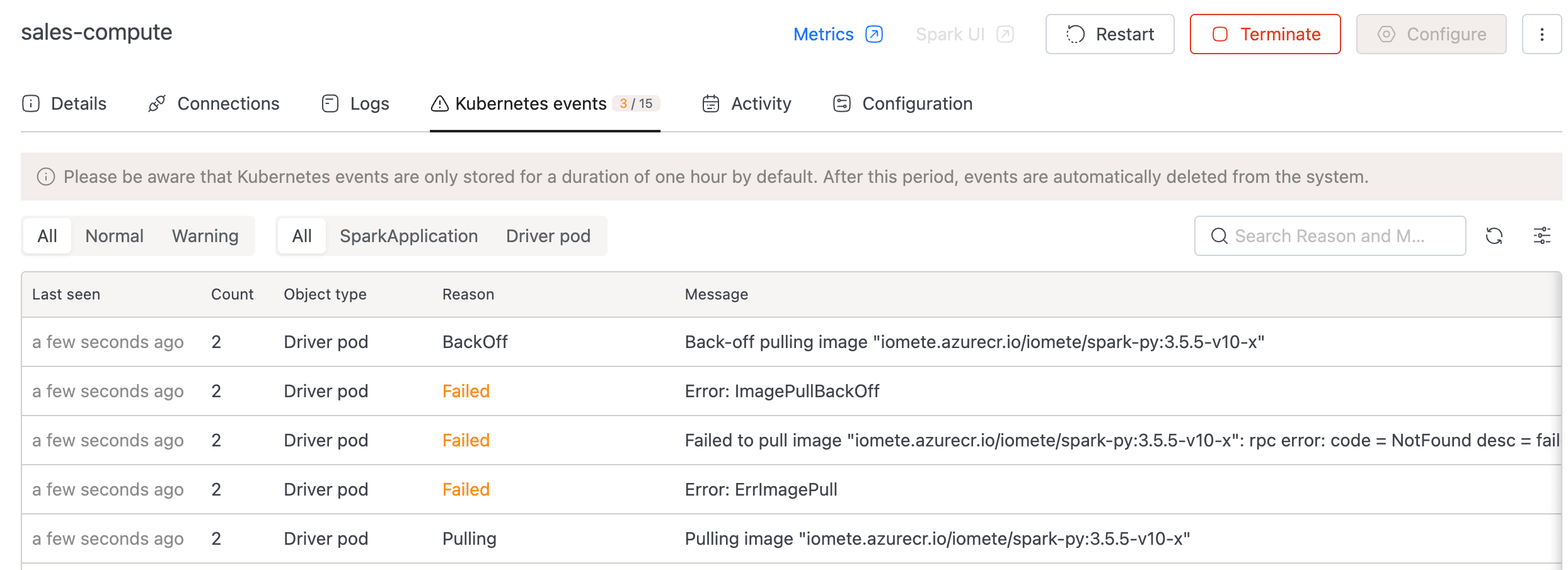
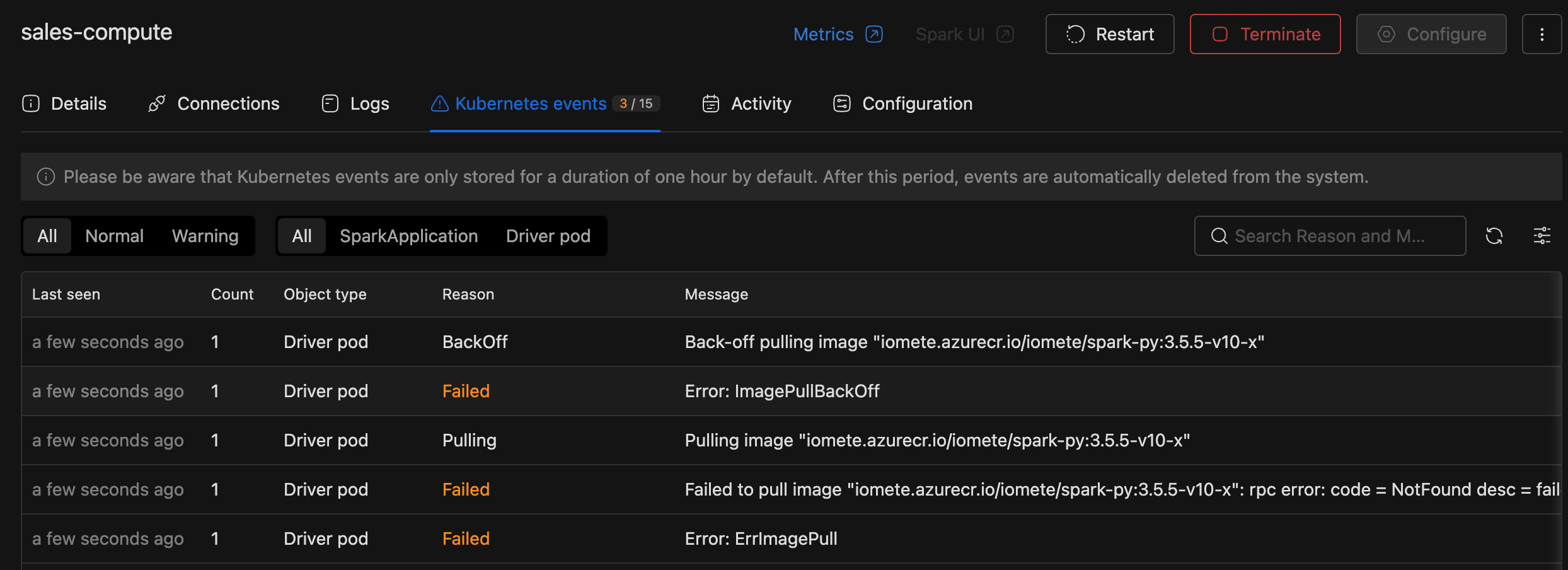
The Kubernetes events tab lists pod-level events for the cluster's driver pod and SparkApplication object. A badge on the tab header shows the warning-to-total ratio (for example, 5 / 12), so problems stand out without opening the tab.
Each row has five columns:
| Column | What it shows |
|---|---|
| Last seen | Relative time since the event was last observed. |
| Count | How many times the event has fired. A high count usually means a loop (CrashLoopBackOff, repeated OOMKilled). |
| Object type | Driver pod or SparkApplication. |
| Reason | A short reason code (for example, OOMKilled, BackOff, FailedScheduling). Warnings render in orange. |
| Message | The full event message — usually the most useful field. |
Filter by Type (All / Normal / Warning) to cut through the noise, and search by reason or message.
Kubernetes events are retained for a short window — one hour by default, but it varies per deployment (some clusters keep them for as little as 15 minutes). If you're investigating an old failure, the events may already be gone — work from the Logs tab instead, or download logs while they're still available.
Decode the Most Common Reasons
Most cluster failures map to one of these event reasons:
| Reason | What it means | First thing to try |
|---|---|---|
OOMKilled | The pod exceeded its memory limit and the Linux kernel killed it. Can hit either the driver or an executor. | Reconfigure the cluster (driver or executor memory) on the Configure form, or reduce per-task memory pressure (smaller batches, fewer concurrent stages, repartition). For deeper Spark-side tuning see Troubleshooting OOM kills on the Lakehouse driver pod. |
BackOff / CrashLoopBackOff | The pod has crashed repeatedly and Kubernetes is delaying the next restart. | Open the Logs tab; the last error before the crash is almost always the root cause. |
FailedScheduling | No node in the cluster has enough CPU, memory, or the required taint/toleration to host the pod. | Check that the chosen node type still exists, that the namespace has capacity, and that any taints/tolerations match. Most of these checks require cluster-admin access, so contact your platform administrator if you can't see this yourself. |
ImagePullBackOff / ErrImagePull | The Docker image can't be pulled (wrong name, wrong tag, missing credentials). | Verify the image name, tag, and registry credentials on the Docker settings tab. See Private Docker Registry. |
Evicted | The node ran out of a resource (memory, disk) and Kubernetes reclaimed the pod. | Read the eviction Message for the specific resource, then resize the executor or move to a larger node type. |
If the reason isn't in this table, the Message column is your next stop; it usually quotes the underlying Kubernetes or Spark error verbatim.
What the Platform Tried Before You Saw Failed
Every compute cluster runs with an automatic restart policy of OnFailure, up to 5 attempts, 10 seconds apart. A Failed status means automatic recovery has already been exhausted, so manual action is needed.
You won't see a retry counter in the UI. If you watch a flaky cluster live, it cycles between Starting and Failed until the retry budget is spent.
Find the Cluster's Owner
If you can't fix the failure yourself (because it's somebody else's cluster, requires a config change you don't have permission for, or relates to platform-level capacity), escalate to the cluster's owner.
Every compute cluster belongs to a resource bundle, and every bundle has one owner.
- On the Details tab, find the Bundle row. The bundle name is a link.
- Click through to the bundle detail page.
- The Owner field on that page names the user responsible for the bundle.
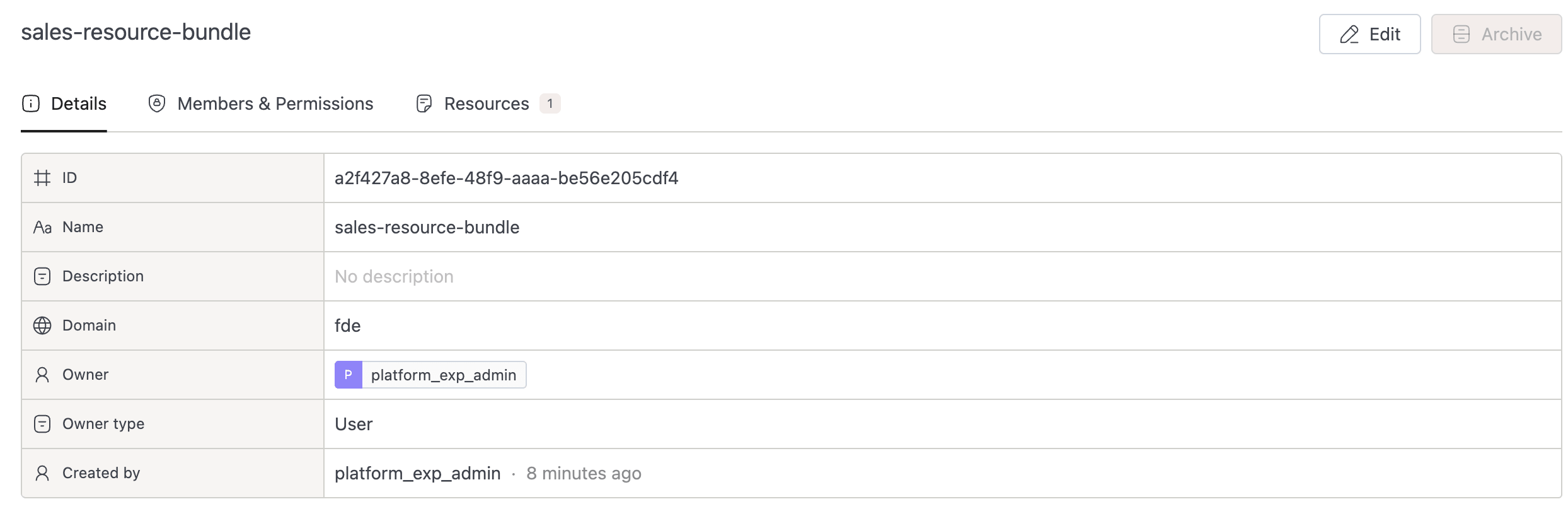
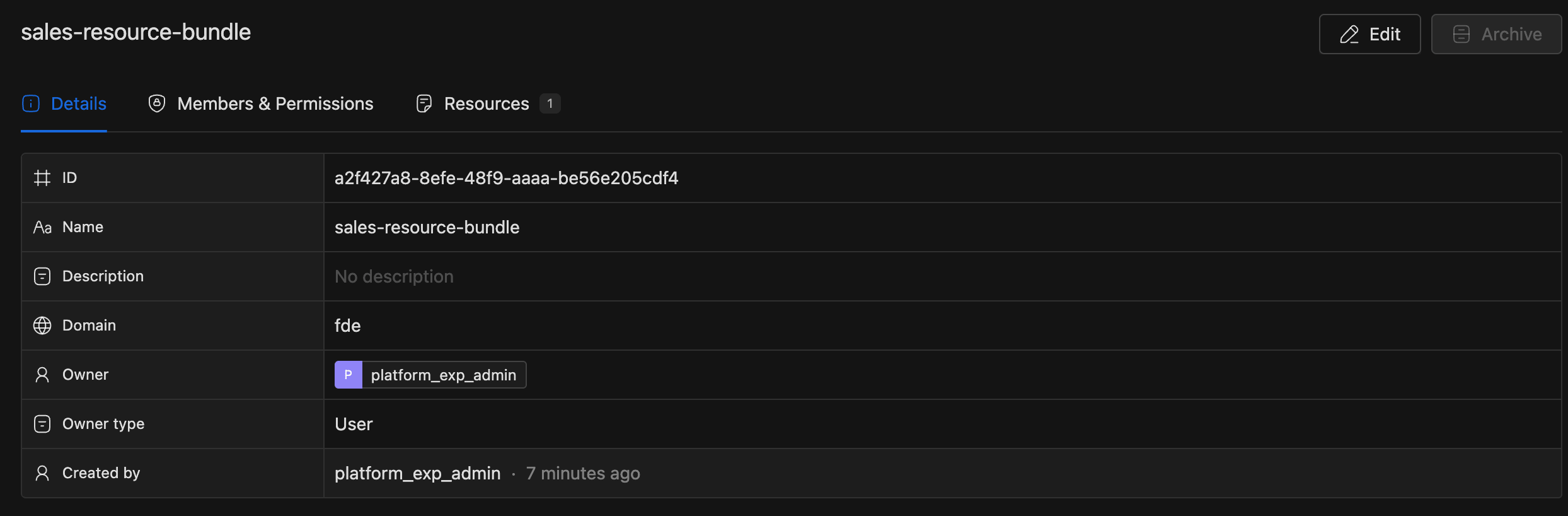
The owner's email isn't displayed in the UI today, so contact them through your team's usual channel: Slack, a ticketing system, or whatever else you use.
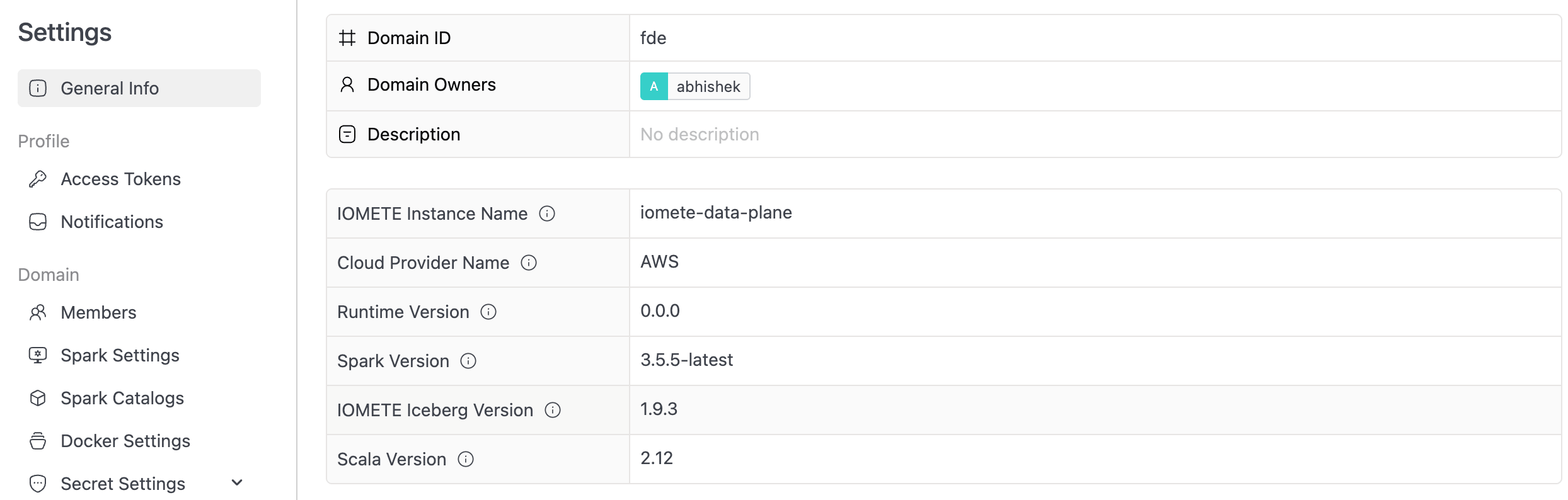
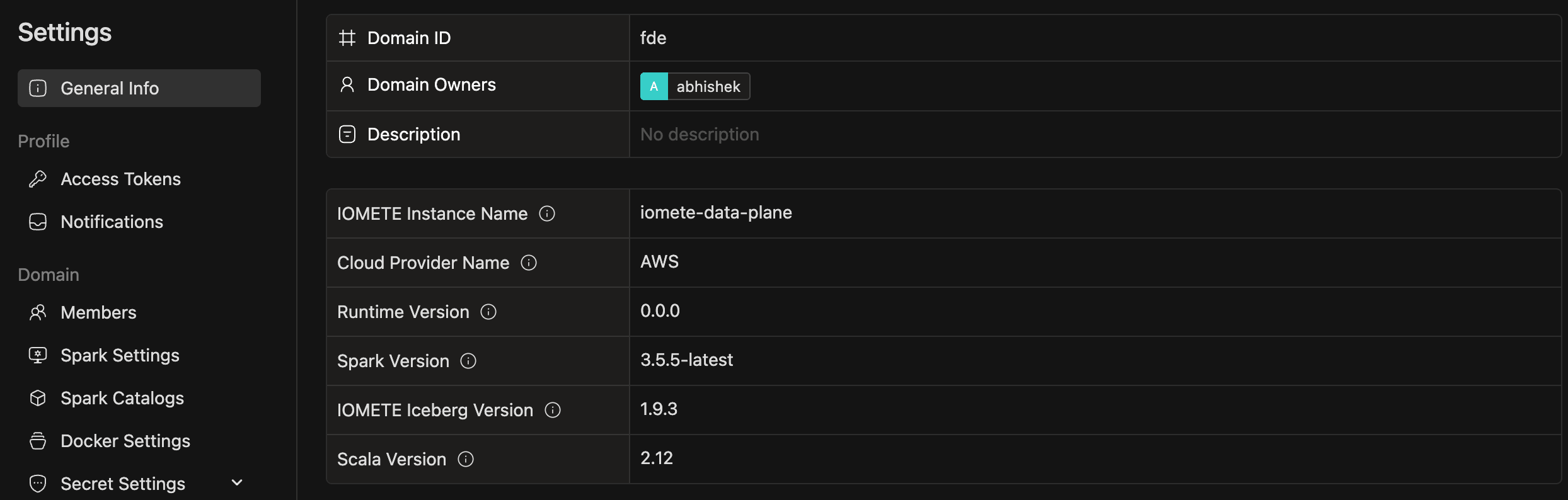
You can also escalate to a domain owner if the bundle owner is unavailable. Domain owners are fully authorized users at the domain level and can act on any cluster in the domain. Find them under Settings → General Info → Domain Owners.
What to Share When You Escalate
When you message the owner or open a support ticket, the answer comes back faster if you attach:
| What to attach | Where to find it |
|---|---|
| Link to the cluster | The URL in your browser address bar. If you can't share the link, attach the cluster name (or endpoint), cluster ID, and domain name instead. |
| Time of failure | An approximate timestamp. Events are gone after an hour, so be specific. |
| Top one or two Warning events | Reason and Message columns on the Kubernetes events tab. |
| A log snippet | Download from the Logs tab. Attach the lines around the failure, not the whole file. |
| Bundle name | The Bundle row on the Details tab. Confirms which team owns the cluster. |
Related Resources
- Compute Clusters Overview: cluster list, columns, and access permissions.
- Managing Clusters: lifecycle actions, states, and reconfiguration.
- Troubleshooting OOM kills on the Lakehouse driver pod: Spark-side memory tuning, event logs, GC logs, heap dumps.
- Resource Bundles: how bundles, owners, and per-resource permissions work.
- Node Types: when scheduling or eviction errors point at sizing.