Event Stream
Event Stream is a real-time event ingestion service that receives events and continuously makes them available in Apache Iceberg tables in near real time.
Overview
Event Stream provides a simple way to ingest events into your data lakehouse without managing complex infrastructure like Kafka. You send HTTP requests with JSON data, and the service handles writing to Iceberg tables on your behalf.
Key benefits:
- Simple HTTP API - no client libraries required
- Batch support for high throughput
- Data available in Iceberg tables in near real-time
- No need to manage message queues or streaming infrastructure
How It Works
- Create an Event Stream - Deploy an ingestion service via the IOMETE console
- Create an Iceberg table - Define your table schema with the fields you want to capture
- Send events - POST JSON data to your Event Stream endpoint
- Query your data - Events appear in your Iceberg table for analysis
Prerequisites
Before using Event Stream, you need a Personal Access Token (PAT) for authentication. Generate one from the IOMETE console under your account settings.
Creating an Event Stream
- Navigate to Event Streams in the IOMETE console
- Click New Event Stream button in the top right corner
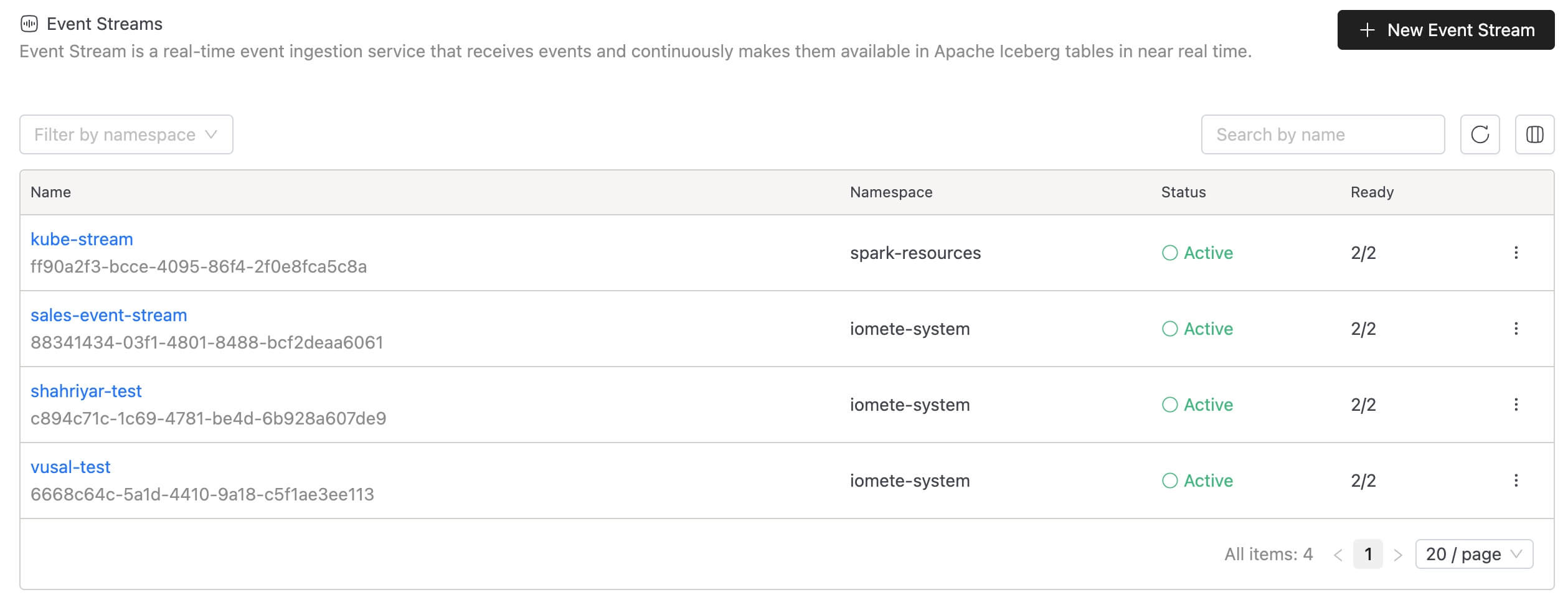
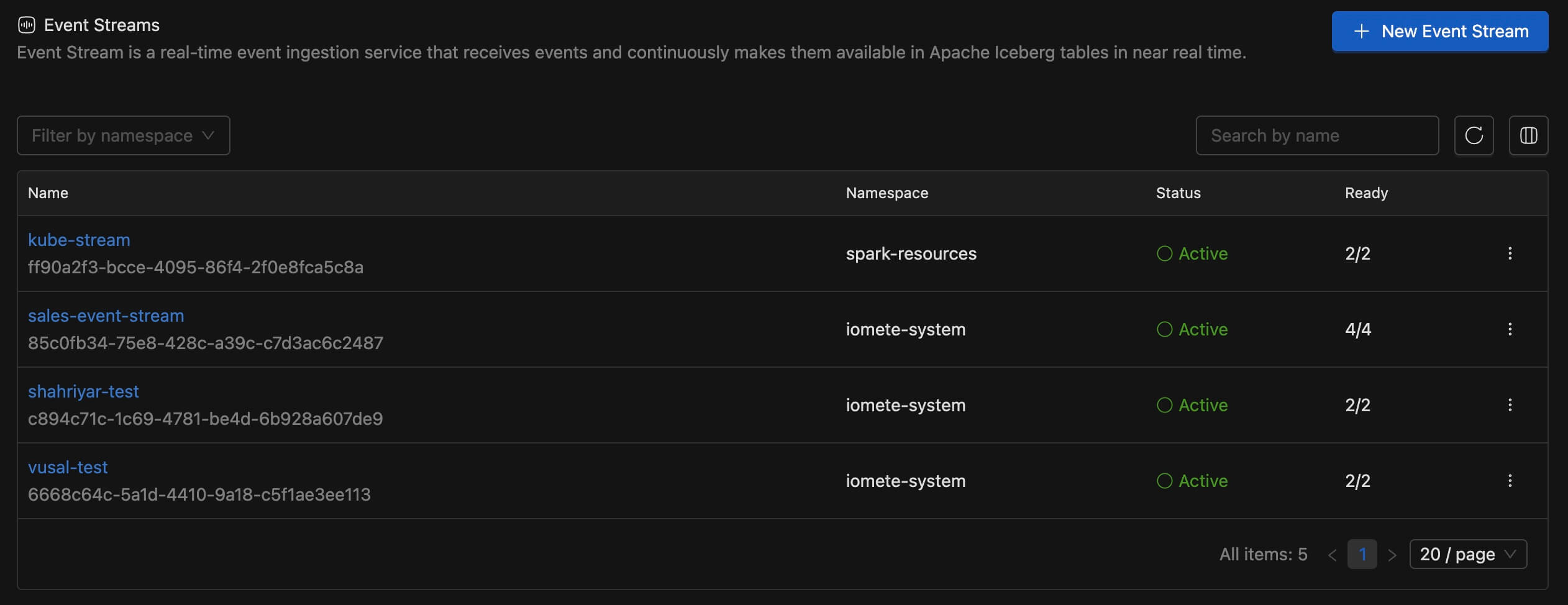
The Event Streams list page displays all your existing streams with their status, namespace, and replica health at a glance.
General Settings
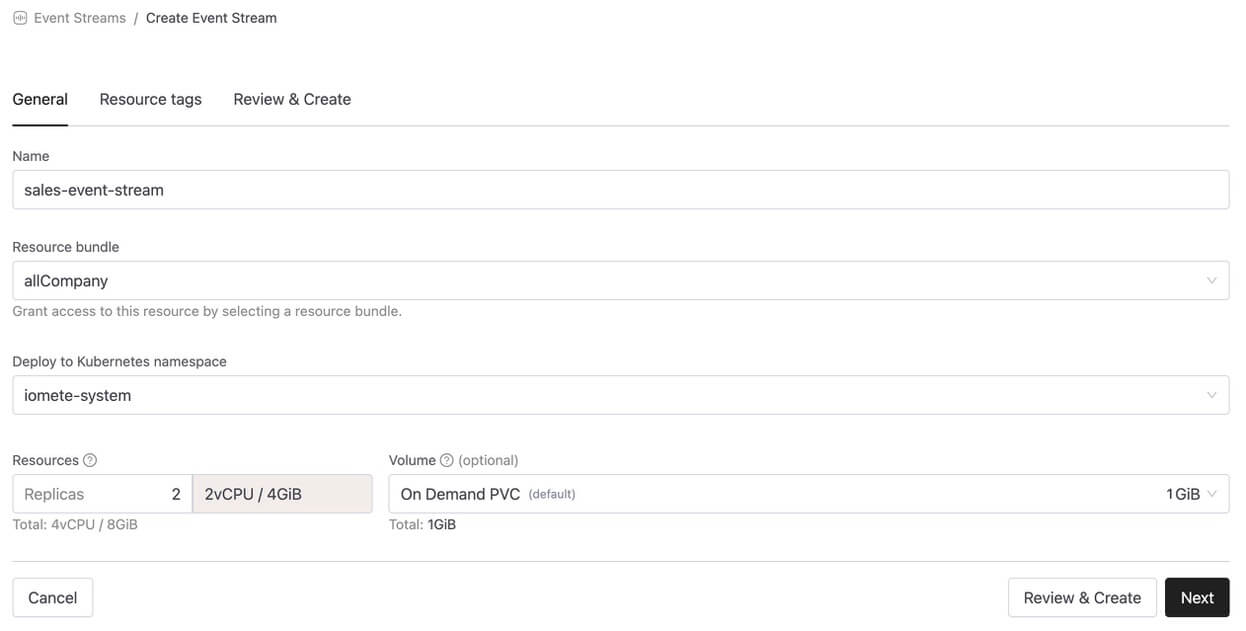
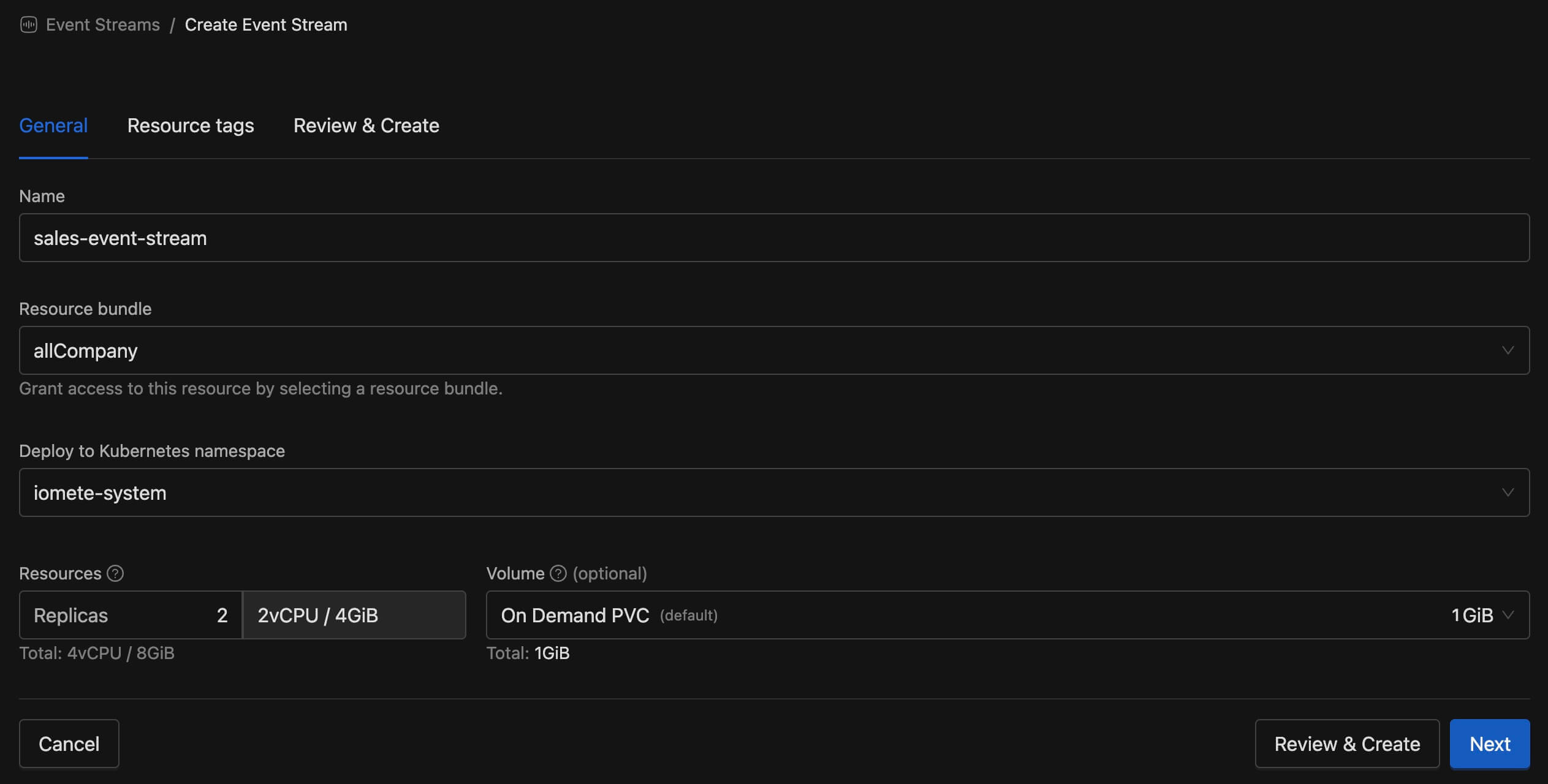
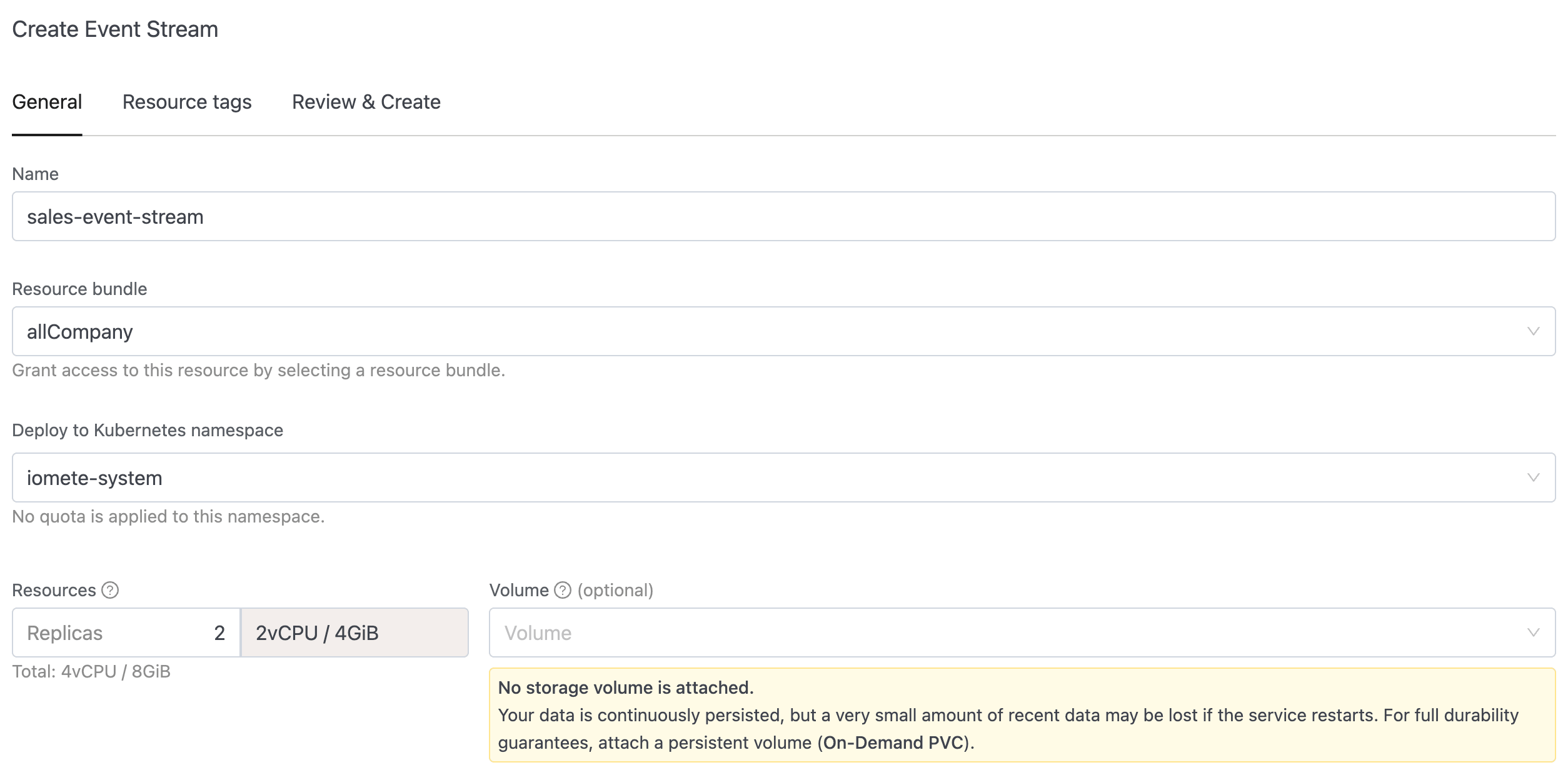
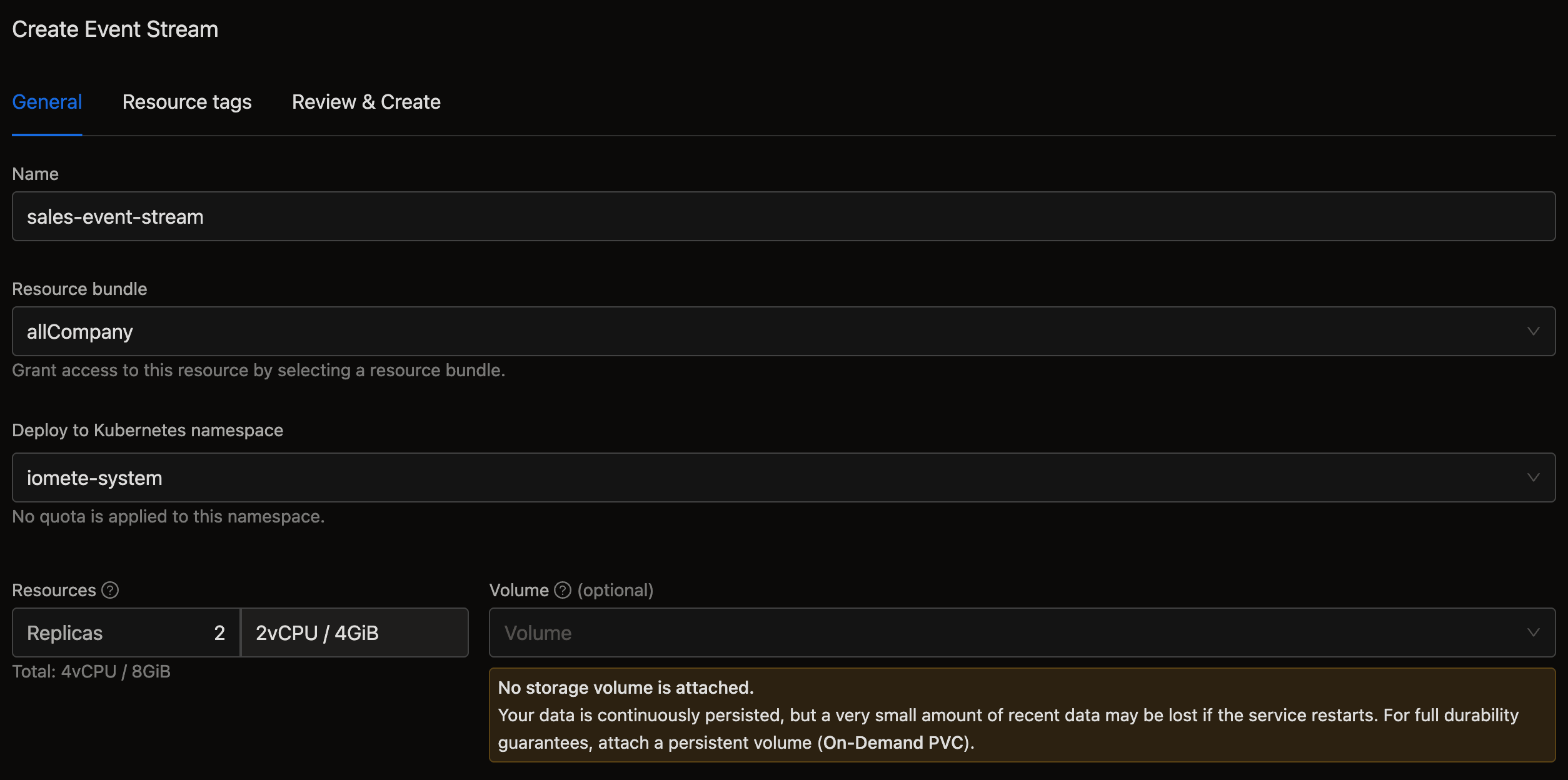
In the create form configure the basic settings for your Event Stream.
| Setting | Description |
|---|---|
| Name | A unique name for your Event Stream (e.g., sales-event-stream) |
| Resource Bundle | Select who can access this resource |
| Namespace | Kubernetes namespace for deployment |
| Resources | Number of replicas and CPU/memory allocation per replica |
| Volume | Persistent storage for the Event Stream. Without a volume, data is continuously persisted but a very small amount of recent data may be lost if the service restarts. Attach an On-Demand PVC for full durability guarantees. |
When no volume is selected, a warning message appears: "No storage volume is attached. Your data is continuously persisted, but a very small amount of recent data may be lost if the service restarts. For full durability guarantees, attach a persistent volume (On-Demand PVC)."
Resource Tags (Optional)
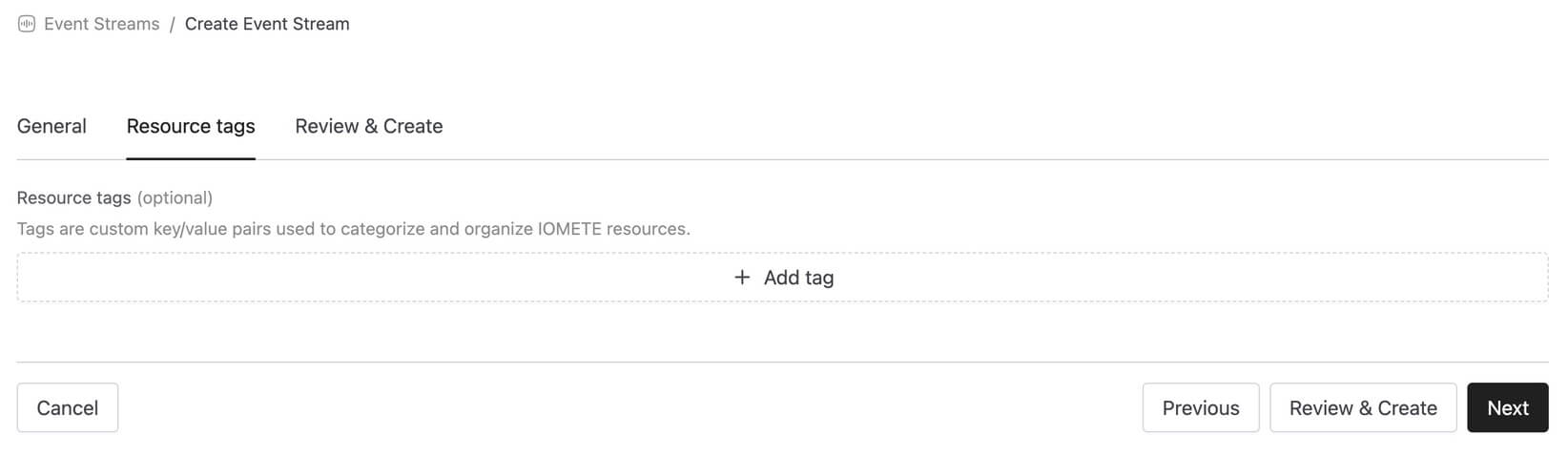
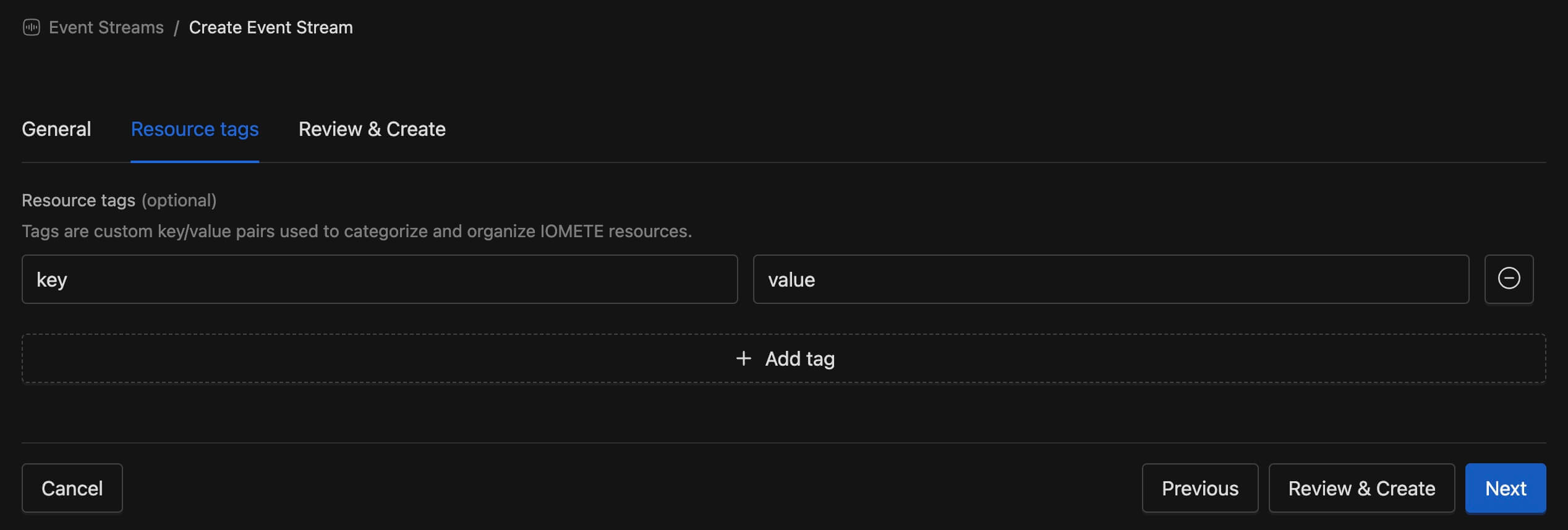
Add custom key/value tags to categorize and organize your Event Stream resources. Tags help with filtering and resource management across your organization.
Review & Create
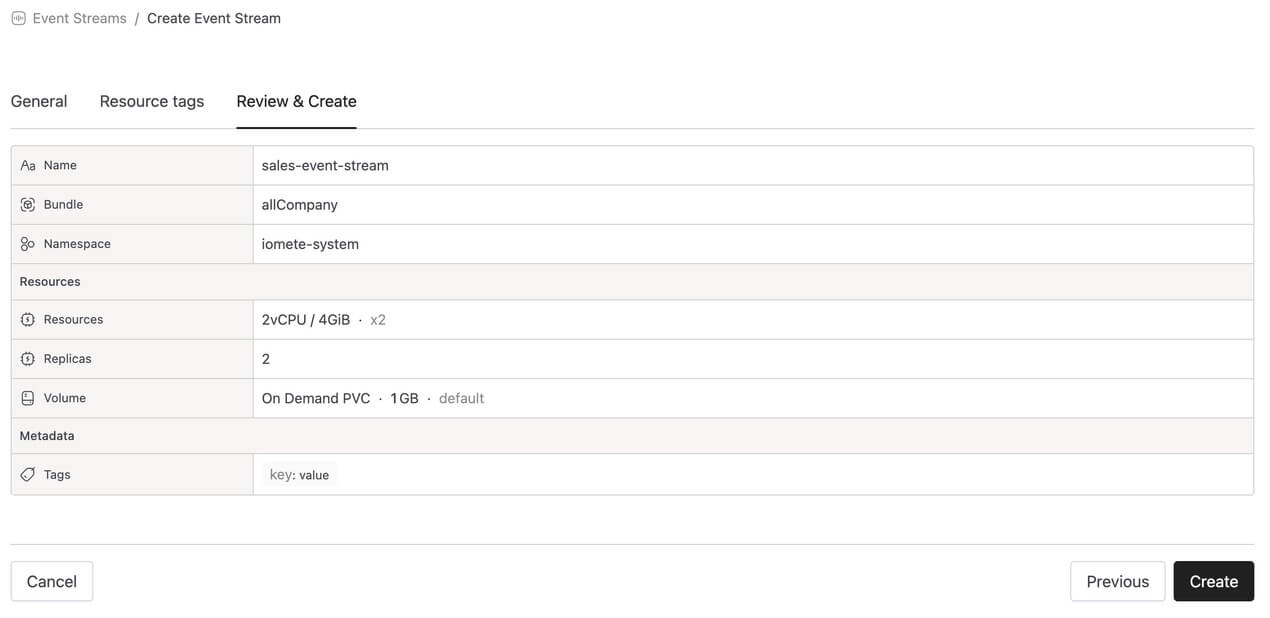
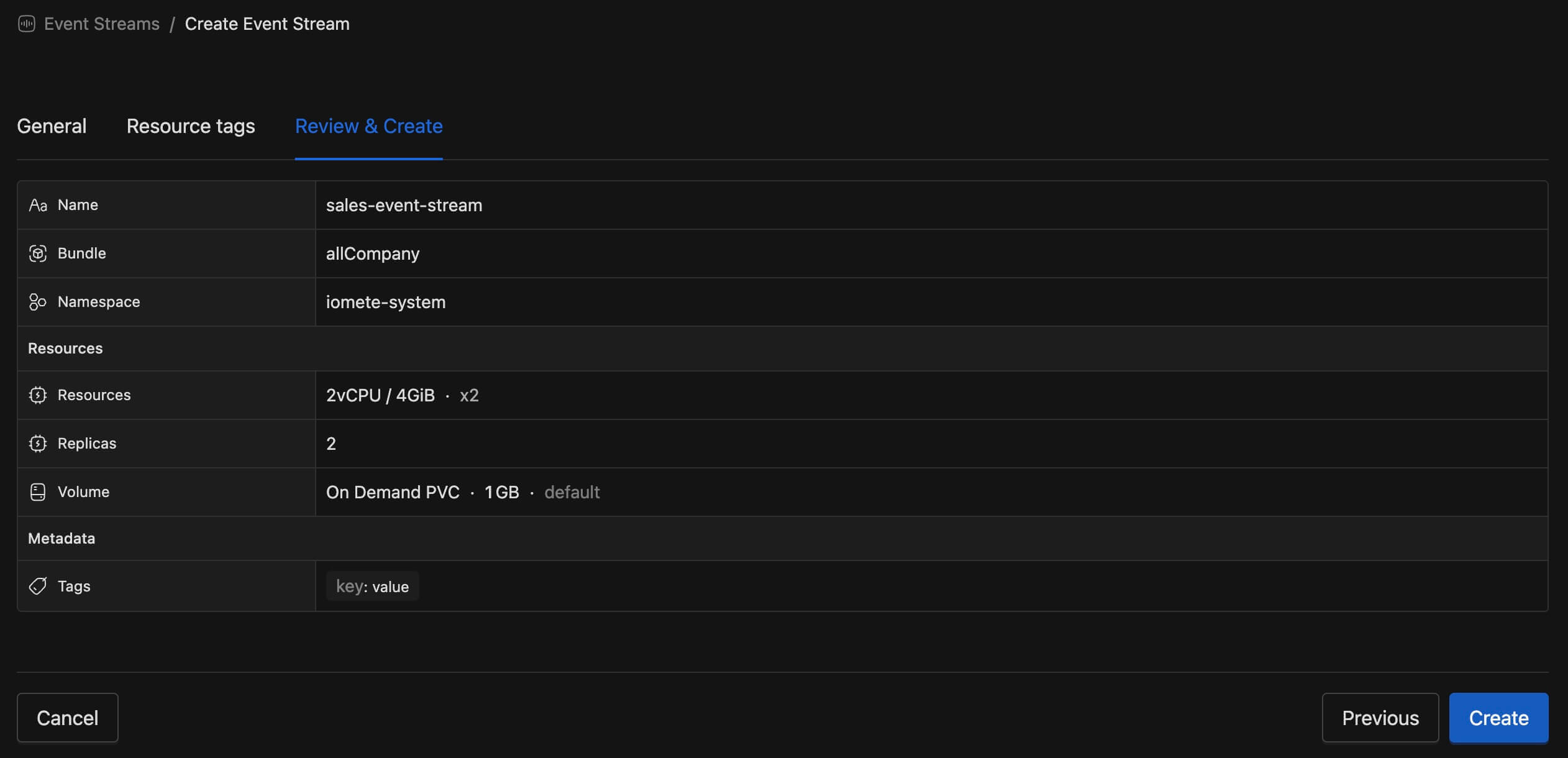
Before creating, review all your settings in a summary view. Verify the configuration is correct, then click Create to deploy your Event Stream.
Deployment Status
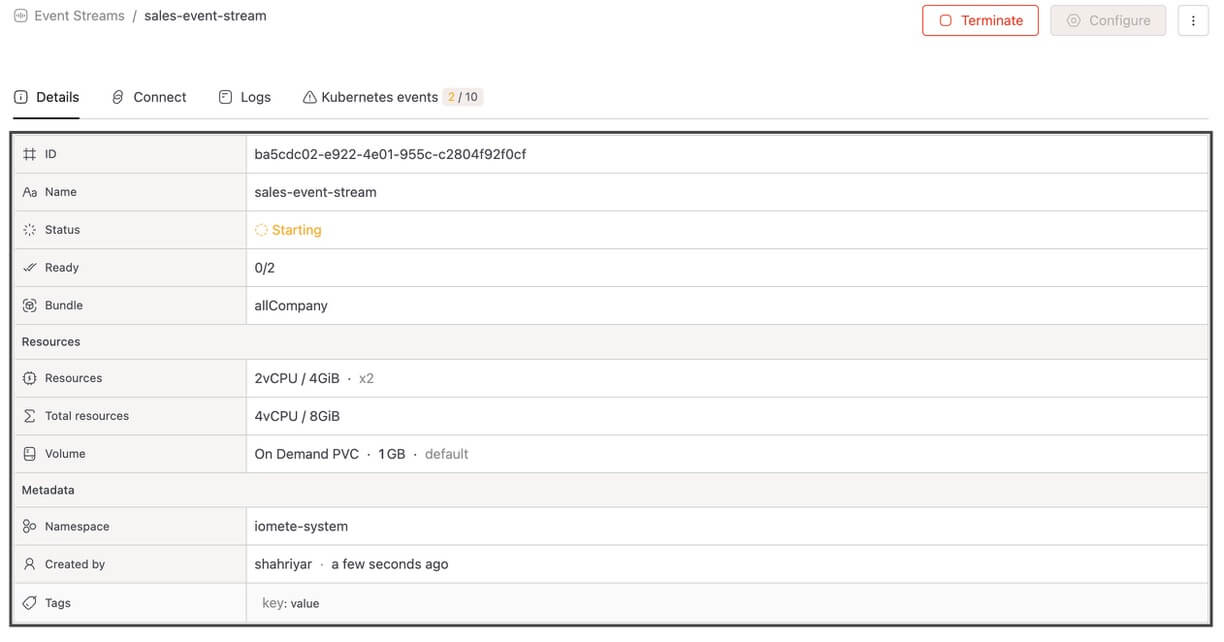
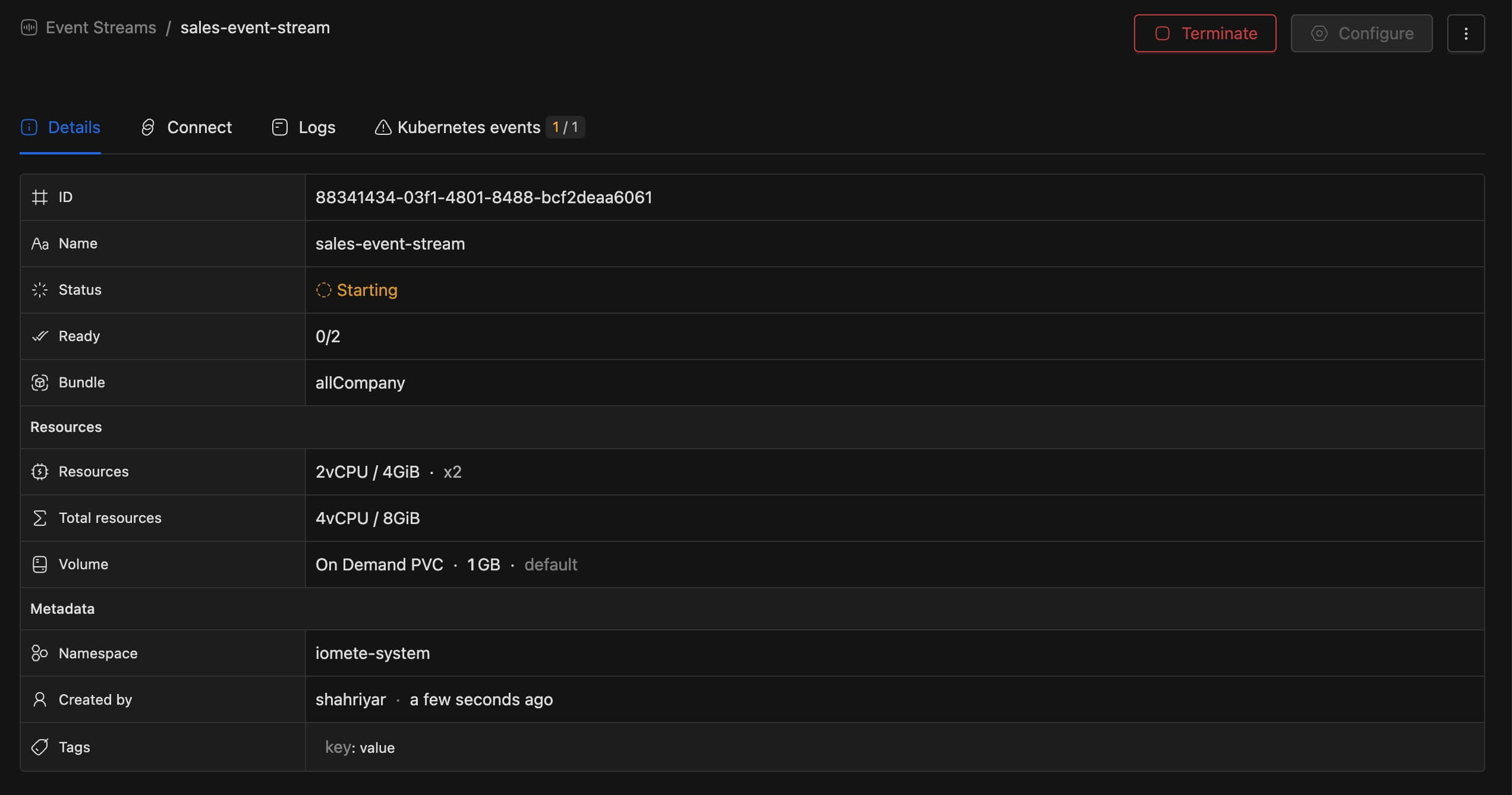
After clicking Create, the Event Stream begins deploying. The status shows Starting with replicas ready count while pods are being provisioned.
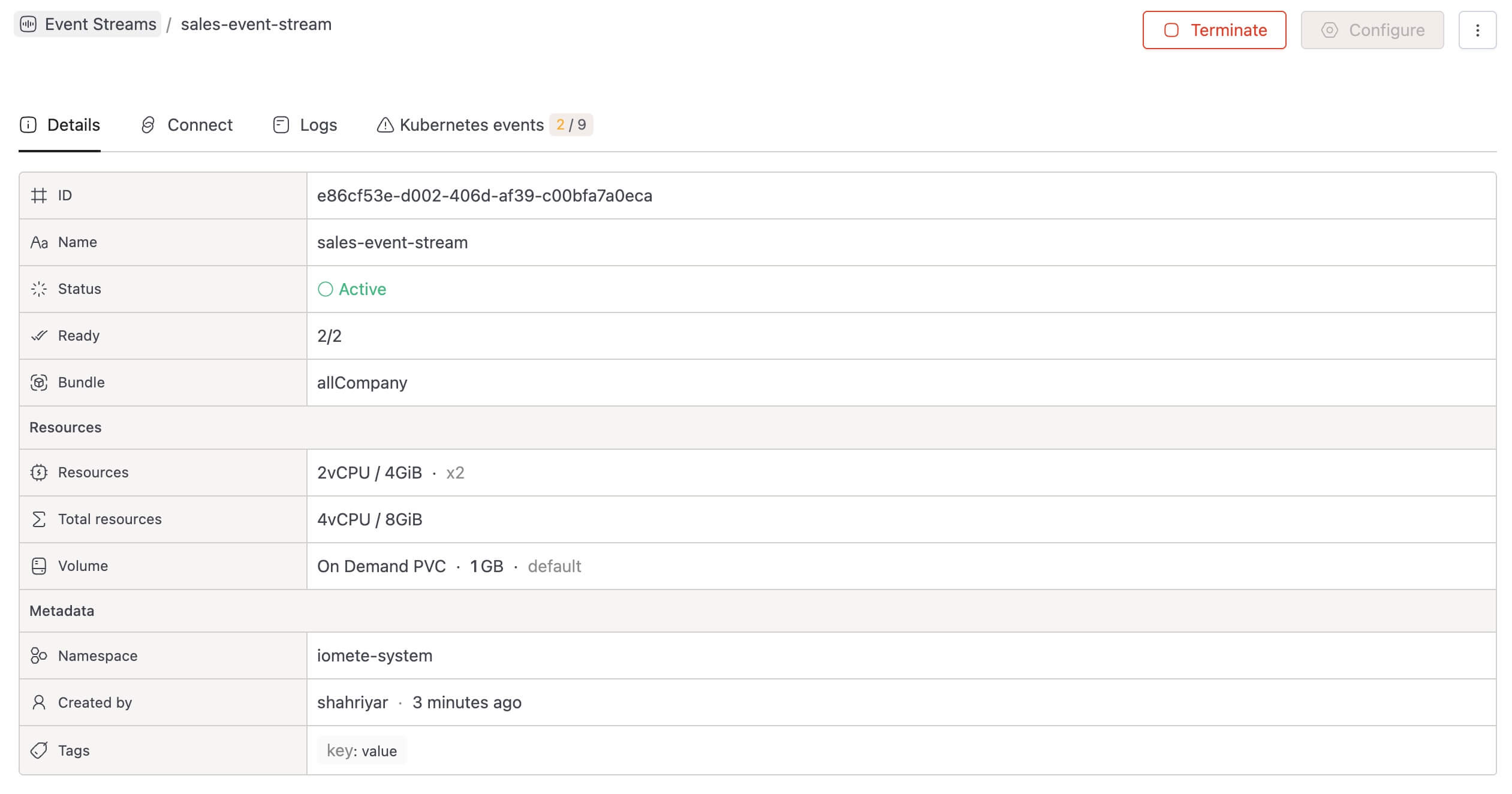
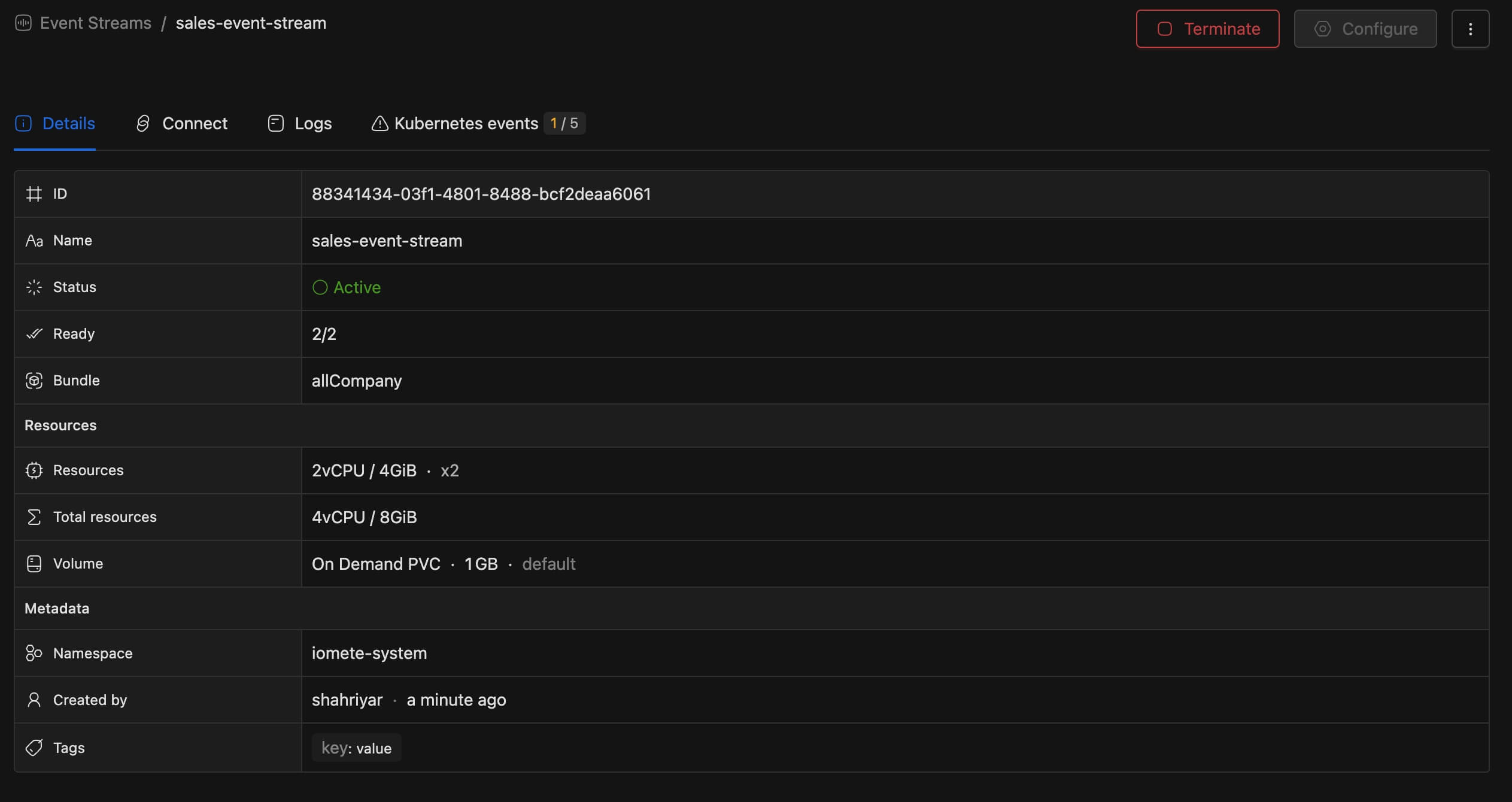
Once at least 1 replica is running, the status changes to Active with showing replicas ready count. Your Event Stream is now ready to receive events.
Managing Event Streams
View Status and Logs
The Event Stream details page provides four tabs for monitoring:
- Details - Overview of configuration, status, and resource allocation
- Connect - Endpoint URL and code snippets for integration
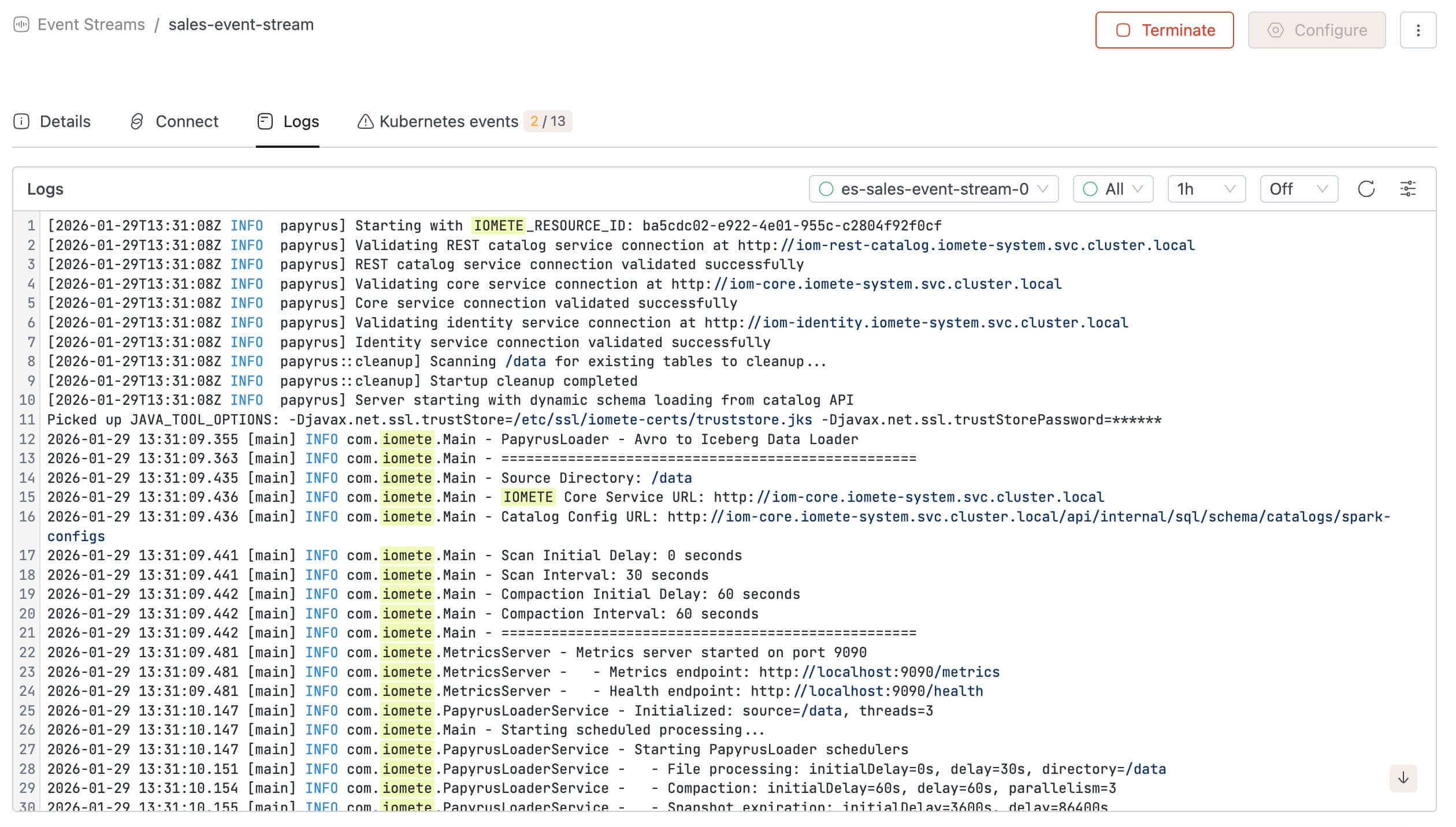
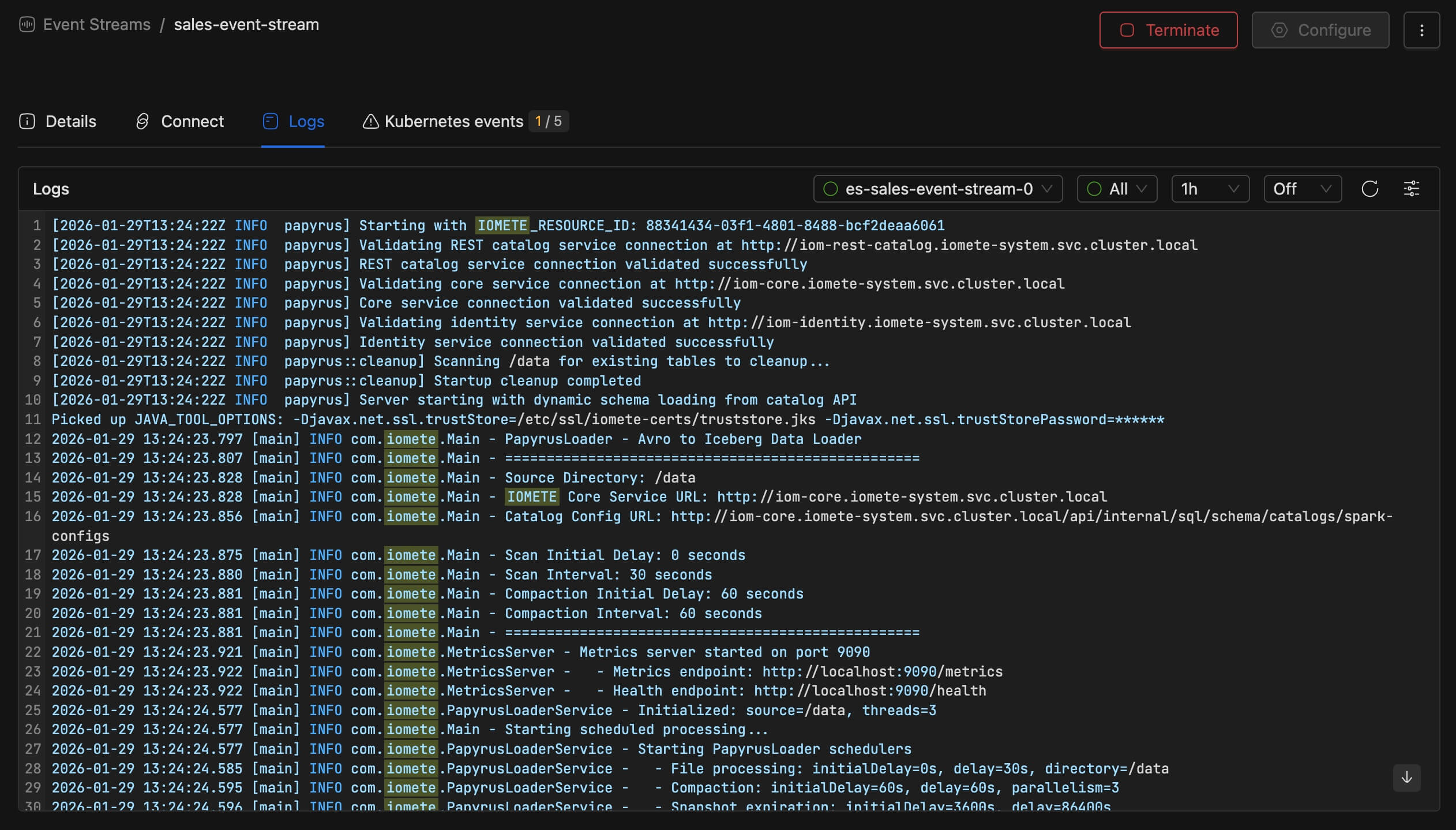
- Logs - Real-time container logs for debugging and monitoring
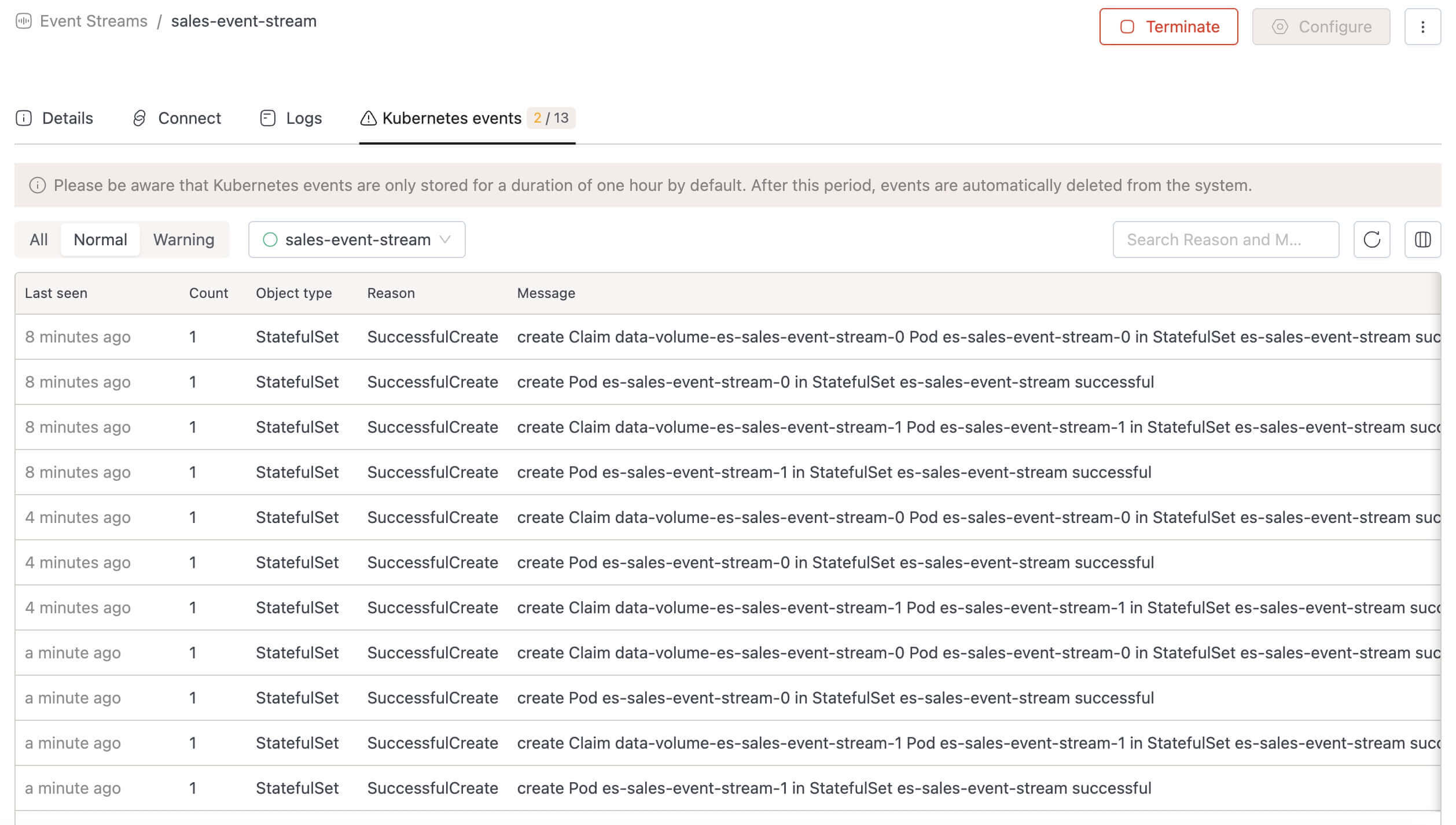
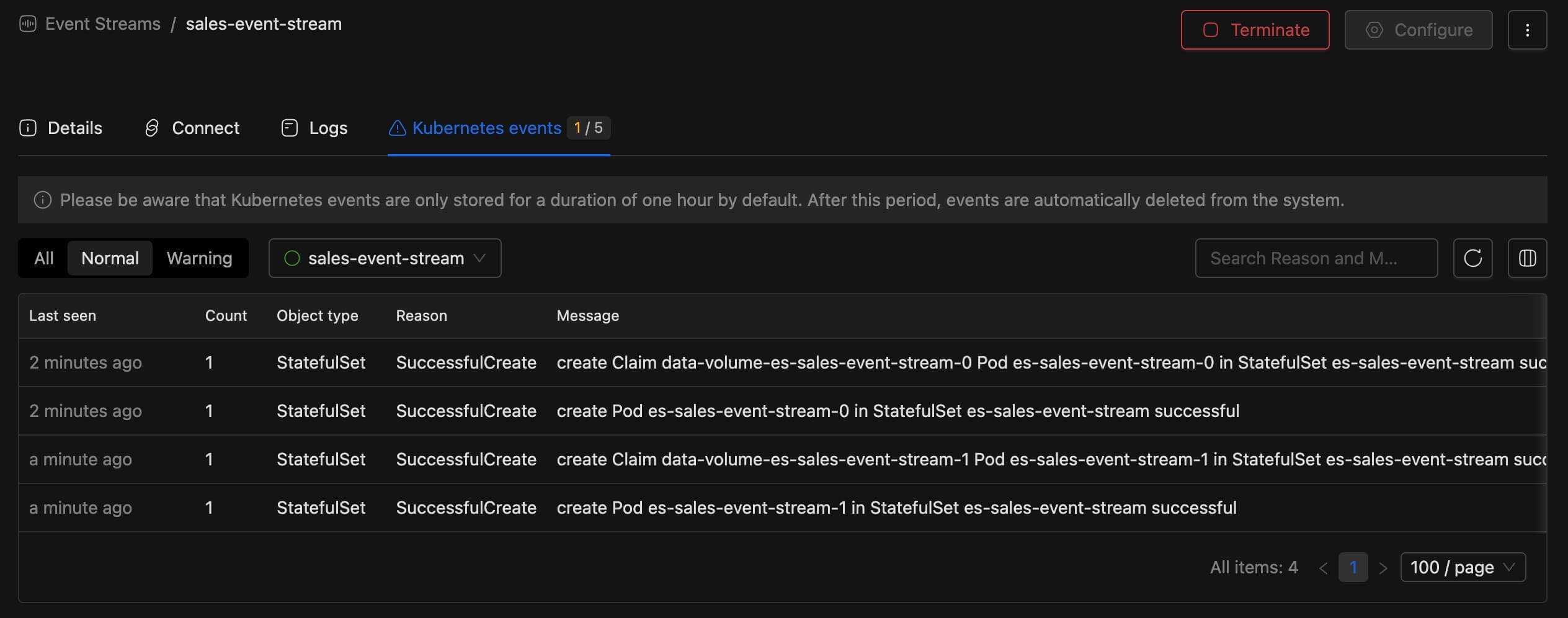
- Kubernetes events - Deployment events and pod lifecycle information
The Logs tab shows real-time container output, useful for debugging ingestion issues or monitoring service health.
The Kubernetes events tab displays pod lifecycle events including volume claims and pod creation.
Configure
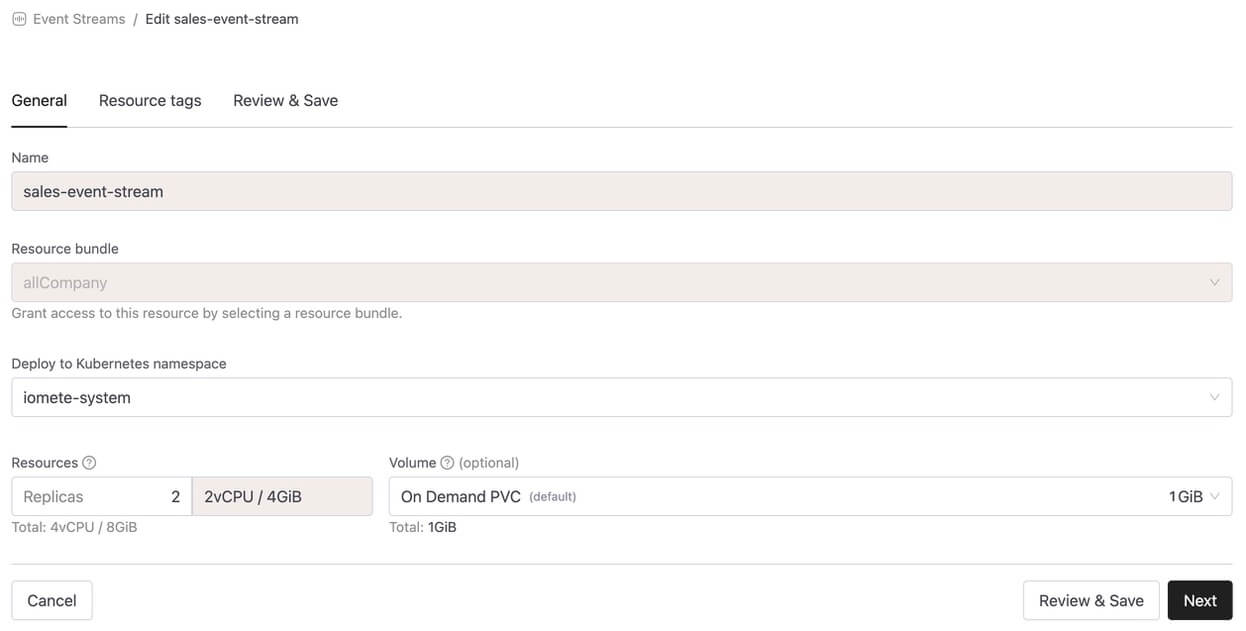
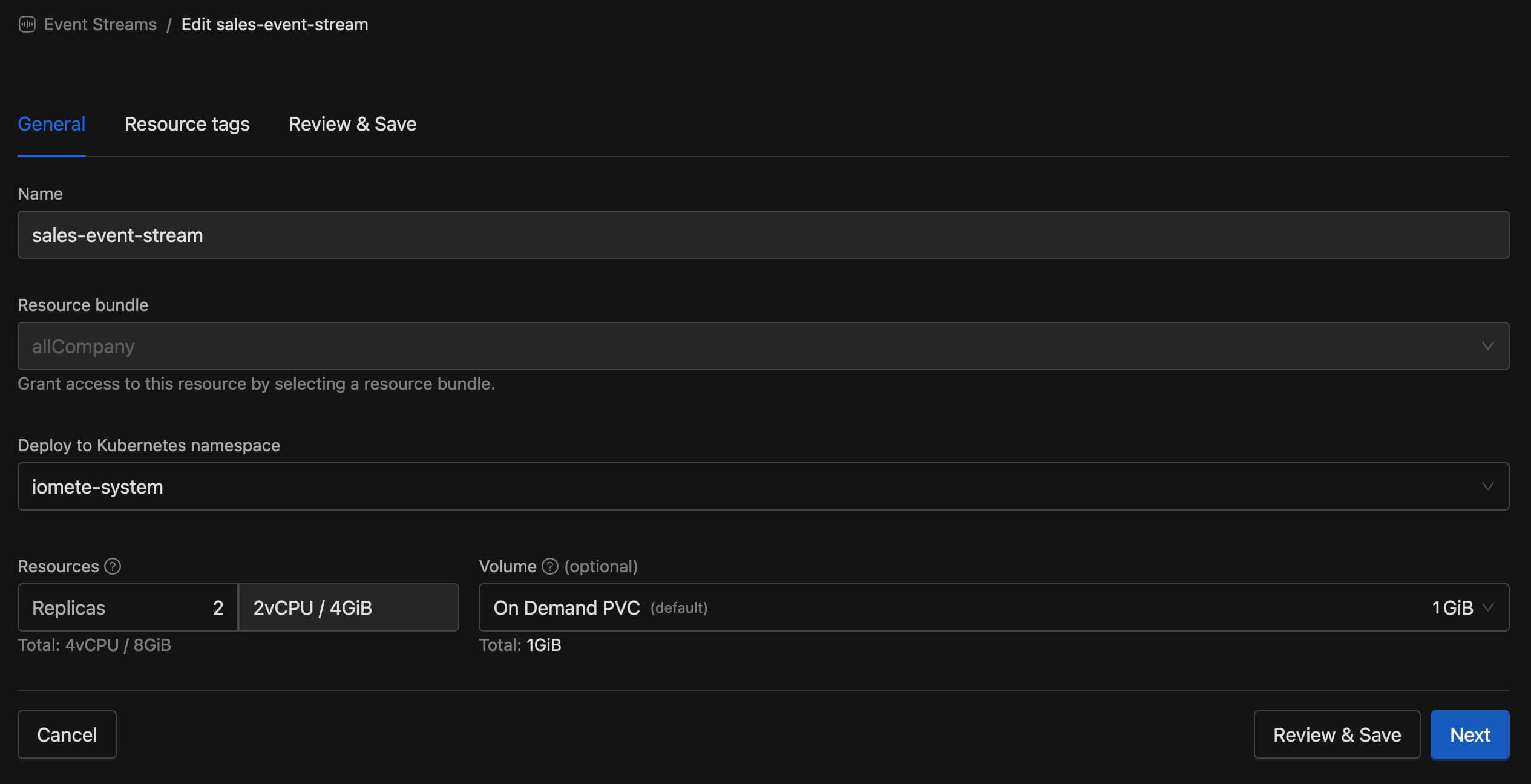
Click the Configure button to modify your Event Stream settings. The edit form allows you to change the resource bundle, namespace, resources, and volume configuration. After making changes, click Review & Save to apply them.
Scale
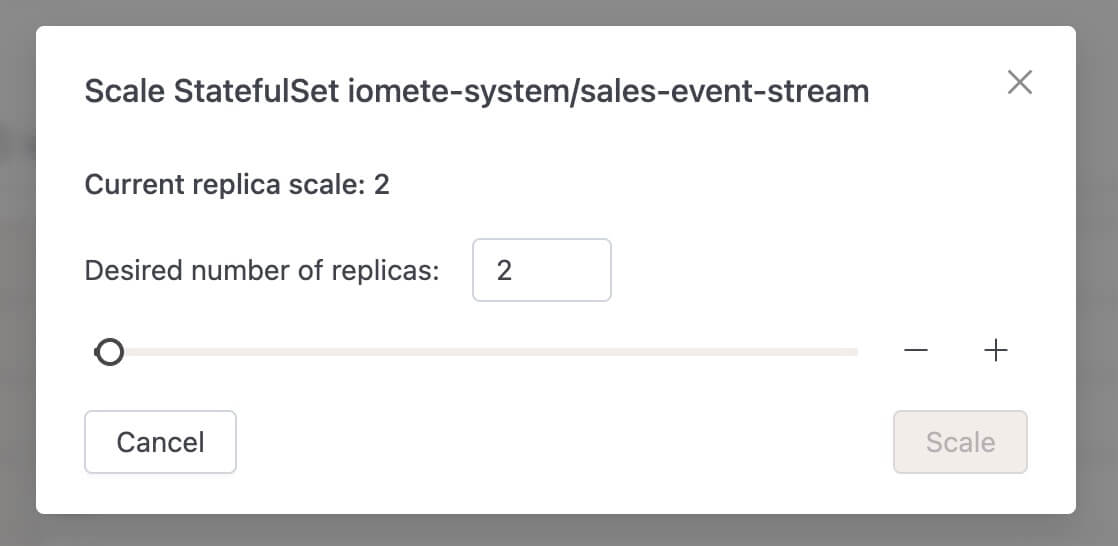
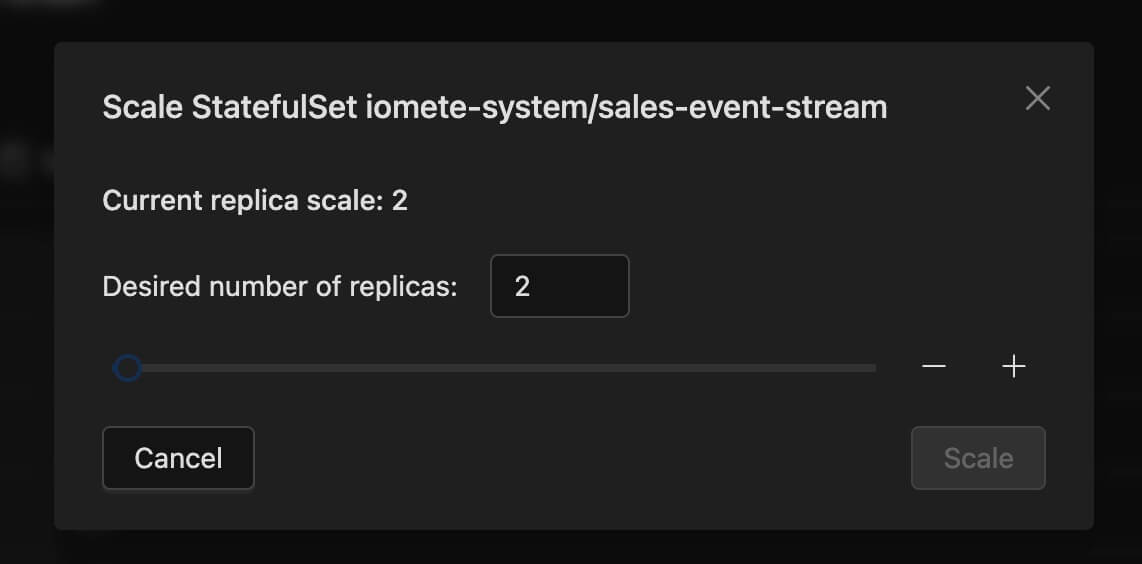
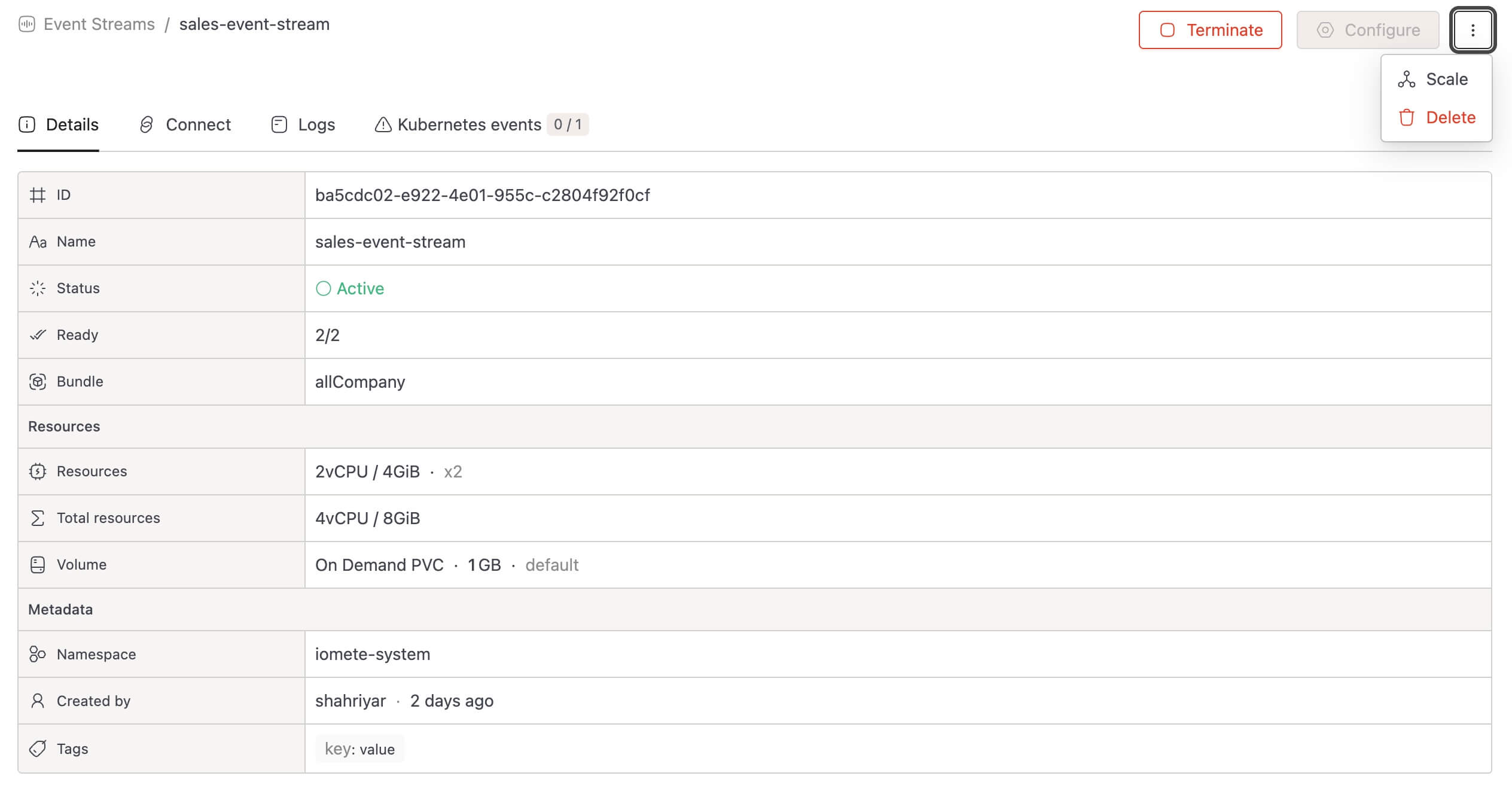
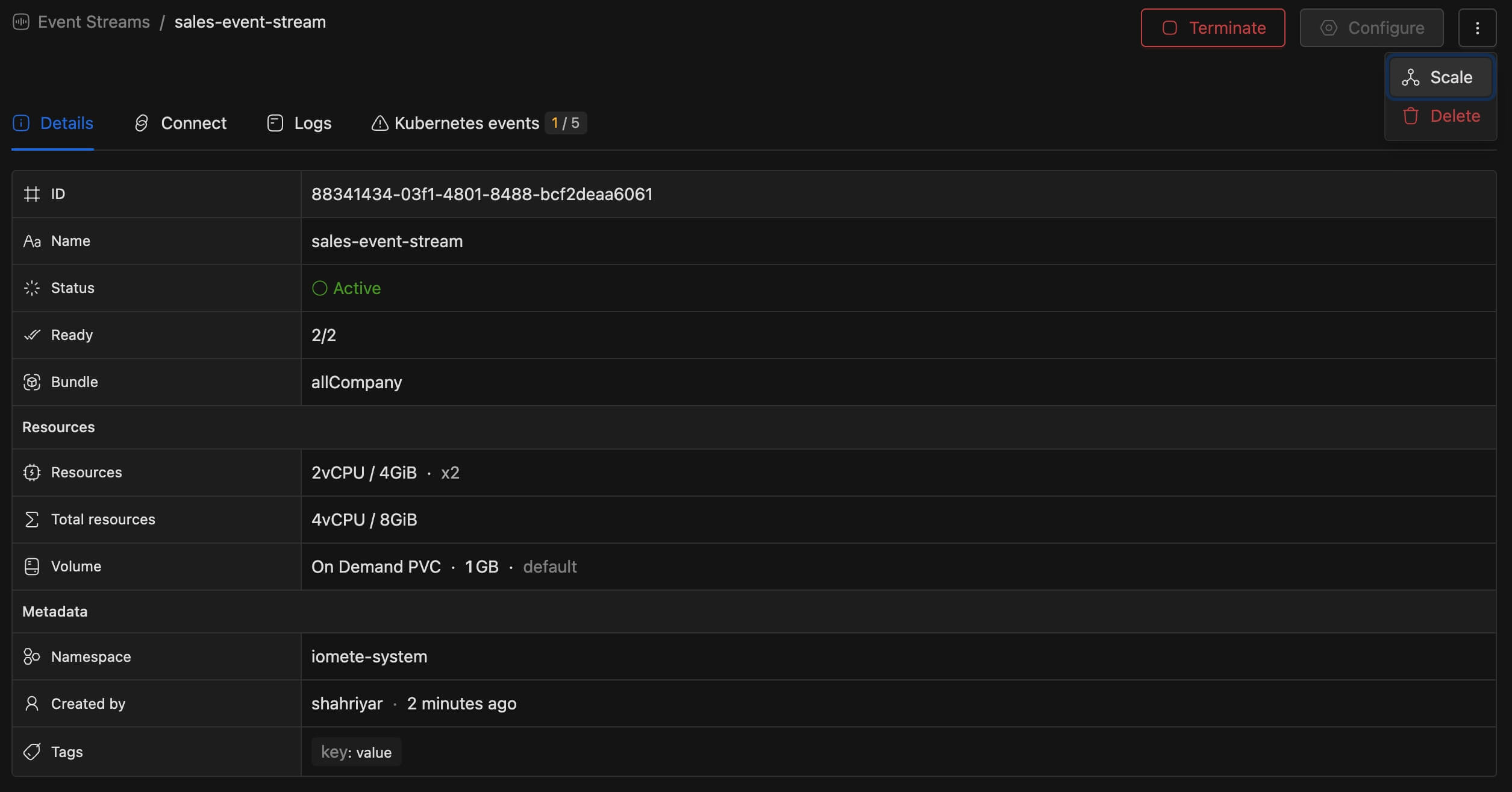
To adjust the number of replicas, select Scale from the three-dot menu. A modal dialog appears where you can set the desired replica count using the slider or input field, then click Scale to apply.
Terminate and Start
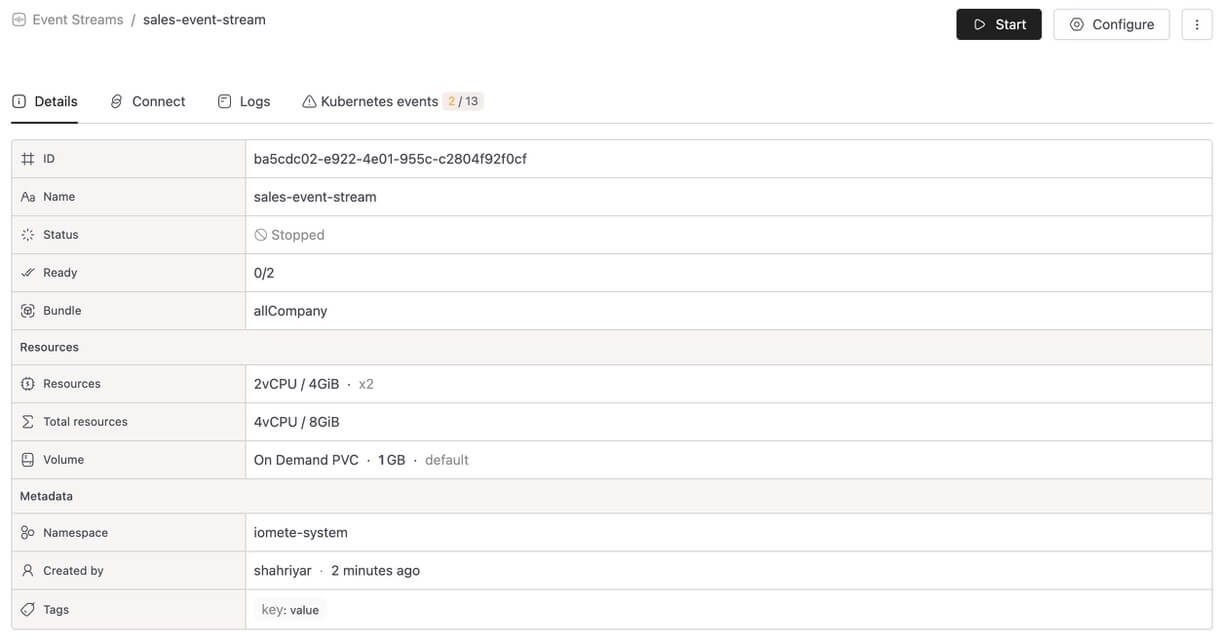
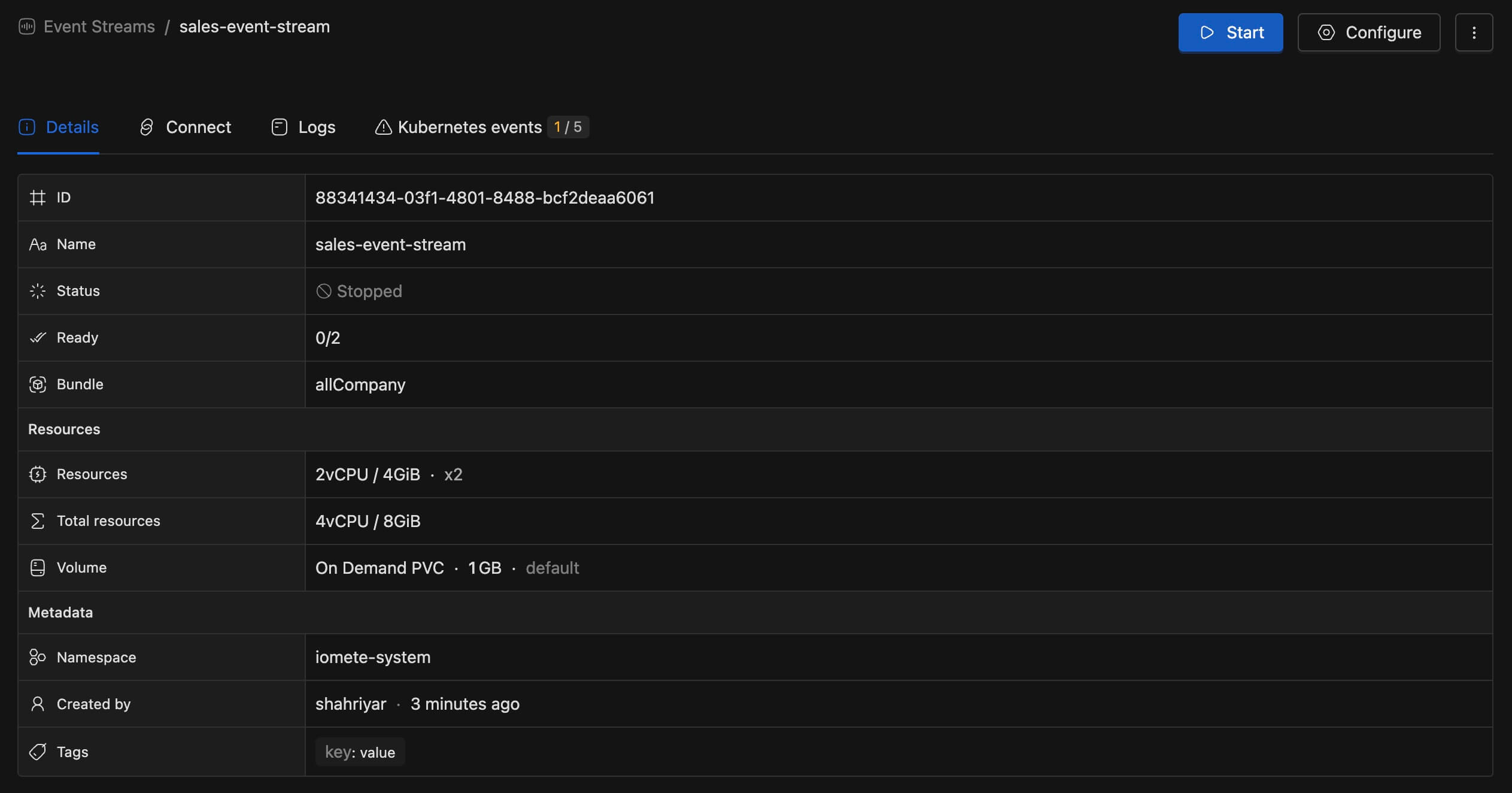
Click Terminate to stop the Event Stream. The status changes to Stopped and the service stops accepting events. The Start button appears to restart the service when needed.
Delete
To permanently remove an Event Stream, select Delete from the three-dot menu. This action cannot be undone.
Creating an Iceberg Table
Create a table to store your events. The table schema should match the JSON fields you plan to send.
CREATE TABLE analytics.events.sales (
    event_id STRING,
    customer_id STRING,
    product_id STRING,
    quantity INT,
    price DOUBLE
);
Additional metadata columns (__id__, __ts__, __write_id__) will be added automatically by the system.
| Field | Description |
|---|---|
__id__ | Unique event identifier (auto-generated UUID) |
__ts__ | Event ingestion timestamp (auto-generated) |
__write_id__ | Write batch identifier for data organization |
Sending Events
Once your Event Stream is active, you can send events using any HTTP client.
Endpoint URL
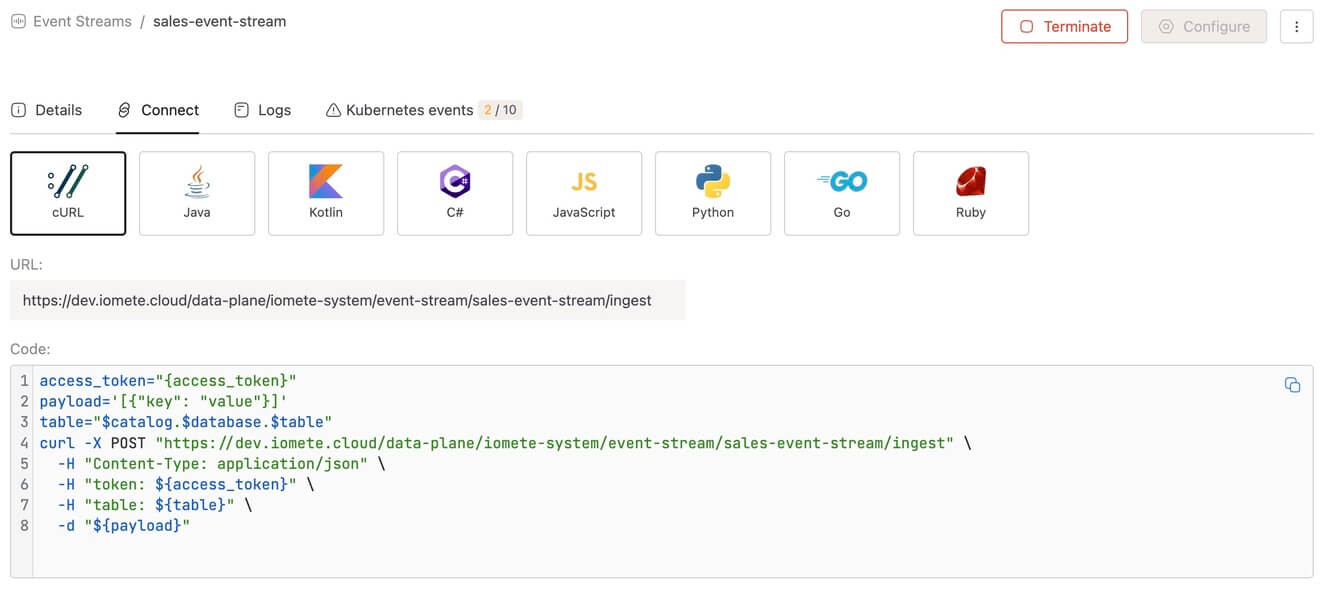
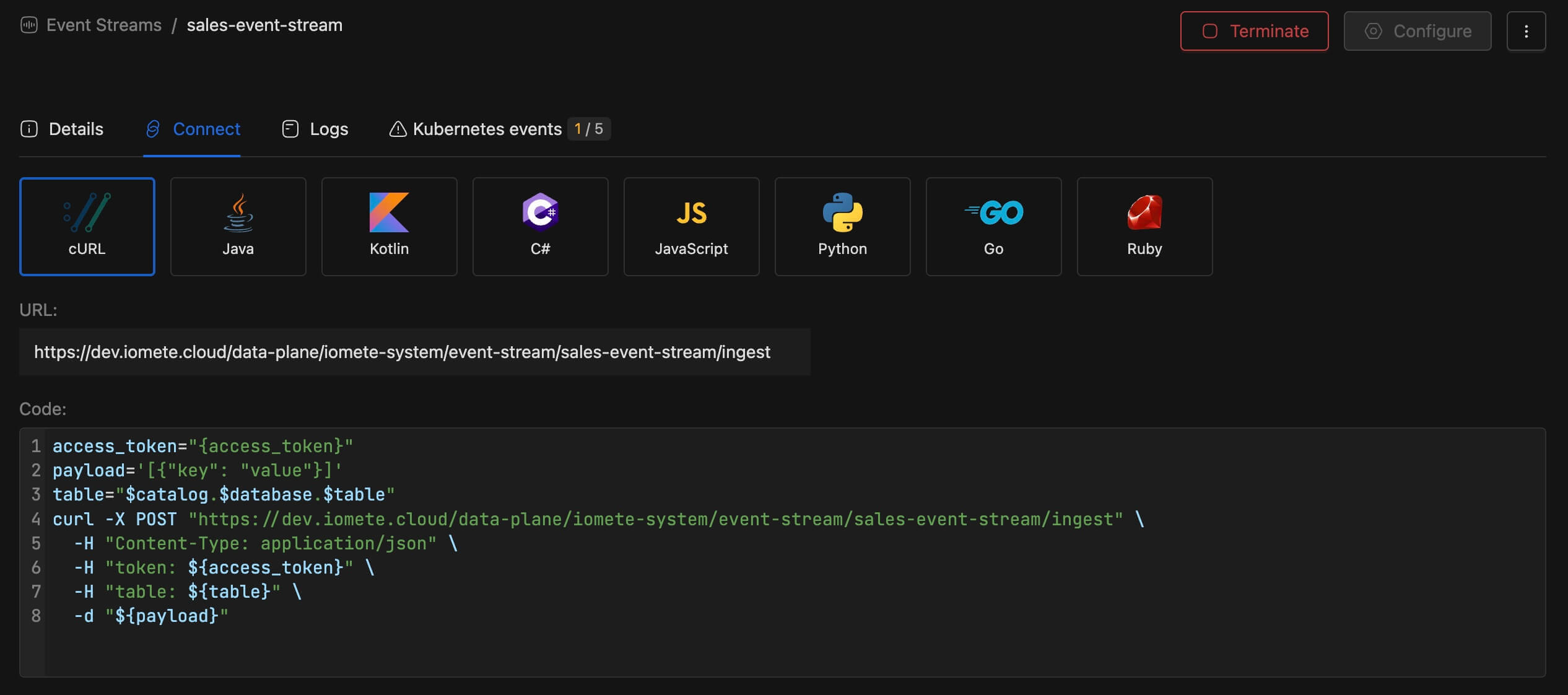
Navigate to the Connect tab to find your endpoint URL and ready-to-use code snippets in multiple programming languages (cURL, Java, Kotlin, C#, JavaScript, Python, Go, Ruby).
Request Format
| Component | Value |
|---|---|
| Method | POST |
| Content-Type | application/json |
| Headers | Authorization - Your Personal Access Token |
table - Target table in format catalog.database.table | |
| Body | JSON array of events |
Request Limits
- Maximum request body size: 5 MB
Single Event
[{"event_id": "e001", "customer_id": "c123", "product_id": "p456", "quantity": 2, "price": 29.99}]
Batch Events (Recommended)
For better throughput, send multiple events in a single request:
[
  {"event_id": "e001", "customer_id": "c123", "product_id": "p456", "quantity": 2, "price": 29.99},
  {"event_id": "e002", "customer_id": "c124", "product_id": "p789", "quantity": 1, "price": 49.99},
  {"event_id": "e003", "customer_id": "c125", "product_id": "p456", "quantity": 5, "price": 29.99}
]
Code Examples
cURL
curl -X POST "https://<your-domain>/data-plane/<namespace>/event-stream/<stream-name>/ingest" \
  -H "Content-Type: application/json" \
  -H "Authorization: <your-access-token>" \
  -H "table: analytics.events.sales" \
  -d '[{"event_id": "e001", "customer_id": "c123", "product_id": "p456", "quantity": 2, "price": 29.99}]'
Python
import requests

endpoint = "https://<your-domain>/data-plane/<namespace>/event-stream/<stream-name>/ingest"
headers = {
    "Content-Type": "application/json",
    "Authorization": "<your-access-token>",
    "table": "analytics.events.sales"
}

events = [
    {"event_id": "e001", "customer_id": "c123", "product_id": "p456", "quantity": 2, "price": 29.99},
    {"event_id": "e002", "customer_id": "c124", "product_id": "p789", "quantity": 1, "price": 49.99}
]

response = requests.post(endpoint, json=events, headers=headers)
print(response.status_code)
Best Practices
Use Batch Requests
Instead of sending events one at a time, collect events on the client side and send them in batches. This significantly improves throughput.
# Recommended: Batch events
batch = []
batch_size = 100

for event in events:
    batch.append(event)
    if len(batch) >= batch_size:
        send_to_event_stream(batch)
        batch = []

# Send remaining events
if batch:
    send_to_event_stream(batch)
Match JSON Fields to Table Schema
Ensure your JSON field names match your Iceberg table column names. Mismatched fields will be ignored.
| Iceberg Column | JSON Field |
|---|---|
event_id | "event_id": "value" |
customer_id | "customer_id": "value" |
Store Flexible Data with String Columns
For complex or dynamic event fields (such as nested objects or fields with varying structures), define the Iceberg column as a string type. The Event Stream will automatically cast these values to strings, allowing you to store flexible data without strict schema requirements.
Use Persistent Volume for Production
When creating an Event Stream for production workloads, always attach a persistent volume. Without a volume, in-flight events may be lost if the service restarts.
Handle Errors Gracefully
Implement retry logic in your client for transient failures:
import time

def send_with_retry(events, max_retries=3):
    for attempt in range(max_retries):
        response = requests.post(endpoint, json=events, headers=headers)
        if response.status_code == 200:
            return response
        time.sleep(2 ** attempt)  # Exponential backoff
    raise Exception("Failed after retries")
Troubleshooting
HTTP Status Codes
| Status | Error Code | Cause | Solution |
|---|---|---|---|
| 200 | OK | Success | Event(s) ingested successfully |
| 400 | BAD_REQUEST | Missing table header | Add table header with format catalog.database.table |
| 400 | BAD_REQUEST | Invalid table name format | Use format catalog.database.table (three parts separated by dots) |
| 400 | BAD_REQUEST | Invalid JSON | Verify JSON syntax is valid |
| 400 | BAD_REQUEST | Expected JSON array | Wrap events in array: [{...}] even for single events |
| 400 | BAD_REQUEST | Schema mismatch | Ensure JSON field types match table column types |
| 401 | UNAUTHORIZED | Missing authorization header | Add Authorization header with your Personal Access Token |
| 401 | UNAUTHORIZED | Invalid or expired token | Generate a new Personal Access Token |
| 403 | FORBIDDEN | No access to Event Stream | Request access to the Event Stream service |
| 403 | FORBIDDEN | No INSERT permission | Request INSERT permission on the target table |
| 404 | NOT_FOUND | Table not found | Verify the table exists in the specified catalog and database |
| 429 | TOO_MANY_REQUESTS | Server overloaded | Reduce request rate or increase replicas |
| 500 | INTERNAL_SERVER_ERROR | Server error | Check Event Stream logs for details |
| 503 | SERVICE_UNAVAILABLE | Service draining | Wait for service to restart or check deployment status |
Common Issues
| Issue | Solution |
|---|---|
| Events not appearing in table | Check logs in the Event Stream details page; verify table name is correct |
| Service not starting | Review Kubernetes events for resource issues (CPU/memory limits) |
| Slow ingestion | Increase batch size; add more replicas; attach persistent volume |
| Connection refused | Verify Event Stream status is Active with ready replicas (e.g., 2/2) |
Advanced Configuration
Event Stream uses sensible defaults that work well for most use cases. However, for specific scenarios, you can override these settings using environment variables before starting or creating an Event Stream.
These are advanced configuration options. The default values are optimized for typical workloads and should not need modification in most cases.
Environment Variables
| Variable | Default | Min | Max | Description |
|---|---|---|---|---|
RUST_LOG | info | - | - | Log level for the ingestion service. Valid values: trace, debug, info, warn, error. Use debug or trace for troubleshooting. |
WRITE_PARTITION_SIZE_IN_BYTES | 100000000 (100 MB) | 50 MB | 200 MB | Maximum write partition size in bytes before creating a new partition. Increase for higher throughput workloads. |
CATALOG_REFRESH_INTERVAL_MINUTES | 5 | 2 | 15 | How often (in minutes) to refresh catalog configurations from the API. Lower values detect catalog changes faster but increase API calls. |
INCREMENTAL_COMPACTION_THRESHOLD | 20 | 10 | 50 | Number of files processed before triggering incremental compaction. Lower values compact more frequently, improving query performance but using more resources. |
DISK_BACKPRESSURE_PERCENT | 50 | 1 | 99 | Disk usage of the event stream volume at which ingestion pauses. The loader reports not ready, and the ingestion service applies backpressure until the loader catches up. |
DISK_RECOVER_PERCENT | 40 | 1 | 99 | Disk usage at which ingestion resumes. Keep it below DISK_BACKPRESSURE_PERCENT so a value sitting on the threshold does not toggle backpressure repeatedly. |
SCAN_TIMEOUT_SECONDS | 1800 (30 min) | 1 | - | How long without a completed folder scan before the loader reports unhealthy and is restarted. A scan takes as long as the backlog it works through, so keep this well above the slowest cycle. |
MAX_COMPACTION_ATTEMPTS | 3 | 1 | - | How many times a write batch is allowed to fail its final compaction before the loader gives up on it. The data is already stored; only the compaction is skipped, and the files stay queryable. |
COMPACTION_LOCK_TIMEOUT_SECONDS | 300 (5 min) | 1 | - | How long the final compaction waits for an in-progress compaction of the same write batch before leaving it for the next cycle. |
EMPTY_FOLDER_TTL_DAYS | 10 | 10 | 30 | Minimum age (in days) before empty folders are eligible for cleanup. |