Worksheets Overview
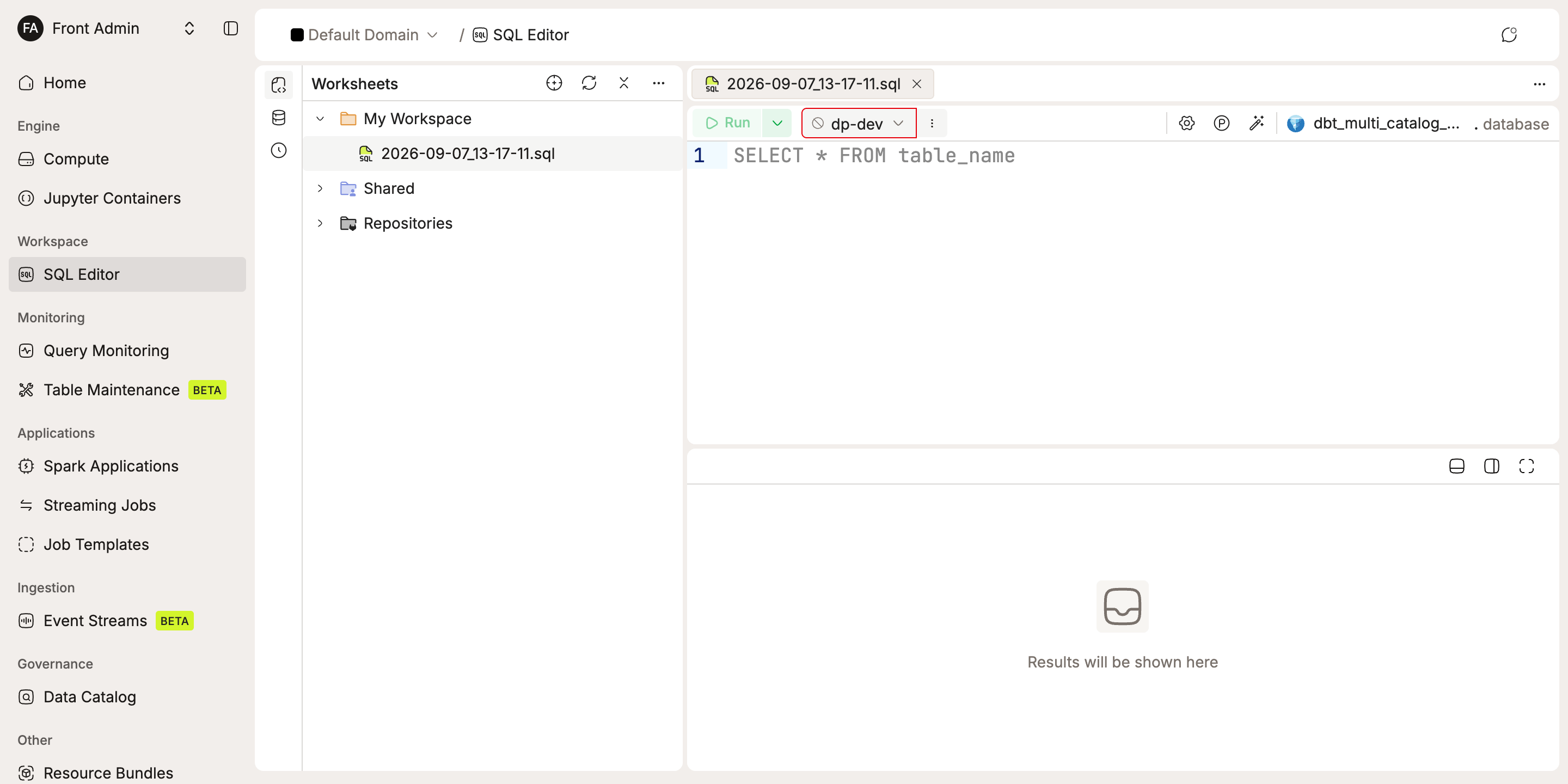
Each worksheet holds your SQL statements and their context: compute cluster, catalog, database namespace, and query variables. That context persists between sessions, so you can continue where you left off.
You organize worksheets in a three-level hierarchy (Workspaces > Folders > Worksheets), structured however fits your team. Beyond basic query editing, worksheets support:
- Real-time collaboration with teammates
- Chart visualizations and CSV export
- Parameterized query variables
- Multi-statement execution and pinned, named result tabs with SQL Editor V2
- Editor appearance settings for color schemes, fonts, and statement highlighting
- File imports (
.sql,.ipynb,.dash) - Read-only browsing of SQL files from connected Git repositories
Worksheets are organized in workspaces. See Workspaces for details on creating workspaces, managing folders, and permissions.
Getting Started
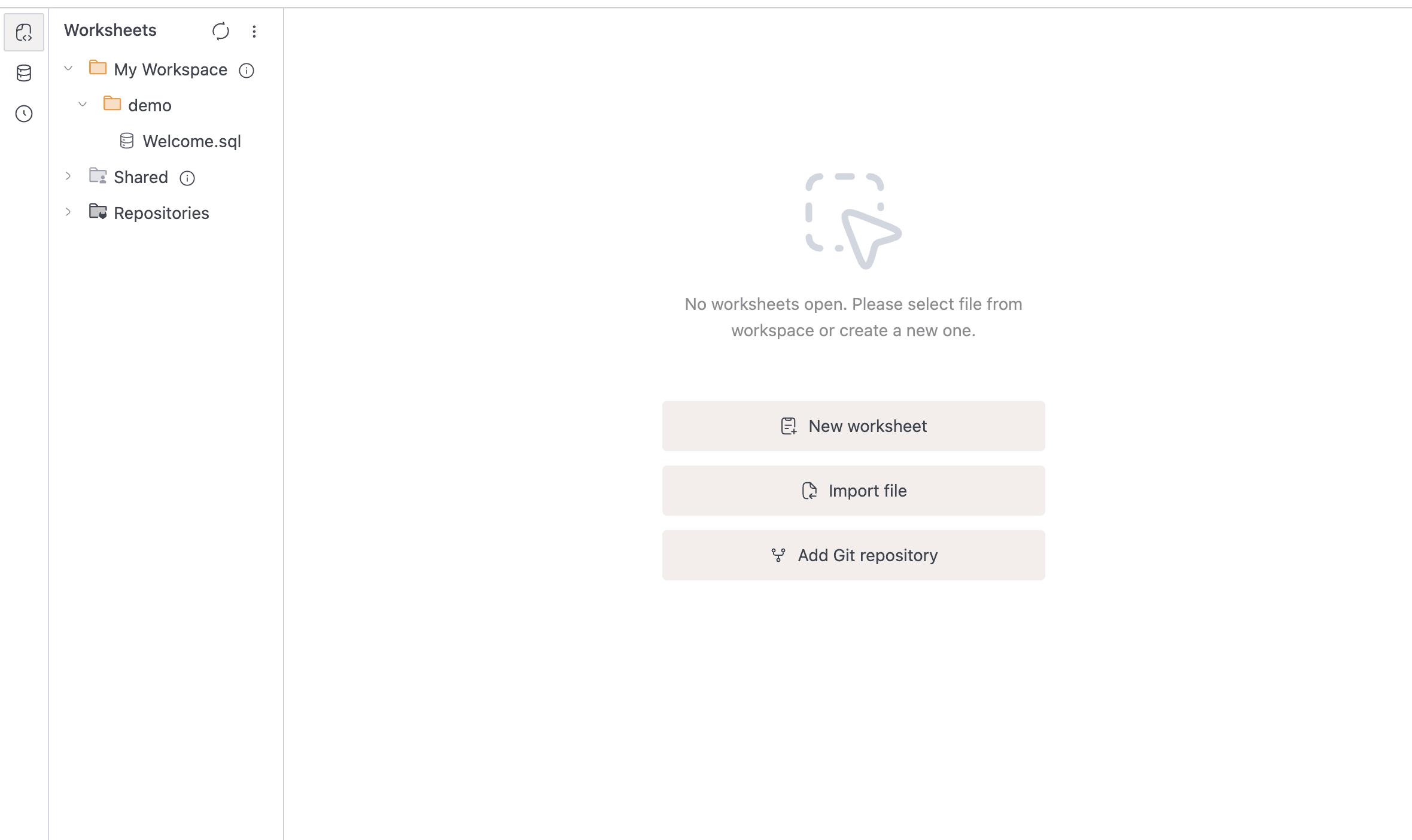
The home screen gets you from zero to a working worksheet in one click. When you first open the SQL Editor with no worksheets, you'll see three options:
- New worksheet: creates a worksheet in your personal workspace
- Import file: opens a file picker for
.sql,.dash, or.ipynbfiles - Add Git repository: takes you to Settings > Git Repository to connect a repository
Already have open tabs? The editor skips the home screen and takes you straight to your last-visited worksheet.
Working with Worksheets
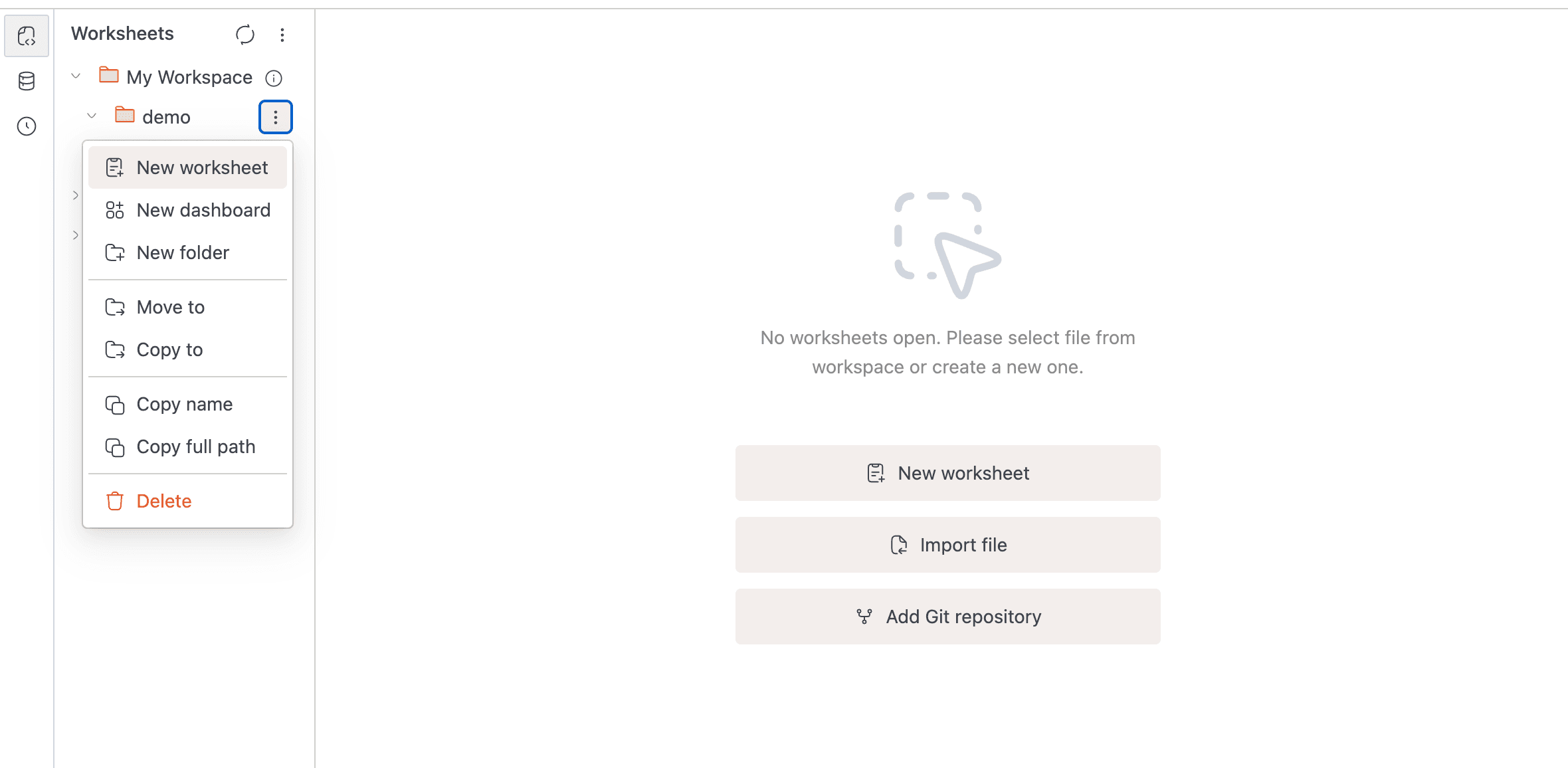
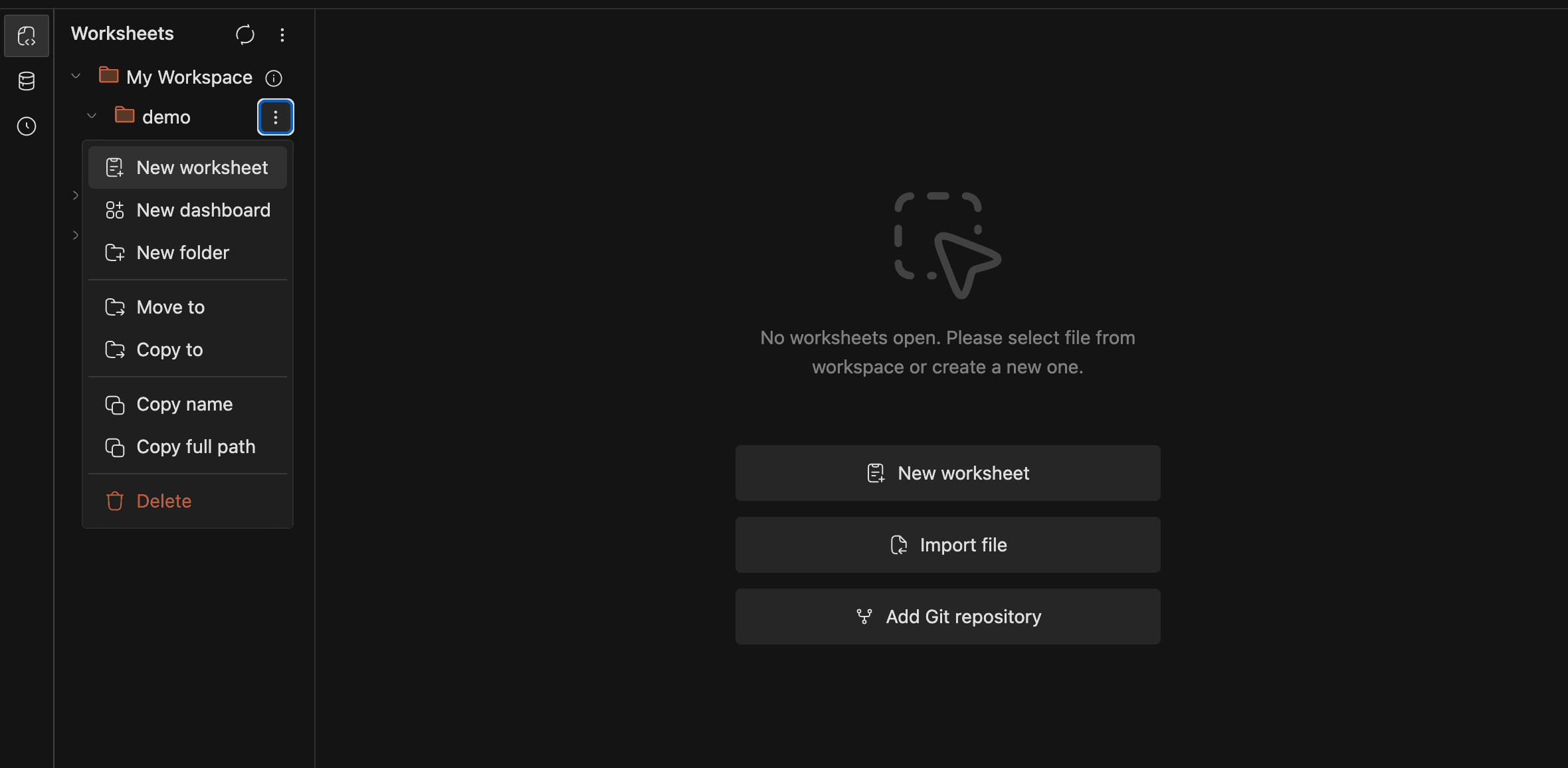
Once you have a few worksheets, you'll want to keep them organized. The sidebar's right-click context menu is the main hub for creating, moving, renaming, and cleaning up worksheets.
Creating a Worksheet
Two paths lead to a new worksheet.
From the sidebar: Right-click any workspace or folder node, select New worksheet, type a name in the inline input, and press Enter.
From the home screen: Click New worksheet, enter a Worksheet name (required, max 100 characters) in the modal, and confirm. Home-screen worksheets land in My Workspace.
Worksheet names can't contain these special characters: / \ : * ? " < > |
Opening a Worksheet
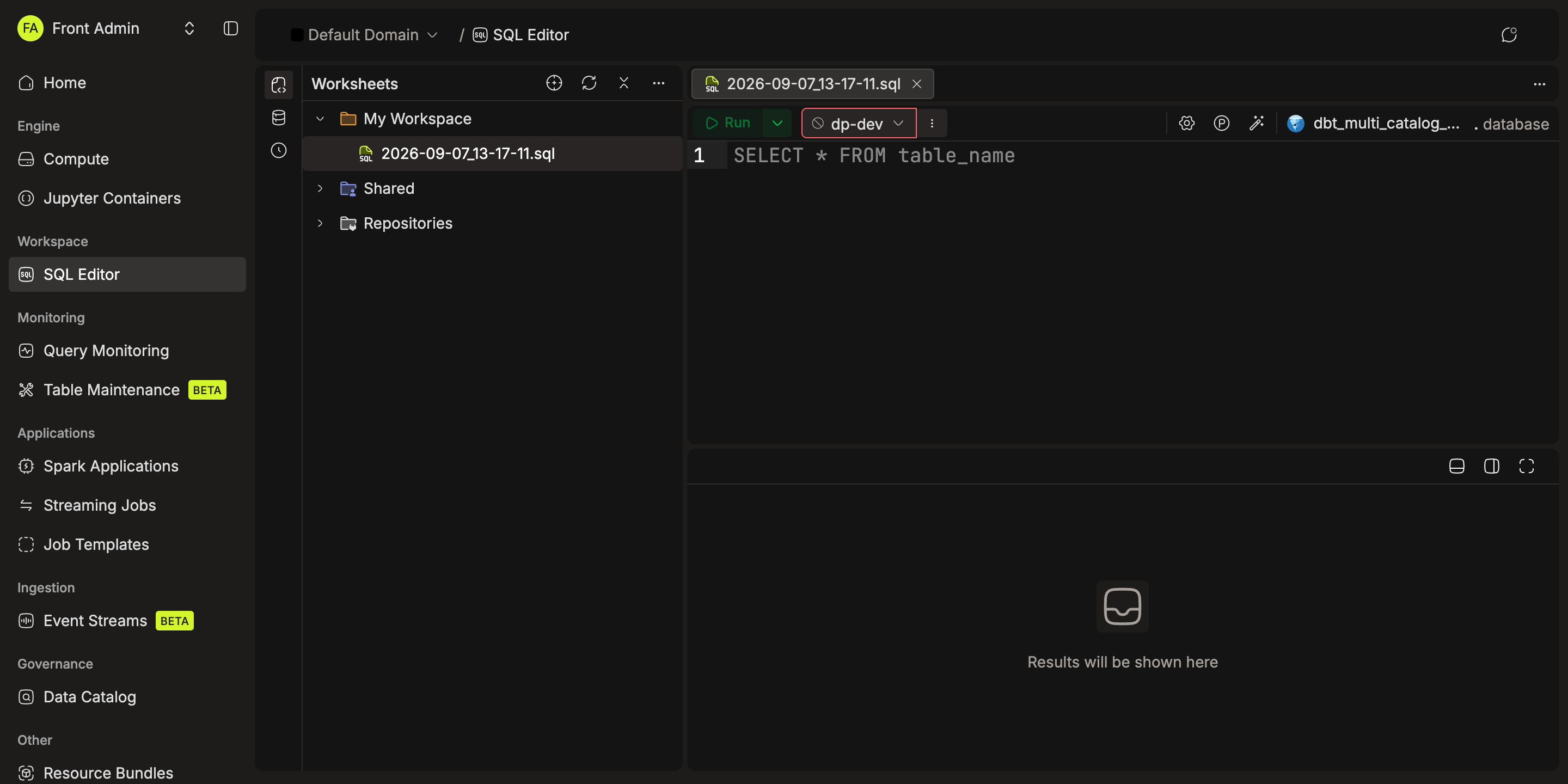
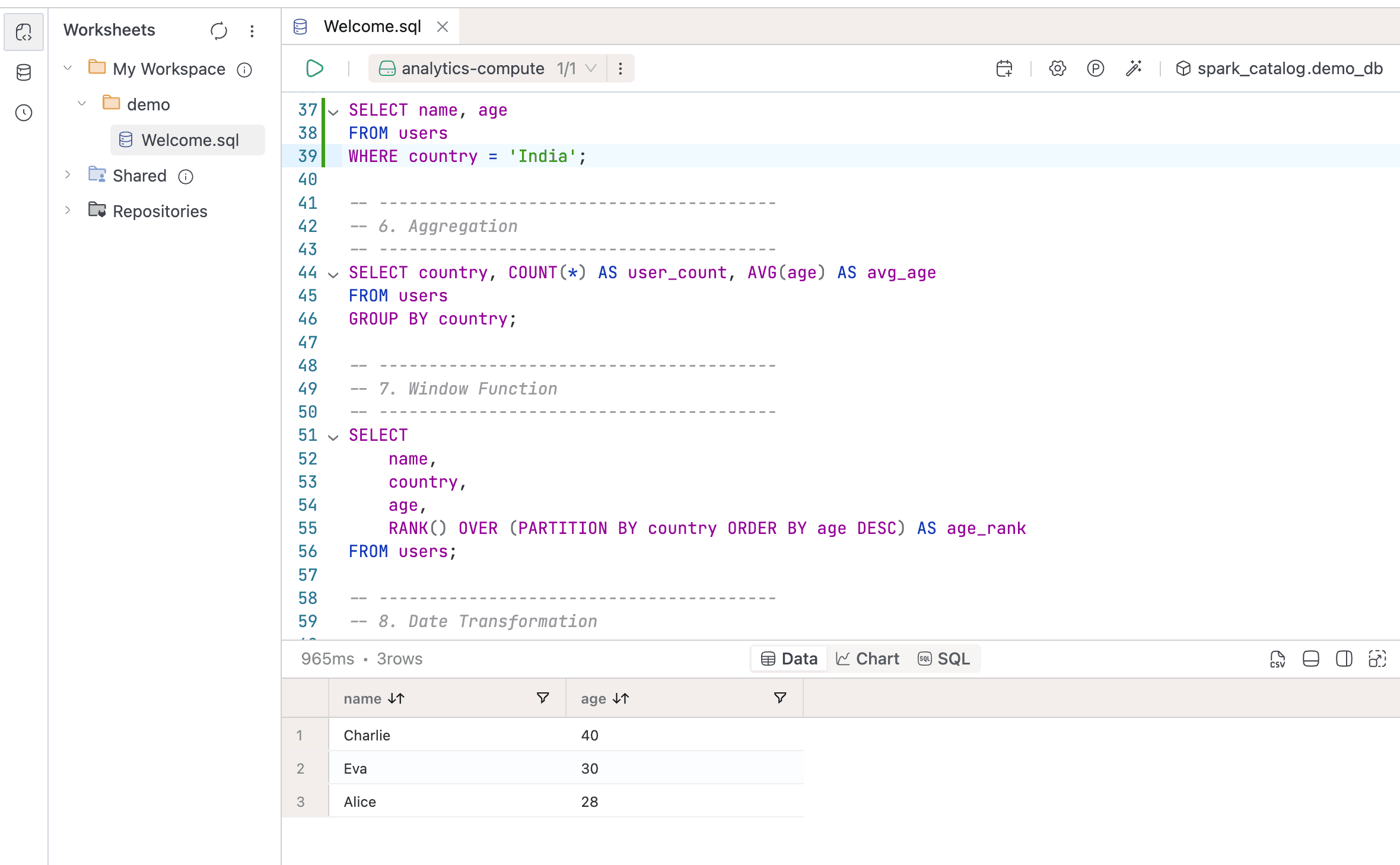
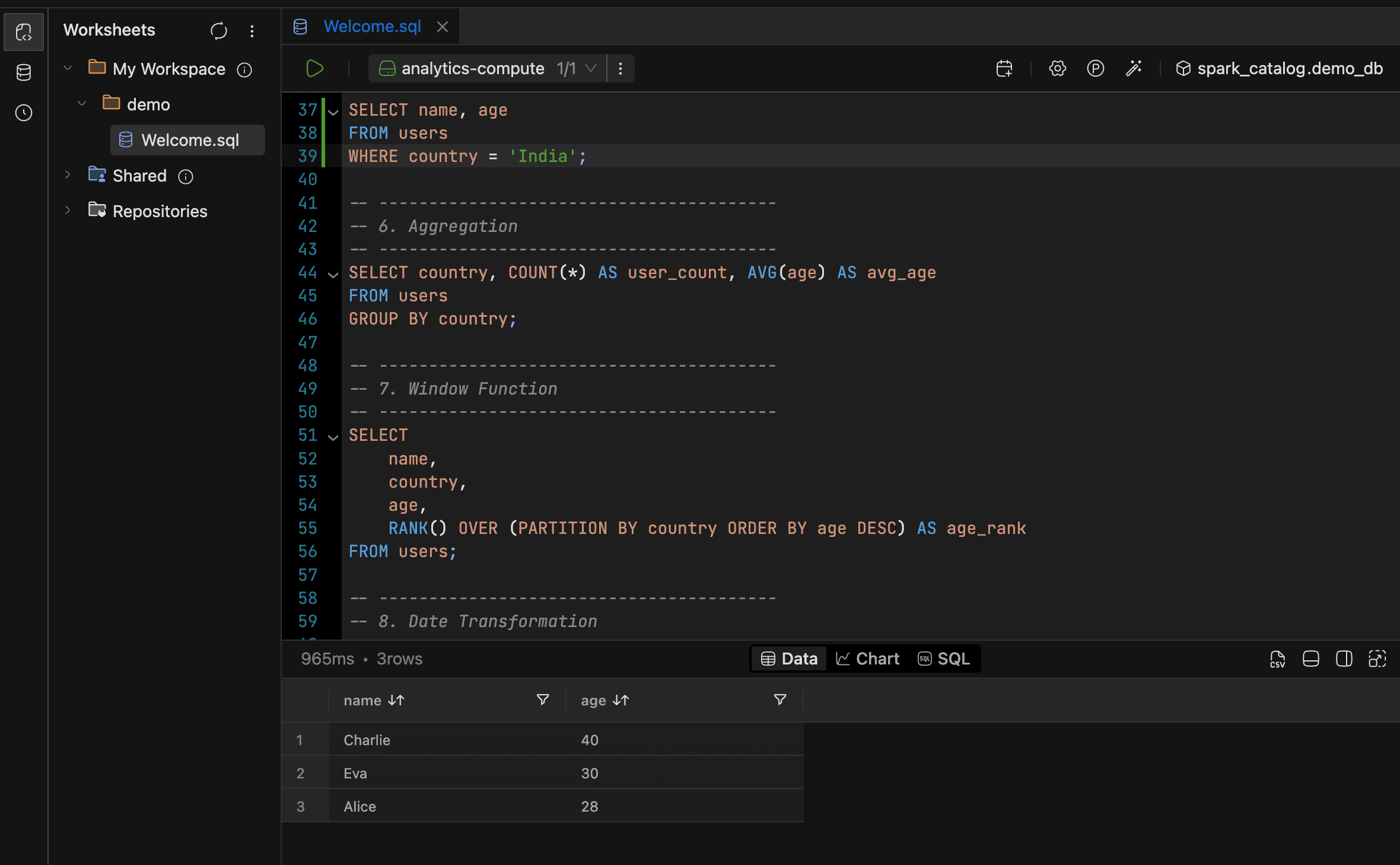
Click any worksheet in the sidebar to open it as a tab. Each tab is divided into four areas:
- Toolbar at the top (run button, compute selector, collaboration avatars, and more)
- An optional Query variables bar
- The Code editor
- A resizable Results panel at the bottom or right, with a tab for each submitted statement on V2
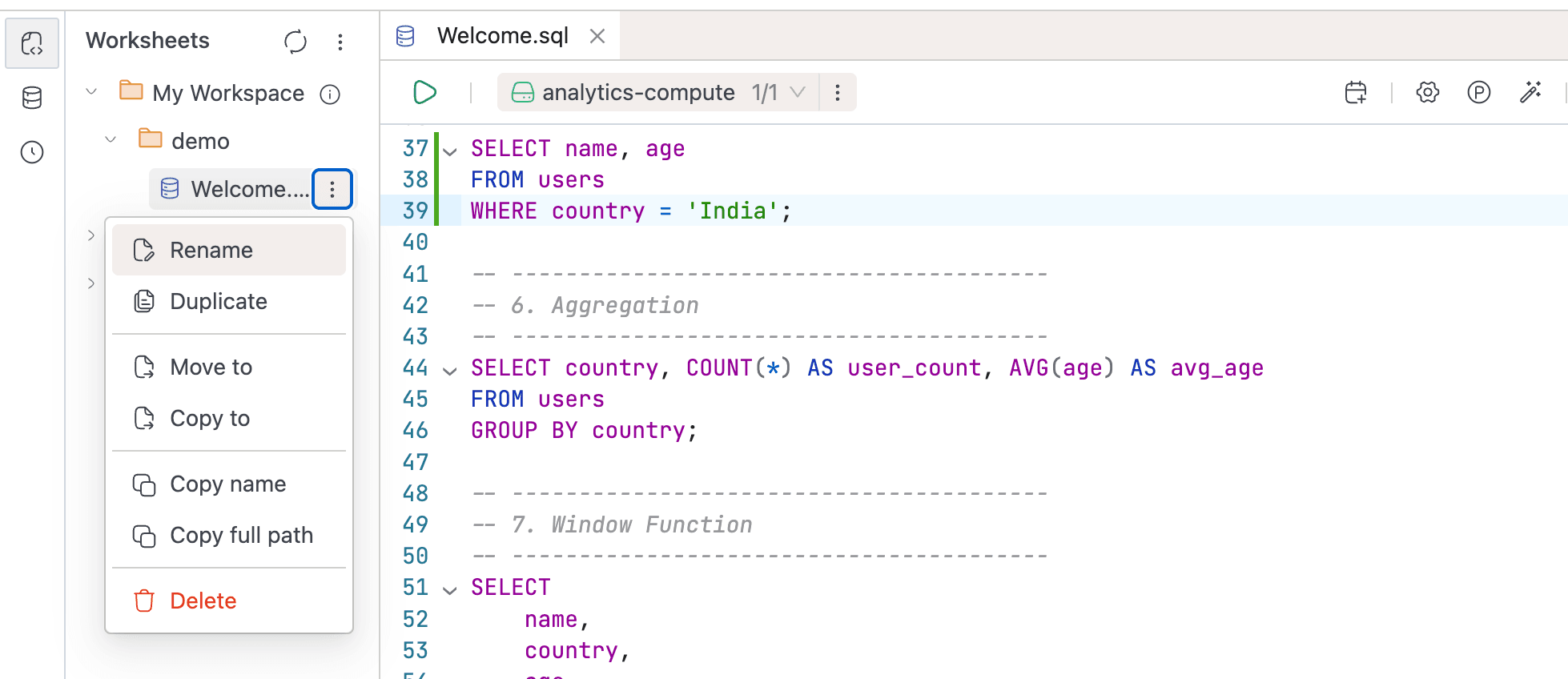
Renaming, Duplicating, and Moving Worksheets
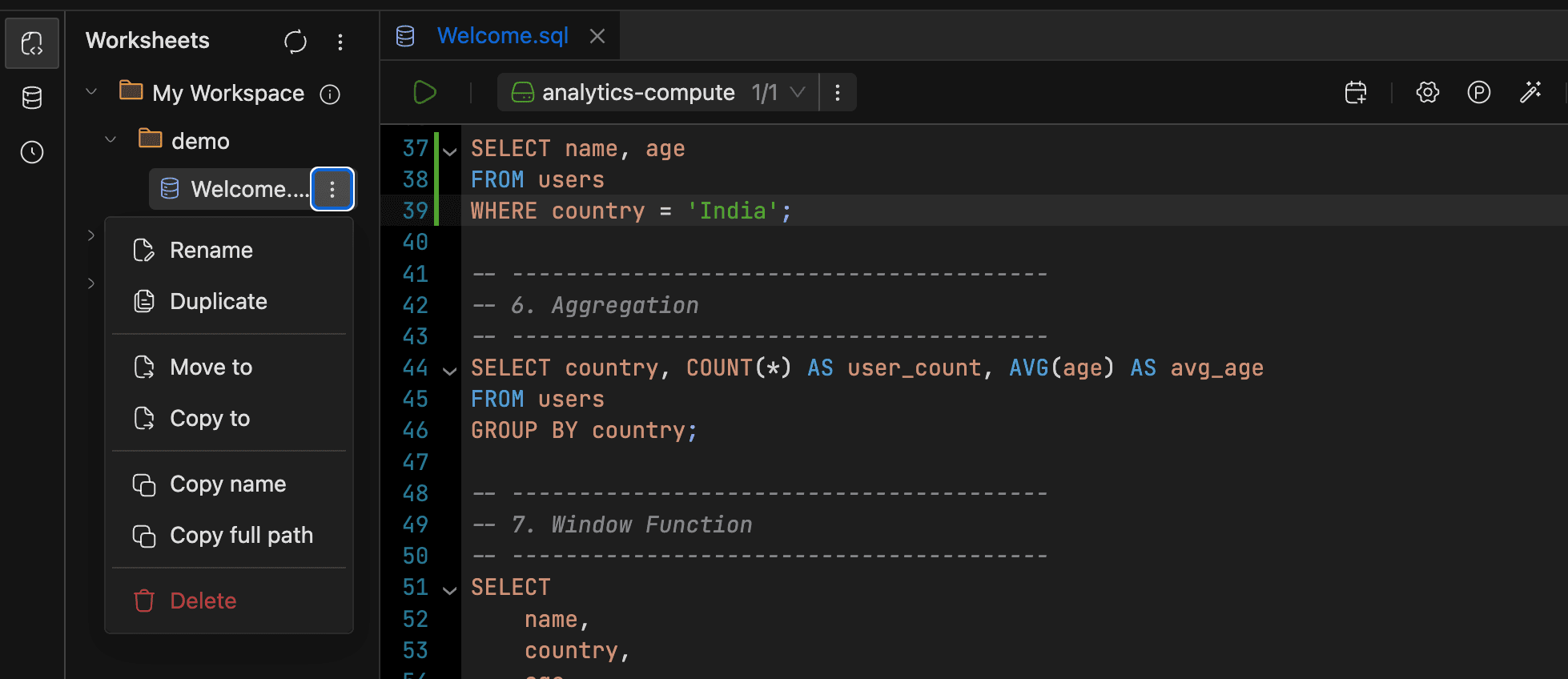
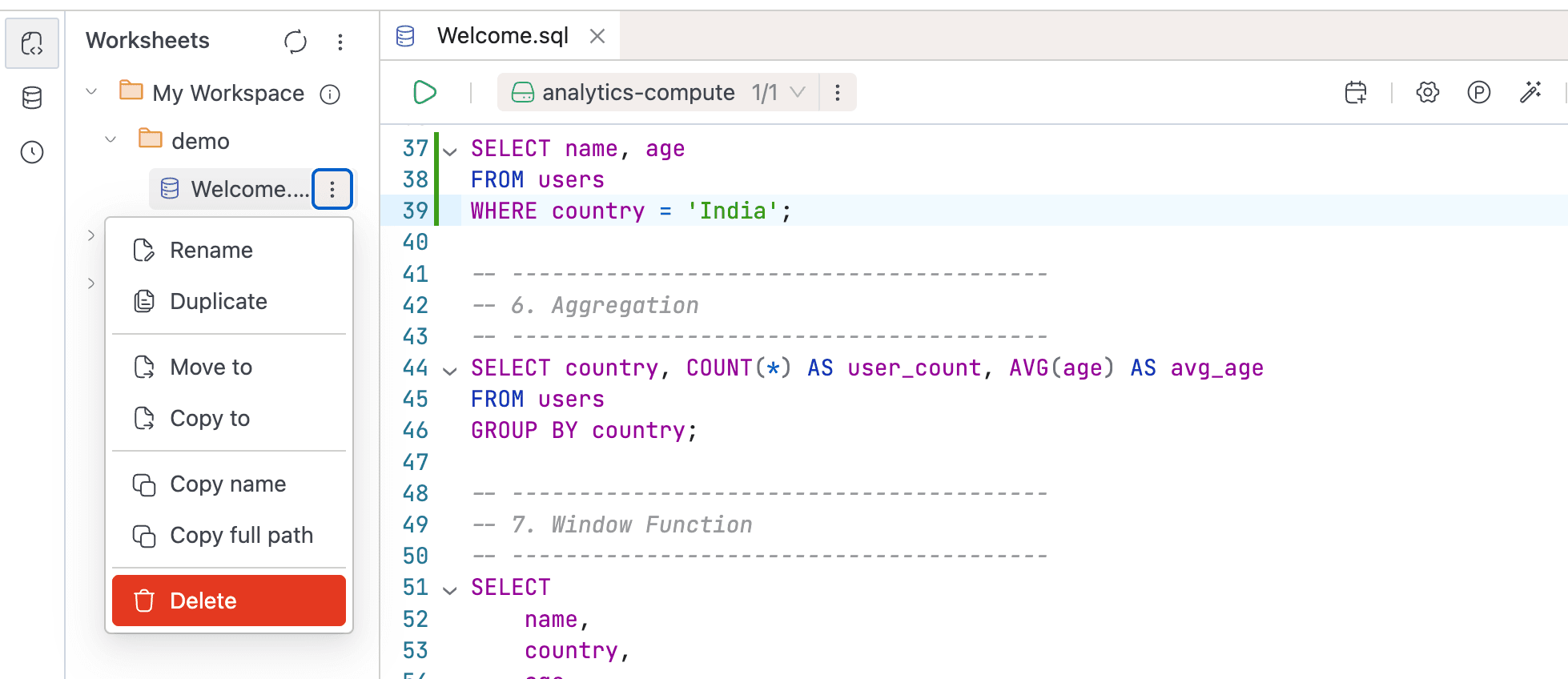
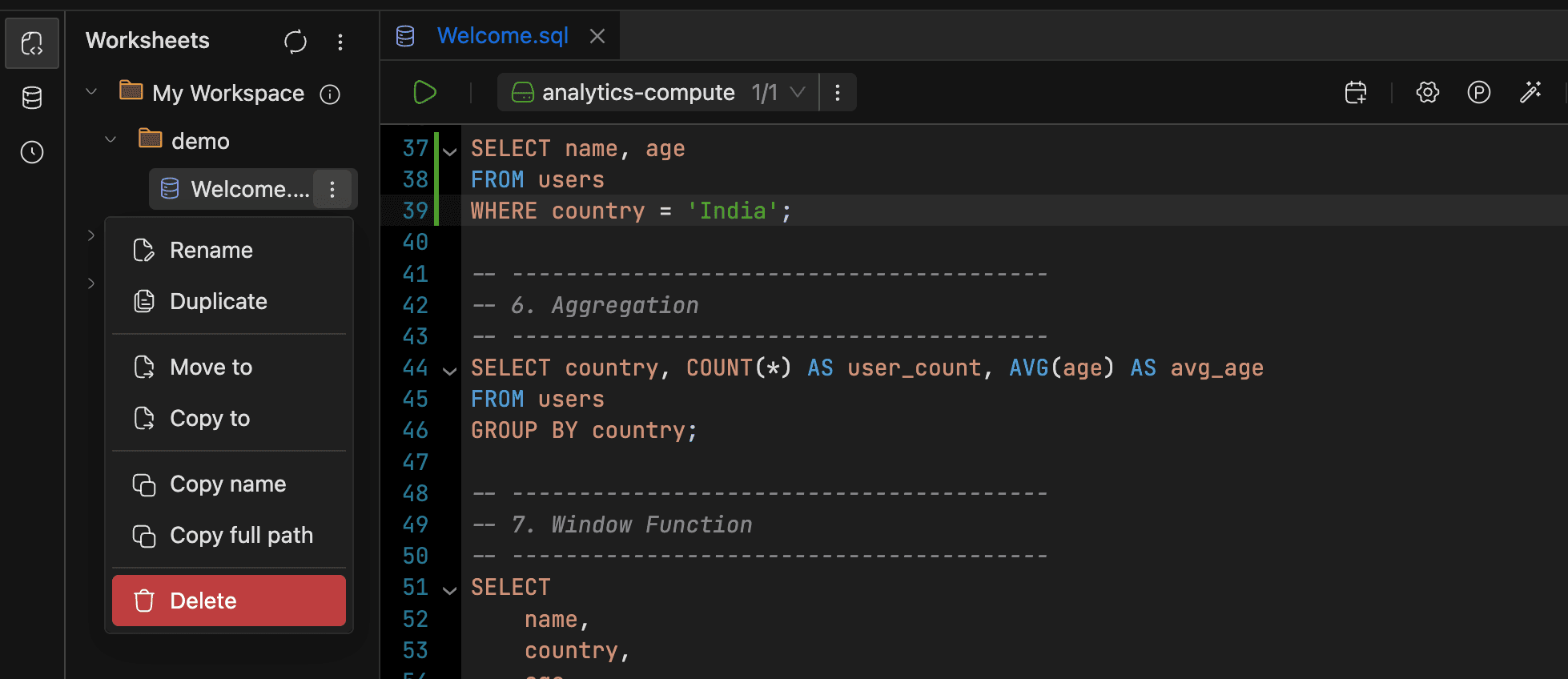
Right-click the worksheet node in the sidebar to access these actions:
- Rename: Select Rename, edit the inline text, and press Enter.
- Duplicate: Select Duplicate to create a copy in the same folder.
- Move to / Copy to: Browse workspaces and folders in the multi-column navigator to pick a destination. Moving requires MOVE permission; copying requires PUT permission on the target workspace.
Importing a File
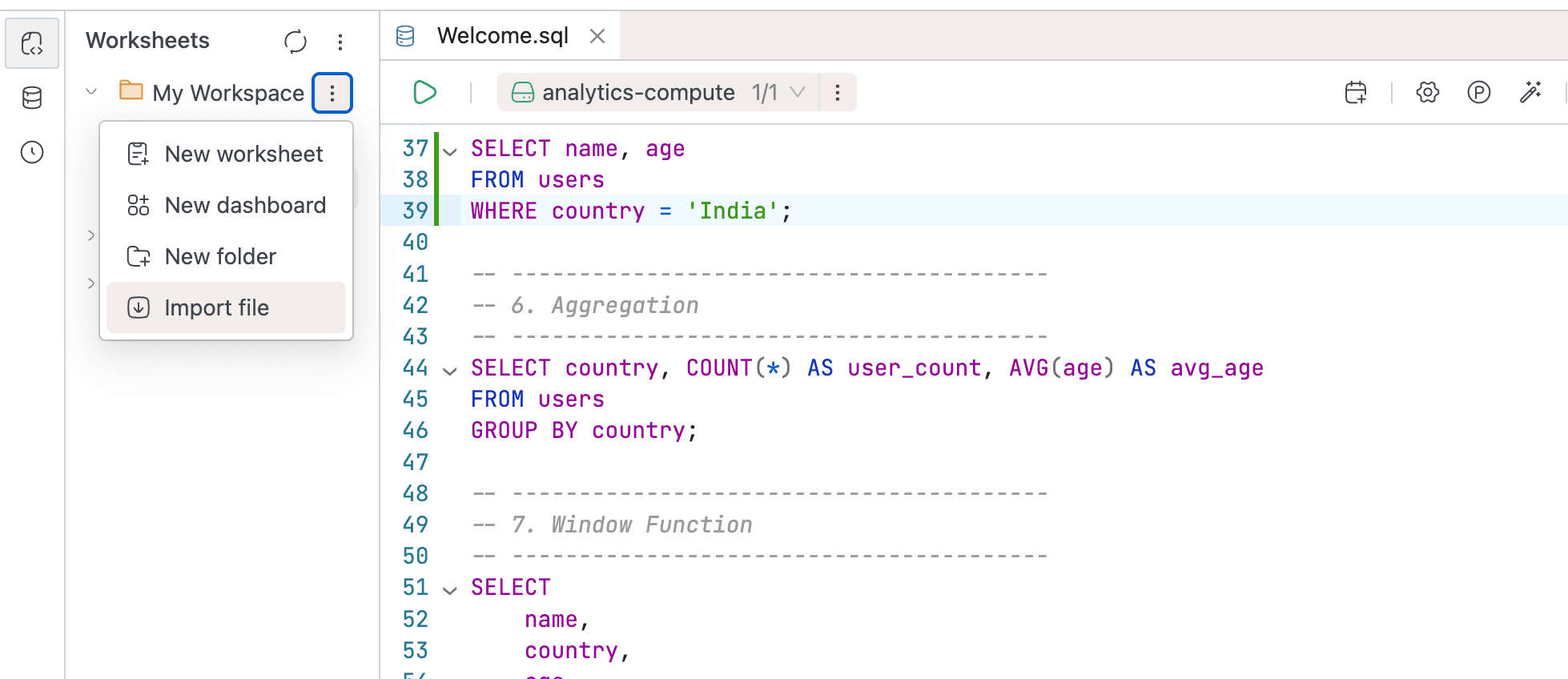
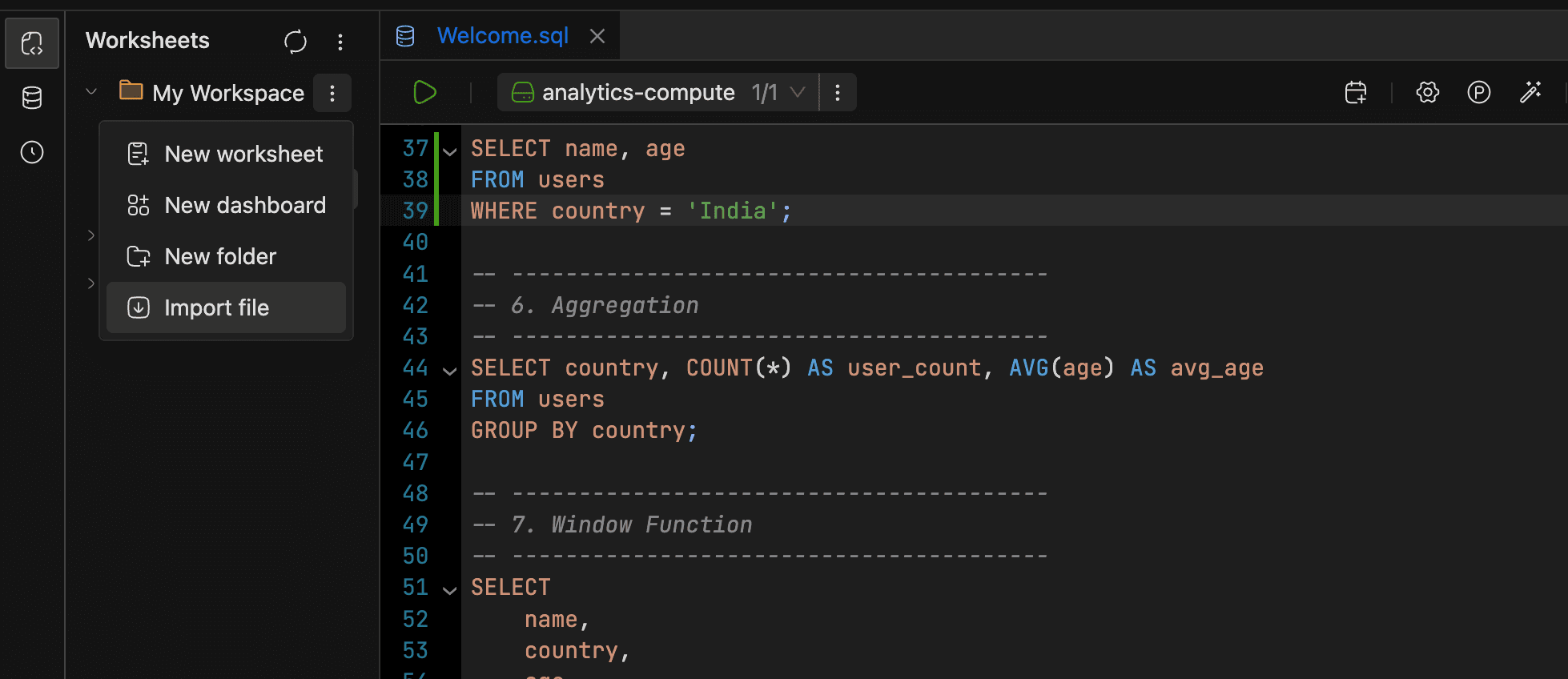
If you have existing .sql, .dash, or .ipynb files, you can import them as worksheets. Right-click a workspace node and select Import file, or use the Import file button on the home screen. The new worksheet takes the file's name and content. Home-screen imports land in My Workspace.
Deleting a Worksheet
Right-click the worksheet node and select Delete (shown in red). If the worksheet has content, a confirmation dialog appears. Click Force delete to proceed.
Deleting a worksheet permanently removes it and its contents. This can't be undone.
Keyboard Shortcuts
| Action | Mac | Windows / Linux |
|---|---|---|
| Run one active statement; open run options for multiple or no active statements on V2 | Cmd+Enter | Ctrl+Enter |
| Run all statements (V2) | Cmd+Shift+Enter | Ctrl+Shift+Enter |
| Open run options (V2) | Cmd+Option+Enter | Ctrl+Alt+Enter |
| Save worksheet | Cmd+S | Ctrl+S |
| Open autocomplete | Cmd+Space | Ctrl+Space |
See Arranging the Results Panel for shortcuts to collapse, reposition, or expand the results panel to fullscreen.