Changing the Console Theme
Set the Console to a light or dark appearance that works for your workspace. Select System Preferences to follow your operating system's appearance.
The theme switcher is available in IOMETE v4.
Changing the Theme
Switch themes from any Console page that displays the app sidebar.
- Expand the sidebar if it is collapsed.
- Select your avatar and name at the top of the sidebar to open the user menu.
- Open Theme.
- Choose one:
- System Preferences: Matches your operating system's light or dark appearance.
- Light: Keeps the Console in light mode.
- Dark: Keeps the Console in dark mode.
The Console switches themes immediately. A checkmark identifies your active choice, so you don't need to save or reload the page.
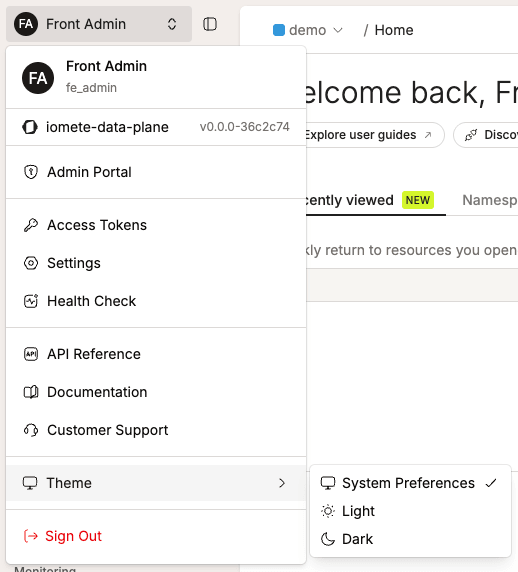
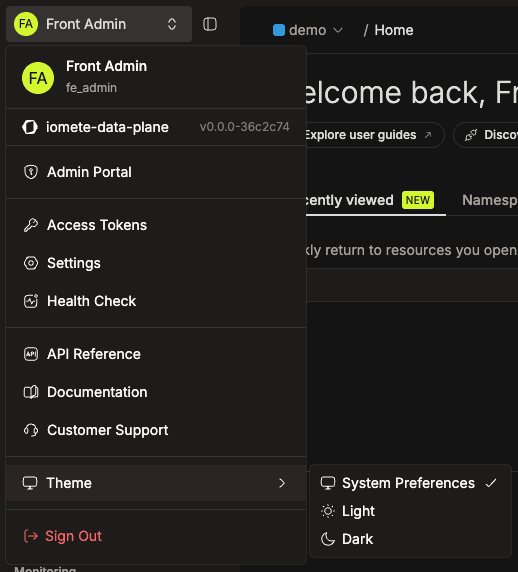
The SQL Editor's color scheme also uses the light or dark variant that matches the Console theme.
Using System Preferences
Use System Preferences to keep the Console consistent with the rest of your device. If your operating system switches between light and dark modes, the Console updates automatically.
If you select Light or Dark, changes to your operating system theme don't affect the Console.
Keeping Your Theme Preference
Your browser remembers the selected theme between visits, even after you reload or sign out. Other open Console tabs in the same browser update to match.
The theme isn't part of your IOMETE account settings. Select it again when you use another browser, browser profile, or device. People who share a browser profile also share its saved theme.
If your account doesn't belong to a domain, the Available domains page uses the light theme and saves Light as your current selection.