Query Results & Settings
After you run a query, use the results panel to explore data, build charts, review the executed SQL, and export results. You can also customize the editor's appearance and query limit from SQL settings.
Result tabs, pinning, and individual result refresh require IOMETE 4.0.0 or later with the SQL Editor V2 feature flag enabled.
Managing Result Tabs
Each submitted statement opens its own result tab. Click a tab to inspect that statement's result, duration, and row count. This also applies when you run a single statement.
A new run replaces the previous run's unpinned result tabs. Pin a result before running more SQL if you want to keep it for comparison.
Pinning and Renaming Results
Right-click a result tab to open its context menu.
| Action | Behavior |
|---|---|
| Rename | Give the tab a descriptive name, such as Countries or Comparison. |
| Pin | Keep the result tab across later runs, page reloads, and devices. You can pin up to 20 results per worksheet. |
| Unpin | Remove the pin while keeping the tab open for the current session. You can also click the pin icon on the tab. |
| Close | Close an unpinned result tab. Unpin a pinned tab before closing it. |
| Close others | Close the other unpinned tabs. |
| Close all / Close all but pinned | Close all unpinned result tabs. |


Pinned tabs appear before unpinned results, and their custom names persist. A pin keeps a reference to the query; it does not extend the lifetime of the stored result data. If the result expires or becomes unavailable, you can unpin the tab or rerun its SQL.
Restoring Results
When you reopen a worksheet or refresh the page, the editor restores its latest run's result tabs and saved pins. It reloads results that are still available. Statements that were never submitted do not resume automatically.
Refreshing a Result
Select a result tab and click Refresh result beside the CSV export control. This executes that tab's original SQL again using the worksheet's current compute, namespace, and query variable values. It does not run the other statements in the worksheet.
The previous result stays visible while the query runs. On success, the new result replaces it in the same tab and opens in table view, preserving the tab's name and pin. If the refresh fails, the previous result remains visible and the editor reports the failure. Refresh is unavailable while another query is running.
Refresh executes SQL again immediately, including writes and DDL statements. Check the tab's SQL before refreshing a statement that changes data or table definitions.
Viewing Query Results
Use the Table view, Chart view, and SQL view icons in the active result's toolbar to switch views.
Data View
Results load into a sortable, filterable data grid. Hover over any column header to reveal the filter icon, then click it to filter by "contains," "equals," or other conditions.


Chart View
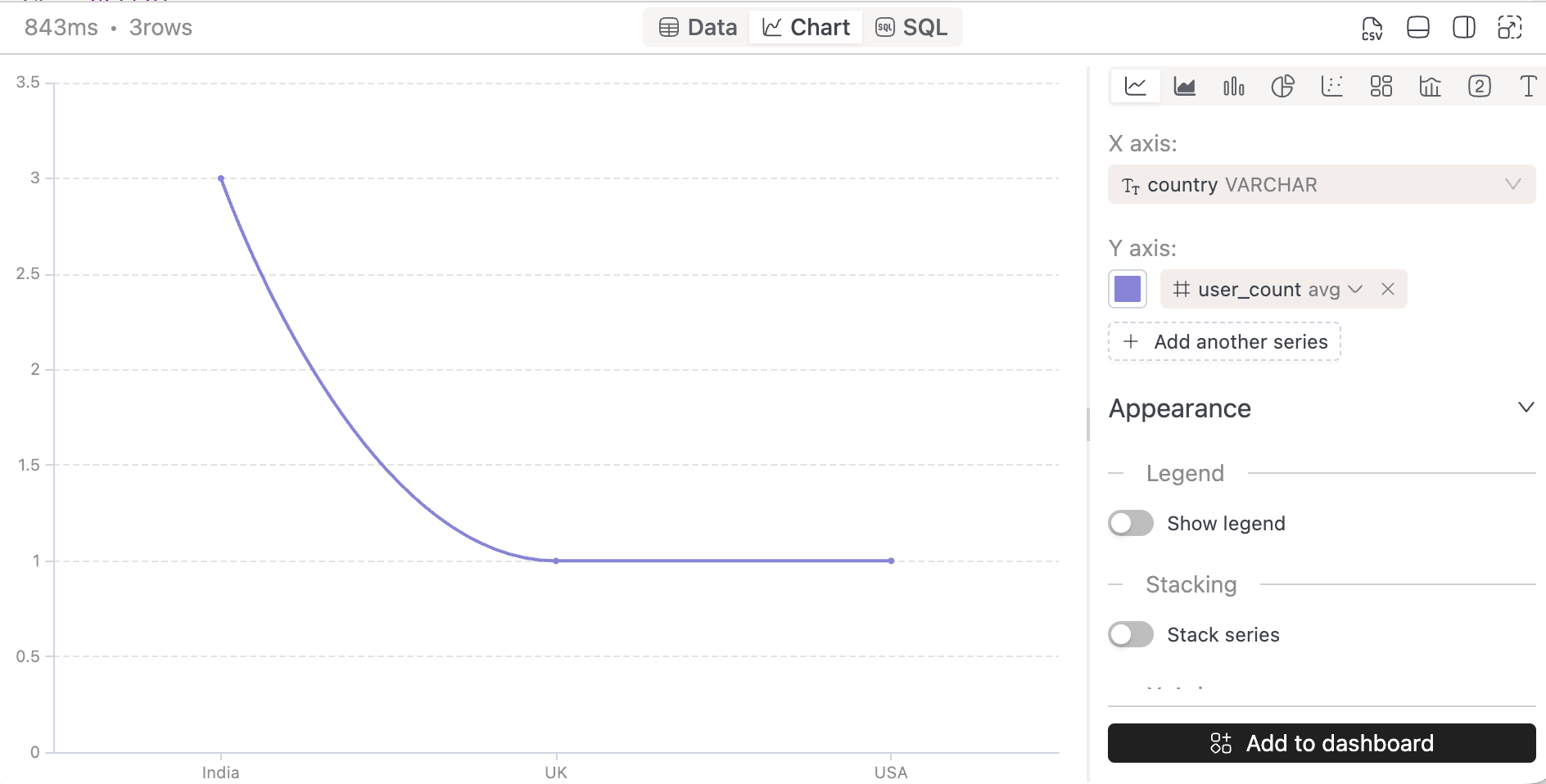
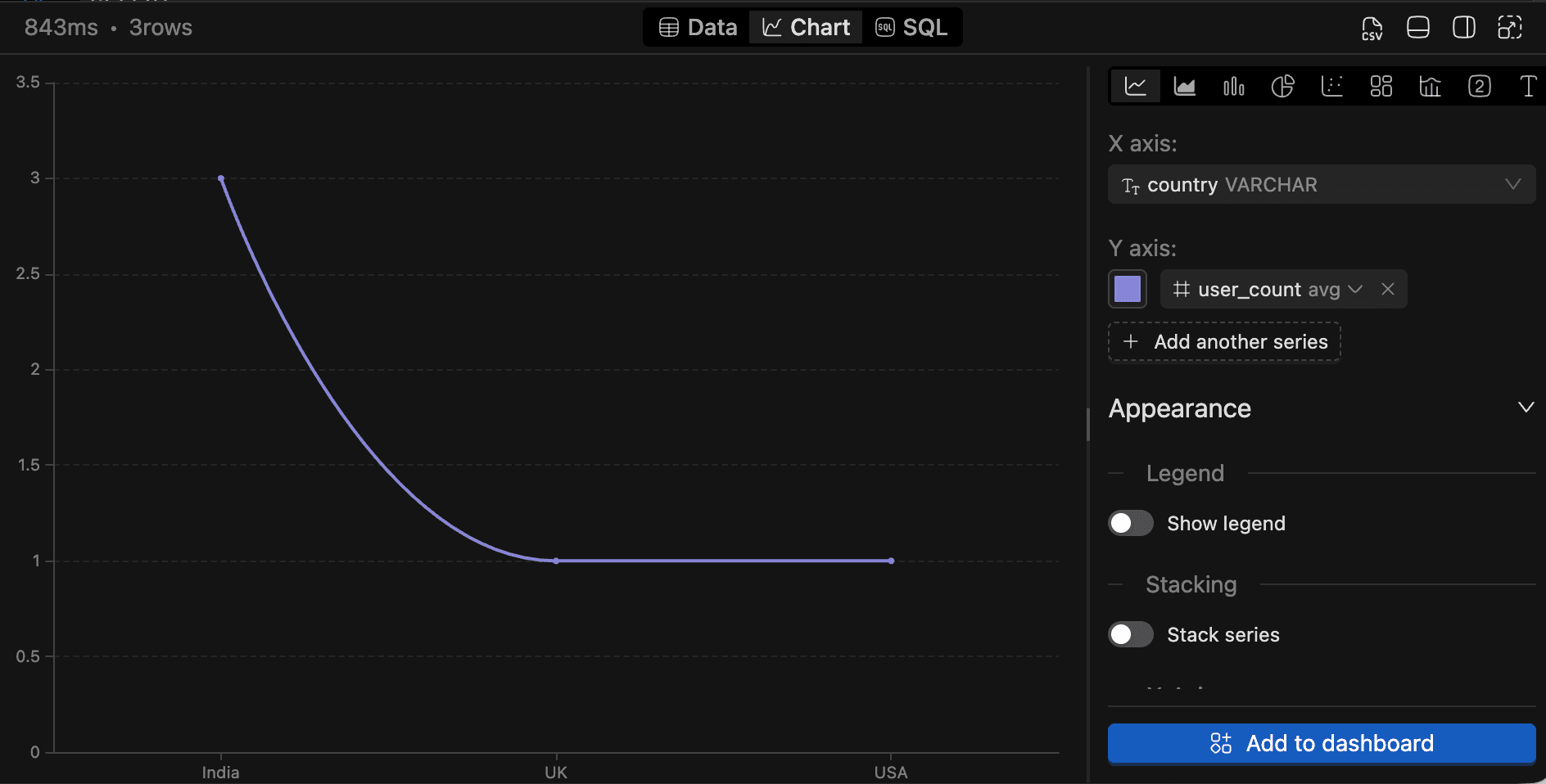
To visualize your results, click Chart view. Choose from Bar (default), Line, Area, Pie/donut, Scatter, Treemap, Composed (multiple series types on one chart), Big Number, or Text.
The configuration panel on the right lets you customize:
- Dimension (X-axis) and Measure (Y-axis) with aggregation (
count,sum,avg,min,max,value) - Legend visibility and position
- Axis settings (show/hide labels, label rotation)
- Stacking for applicable chart types
- Series/Segment colors per series or segment
SQL View
Click SQL view to inspect the SQL that executed, with query variables resolved to their runtime values. Use this view to check substitutions or review a statement before refreshing its result.


Exporting Results as CSV
Click the CSV icon in the results header to download your results as data.csv. This requires both the sql_editor.export permission and the downloadQueryResults module. If either is missing, the button is disabled and its tooltip explains why.


Results Header
The active result's toolbar shows query duration, row count, view controls, Refresh result, and Export result as CSV. The result panel displays execution status while a query is running.
Arranging the Results Panel
Use the controls at the right end of the result-tab strip to collapse or expand the panel, move it between the bottom and right side of the editor, or open it in fullscreen.
| Action | Mac | Windows / Linux |
|---|---|---|
| Collapse or expand the panel | Control + backtick | Ctrl + backtick |
| Move the panel to the right | Cmd+K, then Right Arrow | Ctrl+K, then Right Arrow |
| Move the panel to the bottom | Cmd+K, then Down Arrow | Ctrl+K, then Down Arrow |
| Toggle fullscreen | Cmd+K, then Z | Ctrl+K, then Z |
| Exit fullscreen | Esc | Esc |
For two-step shortcuts, release the first key combination before pressing the second key. On Mac, collapsing the panel uses Control, not Command.
SQL Editor Settings
Click SQL settings (the gear icon) in the worksheet toolbar. The drawer has Query settings and Appearance sections.
Query Limit
Under Query settings, set Rows limit to a value from 1 to 10,000, then click Save. The default is 100. The limit is stored in your browser and applies to each query you run from it, including individual statements in a multi-statement run.
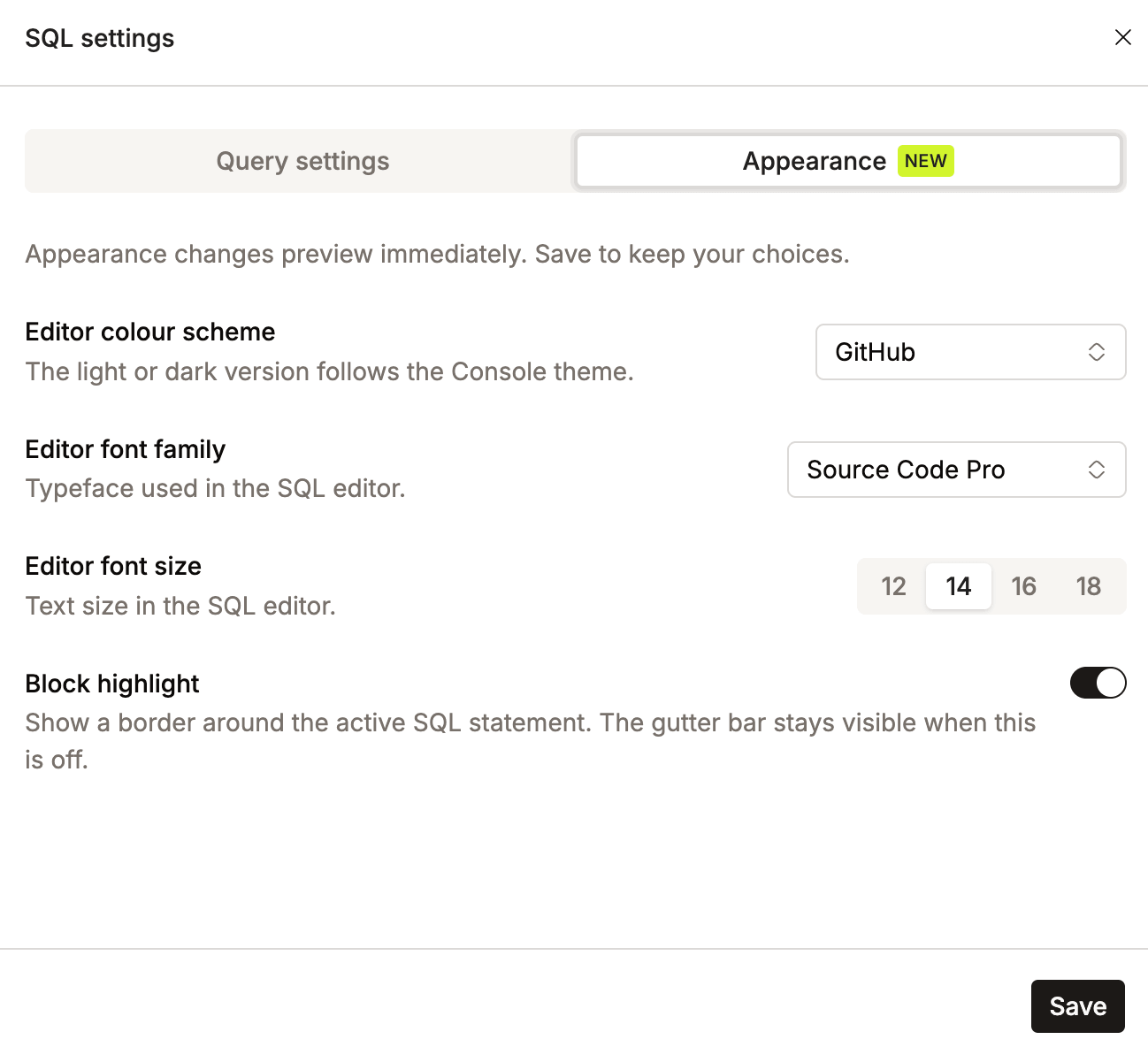
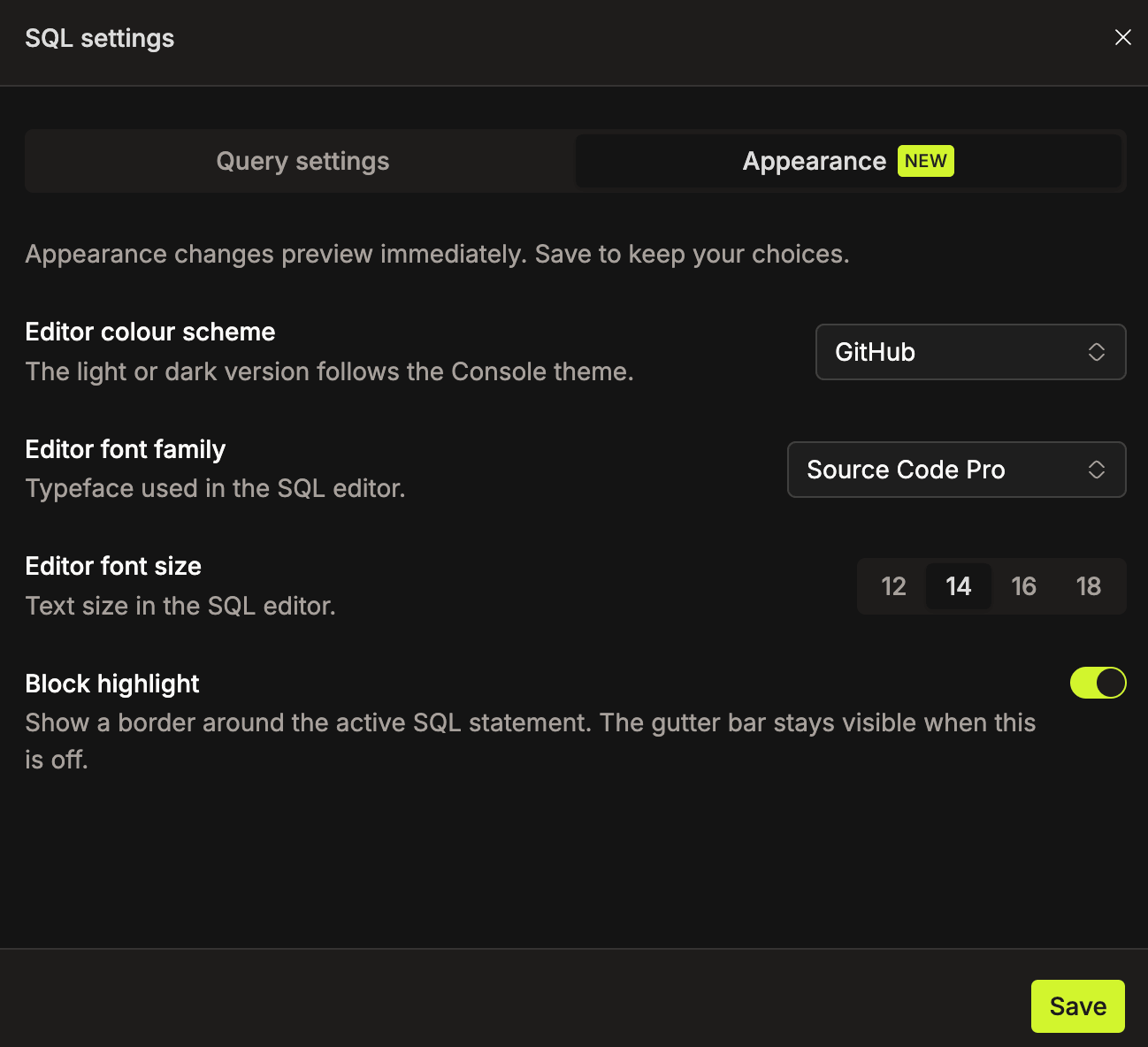
Customizing Editor Appearance
- Open SQL settings and select Appearance.
- Adjust the settings below. Your changes preview immediately in the editor.
- Click Save to keep your choices. Closing the drawer without saving restores your previous settings.
| Setting | Options and Behavior |
|---|---|
| Editor colour scheme | Choose GitHub or VS Code. The scheme's light or dark variant follows the Console theme. |
| Editor font family | Choose JetBrains Mono, Fira Code, Source Code Pro, or System monospace. |
| Editor font size | Choose 12, 14, 16, or 18 pixels. |
| Block highlight | Show a border around active SQL statements. The gutter bar remains visible when you turn this off. |
Resetting the Connection
On SQL Editor V1, use Reset in the worksheet toolbar to end the current database session and start a new connection. This control is not available on V2.
Formatting SQL
Click Format SQL (beautify icon) in the toolbar to auto-format your SQL. This button is disabled for read-only worksheets (Git or shared).