Collaboration & Permissions
This page covers browsing SQL files from Git repositories and managing access permissions for SQL Editor features.
Git Repository Worksheets
If your team stores SQL in a Git repository, you can browse and run those files directly in the SQL Editor without duplicating them. Worksheets from connected repositories appear in the sidebar under the repository name and are always read-only. An alert banner confirms this when you open one.
Unlike regular worksheets, Git worksheets share their compute cluster, catalog/namespace, and query variable settings at the repository level rather than per file.
To connect a repository, go to Settings > Git Repository or click Add Git repository on the SQL Home screen. See Git Integration for details.
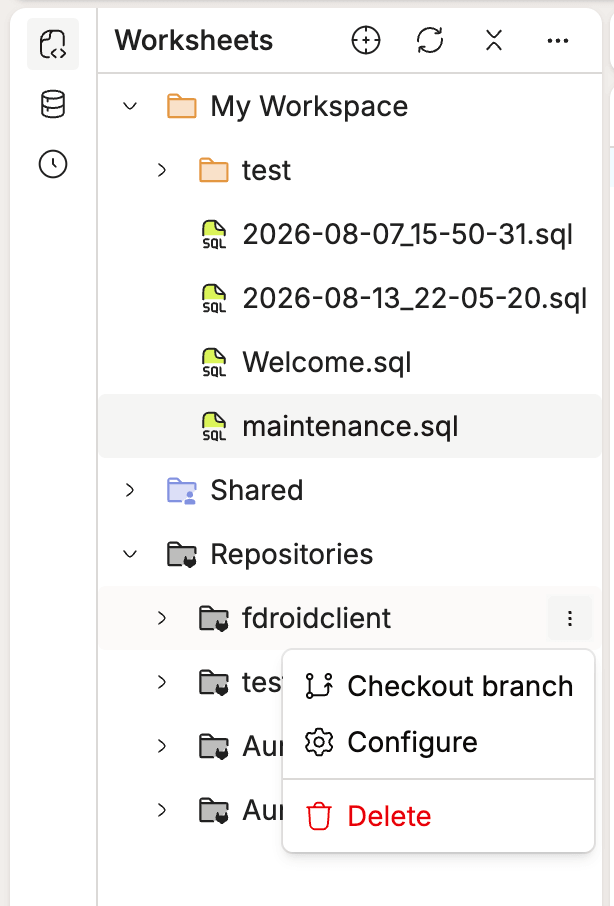
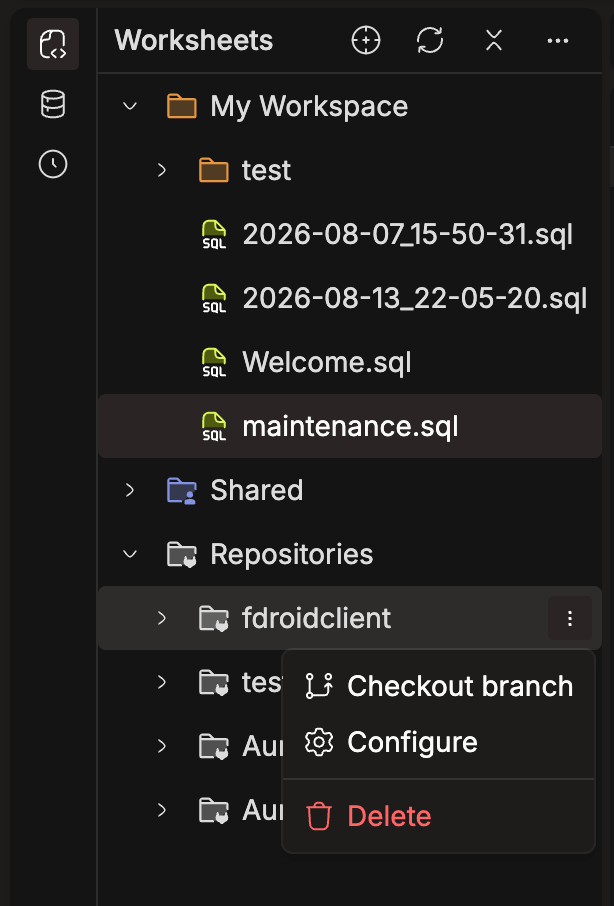
Each repository in the sidebar has an actions menu with Checkout branch, Configure and Delete. To remove a repository, select Delete, then type the repository name to confirm. Delete appears only if you have the Manage Git Repository permission.
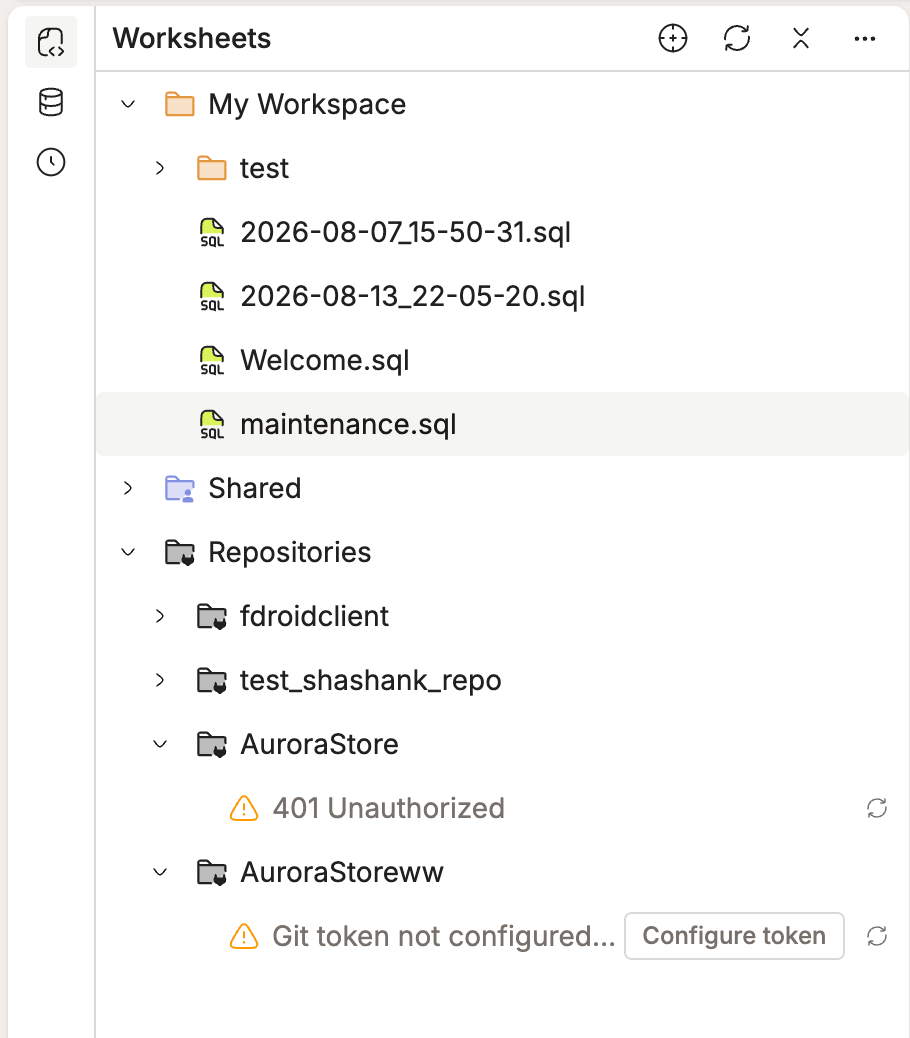
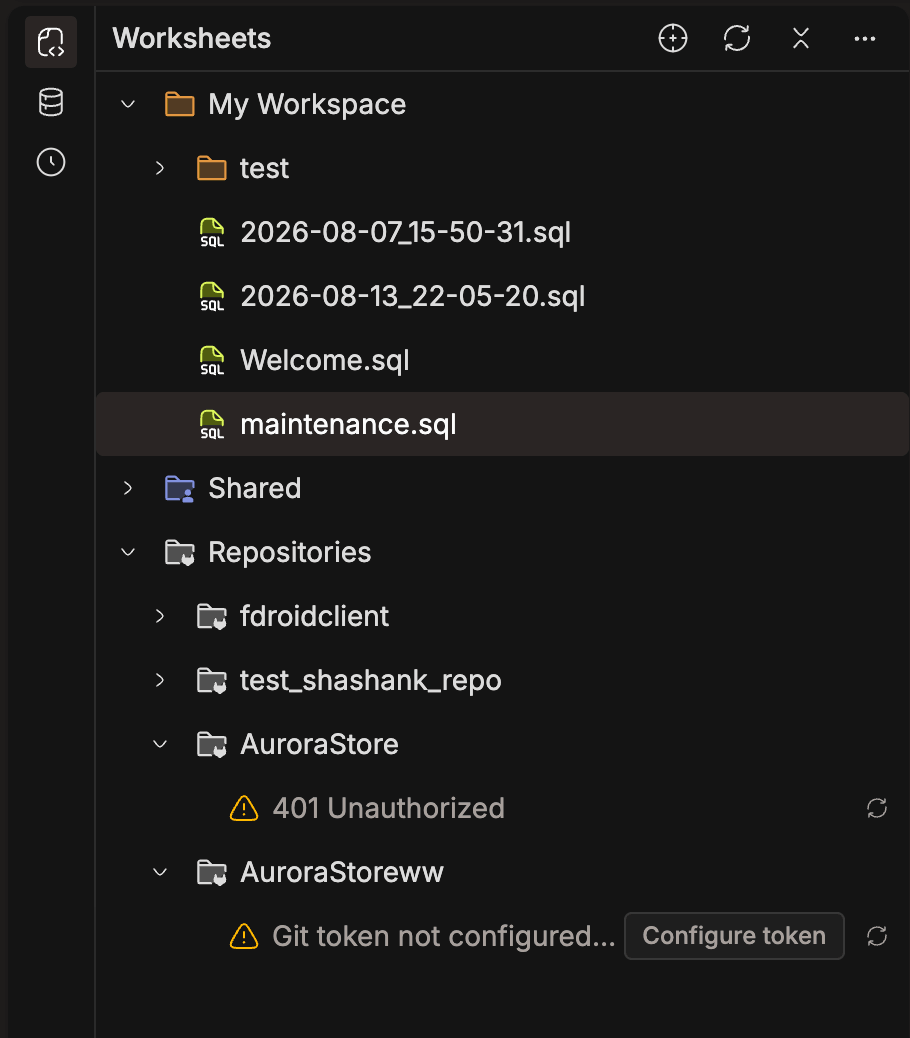
Git access tokens belong to individual users, so each user links their own token to a repository. You can do this from Configure even without the Manage Git Repository permission. If a repository can't load, the sidebar shows the error from Git, with a Configure token button when you haven't linked a token yet.
Notebook and Dashboard Files
Beyond SQL, the editor handles two other file types. Open a .ipynb file and you get a notebook viewer; open a .dash file for a dashboard view. Both replace the code editor with their own specialized layout.
Dashboard creation (.dash files) is currently available only in the personal workspace. The New dashboard option doesn't appear in other workspace context menus.
Access Permissions
SQL Editor features are controlled through role permissions, which grant granular access to specific capabilities. If a required permission is missing, the relevant UI element is disabled and a tooltip explains why.
Domain Bundle Permissions
These permissions are managed through Roles, where admins grant specific access rights to users or groups.
| Permission | What It Controls |
|---|---|
| Export SQL Editor | Export query results as CSV |
| List Git Repository | View Git repositories in the sidebar |
| Manage Git Repository | Configure, update, and delete Git repository connections |
| List Shared Worksheet | View shared SQL worksheets |
| Manage Shared Worksheet | Create folders and manage worksheets in shared workspaces |
Workspace-level permissions (VIEW, PUT, MOVE, DELETE) control what you can do within a specific workspace. See Workspaces - Access Permissions for details.
Domain Owner Actions
Only domain owners can create new workspaces and manage workspace-level settings (storage configuration and bundle assignment).