Running Queries
Before running anything, you need to point your worksheet at the right compute cluster and database. Once that's set, you can write and execute SQL.
Multi-statement execution and result tabs require IOMETE 4.0.0 or later with the SQL Editor V2 feature flag enabled. On V1, you can run one statement at a time.
Selecting a Compute
Click the compute selector dropdown in the toolbar and choose a running compute cluster. Your selection saves to the worksheet automatically.
Selecting a Catalog and Database
Click the catalog dropdown in the toolbar, then choose a namespace from the database dropdown (which activates after you pick a catalog). Both selections persist as catalog.database on the worksheet. Each dropdown has a Refresh button if you need to reload options. If a previously selected catalog or namespace no longer exists, the dropdown shows an error indicator.


Writing Queries
The code editor autocompletes SQL keywords, functions, table and column names from your selected catalog, and query variables. It also recognizes table aliases (e.g., typing e after employees as e). Press Cmd+Space (Mac) or Ctrl+Space (Windows/Linux) to trigger suggestions manually.
Your SQL auto-saves after a 2-second pause. Press Cmd+S / Ctrl+S to save immediately, or navigate away.
Using Query Variables
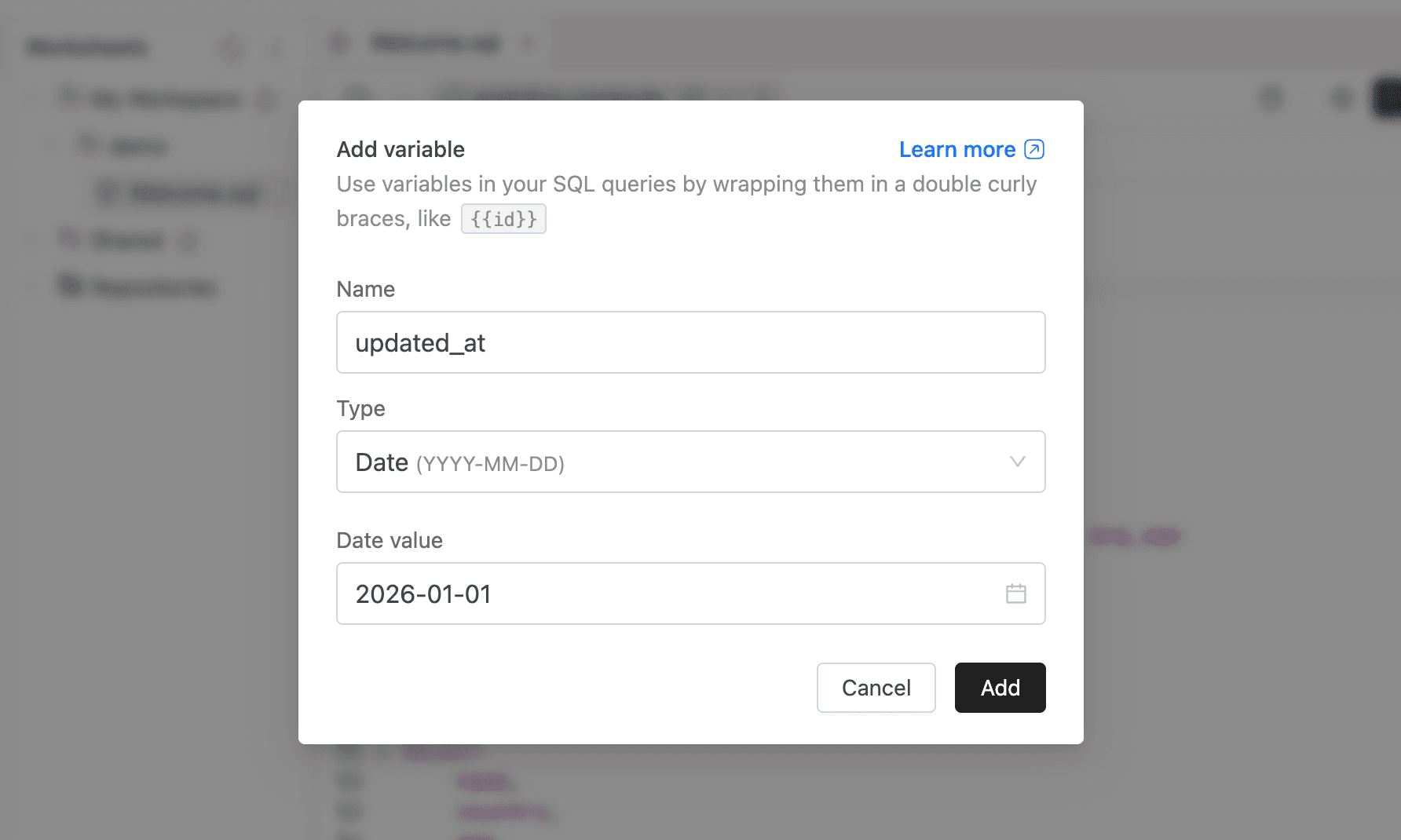
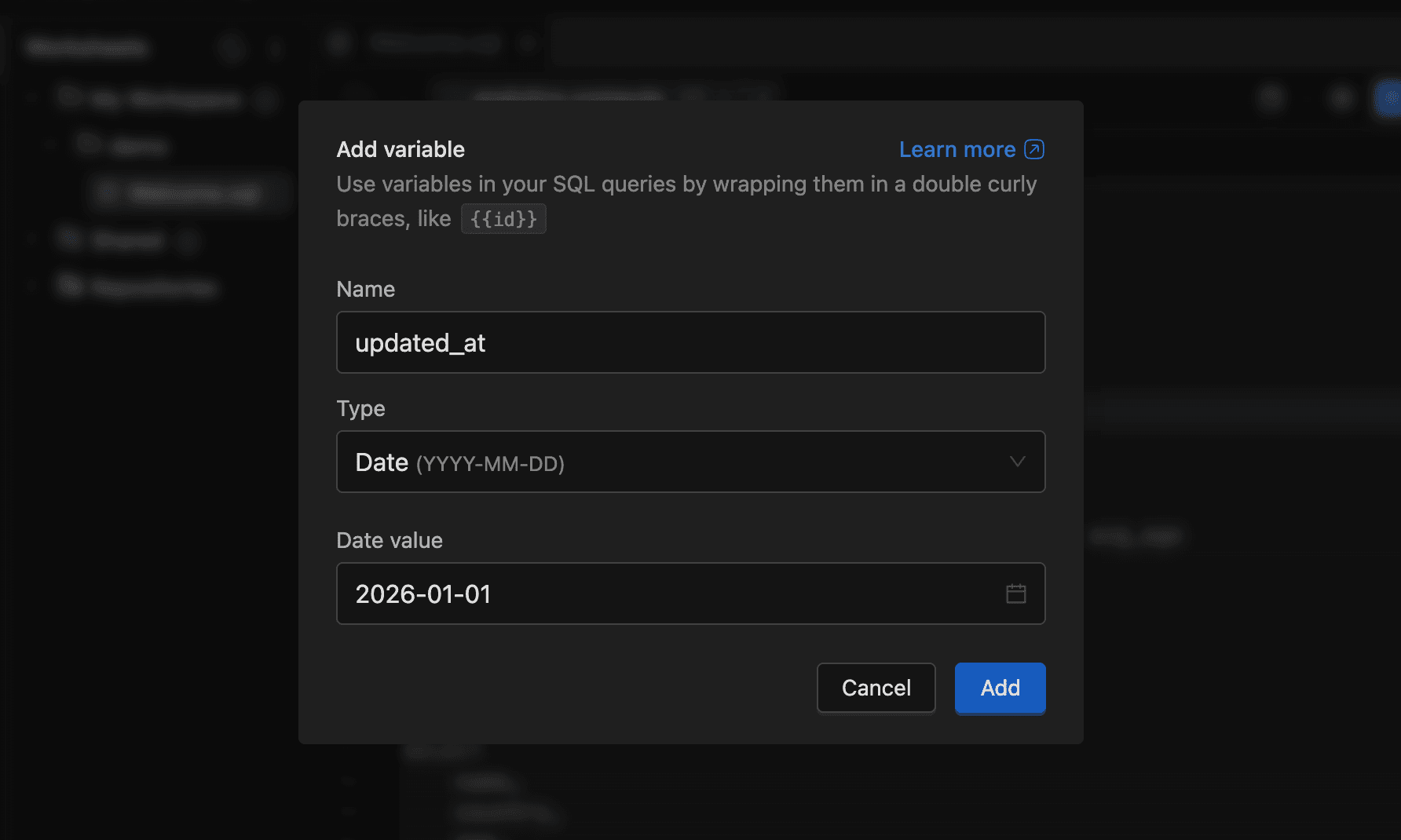
Variables let you parameterize queries using {{variableName}} syntax. At runtime, each variable is replaced with its assigned value, so you can reuse the same query with different inputs.
Adding a variable: Click Toggle Variables in the toolbar to reveal the variables bar, then click +. In the Add variable modal, enter a unique Name, choose a Type (Text, Dropdown, or Date in YYYY-MM-DD format), and set a Value. Click Add.
Editing a variable: Click an existing variable tag in the bar. The modal opens pre-filled with the current values (the name is read-only). Update the fields and click Save.
Deleting a variable: Click the X icon on a variable tag.
Running a Query
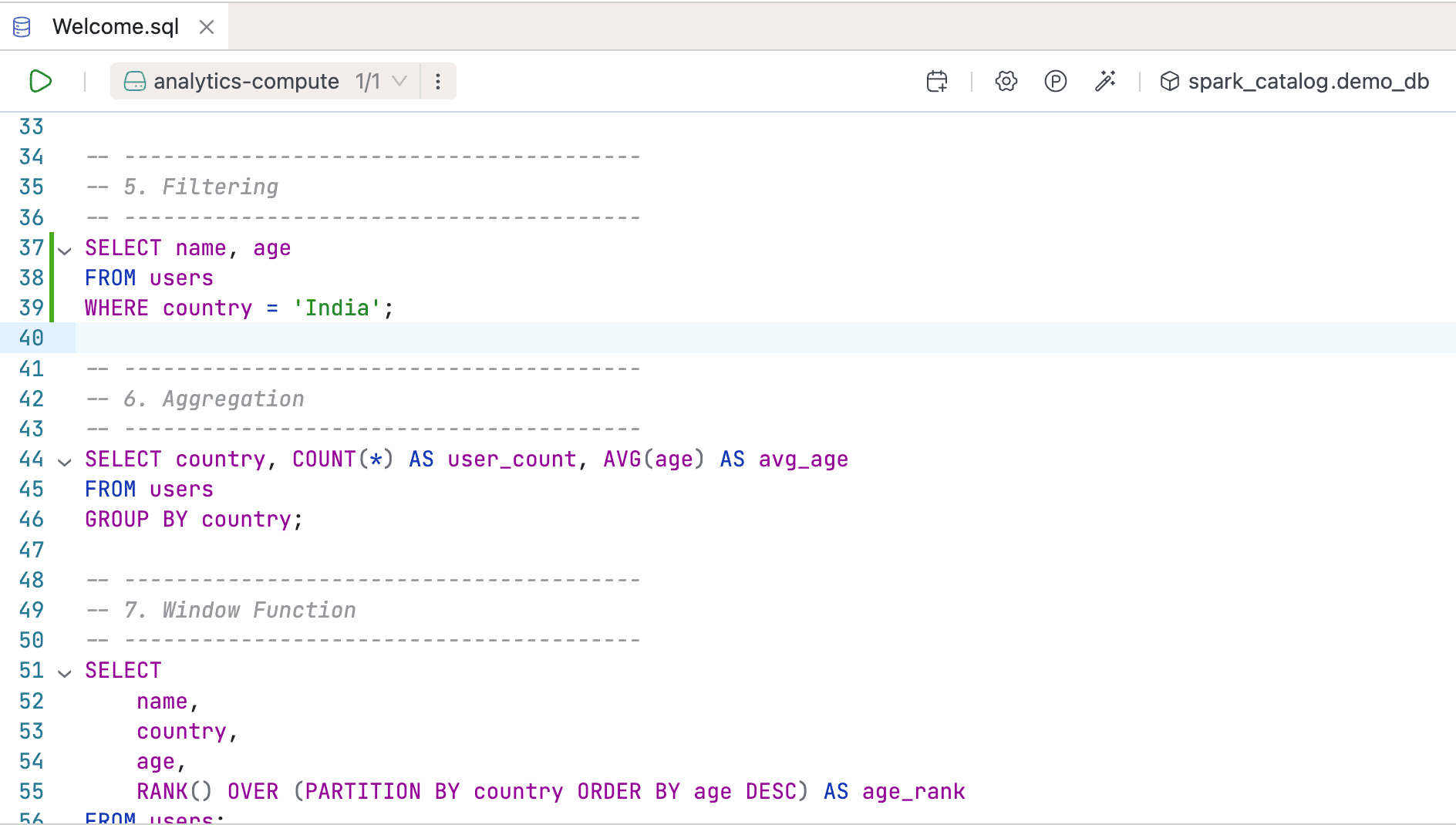
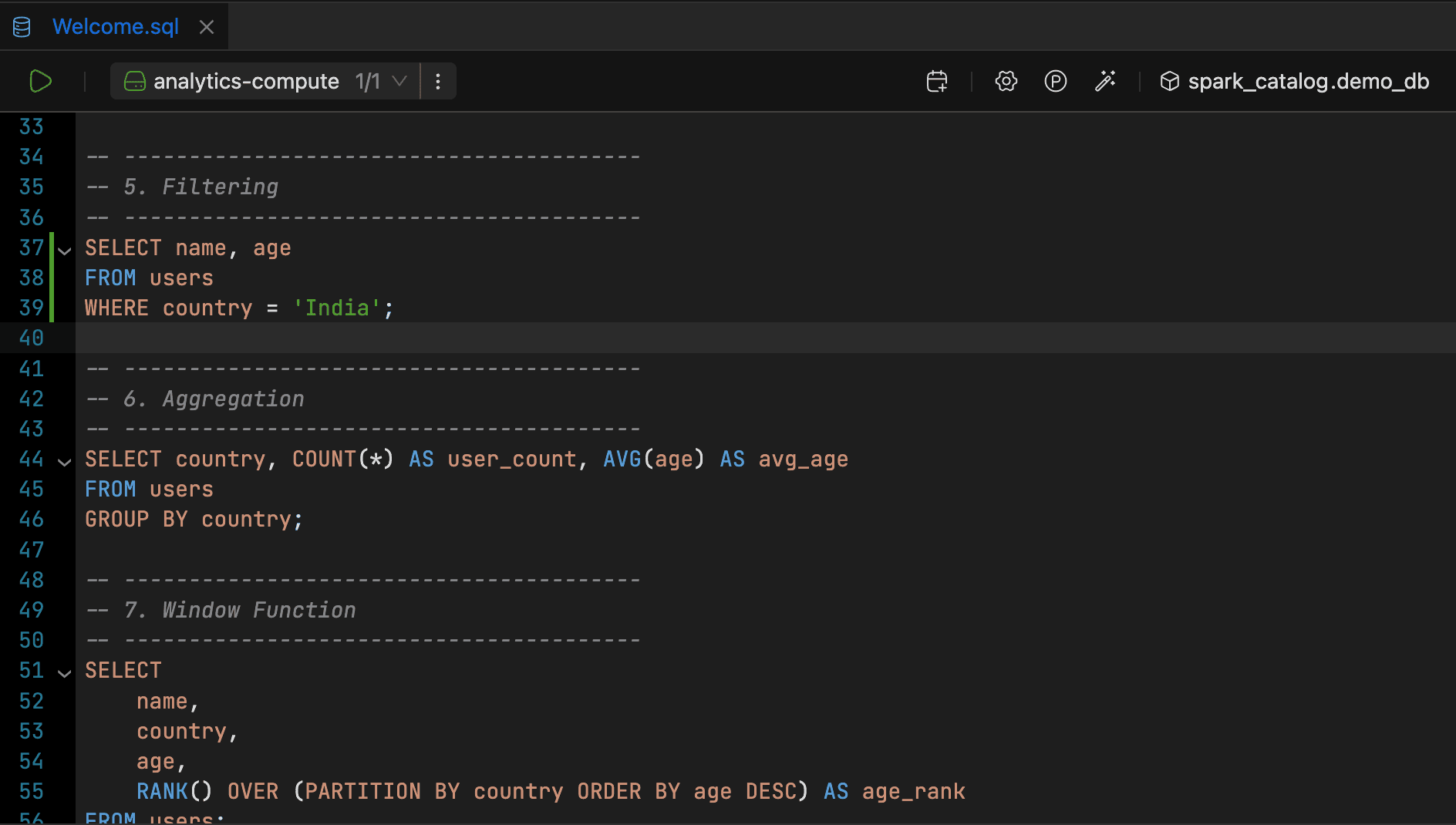
Place your cursor inside a SQL statement or select it, then click Run or press Cmd+Enter (Mac) / Ctrl+Enter (Windows/Linux). The gutter bar marks the active statement. You can also enable a border around it in Appearance settings.
Running Multiple Statements
You can run a selection of statements or every statement in the worksheet. Separate statements with semicolons. A Spark SQL BEGIN … END block stays together as one statement.
-
Write the SQL statements in your worksheet.
-
Select the statements you want to run. The Run button shows their count, such as Run 3.
-
Click Run to execute the selected statements, or open the arrow beside it and choose an option:
- Run highlighted executes the statements covered by your cursor or selection.
- Run all executes every statement in the worksheet, regardless of your cursor or selection.


Statements execute in worksheet order, one at a time. During execution, the toolbar shows progress, such as Run 2/3. If a statement fails, execution stops and the remaining statements are skipped. Results from earlier statements remain available.
Each submitted statement opens a result tab. Statements skipped before submission do not open result tabs.
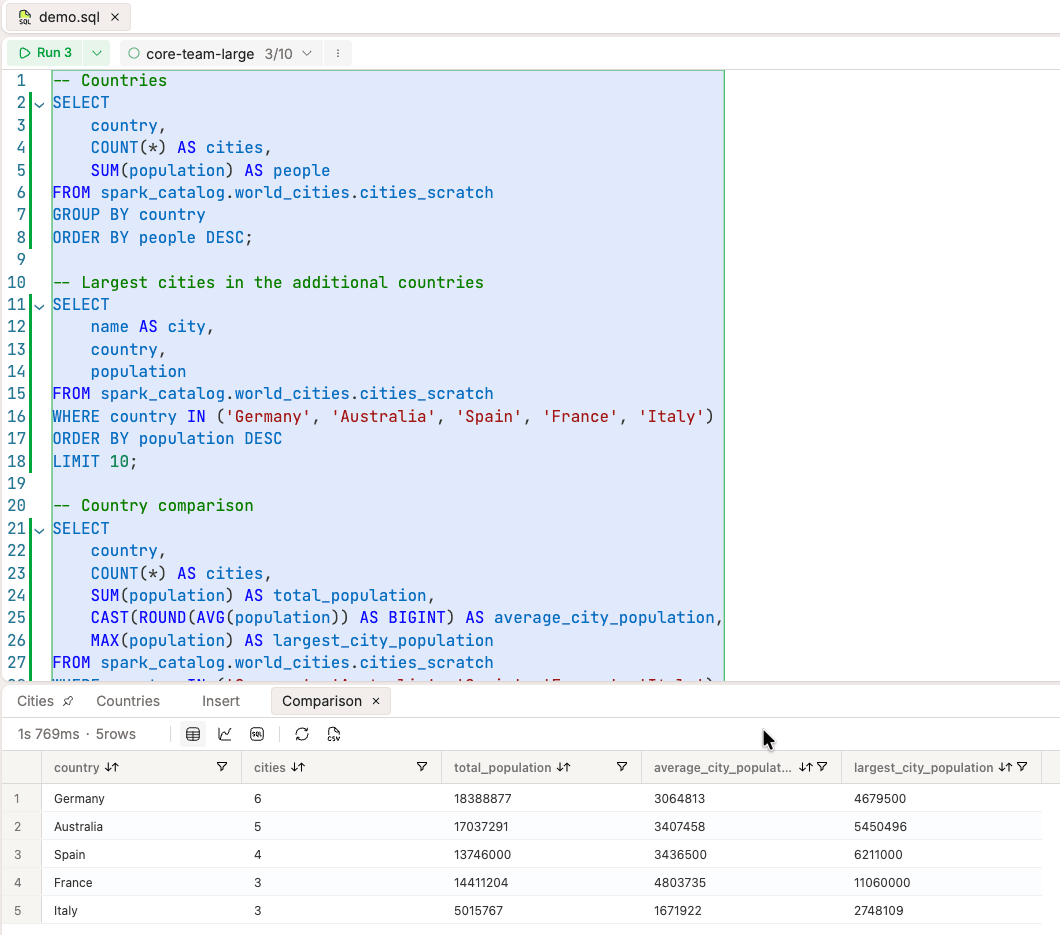
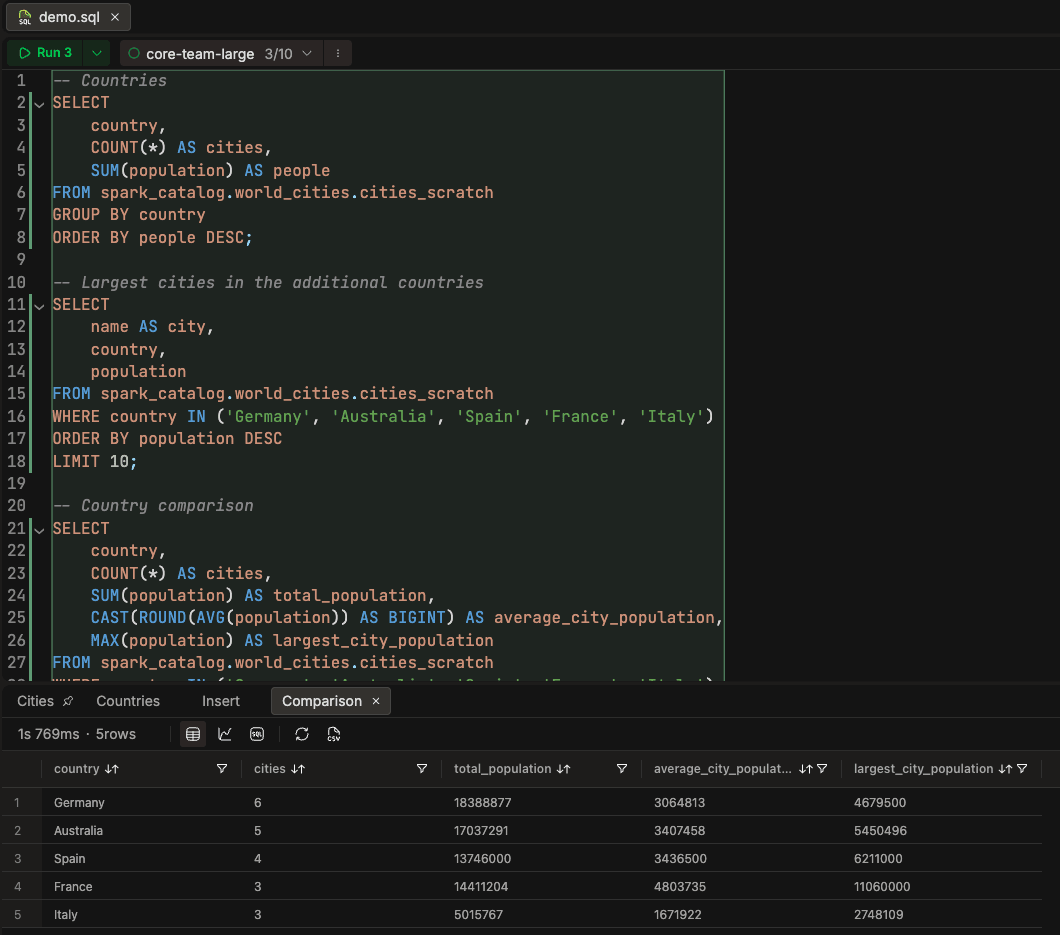
To try this without an existing table, run these three statements:
SELECT 1 AS first_result;
SELECT 2 AS second_result;
SELECT 3 AS third_result;
Choose Run all, then open each result tab to inspect its value. You can rename or pin tabs to keep results you want to compare.
Execution Shortcuts
| Action | Mac | Windows / Linux |
|---|---|---|
| Run one active statement; open run options when multiple or no statements are active | Cmd+Enter | Ctrl+Enter |
| Run every statement in the worksheet | Cmd+Shift+Enter | Ctrl+Shift+Enter |
| Open run options | Cmd+Option+Enter | Ctrl+Alt+Enter |
In the run options menu, use the arrow keys to choose an action, Enter to run it, or Esc to dismiss the menu.
When Execution Is Unavailable
| Condition | What to Do |
|---|---|
| Another query is running | Wait for it to finish or stop it before starting another run. |
| No active compute is selected | Select an active compute. If it is starting, wait until it is ready. |
| No catalog or namespace is selected | Select a catalog and database namespace. |
| No statement is active | Move the cursor into a statement, select SQL, or choose Run all. |
| The worksheet is empty | Enter a SQL statement before running it. |
Cancelling a Query
For a multi-statement run, click Stop in the worksheet toolbar. This stops further statements from being submitted and requests cancellation of the statement currently running. If that statement cannot be cancelled, a message explains that it will finish on its own. Statements that already completed remain available in their result tabs.
To cancel an individual running query, use Cancel in its results panel. Cancellation can pass through CANCELING or CANCELLING before reaching CANCELED or CANCELLED, depending on the query engine.
Refreshing the page restores the latest result tabs, but does not resume statements that were never submitted. To execute those statements, select and run them again.
Understanding Query States
| State | Description |
|---|---|
| PENDING / SUBMITTED | The query is being prepared or has been submitted for execution. |
| RUNNING | Executing. The run button shows a spinner, and Cancel is available. |
| SUCCESS / COMPLETED | Finished successfully. Results appear in the table, chart, and SQL views. |
| CANCELING / CANCELLING | A cancel request is being processed. |
| CANCELED / CANCELLED | You cancelled the query. |
| FAILED | Execution failed. An error message and a Compute Logs link appear. |
| NOT_FOUND | The result wasn't found (it may have been cleaned up). |
| RESULT_EXPIRED | The result expired and is no longer available. |
Status updates arrive in real time, so you'll see state changes without refreshing.