Workspaces
Workspaces in IOMETE provide a powerful way to organize and manage your SQL worksheets within the SQL Editor. Think of workspaces as containers that group related worksheets and folders, with configurable storage backends and access permissions.
Viewing Workspaces
In the SQL Editor, you can view all workspaces in the left sidebar under the Worksheets section. The workspace list includes:
- My Workspace: Your personal workspace (always visible)
- Shared: The shared workspace accessible to all users (always visible)
- Custom Workspaces: Any additional workspaces where you have
VIEWorPUTpermissions (configured via resource bundles)


All users can see "My Workspace" and "Shared Workspace" regardless of permissions. Other workspaces appear if you have at least VIEW or PUT permission.
Creating a New Workspace
To create a new workspace:
- Click the three-dot menu next to Worksheets in the SQL Editor.
- Select New workspace from the menu.
- Fill in the workspace details in the dialog.


Workspace Configuration
When creating a workspace, you need to configure:
Basic Information:
- Name: A unique identifier for your workspace. Choose descriptive names that reflect the workspace purpose (e.g., "Data Analytics", "Marketing Reports")
The workspace name must be unique across the entire IOMETE instance to ensure there is no overlap in file paths.
Storage Configuration:
- Storage Config: Select from available storage configurations based on your permissions. Only storage configs that you have access to through resource bundles will be visible in the dropdown.
Access Control:
- Resource Bundle: Select the required resource bundle to manage workspace access permissions
Only domain owners can create workspaces. The selected resource bundle determines who can access the workspace and what level of permissions they have.
Managing Folders
Folders help organize worksheets within workspaces. You can create hierarchical folder structures to better categorize your SQL scripts.
Adding Folders
To create a new folder:
- Right-click on a workspace or existing folder.
- Select New folder from the context menu (visible only if you have
PUTpermission). - Enter a name for the folder and confirm.


The folder will be created inside the selected workspace or parent folder.
Moving Folders
To move a folder to a different location:
- Right-click on the folder and select Move.
- A dialog will show available target workspaces (only workspaces where you have
PUTpermission). - Select the target workspace and optionally choose a destination folder.
- Confirm the move.
If a folder with the same name already exists in the destination, the move operation will fail. You'll need to rename one of the folders before proceeding.
Deleting Folders
To delete a folder:
- Right-click on the folder and select Delete (only workspaces where you have
PUTpermission). - Confirm the deletion.
When you delete a folder, all worksheets and subfolders inside it will be permanently removed. This action cannot be undone.
Managing Worksheets
Worksheets are SQL documents that contain your queries and scripts. They can be organized within folders and moved between workspaces.
Adding Worksheets
To create a new worksheet:
- Right-click on a workspace or folder.
- Select New worksheet.
- Enter a name for the worksheet and confirm.
Moving Worksheets
To move a worksheet to a different location:
- Right-click on the worksheet and select Move.
- Choose from available workspaces.
- Optionally select a destination folder or subfolder.
- Confirm the move.


Deleting Worksheets
To delete a worksheet:
- Right-click on the worksheet and select Delete.
- Confirm deletion.
The worksheet will be permanently removed.
Access Permissions
Workspace access is controlled through resource bundle and follows a hierarchical permission model:
Workspace
- CREATE: Only Domain Owners can create new workspaces
Folders & Worksheets
Domain Owners: Have all permissions by default
Bundle-based Access: Permissions are assigned to selected people or groups through resource bundles
VIEW Permission
- View all folders and worksheets inside the workspace
- Execute the contents of worksheets
PUT Permission
- Create new folders and worksheets inside the workspace.
- Rename and duplicate existing worksheets.
- Move folders and worksheets within the same workspace or from other workspaces (where they have
PUTaccess). - Delete folders and worksheets inside the workspace.
- Cannot edit the contents of files.
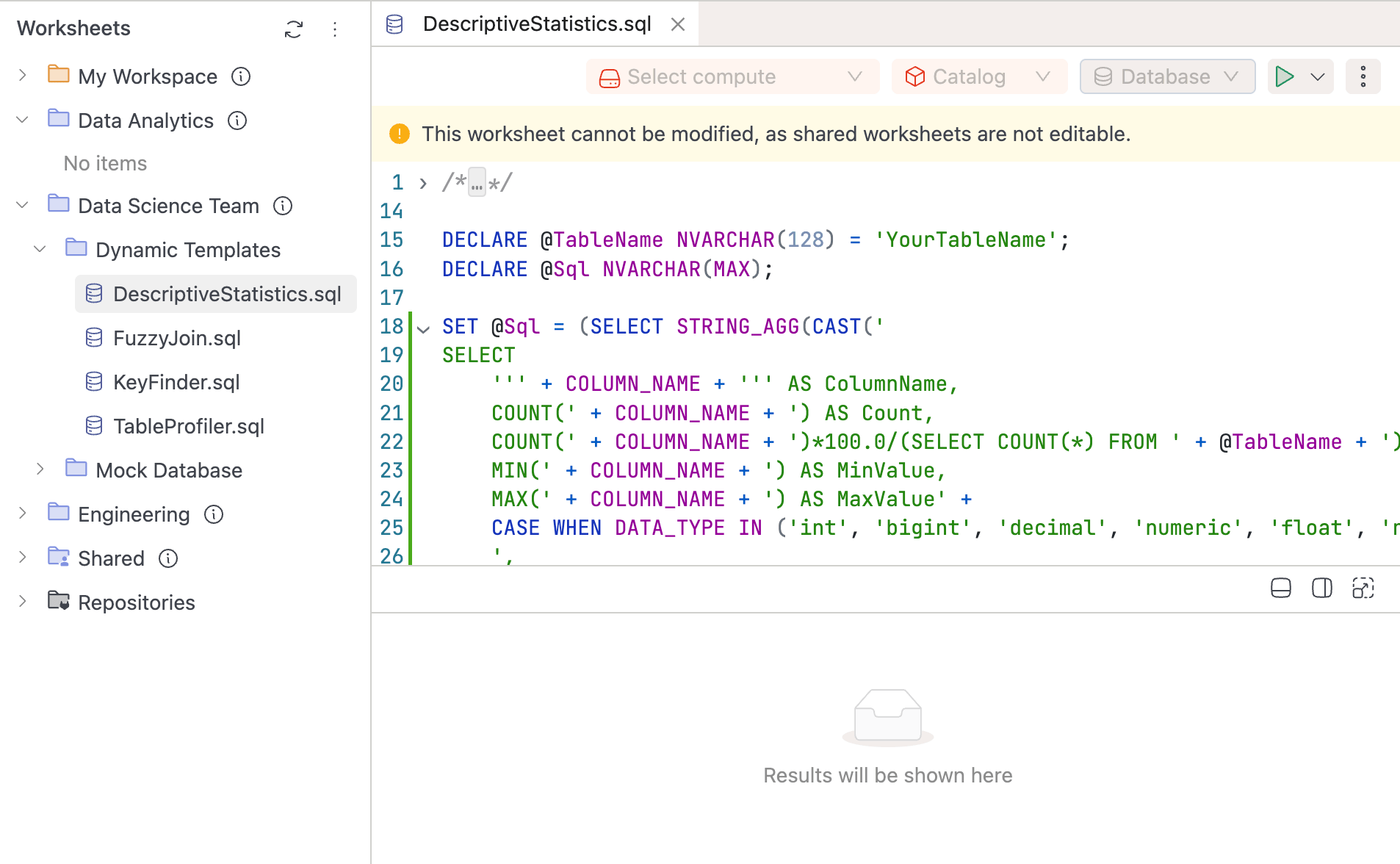
Editing worksheet contents within custom workspaces is planned for a future release.
Storage Integration
Workspaces use storage configs to determine where worksheets are physically stored. This allows you to:
- Store different workspaces in different storage backends.
- Organize data based on compliance or business needs.
Each workspace is associated with a specific storage configuration during creation, and all worksheets within that workspace are stored in the configured storage backend.
How to Enable Workspaces
Your platform administrator controls the workspace feature through the onboardWorkspaceRas feature flag. To enable it, add the following to the Helm values.yaml:
onboardWorkspaceRas:
  enabled: true