Namespace Quotas
A namespace quota caps how much CPU, memory, storage, and how many pods the workloads in one Kubernetes namespace can use. IOMETE deploys compute clusters, Spark jobs, and Jupyter containers into namespaces, so the quota on a namespace decides how much room those workloads have.
IOMETE doesn't create or change quotas. Your Kubernetes administrator defines them as ResourceQuota objects, and IOMETE reads them from every data plane every few seconds. You see the result on the Home page, and IOMETE checks your resource settings against them before it creates a workload.
Namespace quotas aren't resource bundles. A resource bundle controls who can access a resource. A namespace quota controls how much CPU, memory, and storage the workloads in a namespace can use.
Viewing Namespace Quotas
Open the Home page and select the Namespace quotas tab. It's the default tab, and a red warning icon appears next to its name when any namespace is Exhausted.
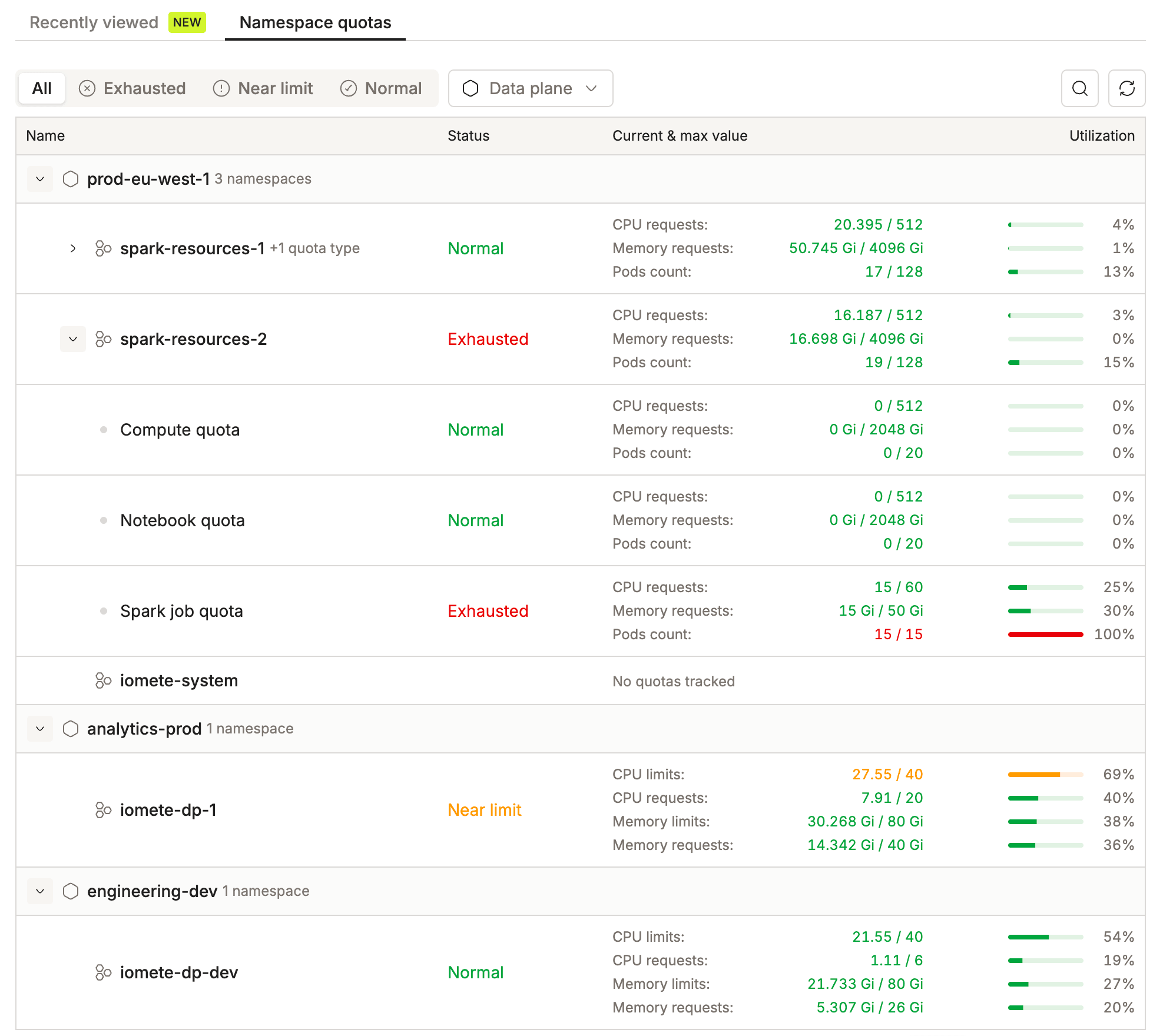
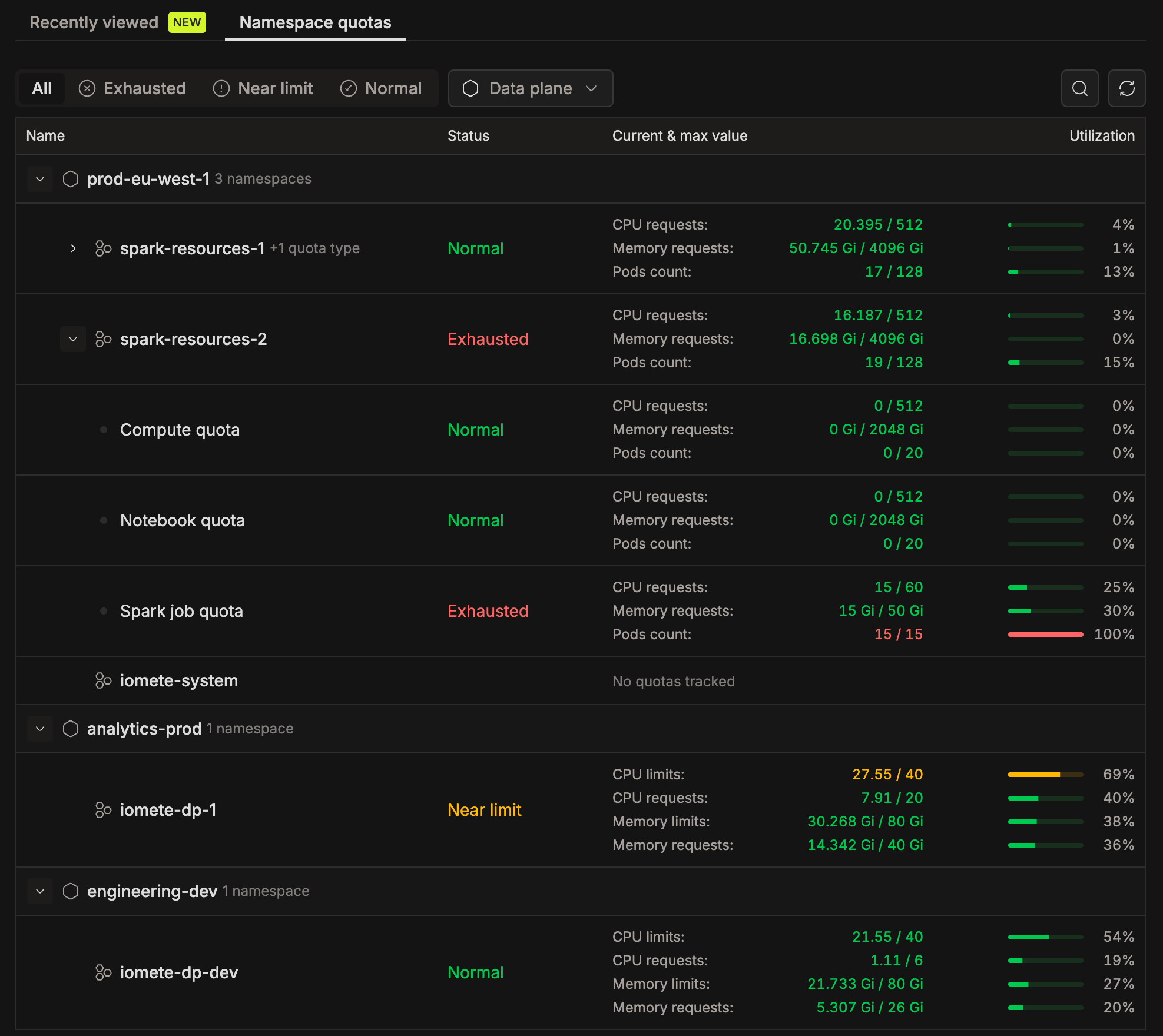
The table groups quotas in three levels:
- Data plane: each data plane your domain uses, with its namespace count. The same namespace name can exist on more than one data plane.
- Namespace: the overall quota for the namespace. A collapsed namespace shows how many workload-type quotas it hides, for example +1 quota type.
- Workload type: rows such as Compute quota, Spark job quota, and Notebook quota. These appear only when priority classes are enabled and your administrator has defined quotas for them. See Setting Quotas.
| Column | Description |
|---|---|
| Name | Data plane, namespace, or workload type. |
| Status | Normal, Near limit, or Exhausted. A namespace takes the worst status of its own resources and its workload-type rows. See Reading Quota Usage. |
| Current & max value | One line per limited resource, with what's in use and the limit, for example Pods count: 15 / 15. A namespace without a quota shows No quotas tracked. |
| Utilization | Current value as a percentage of the limit. |
To narrow the list, filter by Status (All, Exhausted, Near limit, Normal), by Data plane (shown when your domain uses more than one), or search by data plane, namespace, or resource type. Use the refresh button to reload the latest values.
You only see namespaces that belong to your domain and that you have Use permission on. See Namespace Permissions.
Admin Views
Admins have two more views of the same data:
-
Monitoring → Namespace quotas across data planes: the same table for every data plane and namespace in the organization, including each data plane's connection status.
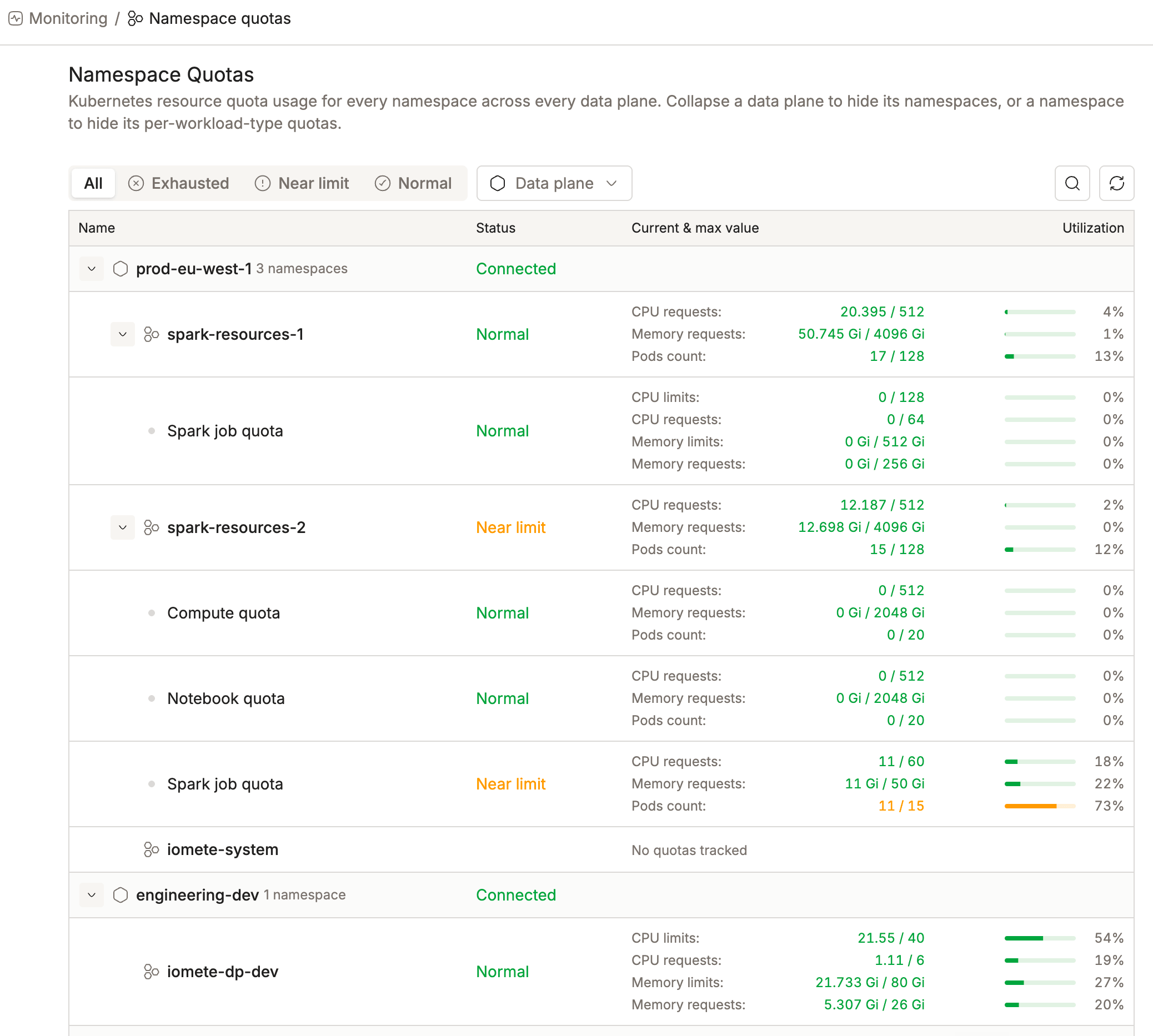
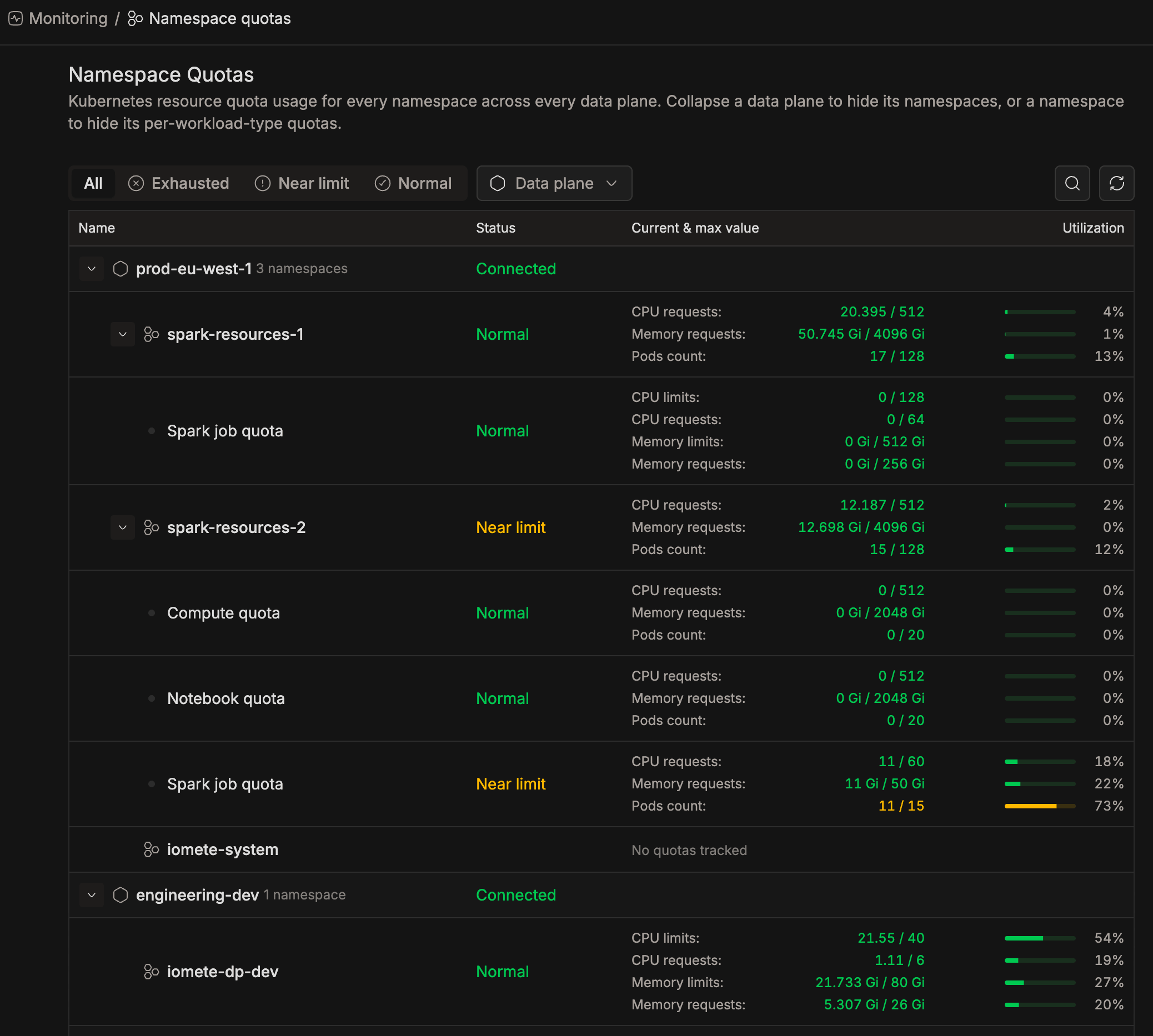
-
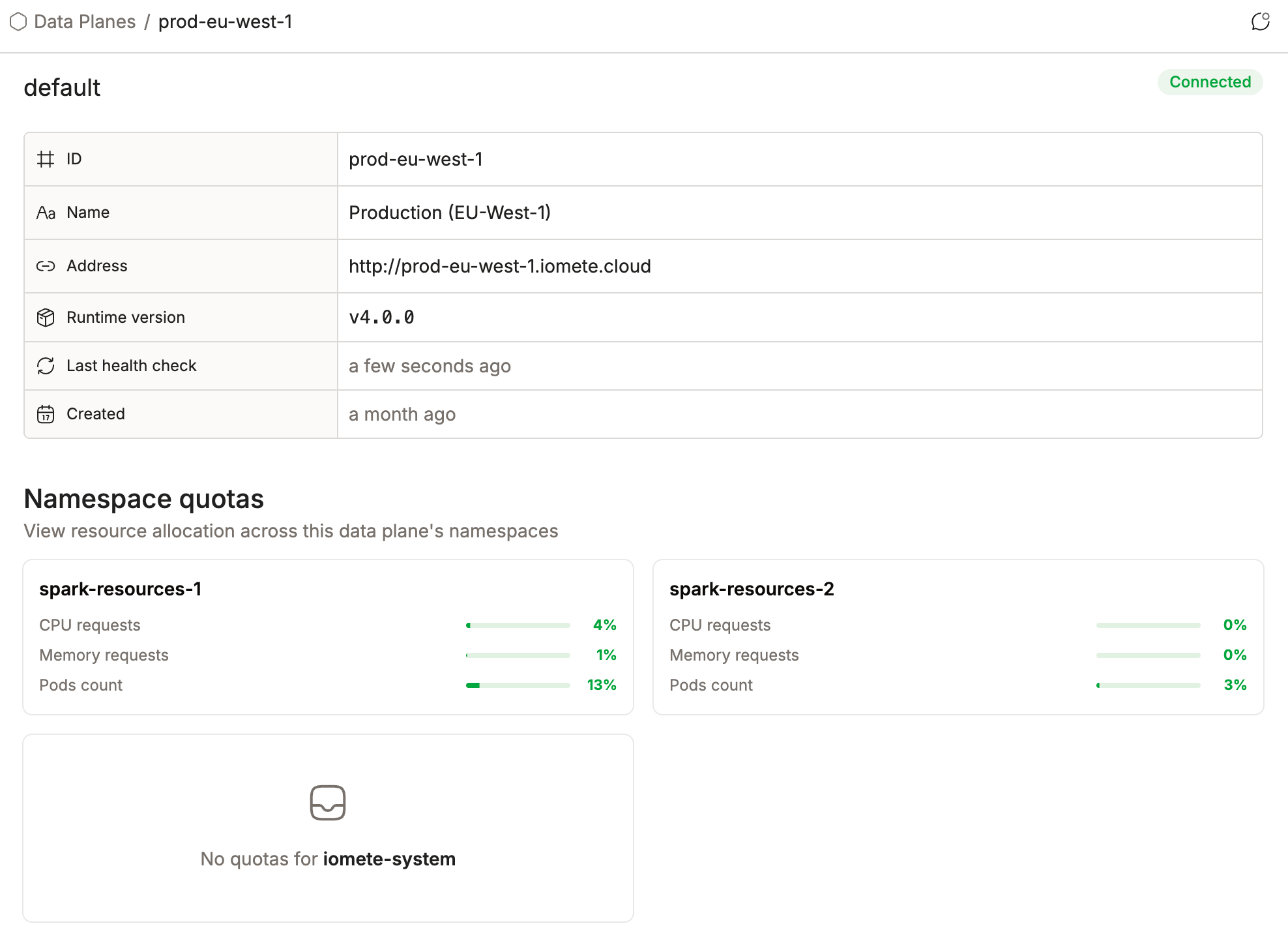
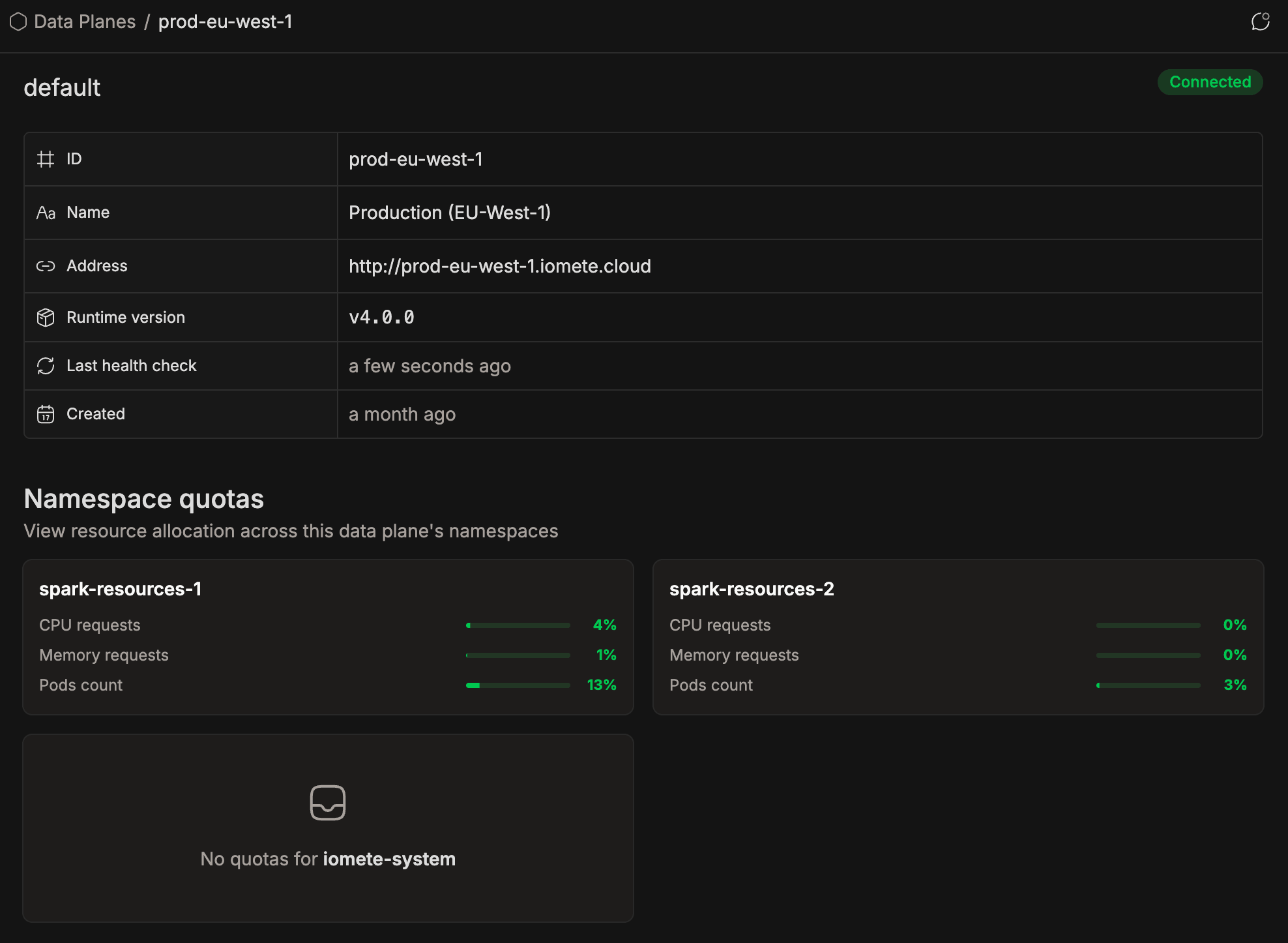
Data Planes → a data plane: a card per namespace showing its overall quota usage.
Reading Quota Usage
Each row shows one resource that the namespace's quota limits. IOMETE only shows the resources your administrator set a limit for.
| Resource | Kubernetes Quota Key | Unit |
|---|---|---|
| CPU requests | requests.cpu (or cpu) | cores |
| CPU limits | limits.cpu | cores |
| Memory requests | requests.memory (or memory) | Gi |
| Memory limits | limits.memory | Gi |
| Pods count | pods | count |
| Storage requests | requests.storage, or per storage class as Storage requests (<class>). See Quota for Storage. | Gi |
| Persistentvolumeclaims | persistentvolumeclaims | count |
IOMETE converts every value to these units, whatever unit the quota uses. For example, a CPU limit of 500m shows as 0.5, and a memory limit of 1Ti shows as 1024 Gi. See Resource Units in Kubernetes.
Kubernetes quotas can also limit resources this table doesn't show, such as requests.ephemeral-storage, GPUs (requests.nvidia.com/gpu), or object counts like services and secrets. IOMETE doesn't display these, but Kubernetes still enforces them. If pods are rejected while every row here has room, ask your administrator to check the namespace's full quota with kubectl describe resourcequota -n <namespace>. See Types of Resource Quota for every resource a quota can limit.
Utilization is the current value divided by the limit. The status follows from it:
| Status | Meaning |
|---|---|
| Normal | Usage is well within the limit. |
| Near limit | Usage is approaching the limit. |
| Exhausted | Usage is at or close to the limit. |
Exhausted doesn't always mean the limit is fully used. Some room can still be left.
A namespace can also show Exhausted while its overall usage is low, because one workload type has reached its own limit. For example, a Spark job quota at Pods count: 15 / 15 blocks new Spark jobs in the namespace, even if compute clusters still have room.
The utilization bar stops at 100%, but the percentage doesn't. A value such as 150% is real: the namespace is using more than its current limit. See Why Usage Can Exceed 100%.
Checking Quota Before Creating a Resource
When you create or edit a compute cluster, Spark job, or Jupyter container, the form helps you fit your settings into the namespace's quota.
Selecting a Namespace
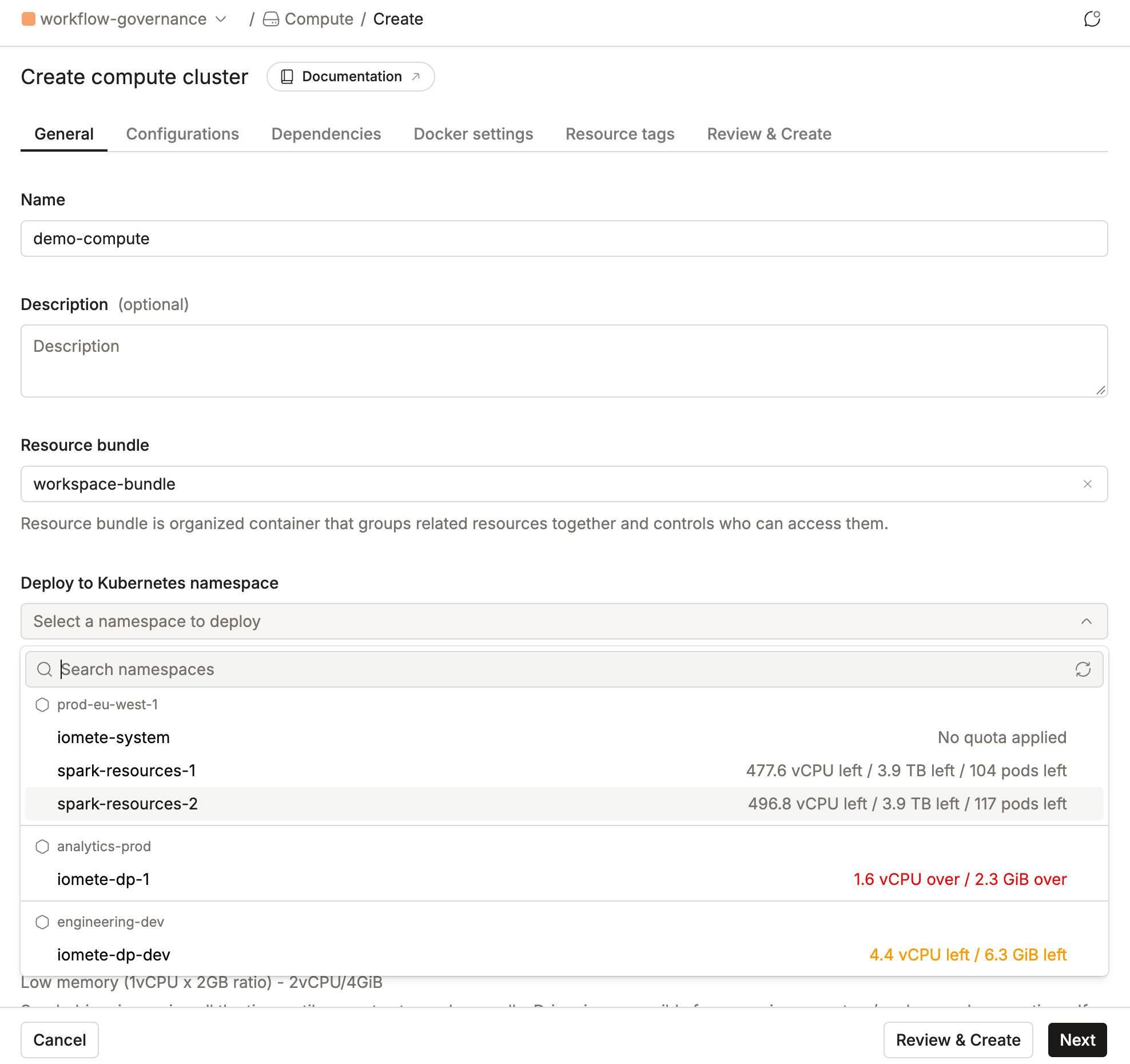
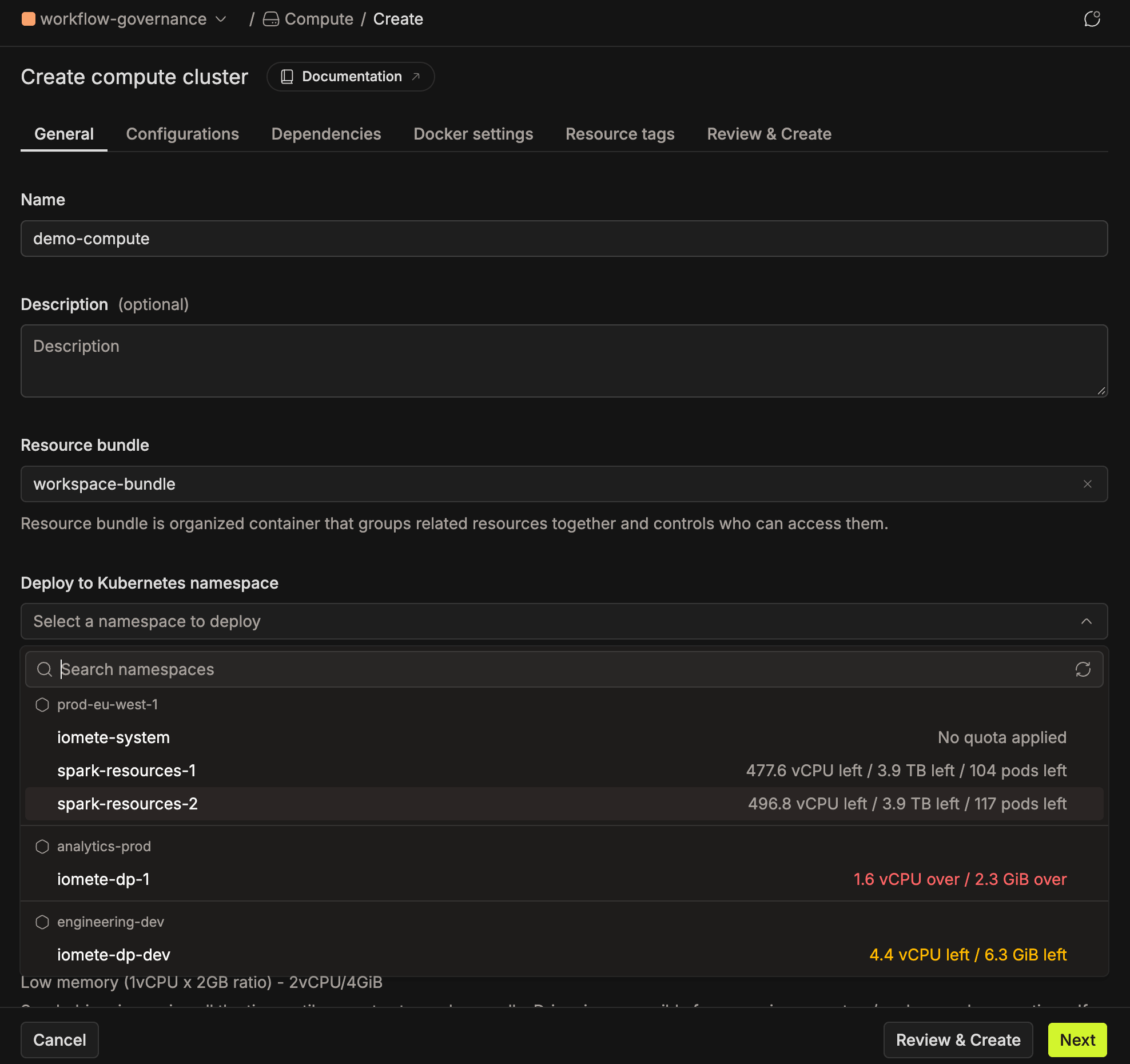
The Deploy to Kubernetes namespace dropdown groups namespaces by data plane. Next to each one, it shows what would be left after your selection, for example 477.6 vCPU left / 3.9 TB left / 104 pods left. The color tells you how well your selection fits:
| Indicator | Example | Meaning |
|---|---|---|
| Gray text | 104 pods left | The selected resources fit within the remaining quota. |
| Amber text | 4.4 vCPU left | The selected resources fit, but bring the namespace close to its quota limit. |
| Red text | 1.6 vCPU over | The selected resources exceed the remaining quota by the amount shown. |
| No quota applied | — | No resource quota is defined for the namespace. |
Reviewing the Resource Allocation Summary
After you select a node type, the summary shows how much CPU, memory, pods, and volume the resource needs, and what percentage of the namespace's quota that is. For example, 22 vCPU · 4.3% of total cpu quota means the resource needs 4.3% of the namespace's CPU quota.
The percentage covers only this resource. It doesn't include what's already running in the namespace.


Submitting the Form
IOMETE rejects the request only when your settings need more than the namespace's whole limit, regardless of what's running. The form returns to the General tab and marks the fields to change with Resource quota exceeded. Please adjust your configuration.
A red over value in the namespace dropdown is advisory and doesn't prevent submission. IOMETE creates the resource, but it may not start until enough quota is available. What happens next depends on the resource type. See What Happens When a Quota Is Reached.
Why Usage Can Exceed 100%
Kubernetes checks a quota only when a pod is created. Lowering a limit doesn't stop pods that are already running, so current usage can stay above the new limit.
For example, a namespace runs 100 pods with a pod limit of 200:
| Step | Running Pods | Pod Limit | Utilization |
|---|---|---|---|
| Before | 100 | 200 | 50% |
| Administrator lowers the limit | 100 | 50 | 200% |
| Pods finish until usage is under the limit | 40 | 50 | 80% |
While usage is above the limit, Kubernetes rejects every new pod in that namespace. Usage drops as pods finish, and new pods start once there's room again. To make room sooner, stop resources you don't need or ask your administrator to raise the limit.
Quota Is Not Capacity
A quota is a ceiling, not a reservation. It sets the most a namespace may use, but it doesn't set aside nodes for it. See Quota and Cluster Capacity in the Kubernetes docs.
Administrators often give each team's namespace a generous quota. Added together, the quotas of all namespaces can be more than the cluster's real CPU and memory. When several teams are busy at once, the cluster fills up before any one namespace reaches its quota.
When that happens, the namespace quotas tab shows plenty of room, but new pods stay Pending because no node has enough free CPU or memory.
Both problems stop new pods from starting, but the cause and the fix are different:
| Namespace Is Full | Cluster Is Full | |
|---|---|---|
| Namespace quotas tab shows | Near limit or Exhausted | Normal or Near limit |
| What happens to the pod | It isn't created. | It's created but waits in Pending. |
| Error message contains | exceeded quota | Insufficient cpu or Insufficient memory |
| How to fix it | Stop resources you don't need, or ask your administrator to raise the quota. | Wait for other workloads to finish, or ask your administrator to add nodes. To prevent it, administrators can keep the total of all quotas within the cluster's capacity. |
What Happens When a Quota Is Reached
| Workload | What Happens |
|---|---|
| Running pods | Keep running. Kubernetes never stops a running pod because of a quota. |
| Compute cluster (starting) | IOMETE retries for a few minutes. If quota is still full, the cluster shows Failed with the quota error. Start it again once quota is available. |
| Compute cluster (adding executors) | The cluster stays Active with the executors it has. Spark keeps trying to add the rest and succeeds once quota is available. |
| Spark job using the Job Orchestrator | The run stays Enqueued until the namespace has enough quota left. The job details show which resource blocks it. |
Setting Quotas
This section is for Kubernetes administrators. You create quotas with kubectl or your own deployment tooling, not in the IOMETE console.
A namespace-level quota limits everything in the namespace:
apiVersion: v1
kind: ResourceQuota
metadata:
  name: team-a-quota
  namespace: team-a
spec:
  hard:
    requests.cpu: "40"
    requests.memory: 160Gi
    limits.cpu: "80"
    limits.memory: 320Gi
    pods: "200"
To cap one workload type, scope a quota to its priority class. This quota limits Spark jobs in team-a and appears as the Spark job quota row. See Resource Quota per PriorityClass for how scopes work:
apiVersion: v1
kind: ResourceQuota
metadata:
  name: team-a-spark-jobs
  namespace: team-a
spec:
  hard:
    requests.cpu: "20"
    requests.memory: 80Gi
  scopeSelector:
    matchExpressions:
      - scopeName: PriorityClass
        operator: In
        values: ["iomete-spark-job"]
Keep these rules in mind:
- Several quotas in one namespace: IOMETE shows and checks the lowest limit for each resource. Kubernetes enforces every quota, so the strictest one applies.
- Workload-type rows need priority classes enabled in the data plane Helm chart (
features.priorityClasses.enabled), and the priority class names must match your priority class mappings. - Requests are required: once a quota limits CPU or memory, Kubernetes rejects pods without CPU and memory requests. Set defaults with a LimitRange.
- Sum of quotas: if the quotas across namespaces add up to more than the cluster, teams can be under quota and still wait for capacity. See Quota Is Not Capacity.
Frequently Asked Questions
Why does a quota show more than 100%?
The limit was lowered while pods were running. Kubernetes doesn't stop running pods when a quota shrinks, so usage stays above the limit until enough pods finish. See Why Usage Can Exceed 100%.
I'm well under my quota. Why are my pods Pending?
The cluster is out of CPU or memory. A quota is a ceiling, not a reservation, and the quotas of all namespaces can add up to more than the cluster has. See Quota Is Not Capacity.
Why is my Spark job stuck in Enqueued?
The Job Orchestrator waits until the namespace has enough quota left for the run. The job details show which resource blocks it: CPU, memory, pods, or storage. See Job Orchestrator.
Why was my compute cluster rejected with "Resource quota exceeded"?
Your settings need more than the namespace's whole limit, so they can never fit. Lower the driver, executor, or volume settings, or ask your administrator to raise the limit.
Which quota applies when a namespace has several?
All of them. Kubernetes enforces every quota, so the lowest limit for each resource wins. IOMETE shows that lowest limit.
Why don't I see Compute, Spark job, or Notebook quota rows?
Those rows need priority classes enabled in the data plane, and a quota scoped to that priority class in the namespace.
Why can't I see some of my organization's namespaces?
The tab shows only namespaces that belong to your domain and that you have Use permission on. Ask your administrator for access. If you're an admin, use the admin portal's Monitoring page to see every namespace.
How current is the data?
Each data plane reports its quotas every few seconds.
Does IOMETE create or change quotas?
No. Your Kubernetes administrator creates quotas. IOMETE only reads them and checks your settings against them.
Related Resources
- Priority Classes: control scheduling order and scope quotas per workload type.
- Job Orchestrator: how Spark job runs wait for quota.
- Namespace Permissions: who can deploy into a namespace.
- Kubernetes Resource Quotas: the upstream reference.