Recently Viewed
Recently Viewed is a personal list on the Home page that helps you get back to resources you opened recently. Use it when you're moving between Compute Cluster, Spark Jobs, Resource Bundles, Event Streams, Jupyter Containers and Catalog tables without navigating through each section again.
Recently viewed resources are scoped to your user and the current domain. Other users won't see your list.
Opening Recently Viewed
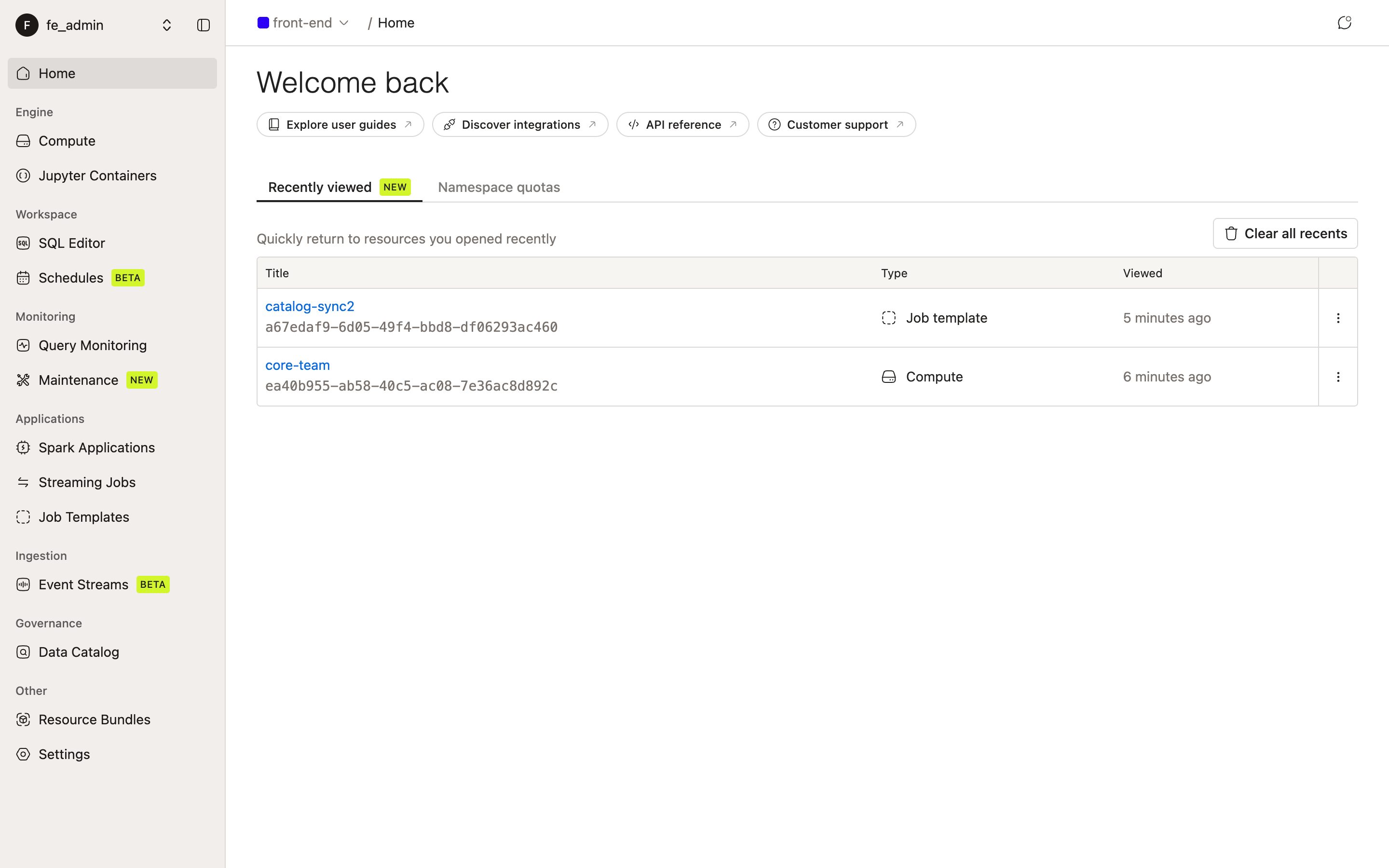
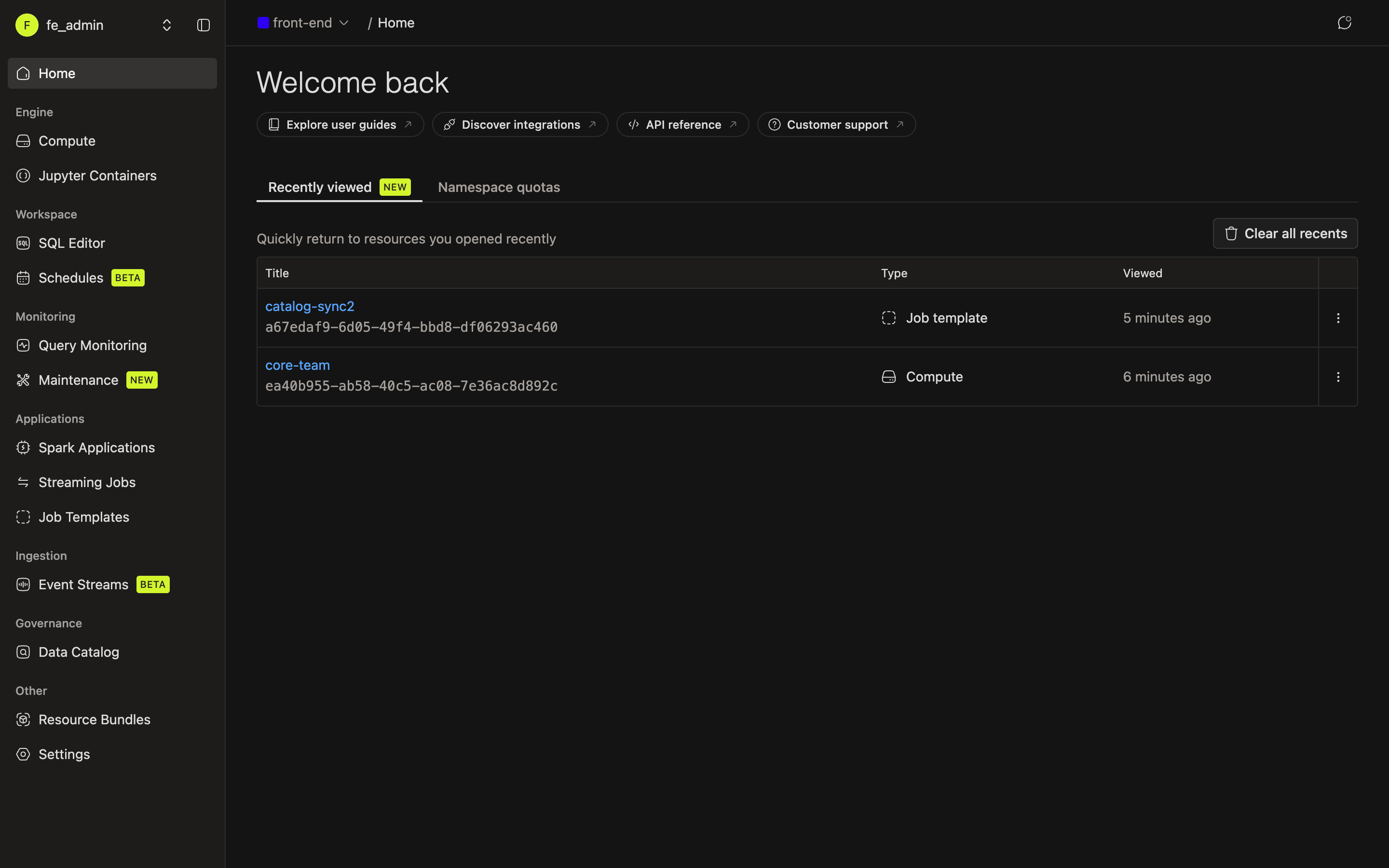
The list lives on the domain Home page.
- Open the IOMETE Console and select a domain.
- Go to Home.
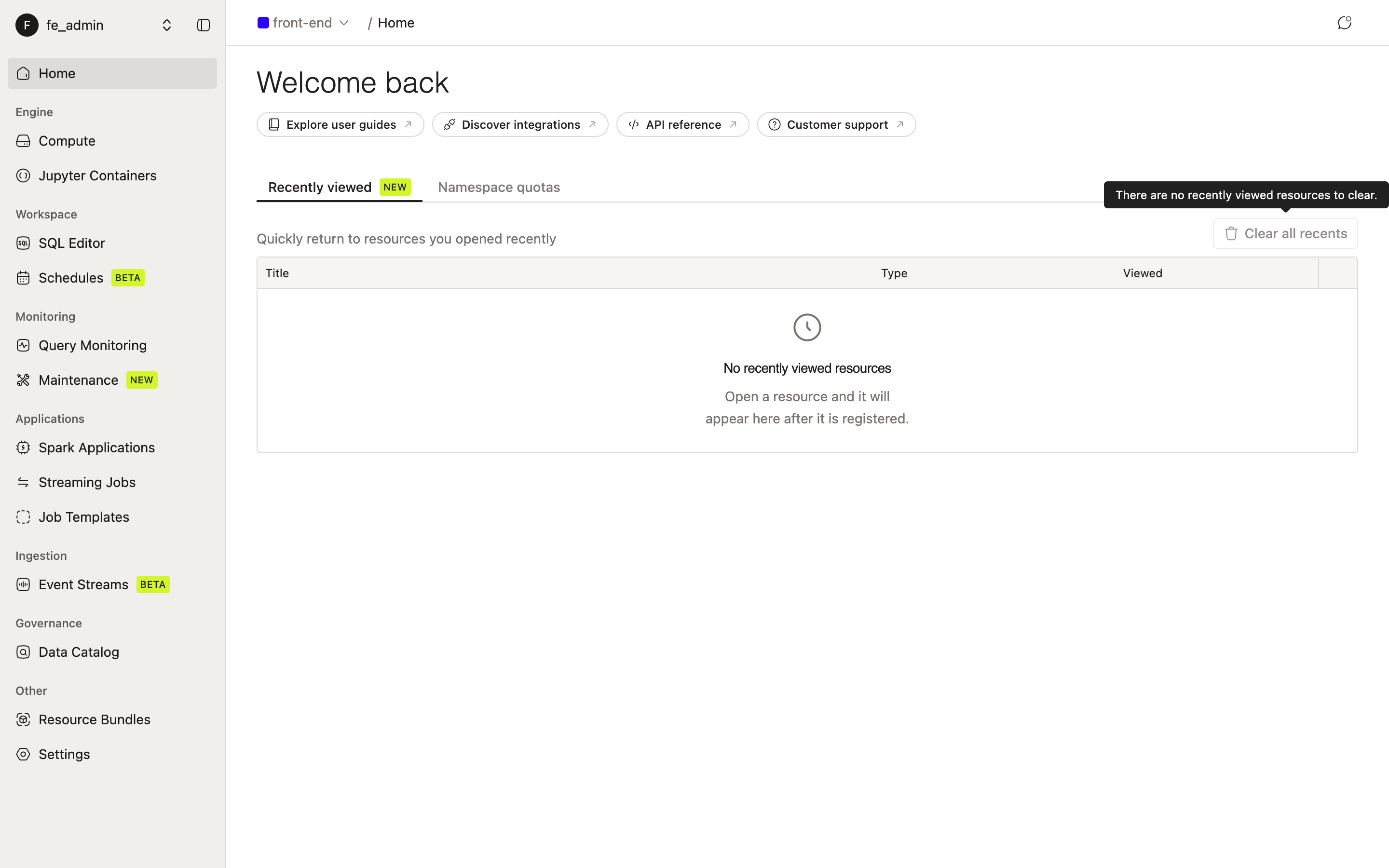
- Select the Recently viewed tab next to Namespace quotas.
IOMETE remembers the selected Home tab in your browser, so if you leave Home with Recently viewed selected, it opens again when you return to that domain.
How Resources Appear
When you open a supported resource detail page and keep it open briefly, IOMETE registers it in Recently Viewed. If you only open a page for a moment and leave before registration finishes, it may not appear in the list.
Supported resource types include:
| Resource type | What opens from Recently Viewed |
|---|---|
| Compute | Compute cluster detail page |
| Jupyter container | Jupyter container detail page |
| Job template | Spark job template detail page |
| Spark job | Spark job application run detail page |
| Streaming job | Streaming job detail page or streaming run detail page |
| Event stream | Event stream detail page |
| Resource bundle | Resource bundle detail page |
| Data catalog table | Table detail page in Data Catalog |
Reading the List
Each row represents one recently viewed resource:
| Column | Description |
|---|---|
| Title | Resource display name. The resource ID appears below the name and can be copied. |
| Type | Resource type, shown with an icon. |
| Viewed | Relative time since the resource was last registered. |
| Actions | Opens row actions for viewing, copying, or removing the item. |
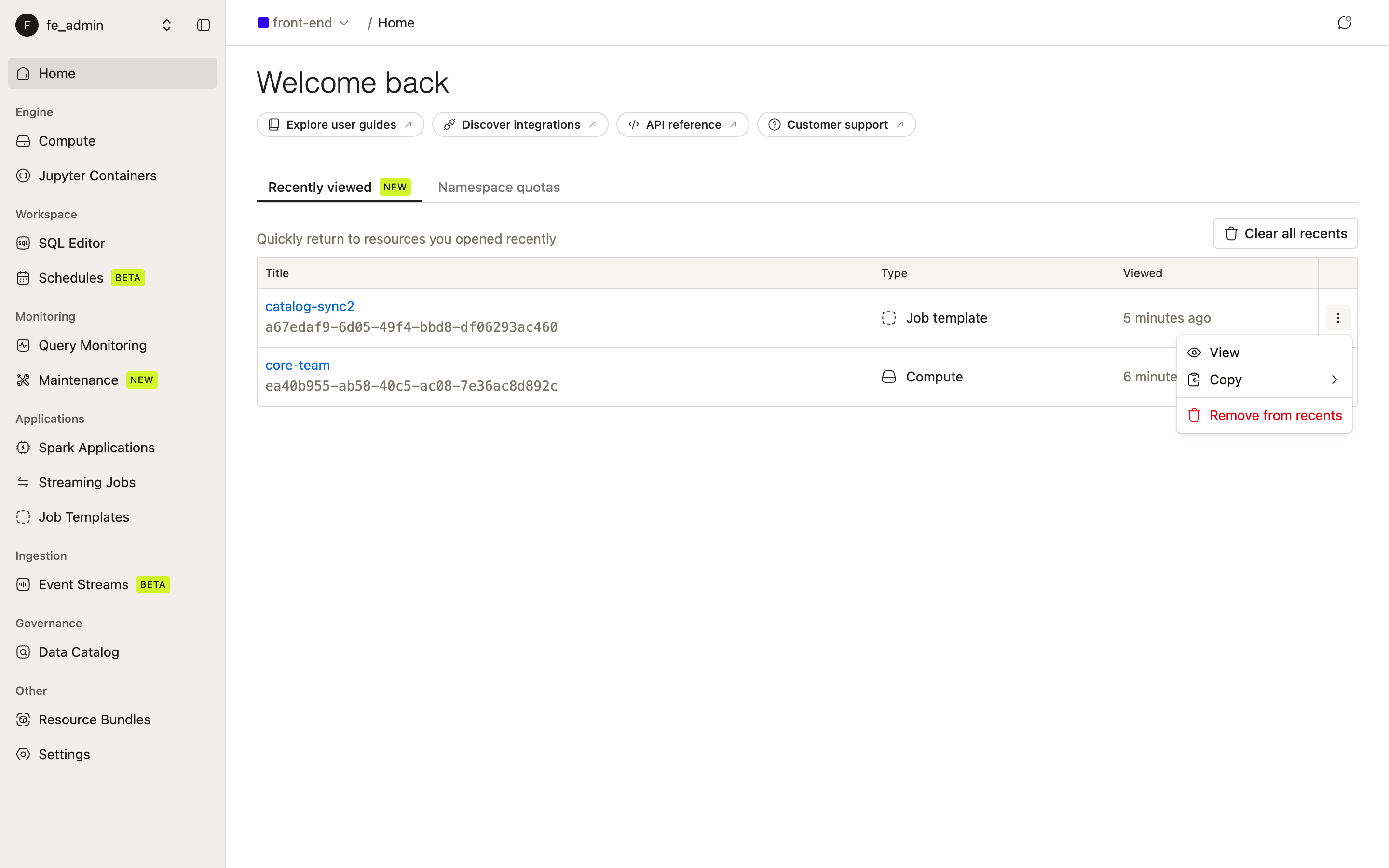
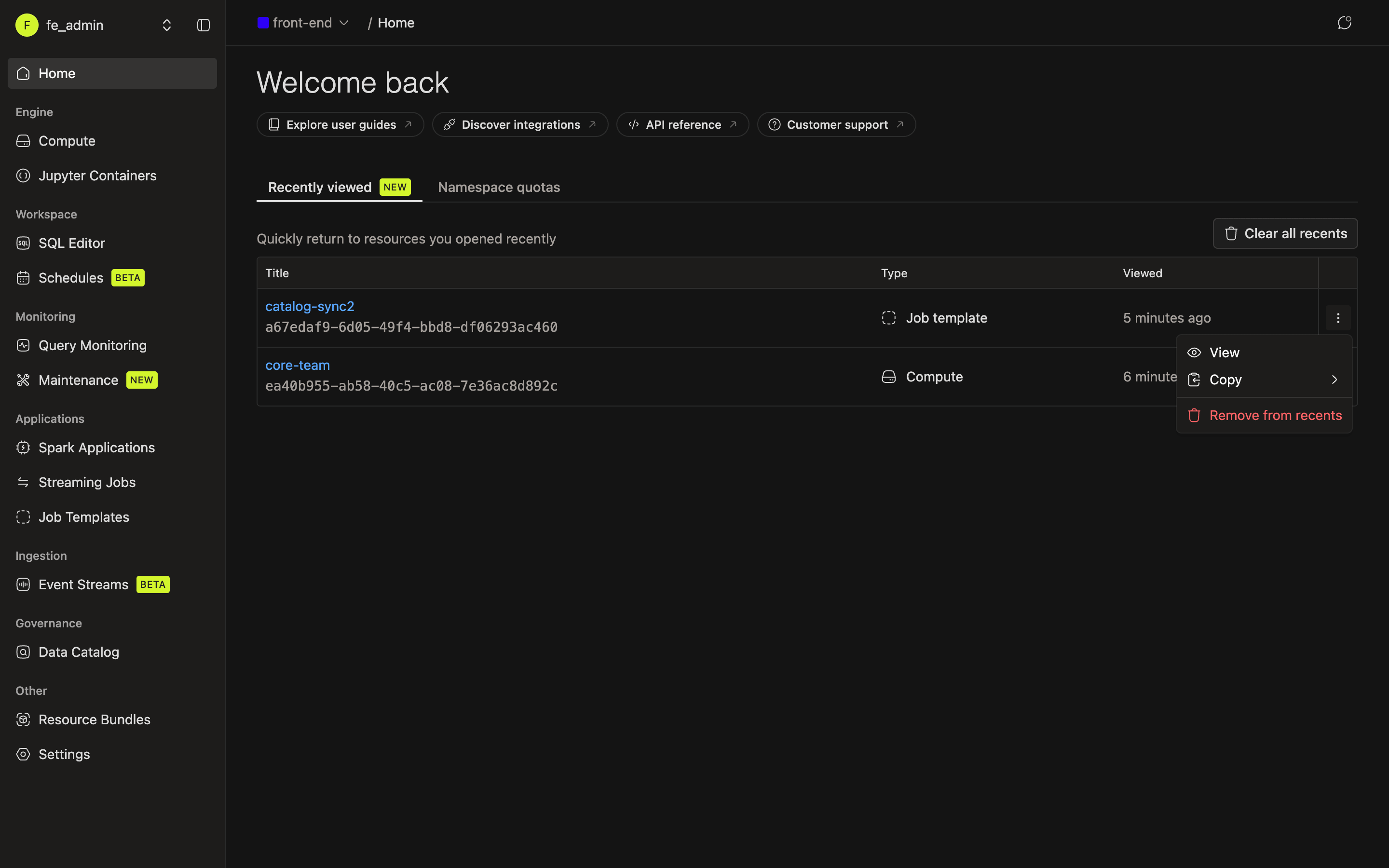
Click the resource title to open it. The row actions menu also includes:
- View: opens the resource detail page.
- Copy: copies the resource ID or display name.
- Remove from recents: removes only that row from Recently Viewed.
Managing the List
Recently Viewed is only a navigation shortcut. Removing or clearing items from the list does not delete the underlying resources.
To remove one item, open the row actions menu and select Remove from recents.
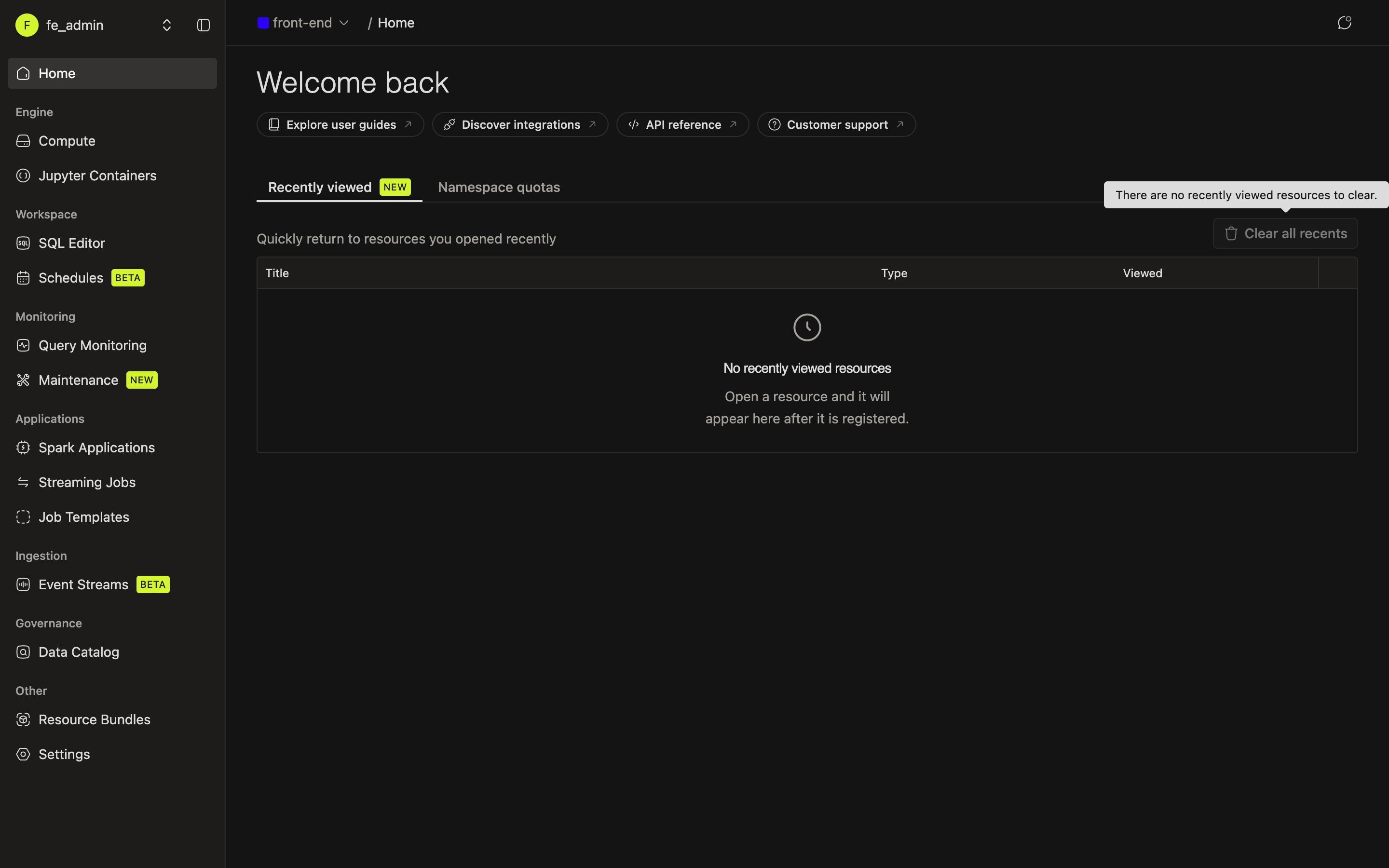
To clear the full list for the current domain, click Clear all recents. When there are no recent resources, the button stays visible but disabled with a tooltip explaining that there is nothing to clear.
Permissions and Visibility
Recently Viewed does not grant access to resources. When you open an item, normal resource permissions still apply. If a resource is deleted or your access is removed, opening it may return a not found or permission error.
Because the list is domain-scoped, clearing recents in one domain does not clear recents in another domain.
Related Resources
- Platform Tour: overview of the Home page and main navigation areas.
- Compute Clusters: manage dedicated Spark compute resources.
- Jupyter Containers: work in containerized JupyterLab environments.
- Spark Jobs: create and run batch Spark jobs.
- Event Stream: ingest events into Iceberg tables.
- Data Catalog: search, browse, and manage table metadata.
- Resource Bundles: control access to platform resources.