Spark Job Notifications
Job notification subscriptions let you register one or more email recipients to receive alerts for specific events on a Spark job or Spark Streaming job. Point them at any email address, including team distribution lists or on-call rotations, and pick exactly which events should trigger an alert.
An SMTP server must be configured before notifications can be sent. See Email Configuration to set it up.
Subscribing to a Job
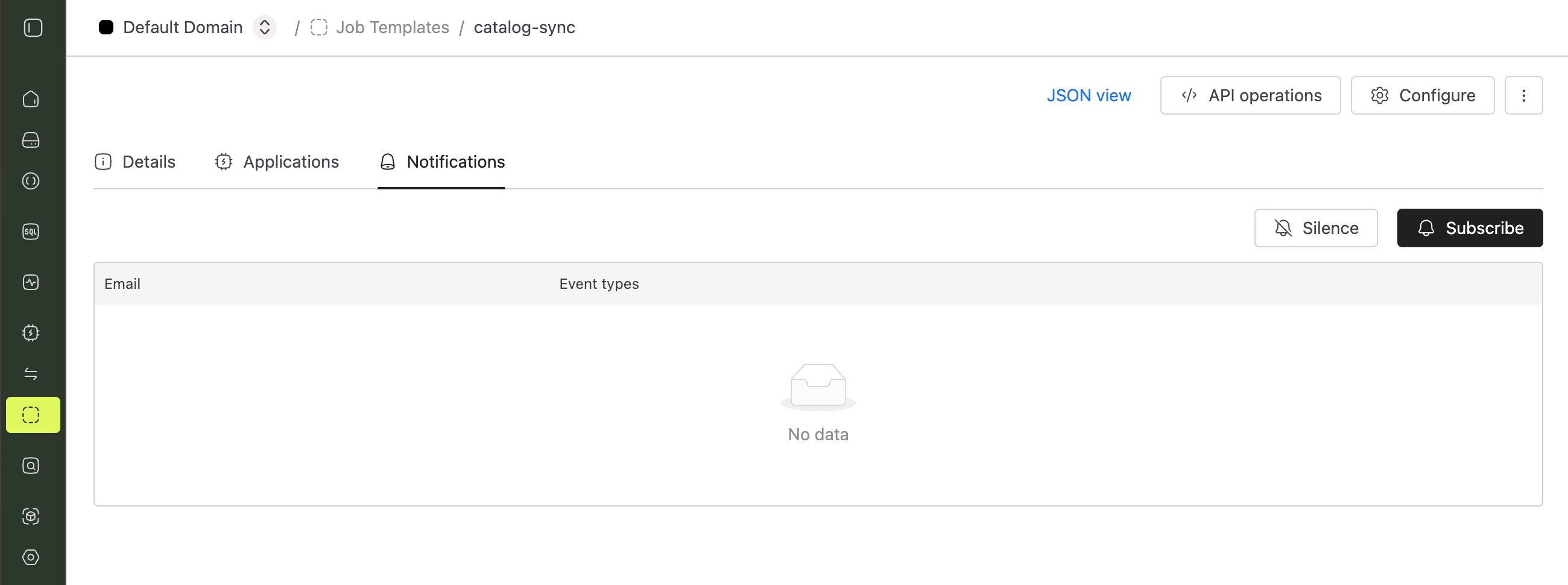
- Open a job from the left sidebar via Applications → Job Templates → job name, or Applications → Streaming Jobs → job name.
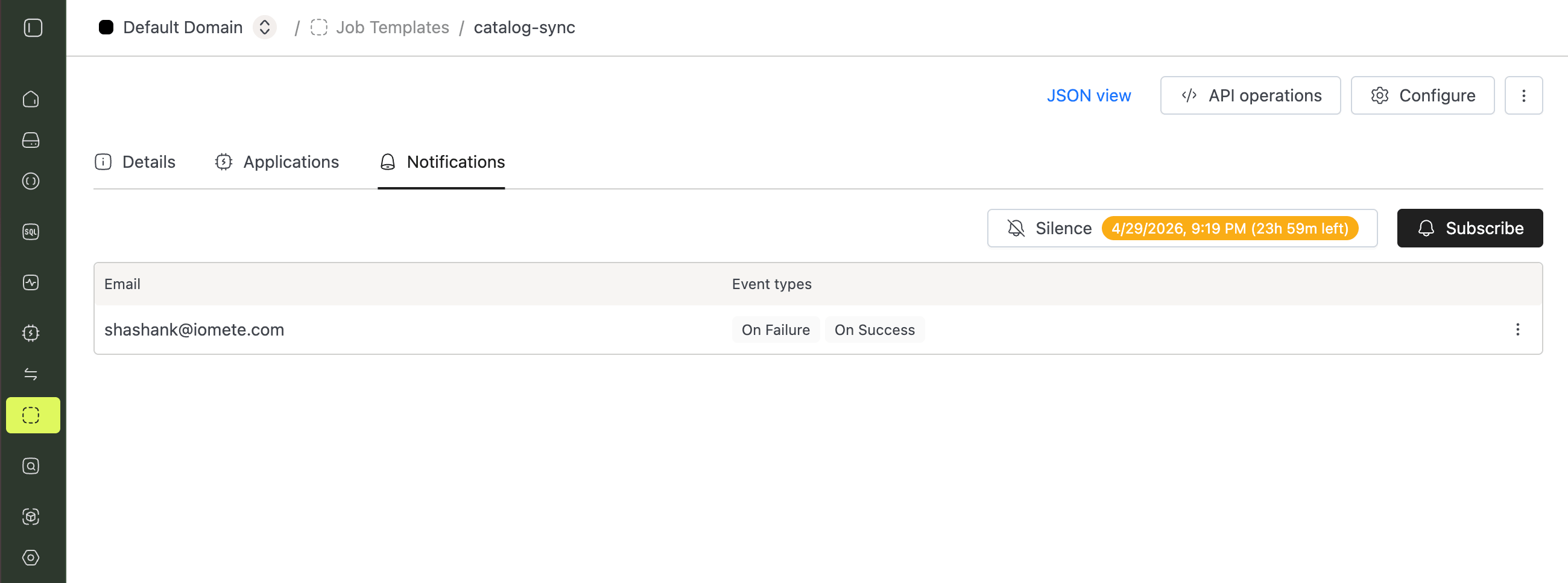
- Click the Notifications tab in the job detail.
- Click Subscribe.
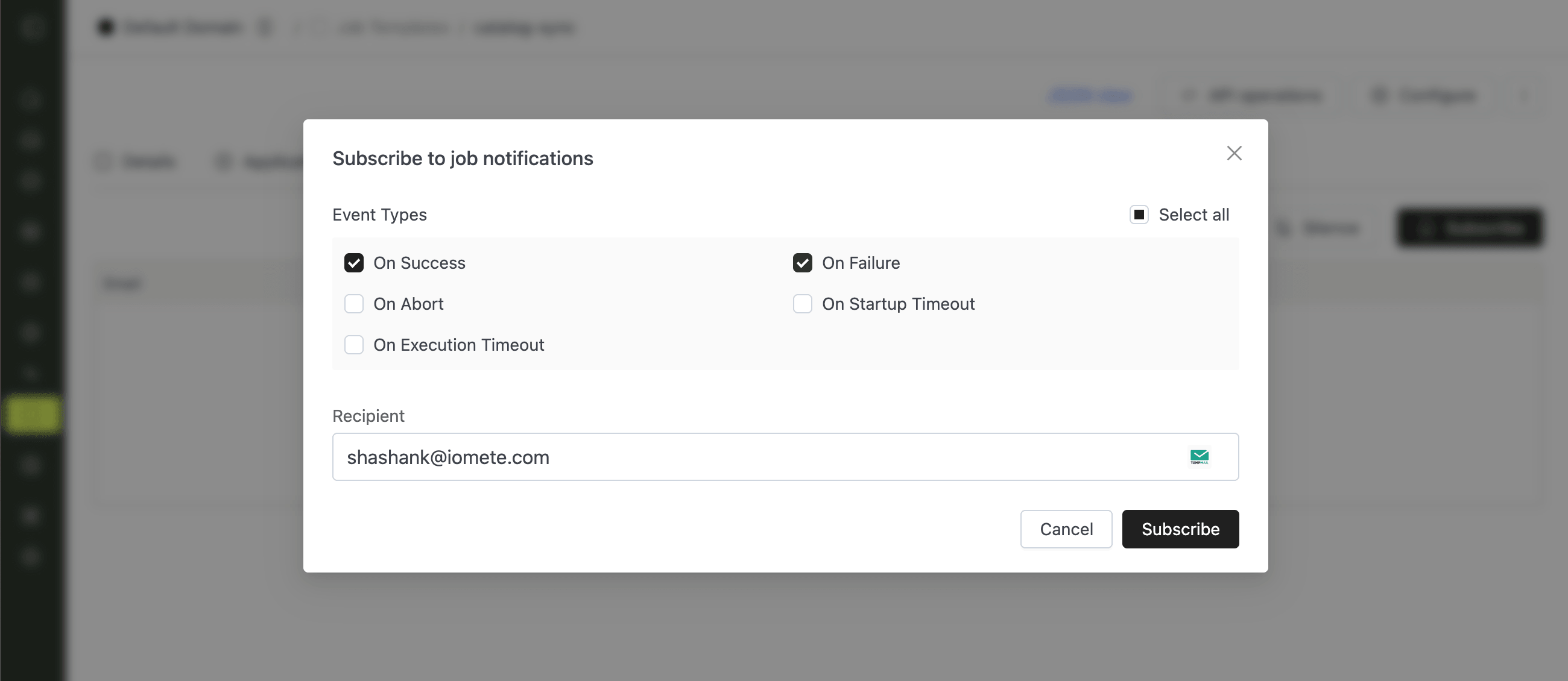
- The Subscribe to job notifications modal opens.
- Select one or more Event Types using the checkboxes, or click Select all to subscribe to every event. Available event types: On Success, On Failure, On Abort, On Startup Timeout, On Execution Timeout.
- Enter a Recipient email address. Your own email is pre-filled, but you can replace it with any valid address.
- Click Subscribe to save.
On success, a Job subscription created successfully notification appears and the new entry shows up in the table.
Each (job, recipient) pair must be unique. If a subscription already exists for the same recipient on the same job, the request is rejected with "Notification setting already exists for recipient {email}".
Managing Subscriptions
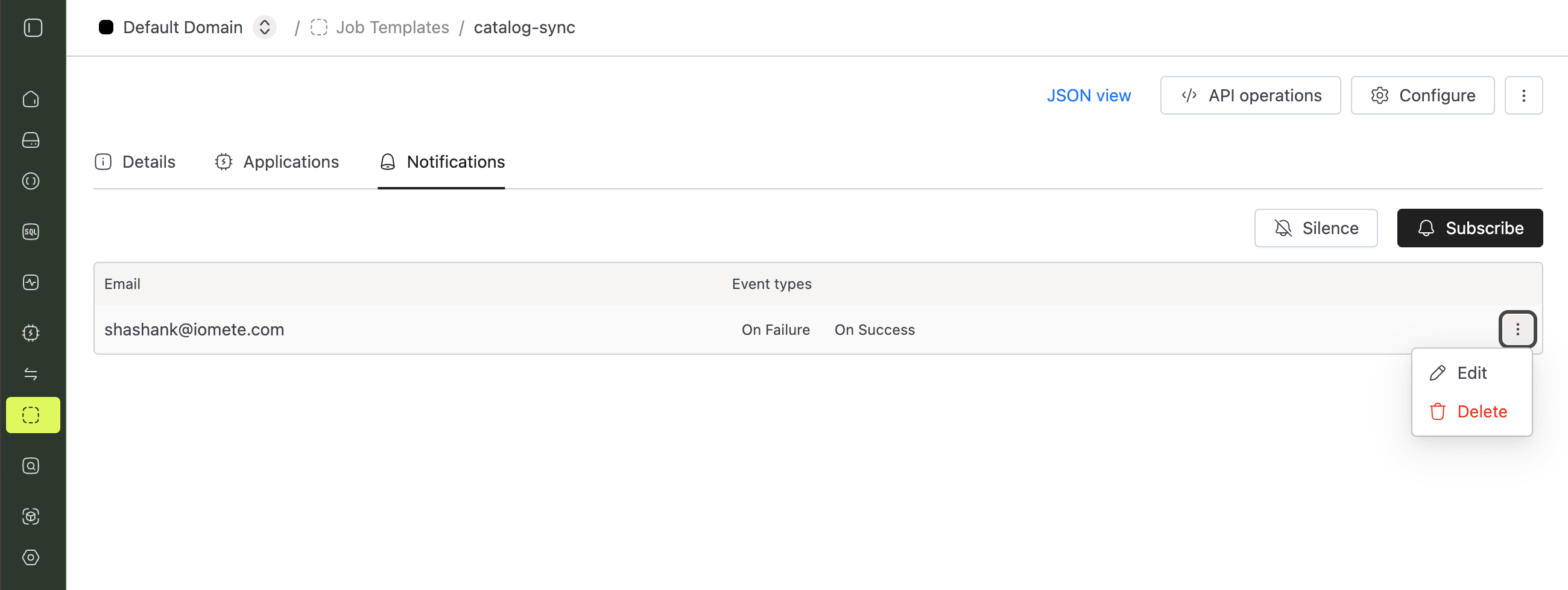
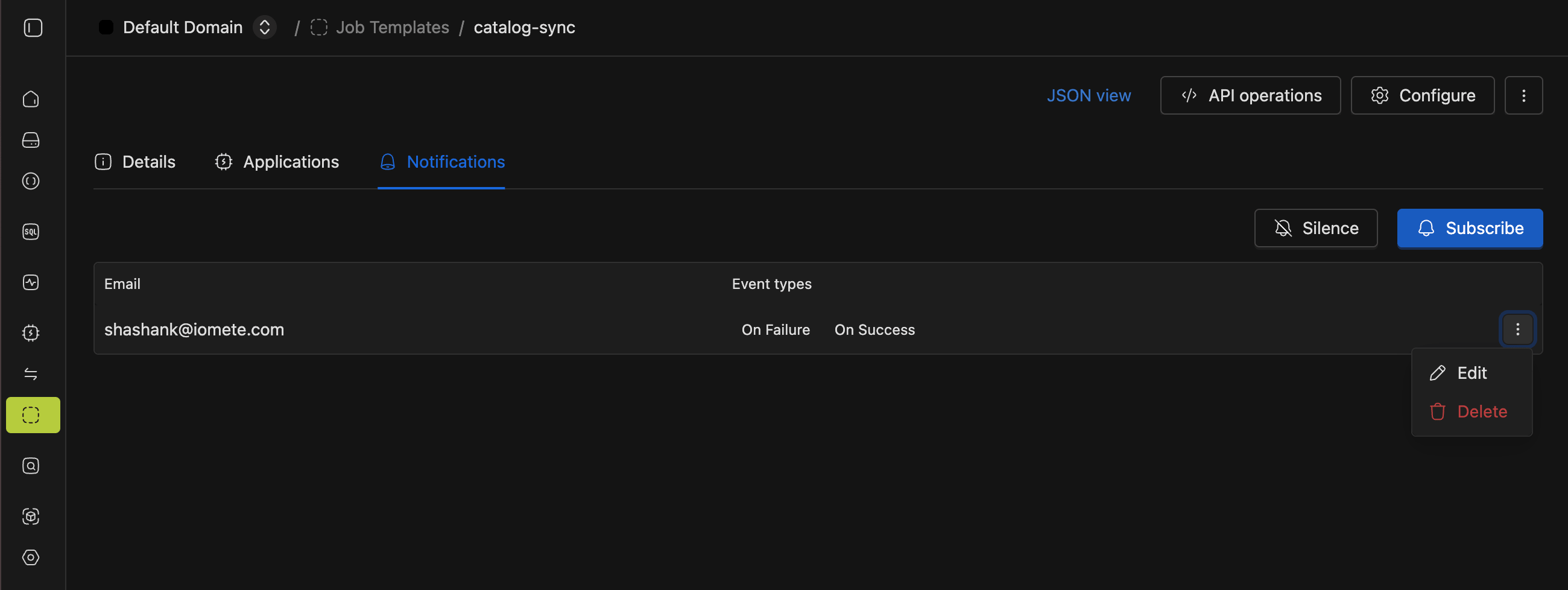
- On the Notifications tab, open the action menu on the subscription row.
- Click Edit to reopen the subscription modal with existing values pre-filled, change the events or recipient, and click Save. A success notification confirms Job subscription updated successfully.
- Click Delete and confirm in the popup dialog to remove the subscription. A success notification confirms Job subscription deleted successfully.
Silencing Job Notifications
Silencing temporarily suppresses email delivery for every subscription on a job without removing the subscriptions themselves. Reach for it during planned maintenance or known incidents to prevent alert noise.
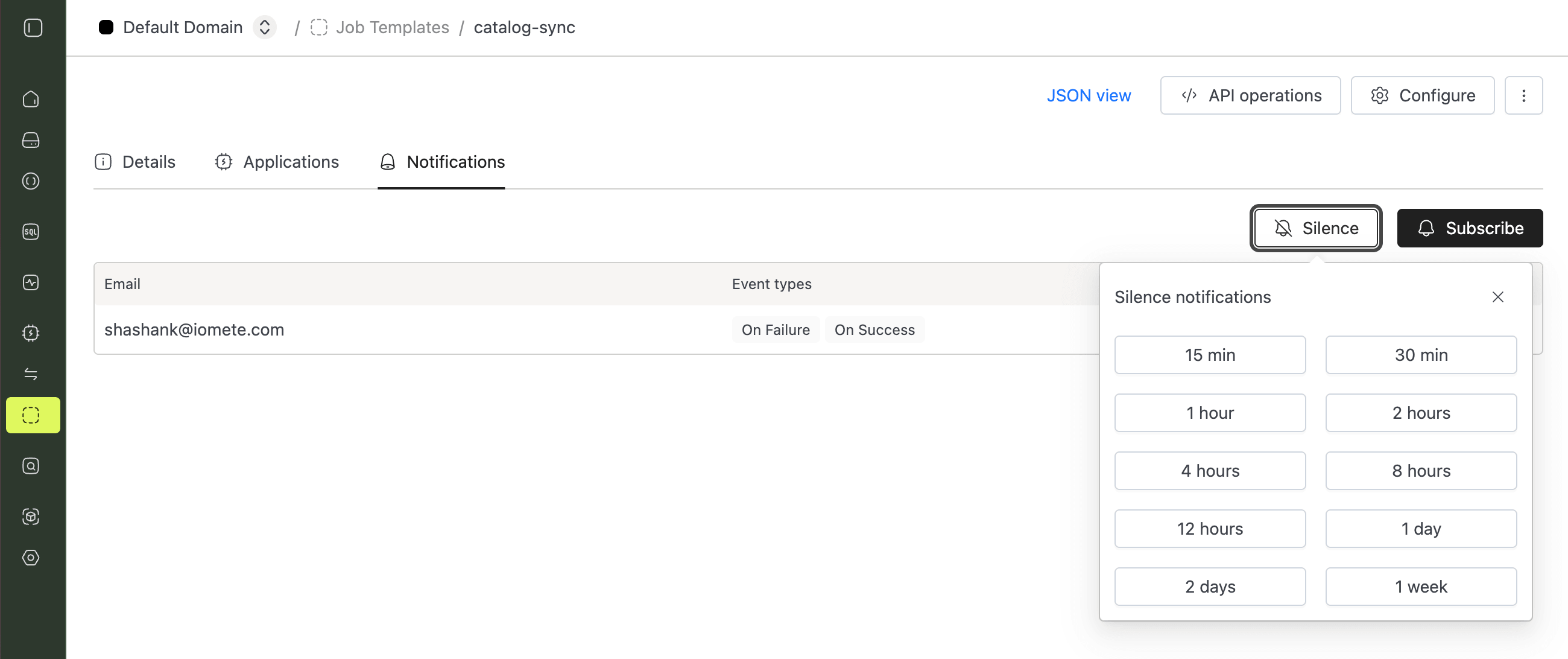
- On the Notifications tab, click Silence.
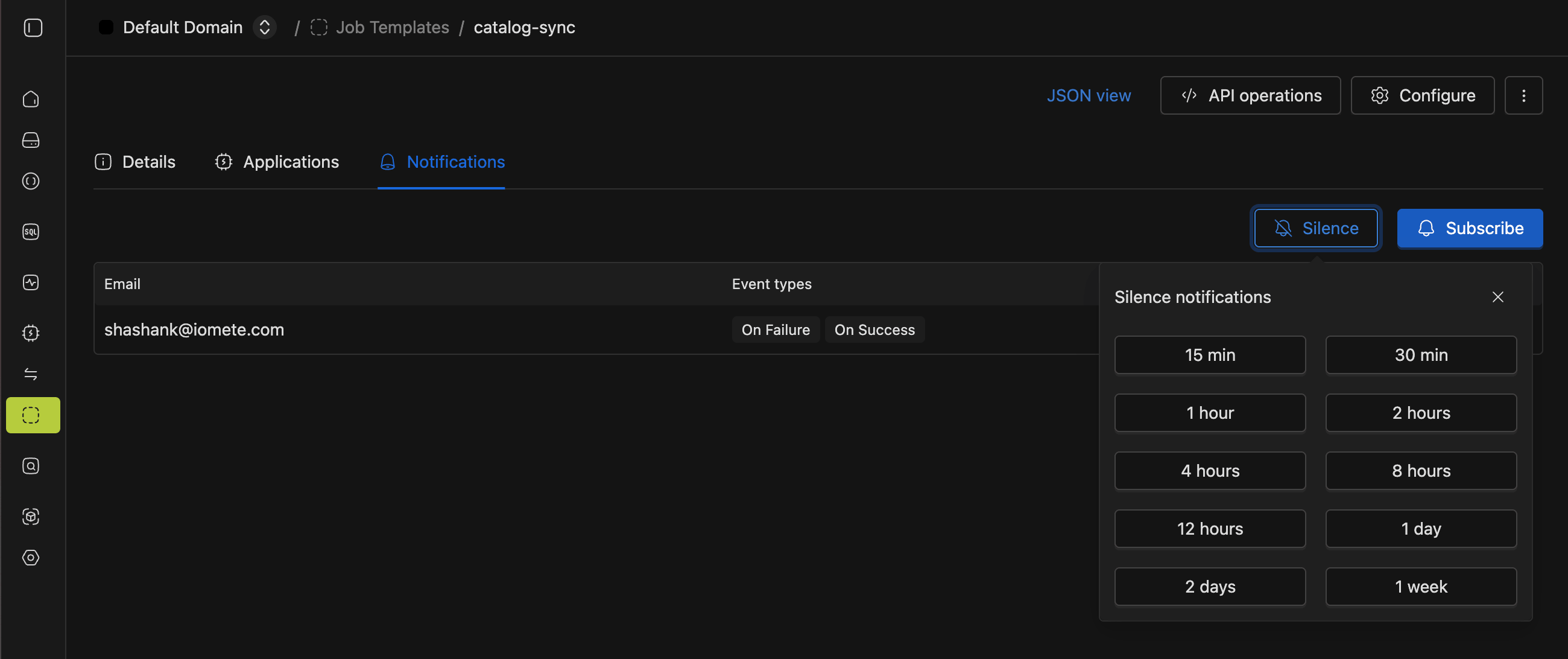
- A Silence notifications popover opens with a grid of duration choices: 15 min, 30 min, 1 hour, 2 hours, 4 hours, 8 hours, 12 hours, 1 day, 2 days, and 1 week.
- Click a duration to silence notifications for that period. A Job subscription silenced successfully notification confirms the silence is active.
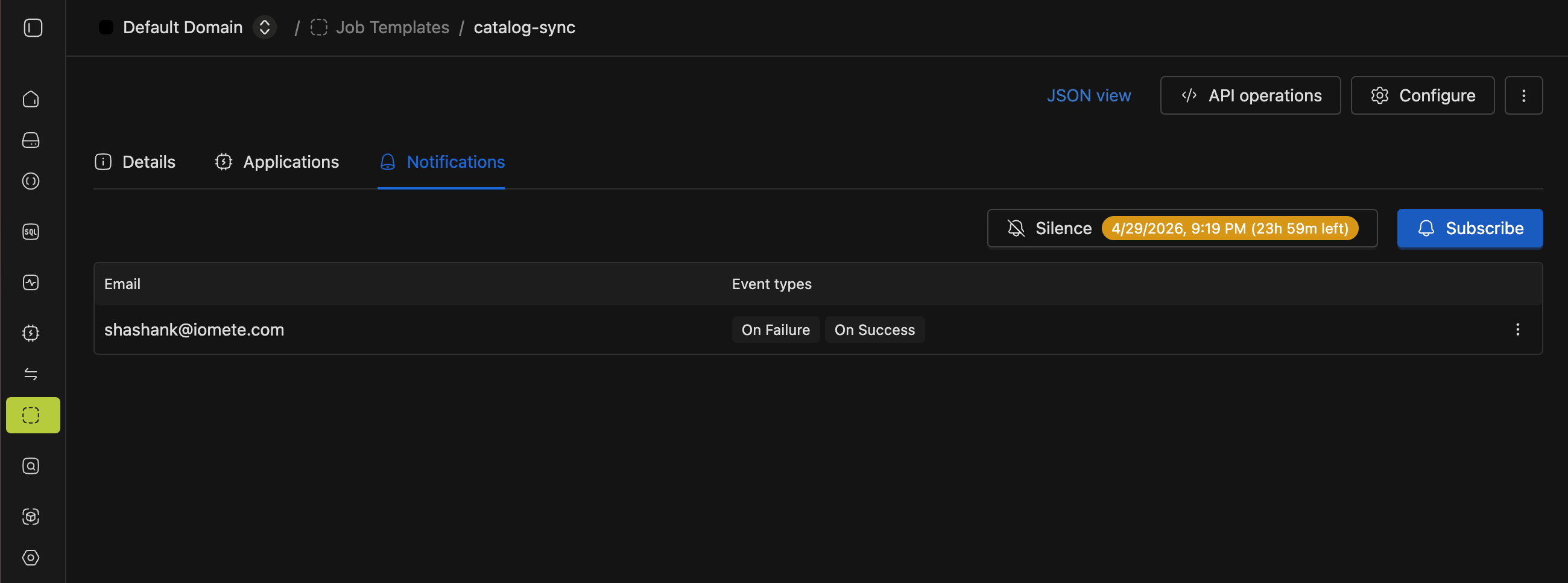
When a silence is active, the Silence button shows a yellow badge with the end date, time, and remaining duration (for example, 4/28/2026, 9:07 PM (0h 14m left)). To end the silence early, click it again and select Remove silence in the popover.
You cannot stack silences. If a silence is already active for the job, you must remove it before starting a new one.