Streaming Jobs
Streaming Jobs are long-running Spark applications built for continuous data processing: real-time ingestion, event processing, and anything that needs always-on execution. Unlike regular Spark Jobs, which run on a schedule or on demand, Streaming Jobs run indefinitely until you stop them.
Streaming Jobs share the same form and compute infrastructure as regular Spark Jobs, but differ in a few ways:
- No schedule: you start and stop them manually.
- No max execution duration: they run indefinitely by default.
- No concurrency settings: only one application runs at a time per job.
- No advanced settings: flow and priority options aren't available.
Creating a Streaming Job
Setting up a streaming job is similar to creating a regular Spark job, with fewer scheduling options. Open Applications > Streaming Jobs in the left sidebar, then click New Streaming Job in the top-right corner.
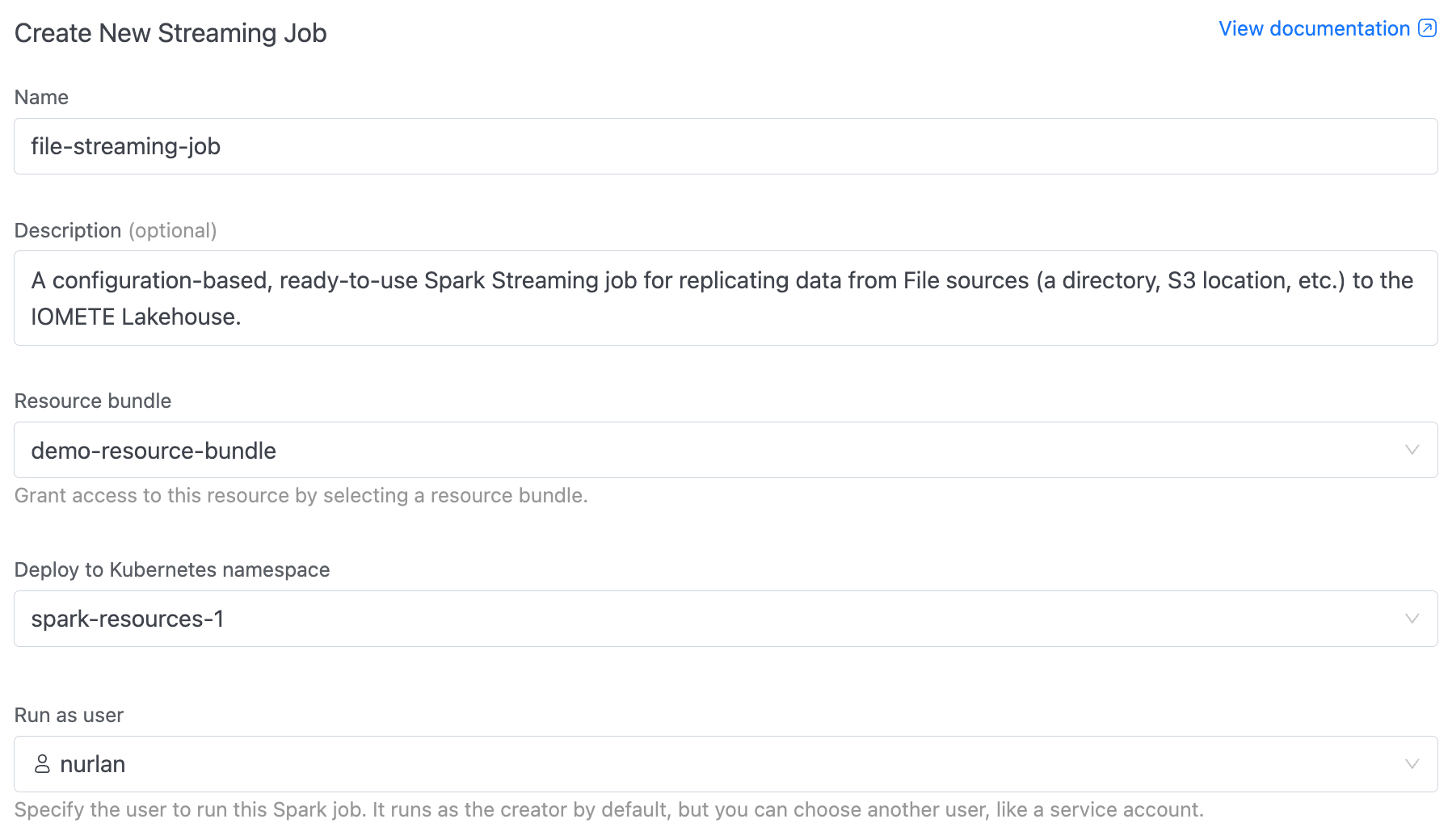
The create form walks you through several sections.
- Name (required): Allowed characters: alphanumeric, dashes, underscores, dots, and spaces (up to 255 characters).
- Description (optional): A brief note so others know what the job does.
- Resource bundle: Pick a resource bundle that defines the resource quotas for this job.
- Namespace: The Kubernetes namespace to deploy in. If only one namespace exists, it's selected automatically.
- Run as user: The user identity the job runs under. Defaults to your own account, but you can pick another user or a service account.
Application
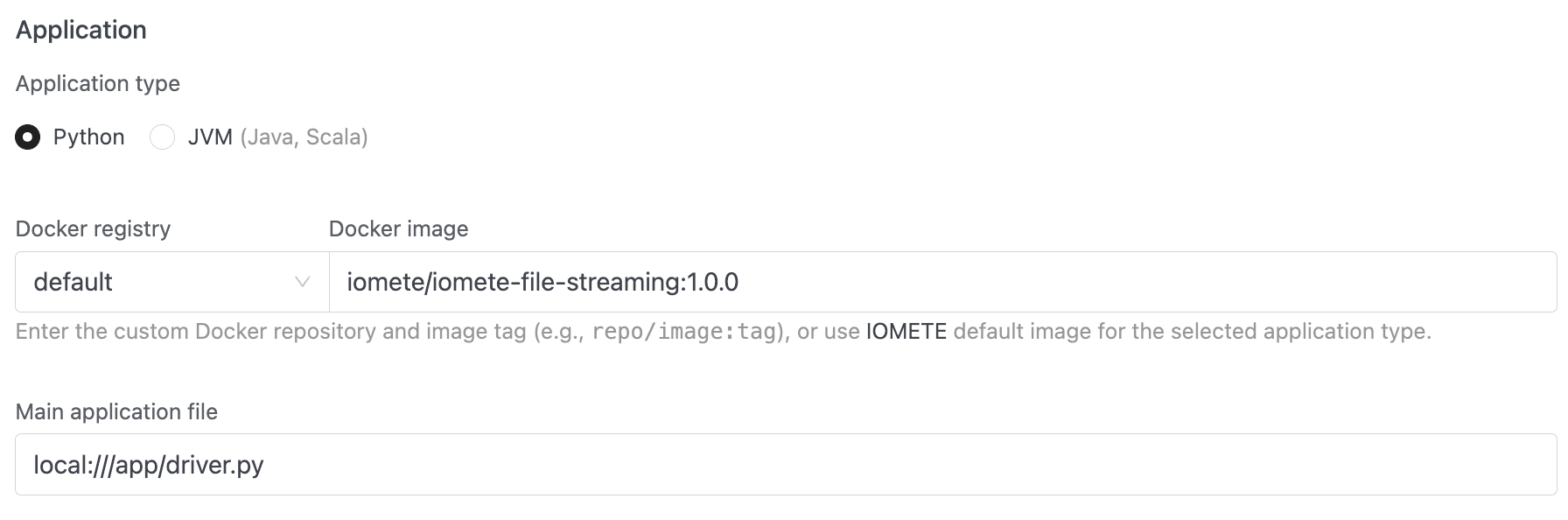
- Application type: Python (default) or JVM (Java, Scala).
- Docker registry + Docker image: Pick the registry from the dropdown (use
defaultfor IOMETE's built-in registry, or choose a private Docker registry), then enter the image and tag. - Main class (JVM only): The fully qualified class name, e.g.
org.example.MyApp. This field is hidden for Python jobs. - Main application file (required): The job's entry point. For PySpark, use a path like
local:///app/job.py. For JVM, usespark-internalif the class is already on the classpath.
Configurations and Dependencies
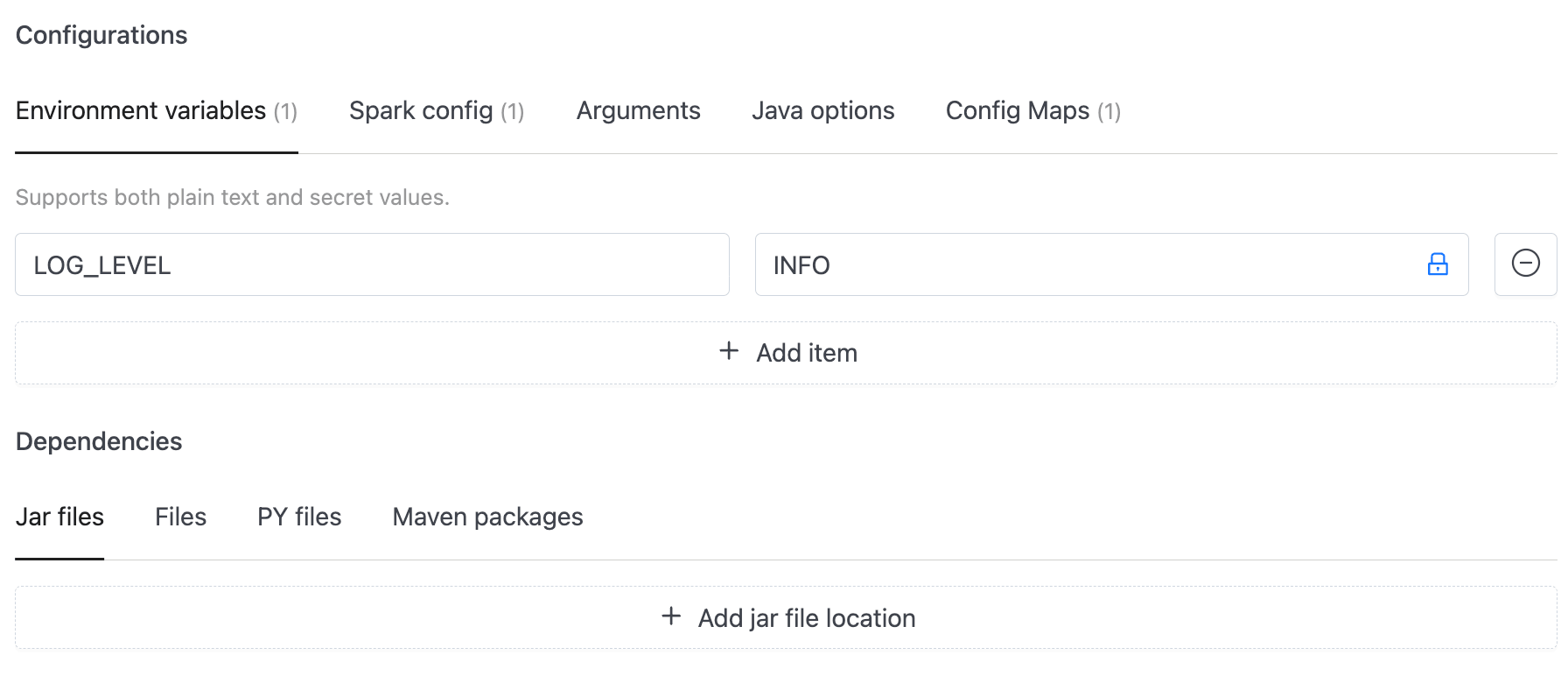
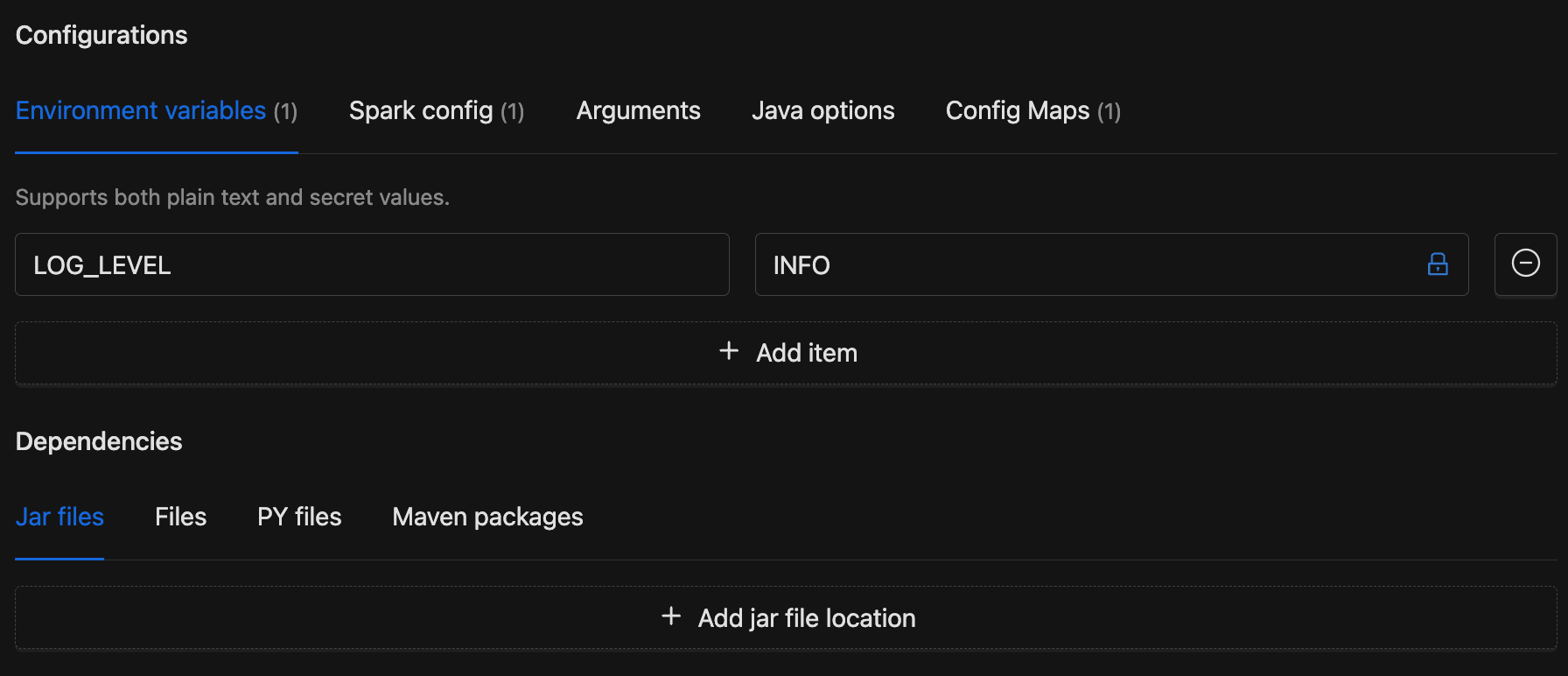
- Configurations: Tabs for environment variables, environment secrets, Spark config key-value pairs, Spark config secrets, application arguments, Java options, and config maps. See Configurations for details.
- Dependencies: Tabs for additional jar files, data files, Python files, and Maven packages. See Dependencies for details.
Instance
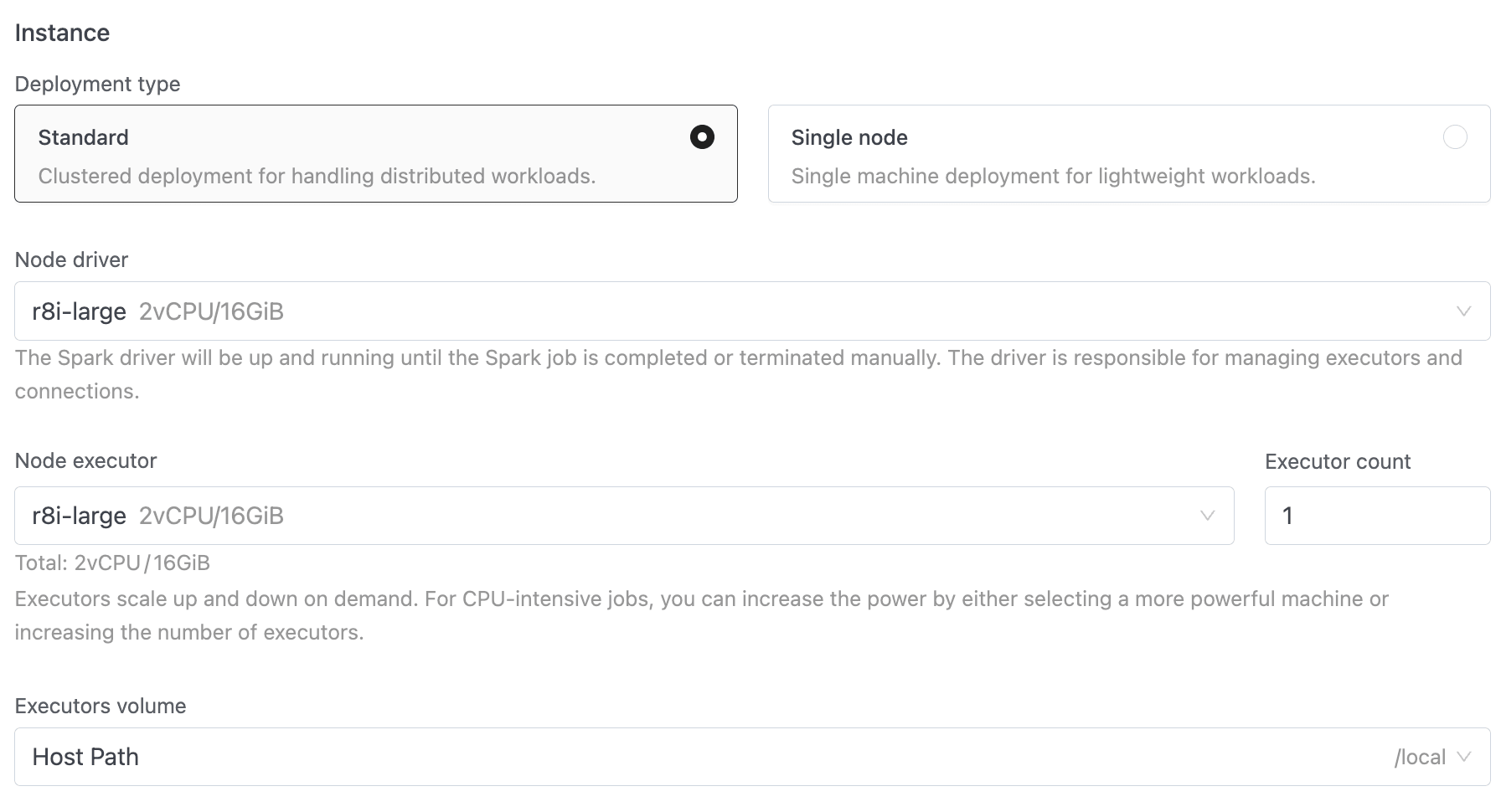
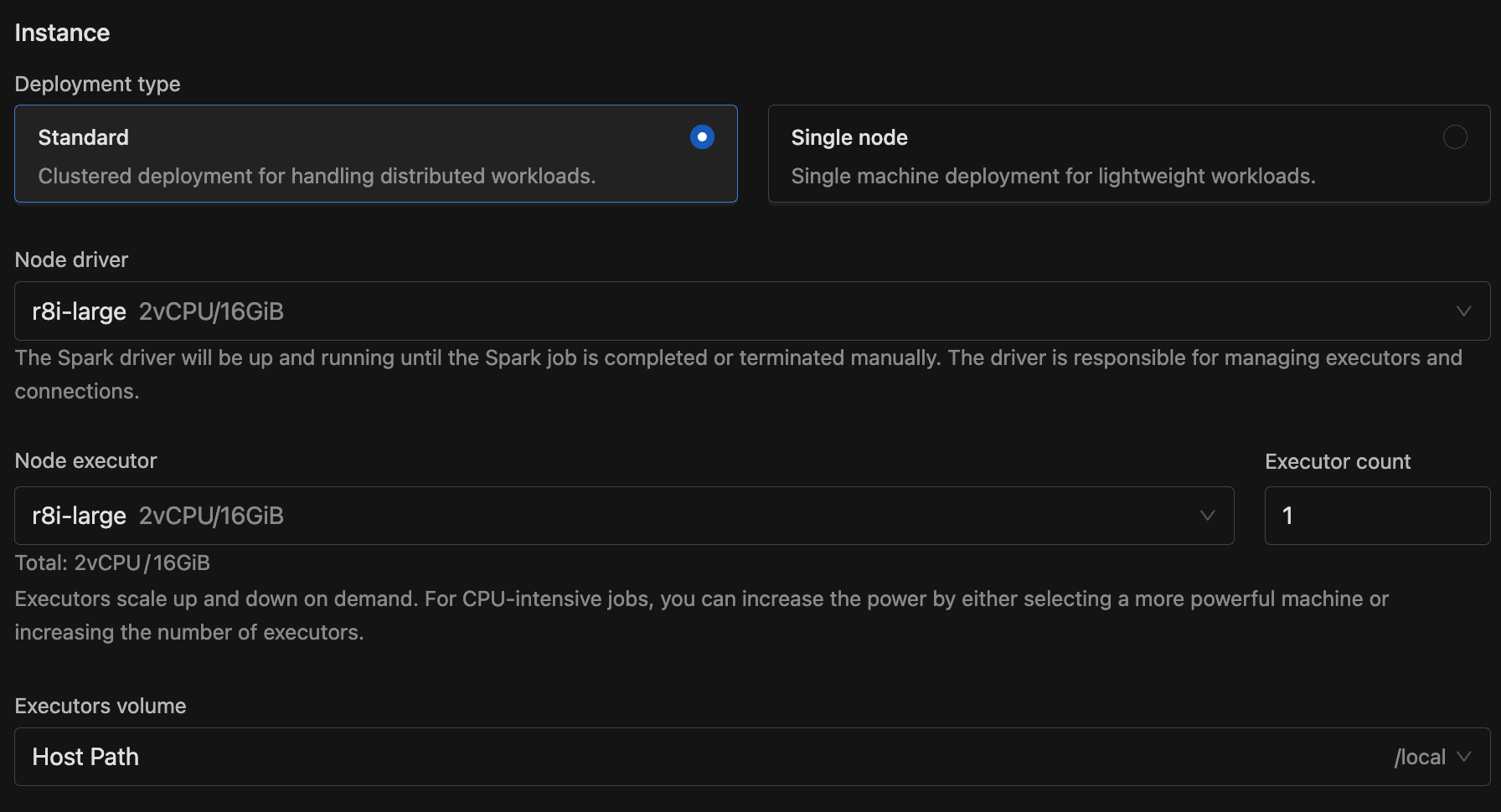
- Deployment type: Standard (clustered, with separate driver and executors) or Single node (lightweight, single machine).
- Node driver (required): The node type for the Spark driver, which stays running for the lifetime of the streaming job.
- Node executor + Executor count (Standard mode only): The node type for executors and how many to run. Executors scale up and down on demand.
- Volume: A volume for storage.
Restart Policy
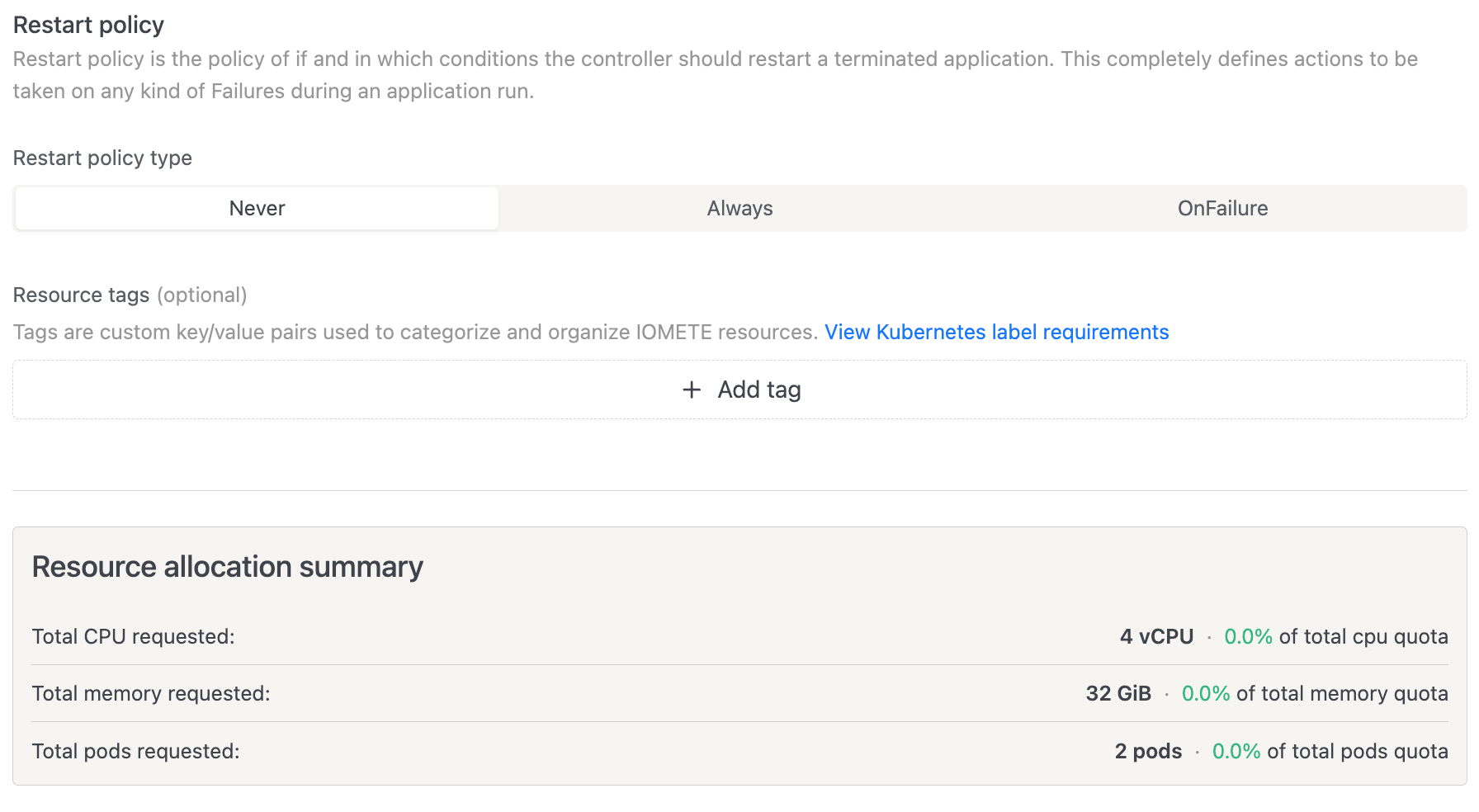
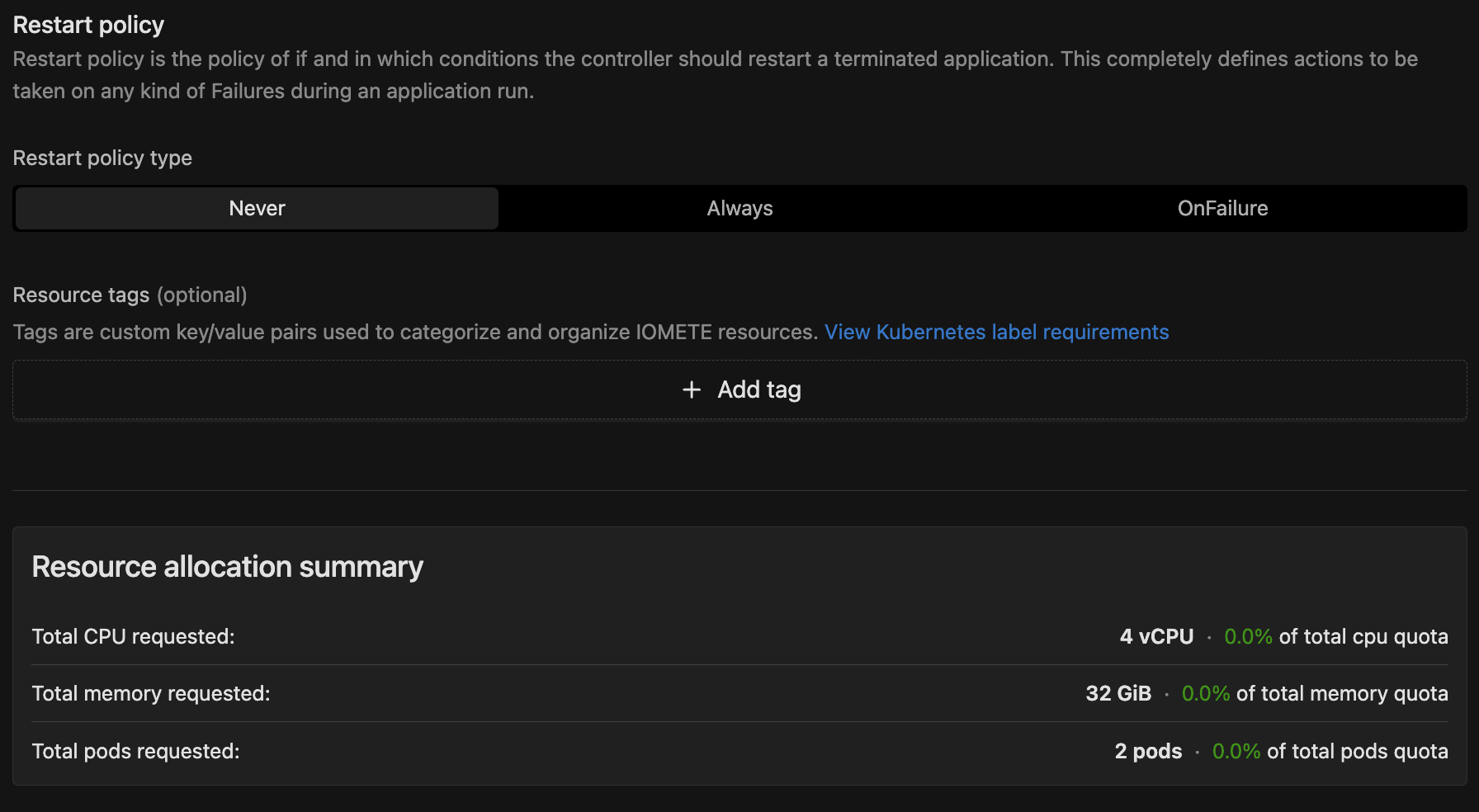
This controls what happens when an application terminates:
- Never (default): The job doesn't restart after failure.
- Always: The job restarts automatically after any termination.
- OnFailure: The job restarts only after a failure. When selected, you can configure:
- On submission failure retries (default: 1): How many times to retry submitting before giving up.
- Retry interval (default: 5 seconds): Seconds between submission retries.
- On failure retries (default: 1): How many times to retry running the application before giving up.
- Retry interval (default: 5 seconds): Seconds between execution retries.
Resource Tags
Optional key-value labels attached to the job's Kubernetes resources. These must follow Kubernetes label syntax.
Click Create to submit the job. IOMETE redirects you to the job detail page.
Viewing Streaming Job Details
The detail page centralizes a streaming job's configuration, application history, and notifications. Click a job name in the list to open it. Three tabs organize everything you need.
Details Tab
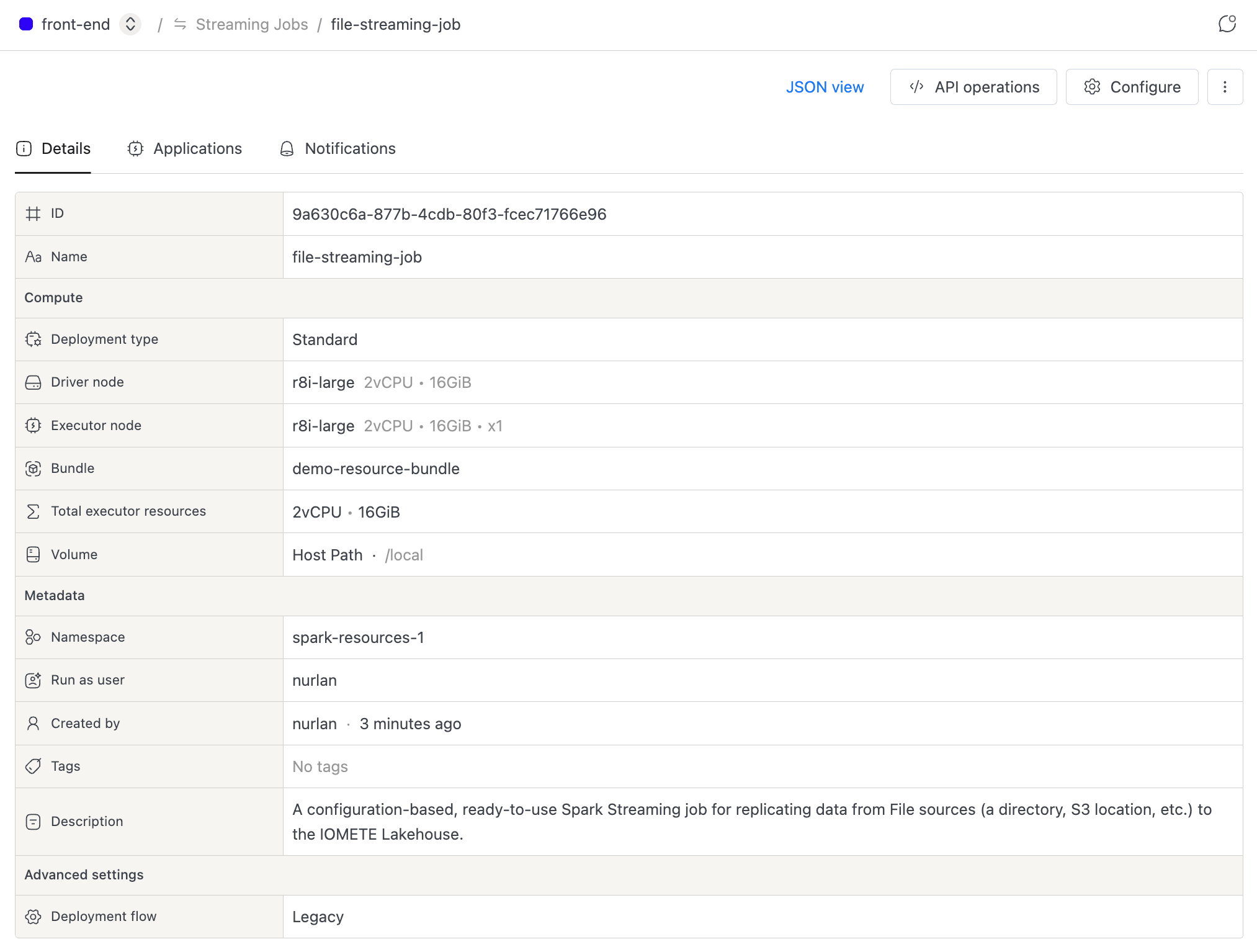
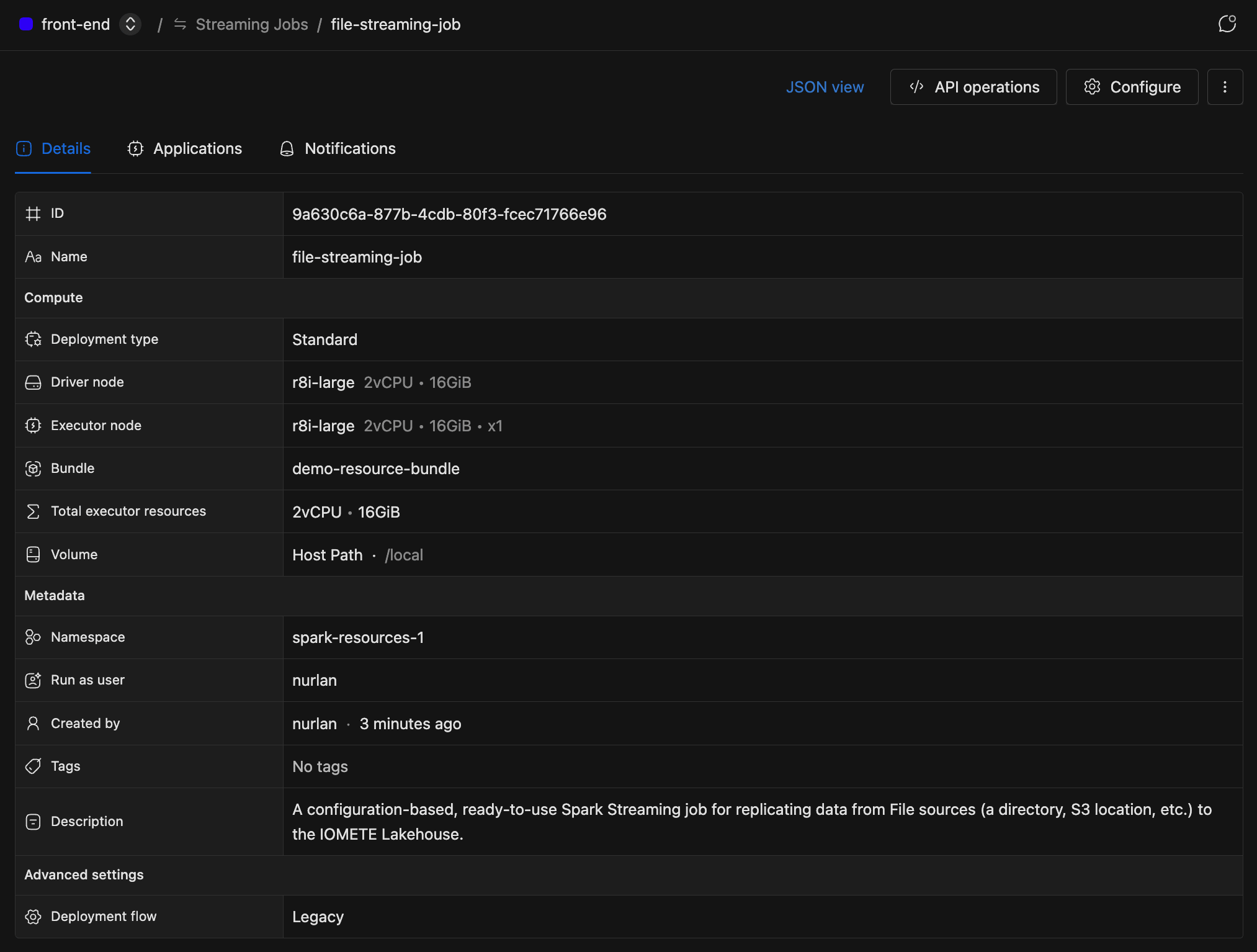
This tab shows the job's configuration at a glance:
- Compute: deployment type, driver node, executor node, bundle, total executor resources, and volume.
- Metadata: namespace, run-as user, created by, tags, and description.
Applications Tab
The default tab lists every application (run) for the streaming job.
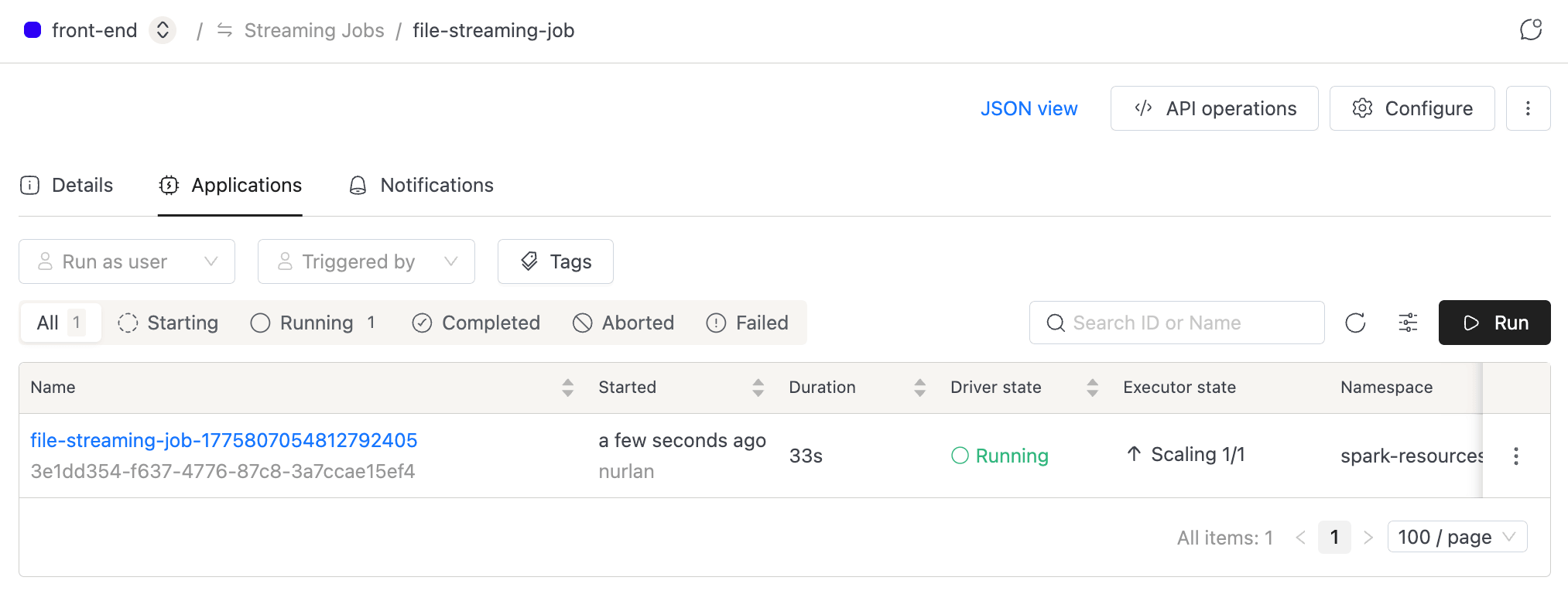
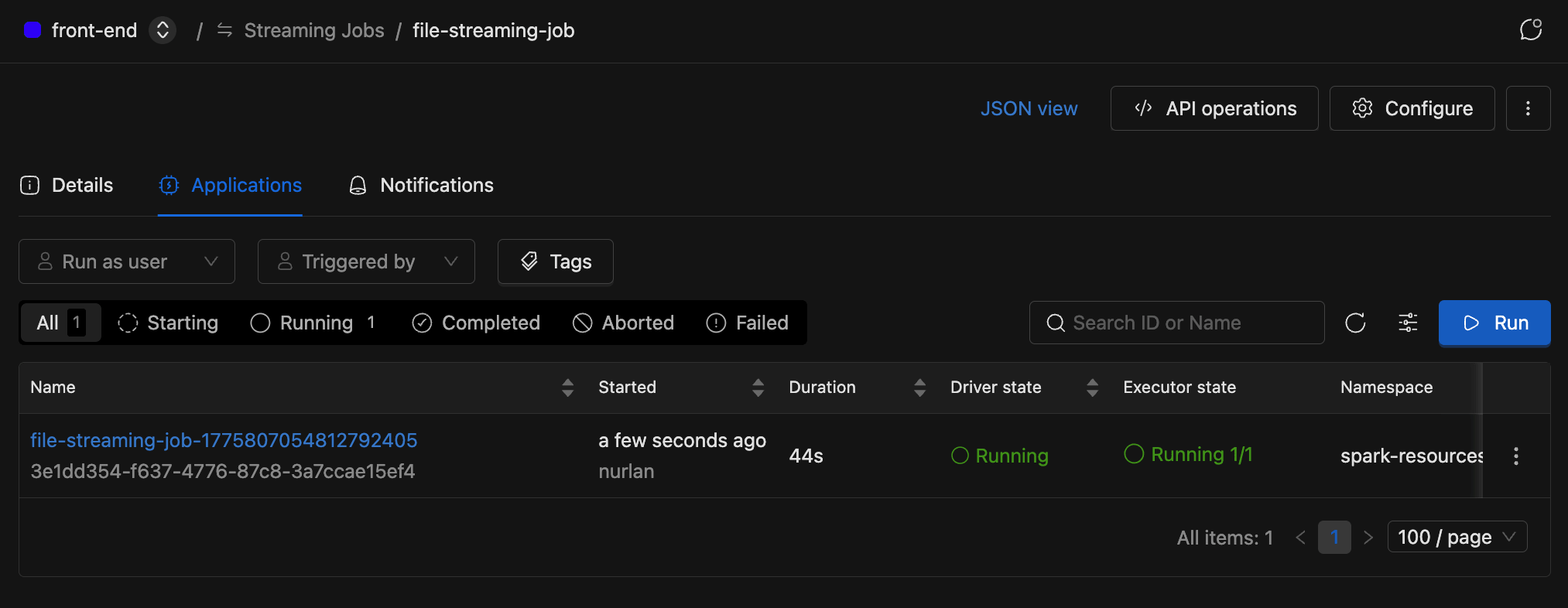
Each row in the table includes:
| Column | Description |
|---|---|
| Name | Application name with ID |
| Started | When the application started and by whom |
| Duration | Running duration (live counter for active applications) |
| Driver state | Current Spark driver status |
| Executor state | Running and pending executor count |
| Namespace | Deploy namespace |
| Run as user | Identity the application runs under |
| Triggered by | Who started the application |
| Attempts | Submission and execution attempt counts |
| Tags | Resource tag labels |
Filter by Run as user, Triggered by, Resource tags, or Status, and use the search bar to find applications by name or ID.
Notifications Tab
Set up email notifications for job events. This tab only appears when the email notifications module is enabled in your IOMETE deployment.
Starting a Streaming Job
Once a streaming job is configured, you can launch it with a single click. Open the job's detail page, switch to the Applications tab, and click Run.
A new application appears in the list, and the job status updates in real time.
Stopping a Streaming Job
Stopping a streaming job means aborting the active application.
- In the Applications tab, find the running application.
- Click the three-dot menu on the row and select Abort app. You can also open the application's detail view and click Abort app in the header.
- Confirm by clicking Yes, abort it.
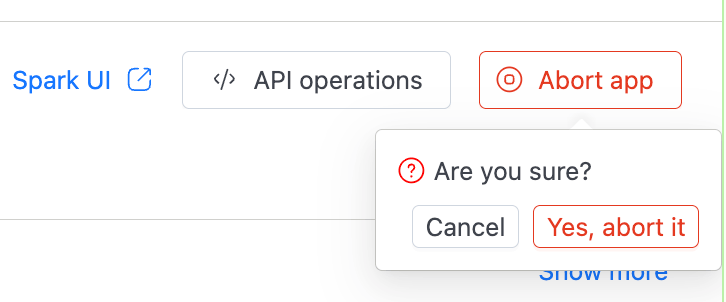

You can only abort an application if you have the RUN permission and the application isn't already in a terminal state (Completed, Failed, or Aborted).
Viewing Application Details
To dig into a specific run, click an application name in the Applications tab. The detail page has four tabs.
Details
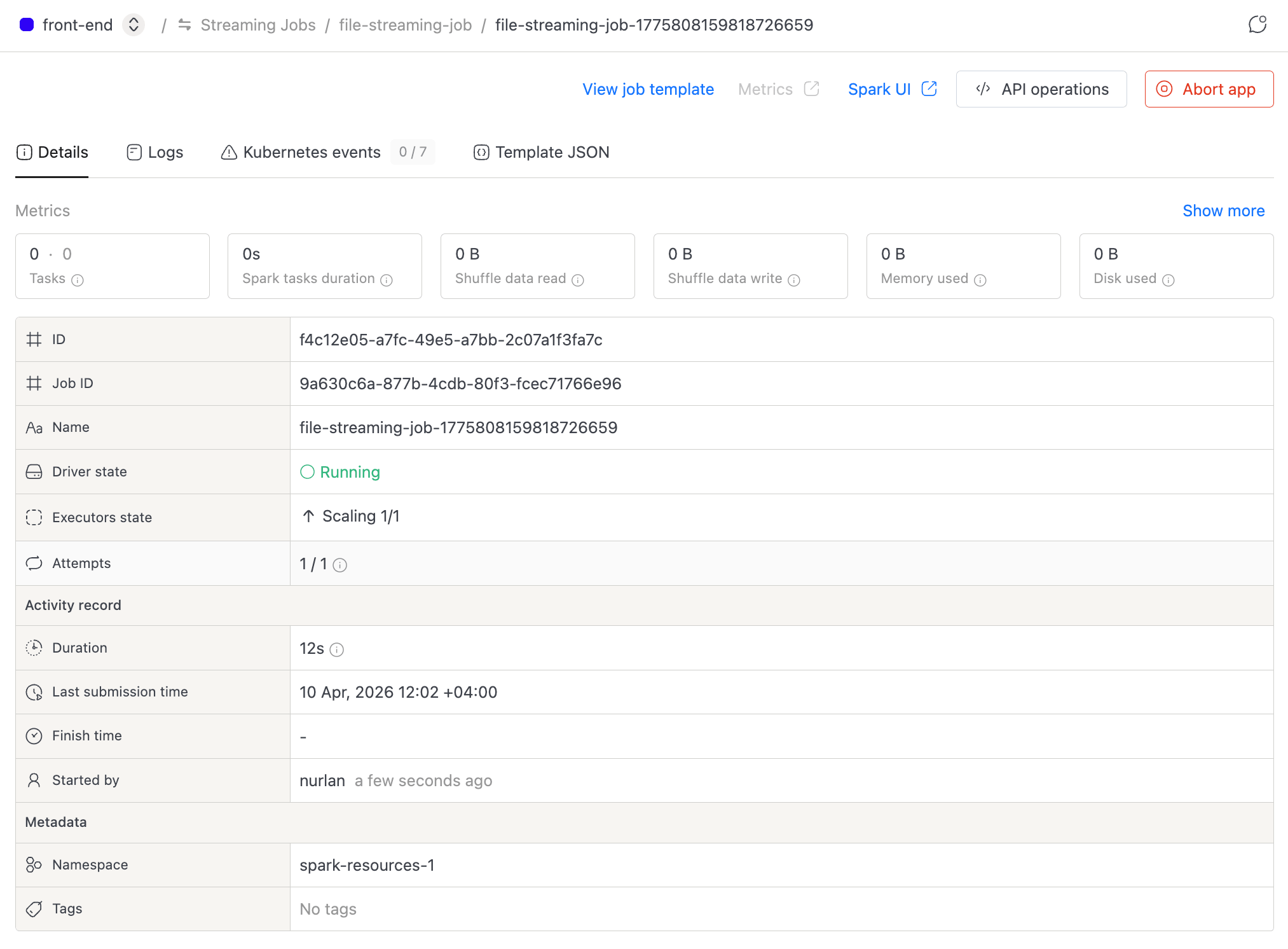
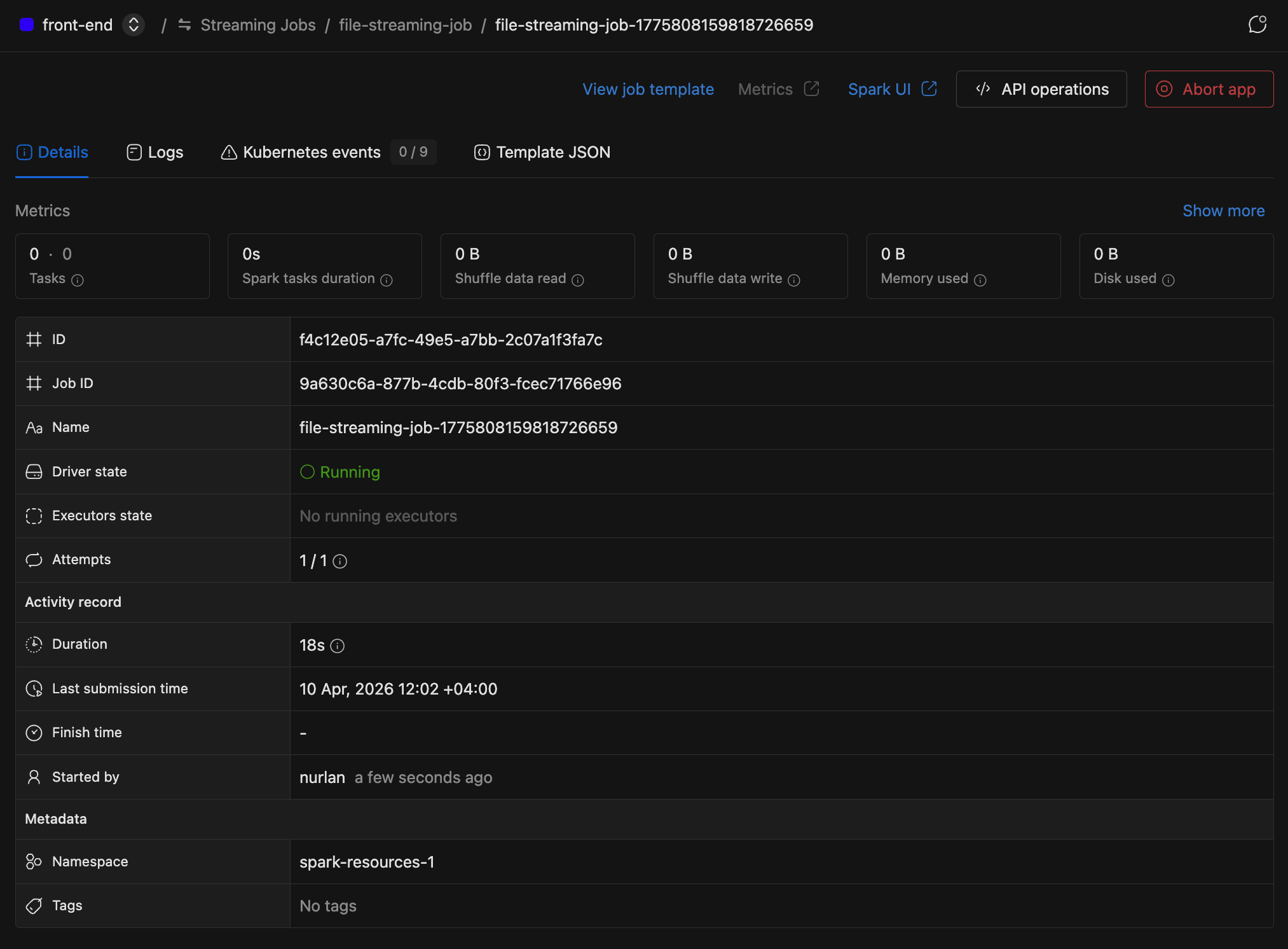
The top of this tab displays key metrics in a collapsible section: completed/failed tasks, Spark task duration, shuffle data read/write, memory used, and disk used. Expand it for extras like driver task duration, data input, RDD blocks, total GC time, total cores, and disk bytes spilled. Metrics auto-refresh every 5 seconds while the application is running.
Below the metrics, you'll find application details: driver state, executor state, attempts, duration, submission time, finish time, started by, namespace, and tags.
Logs
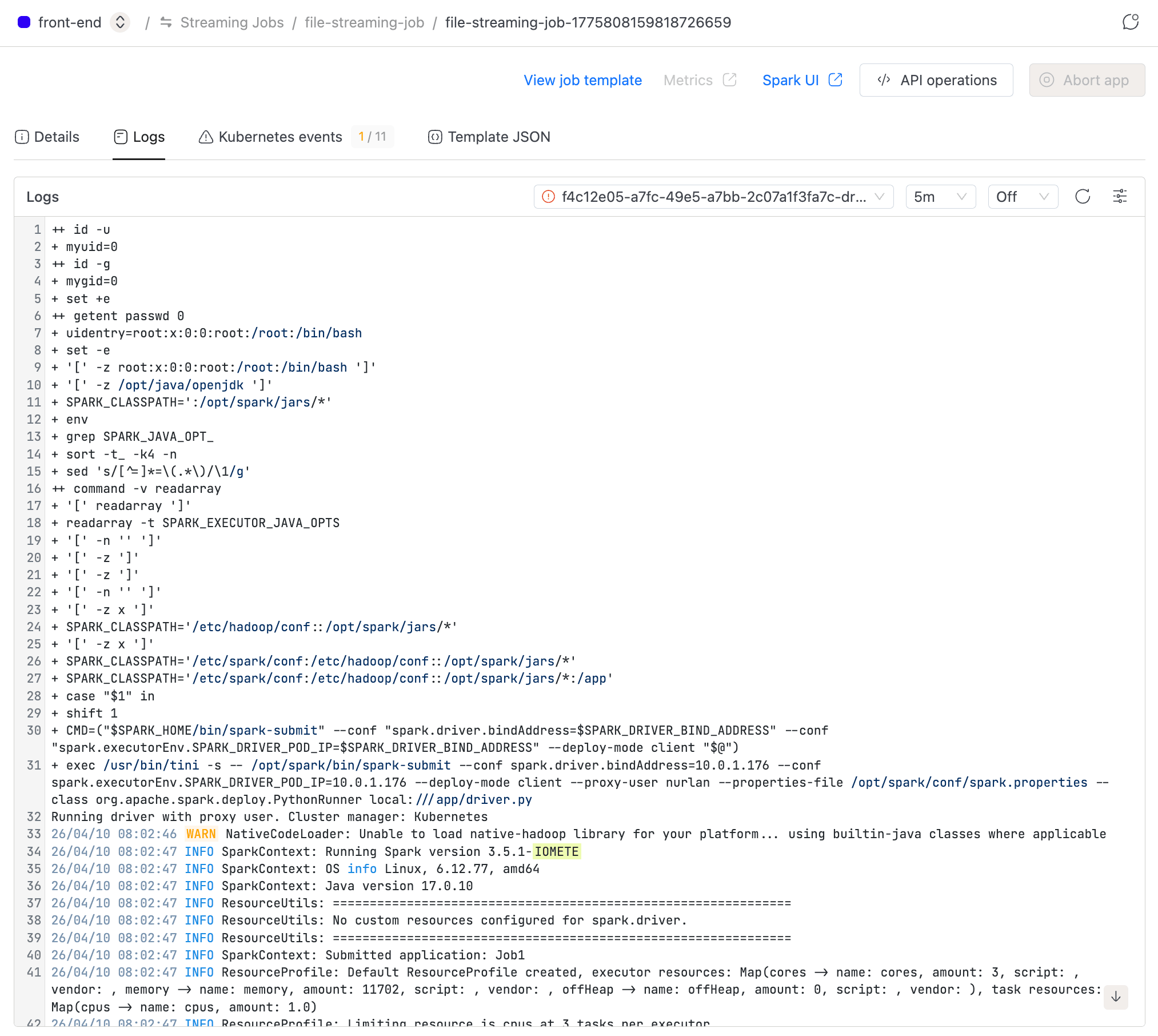
Kubernetes logs for the driver and executors. Use the Instance selector to switch between pods (when executor logs are enabled), adjust the Log range, and toggle Auto-refresh (on by default for active applications). You can also Download log files for offline analysis.
Kubernetes Events
Kubernetes events for the application, with a warning count badge. Auto-refreshes every 5 seconds while the application is active.
Template JSON
The full application configuration rendered as formatted JSON.
Managing Streaming Jobs
After a streaming job is running, you may need to edit its configuration, duplicate it, or clean it up. The job detail page header gives you quick access to these actions:
- Configure: Edit settings like application, instance, or restart policy. The job name can't be changed after creation.
- Duplicate: Create a new streaming job pre-filled with this job's configuration.
- Delete: Permanently remove the streaming job.
- Template JSON: View the Spark template as JSON.
- API operations: View cURL commands for fetching job details, starting the job, listing applications, and deleting the job.


To use the API, you need an access token. Go to Settings and switch to the Access Tokens tab.
Streaming Job Statuses
Each streaming job displays a status that reflects its active application. The page updates automatically, so you don't need to refresh.
| Status | Meaning |
|---|---|
| Starting | The application is being submitted or is pending |
| Running | The application is actively processing data |
| Completed | The application finished successfully |
| Aborted | The application was manually stopped |
| Failed | The application encountered an error |
Access Permissions
Who can see and interact with a streaming job depends on permissions granted to users or groups at two levels:
-
Domain level The Create Spark Job permission lets a user create new streaming jobs. Admins assign it through Roles.
-
Resource level Per-job permissions (
VIEW,RUN,UPDATE,DELETE) come from the job's resource bundle.RUNlets a user start or stop a streaming job. The streaming job list only shows jobs where you have at leastVIEWpermission. See Resource Bundles for bundle-based access control.