Accessing Specific Buckets
By default, IOMETE Spark jobs access storage through the Lakehouse Role configured during platform installation. But sometimes a job needs a bucket with different credentials (another AWS account, a partner-owned bucket, or a custom endpoint). In that case, you add per-bucket Spark properties to the job's Spark Config.
How Per-Bucket Configuration Works
Hadoop's S3A connector supports bucket-level credential overrides through properties of the form:
spark.hadoop.fs.s3a.bucket.<bucket-name>.<property>
When Spark resolves a path like s3a://my-other-bucket/path/to/data, it looks for bucket-specific properties first and uses those credentials instead of the global defaults. That means a single job can read from and write to multiple buckets, each with its own credentials, without any code changes.
Configuring Spark Properties
Each bucket you want to access needs its own set of credential properties. To add them, open your Spark Job in the IOMETE console, go to Configurations → Spark Config, and enter the properties listed below.
Per-Bucket Properties
Replace <bucket-name> with the exact name of the S3 bucket (without the s3a:// prefix or any path).
| Key | Example Value | Description |
|---|---|---|
spark.hadoop.fs.s3a.bucket.<bucket-name>.access.key | <AWS_ACCESS_KEY_ID> | AWS access key ID for this bucket. |
spark.hadoop.fs.s3a.bucket.<bucket-name>.secret.key | <AWS_SECRET_ACCESS_KEY> | AWS secret access key for this bucket. |
spark.hadoop.fs.s3a.bucket.<bucket-name>.endpoint | s3.us-west-2.amazonaws.com | Optional. Overrides the S3 endpoint. Required for non-standard regions or S3-compatible services like MinIO. |
Example: for a bucket named my-specific-bucket:
| Key | Value |
|---|---|
spark.hadoop.fs.s3a.bucket.my-specific-bucket.access.key | <AWS_ACCESS_KEY_ID> |
spark.hadoop.fs.s3a.bucket.my-specific-bucket.secret.key | <AWS_SECRET_ACCESS_KEY> |
spark.hadoop.fs.s3a.bucket.my-specific-bucket.endpoint | s3.us-west-2.amazonaws.com |
The secret key value is sensitive. Mark it as a secret in the job config so IOMETE masks it in the UI and run logs.
Setting Up the Job
Once you've identified the properties you need, here's how to wire them up:
-
Open (or create) your Spark job under Job Templates.
-
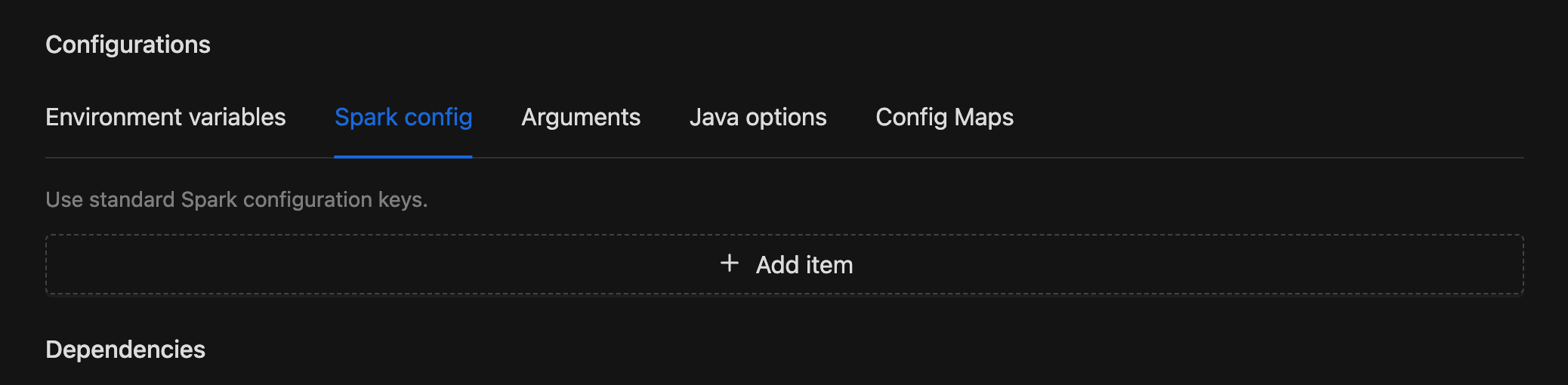
Go to Configurations → Spark Config and add the per-bucket properties from the table above.

-
For the secret key value, mark it as a secret in the job config so the value is masked in the UI and logs.
-
Save and run the job.
Related Resources
- Application Config: full reference for Spark Config, Environment Variables, and Config Maps
- AWS S3 Bucket Access: granting the Lakehouse Role access to S3 buckets via bucket policy or IAM