Working with Classification Tags
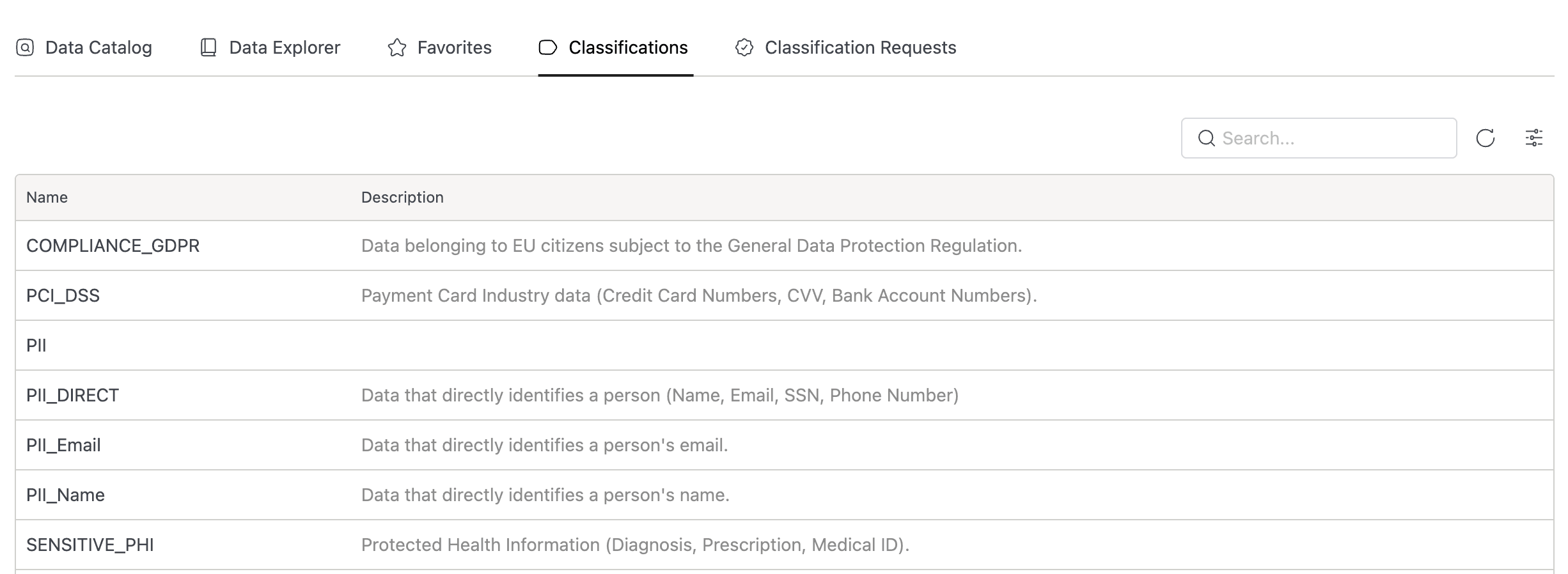
Classification tags are governed: you can't assign or remove them directly. Instead, you submit a request that an administrator reviews. This approval workflow keeps sensitive labels like PII or GDPR consistent across your catalog.
Requesting a Tag Assignment
When a table or column needs a classification (for compliance, security labeling, or internal policy), you kick off an approval request rather than tagging it yourself.
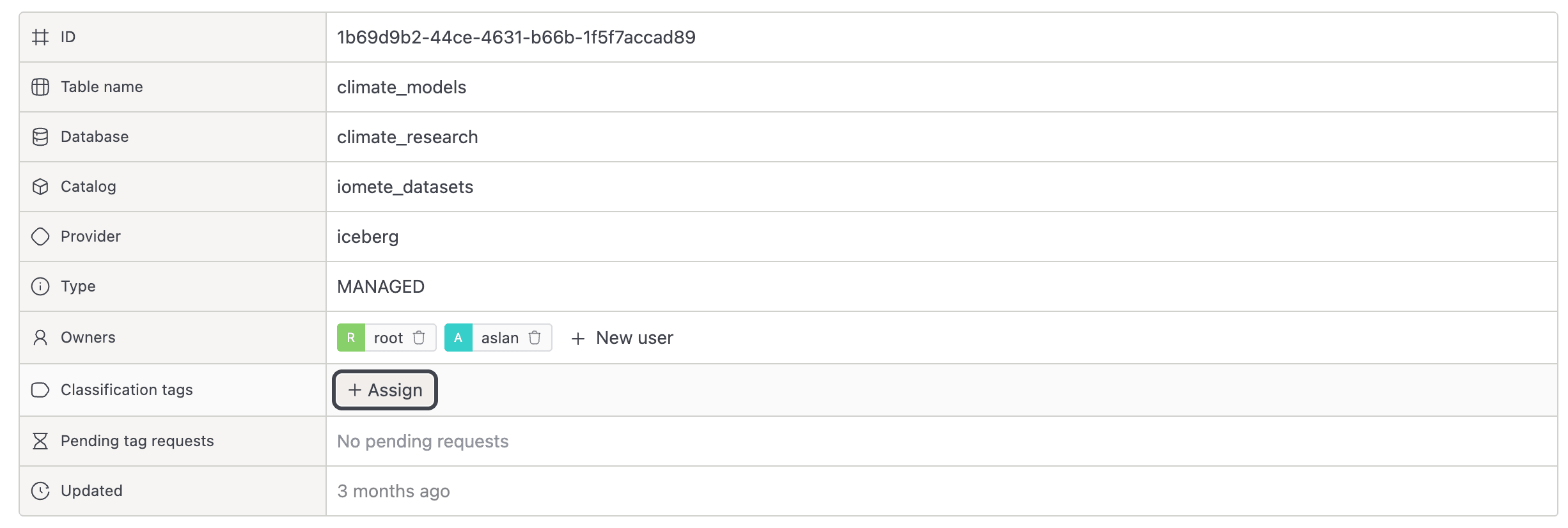
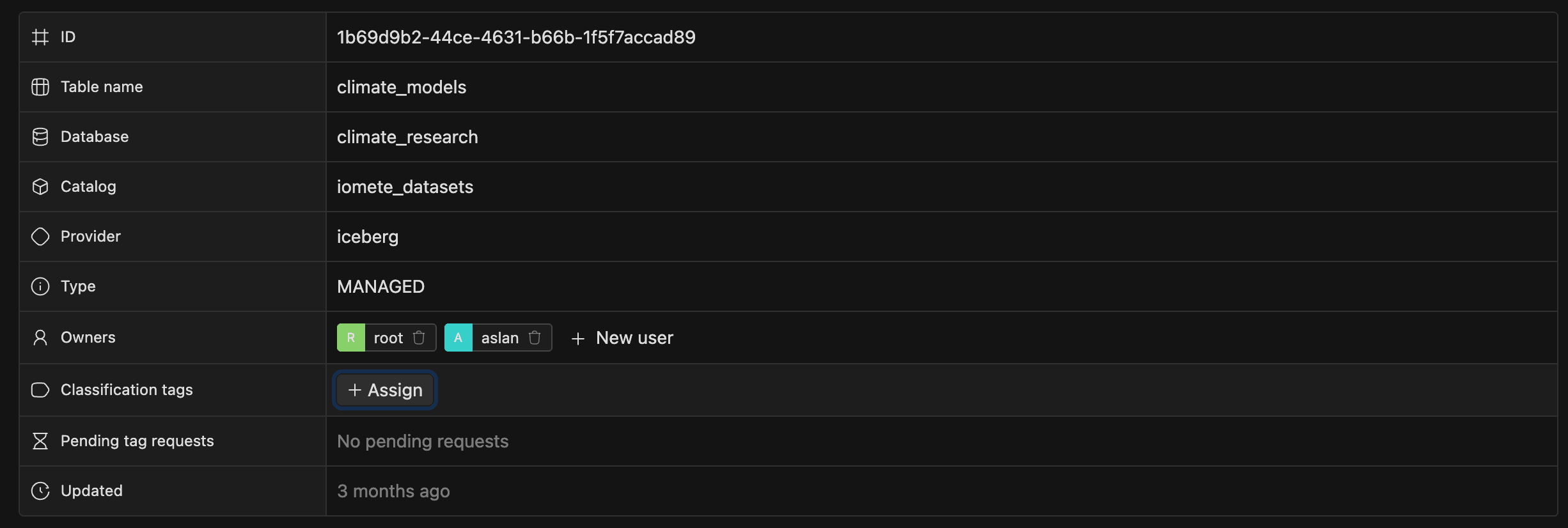
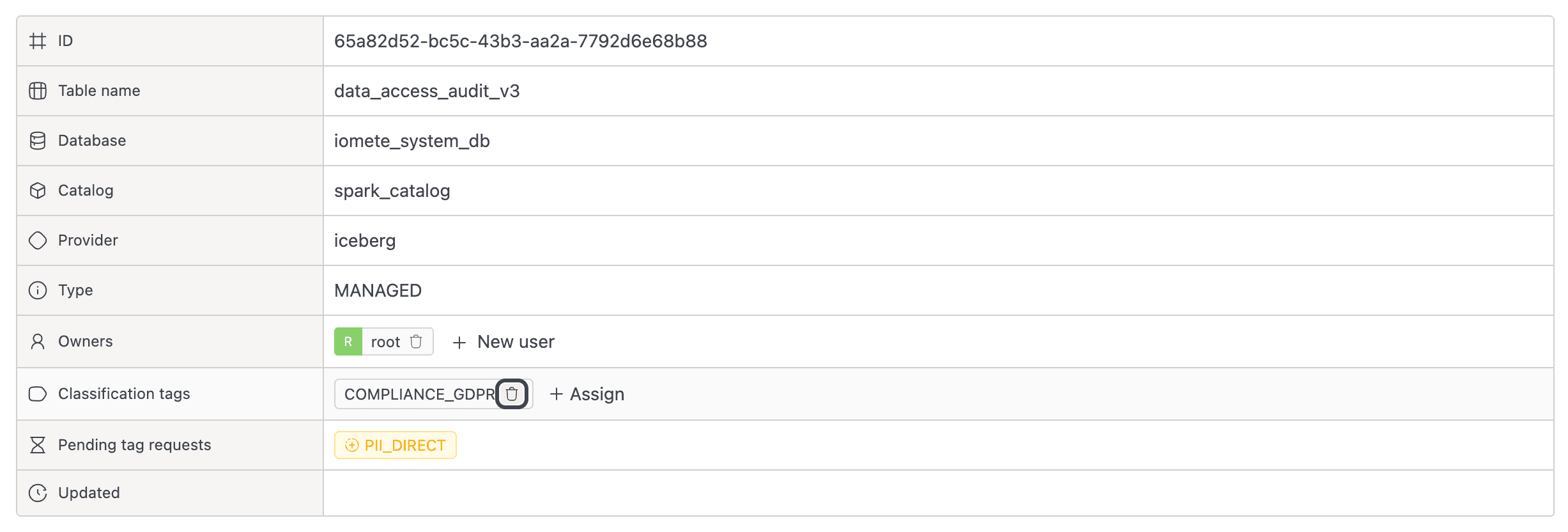
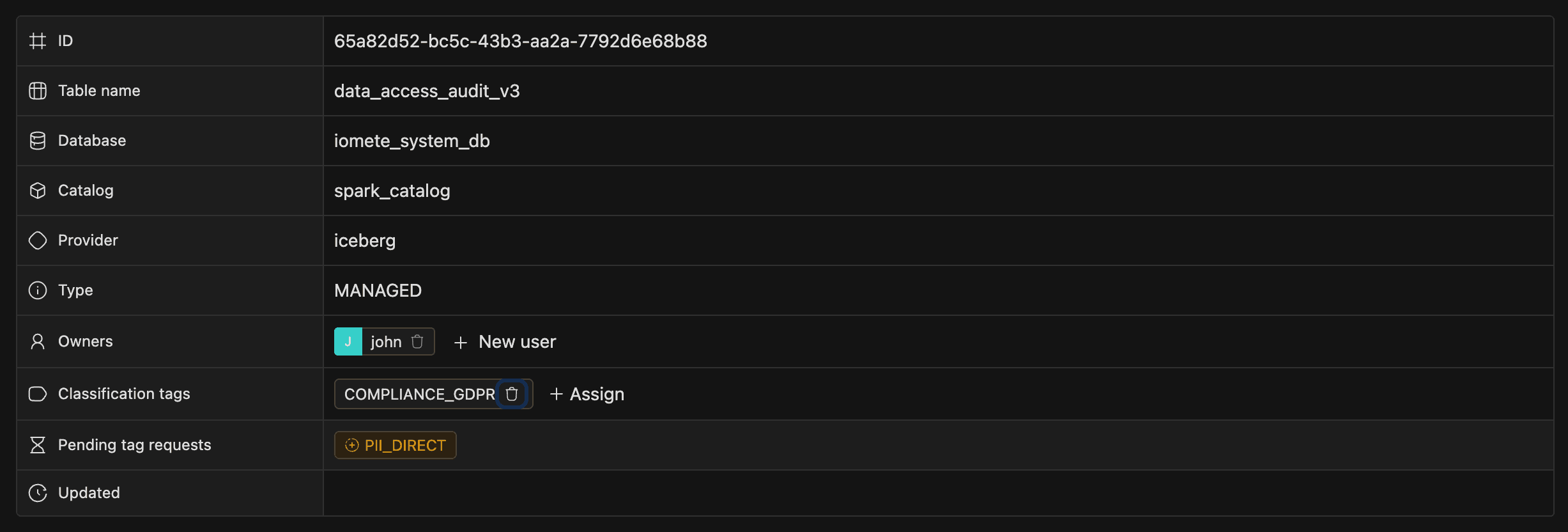
- On the table detail page, find Classification tags in the Details section and click + Assign. For column-level tags, open the Columns tab and select Assign classification from the column's actions dropdown.
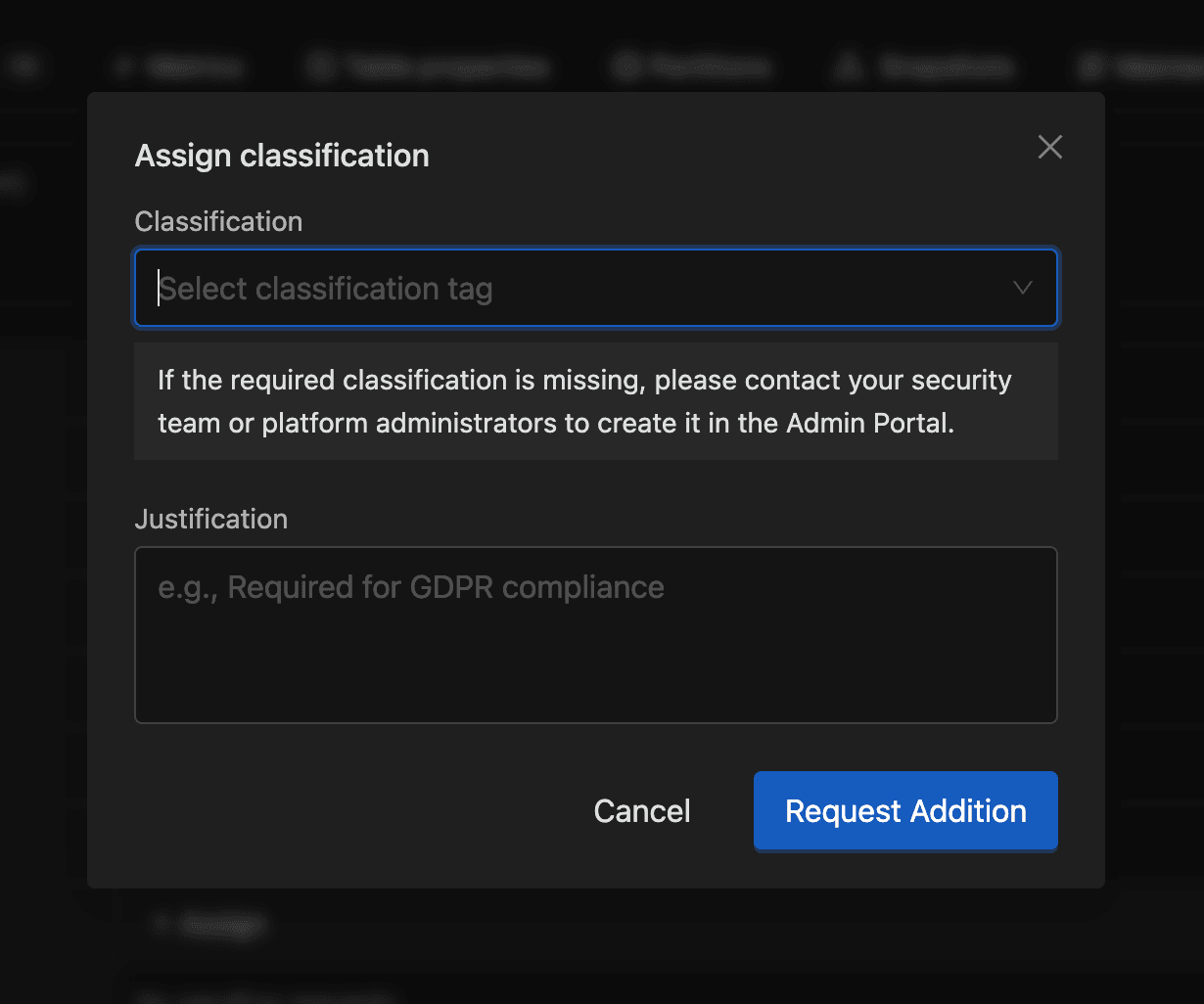
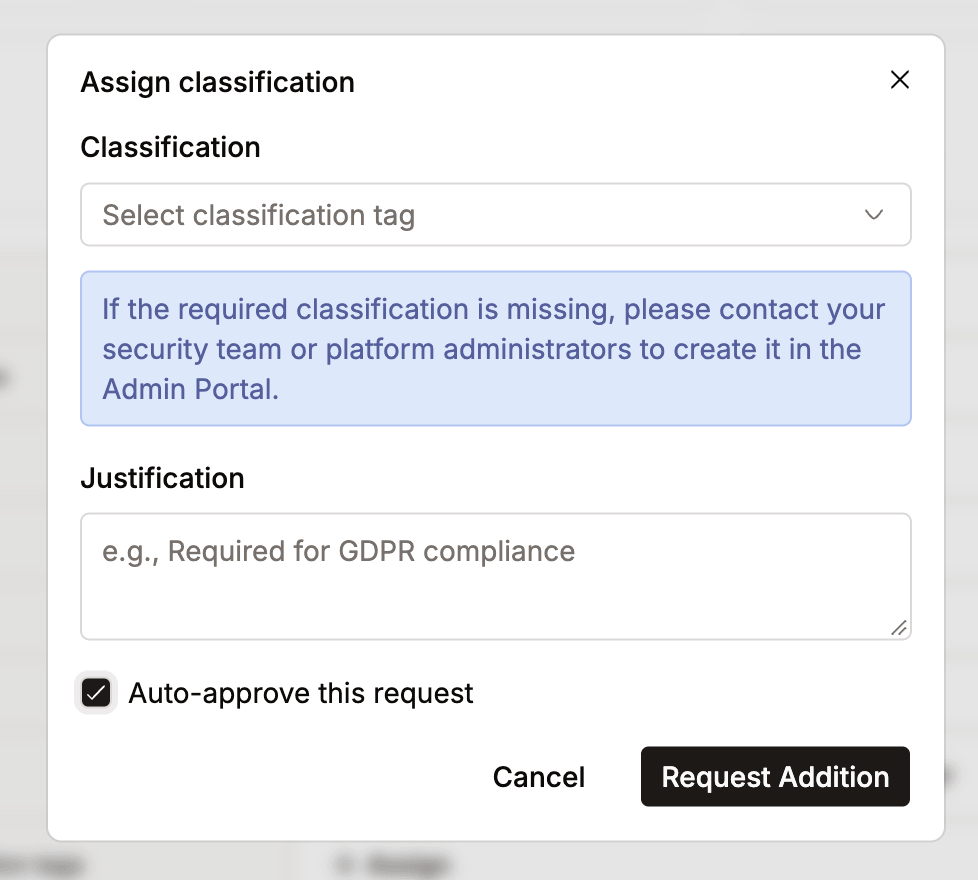
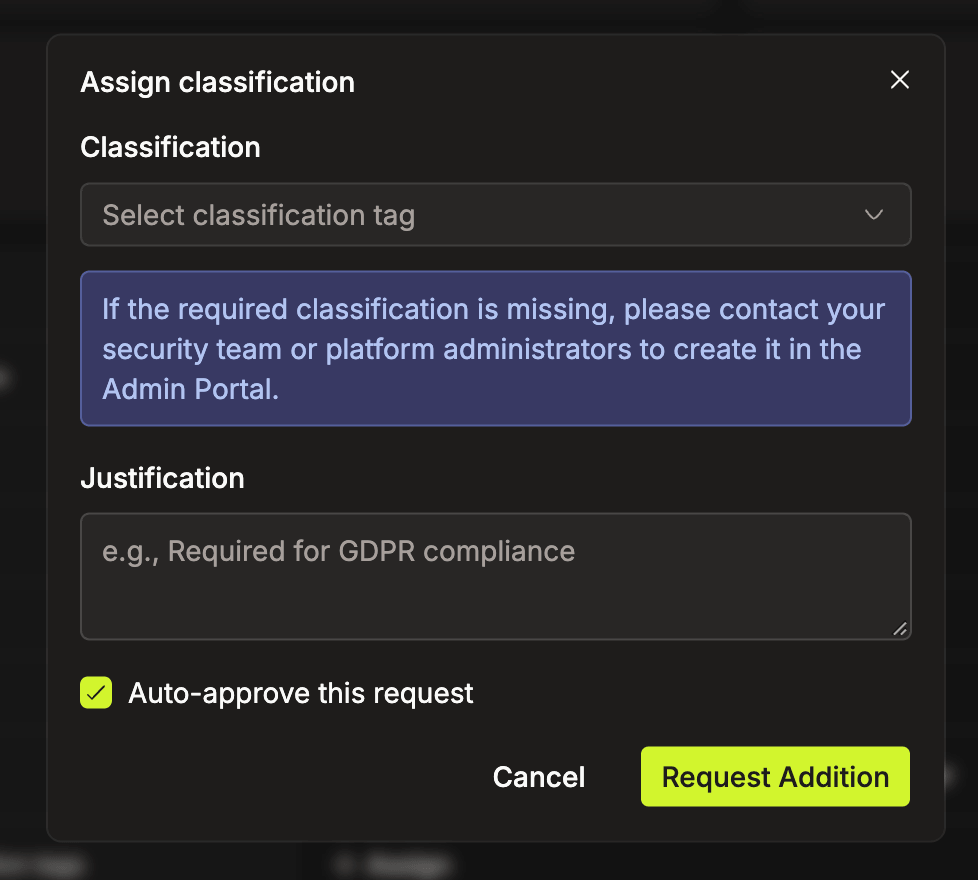
- In the "Assign classification" modal, fill in:
- Classification (required): choose from the dropdown. Tags already on this asset are excluded.
- Justification (required): explain why (e.g., "Required for GDPR compliance").
- Click Request Addition to submit.
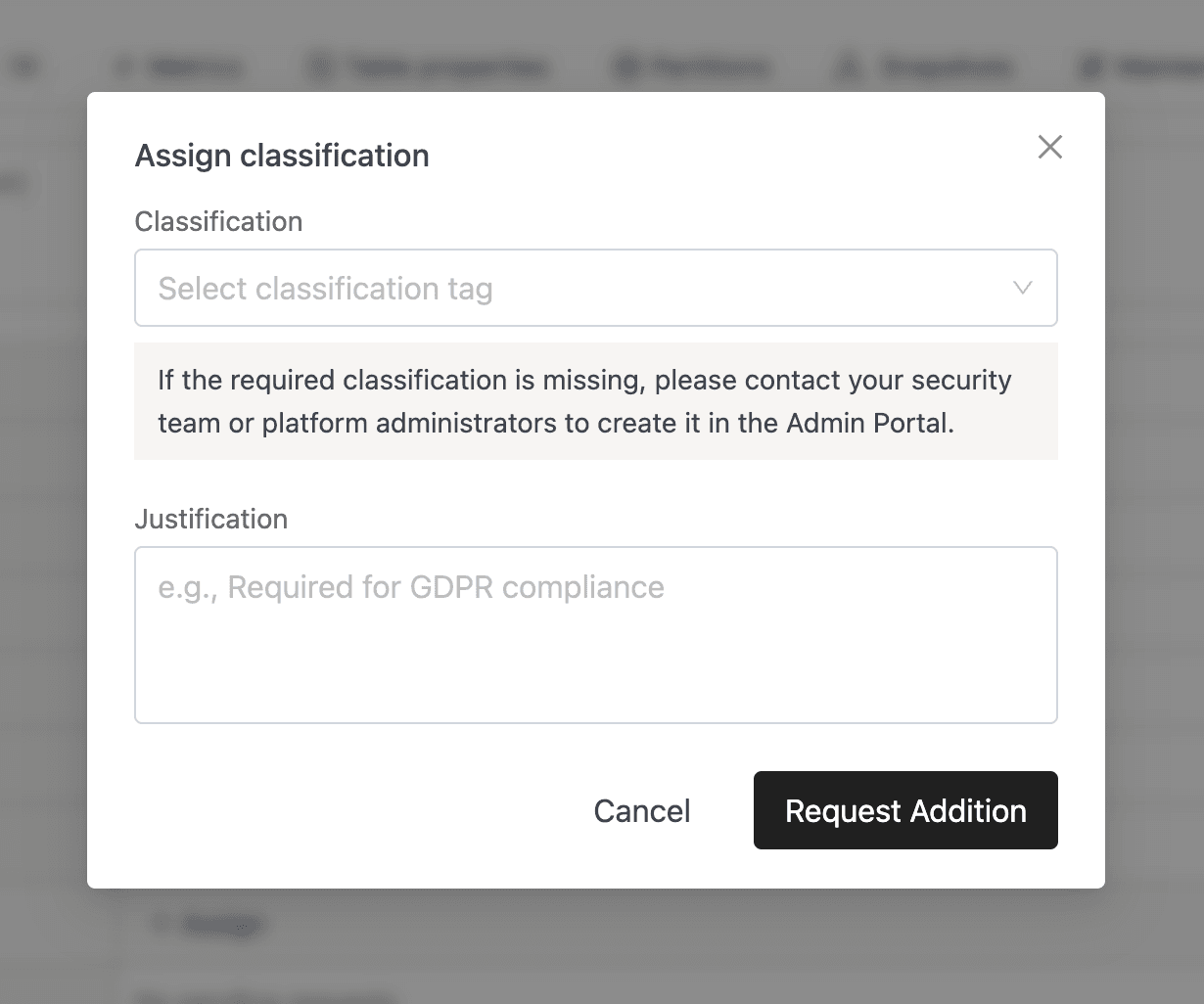
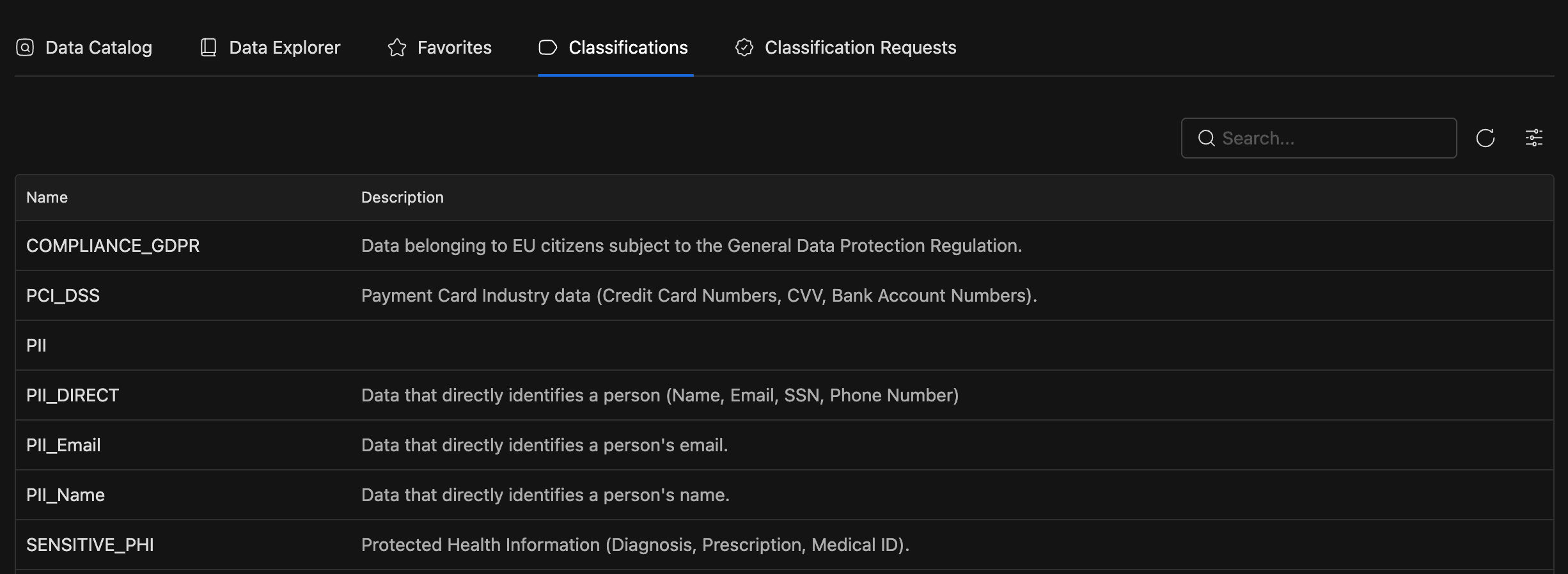
If the tag you need isn't in the dropdown, ask your security team or platform admins to create it. See Classifications for details.
Requesting a Tag Removal
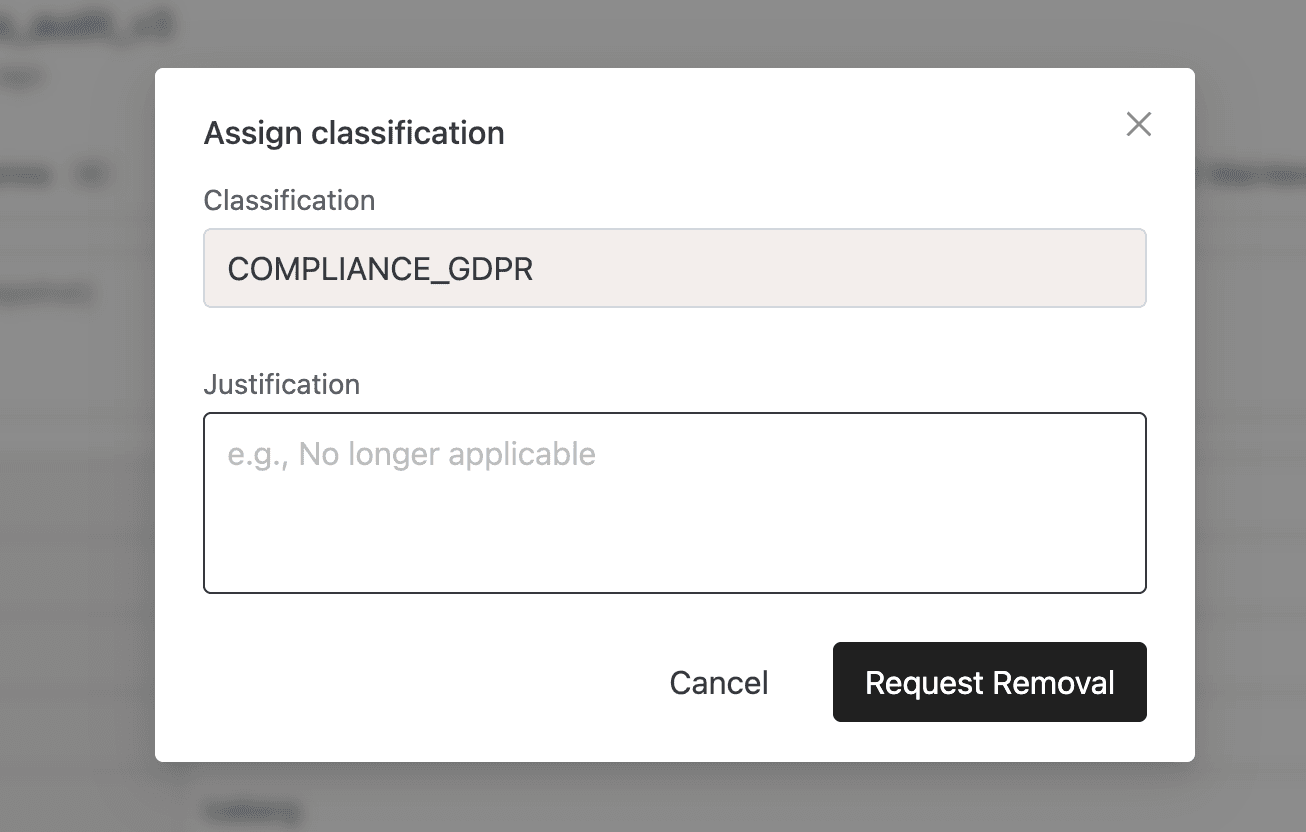
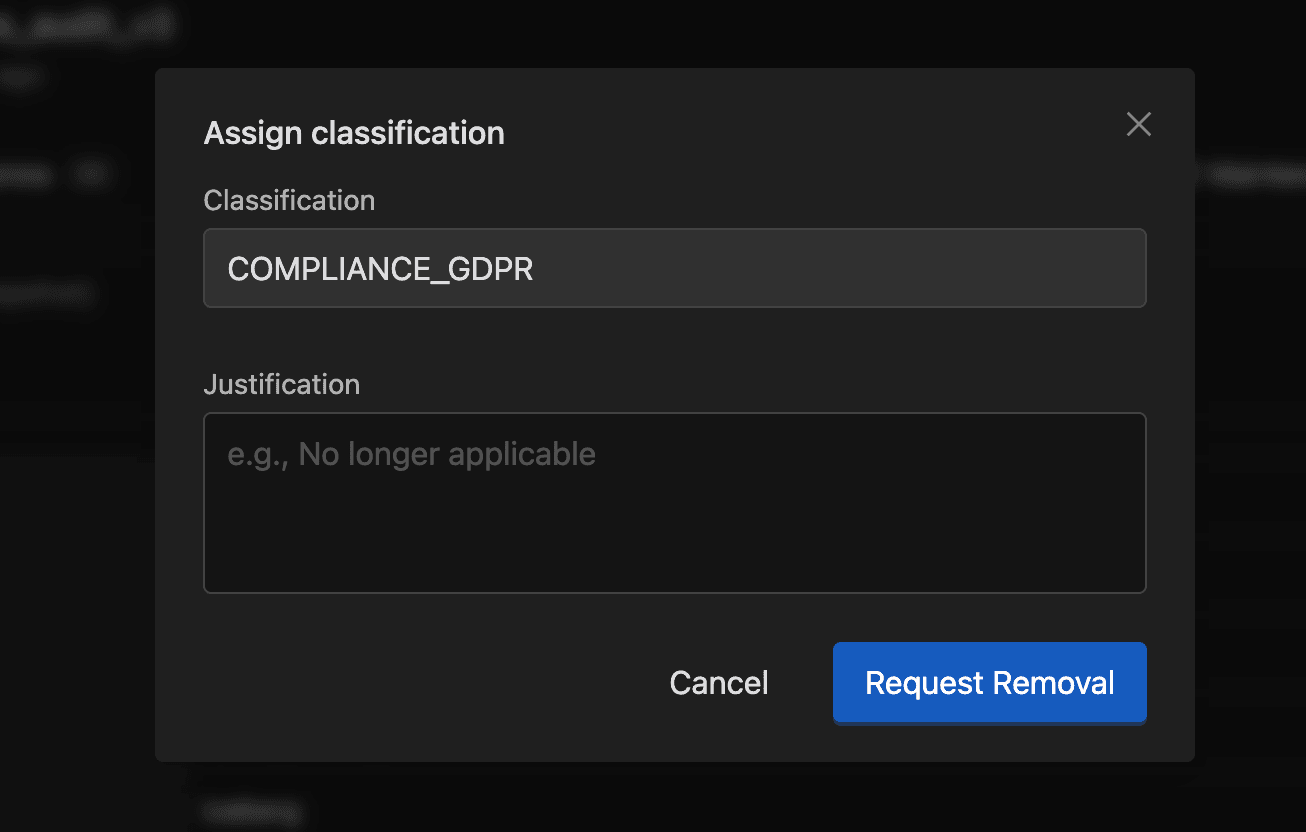
Sometimes a classification no longer applies. Maybe a column was anonymized, or a table's purpose changed. To remove a tag, click the X on any existing classification tag (on the table detail page or in the Columns tab). The "Classification Tag Request" modal opens with the Classification field pre-filled and read-only. Enter a Justification (e.g., "No longer applicable") and click Request Removal.
Auto-Approving a Request
If you have the Data Security and Audit Manager admin role, the request form shows an Auto-approve this request checkbox. Select it to submit the request already approved, so the tag change applies right away without a separate review.
The checkbox is unchecked by default and hidden for other users.
Request Statuses
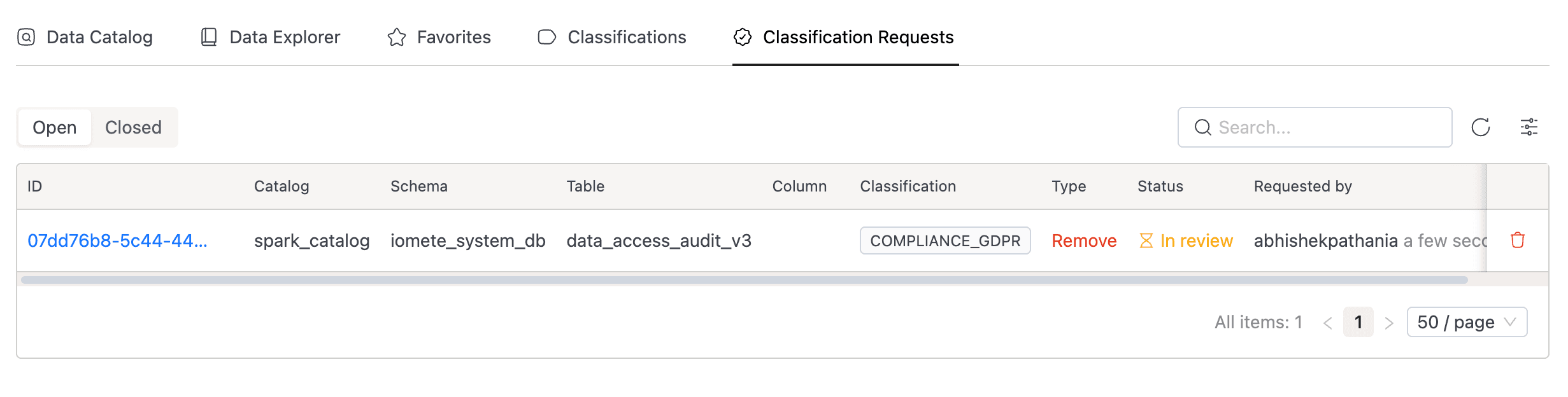
Tracking where your request stands helps you know whether to wait, follow up, or resubmit. Every classification request moves through one of four states:
| Status | Meaning |
|---|---|
IN_REVIEW | The default state. Your request appears in the Classification Requests tab and as a pending tag on the asset. You can cancel it while it's still in review. |
APPROVED | An admin approved the change, or it was auto-approved on submission. The tag updates immediately and the search index reflects it. |
REJECTED | An admin rejected it, so no tag change is applied. |
CANCELLED | You cancelled it yourself before an admin reviewed it. |
Closed requests (APPROVED, REJECTED, CANCELLED) stay visible in the list for 30 days, so you can reference past decisions.
Viewing Pending Tag Requests
Before a request is approved or rejected, you'll want to see what's in the pipeline. Pending requests show up as warning-colored tags (with an add or remove icon) on the table detail page and in the Columns tab. Hover over one to see who requested the change, the request type, and the justification.
If a pending request of the same type already exists for the same asset and tag, the form returns a validation error. This prevents duplicate requests from piling up.
Classification Requests Tab
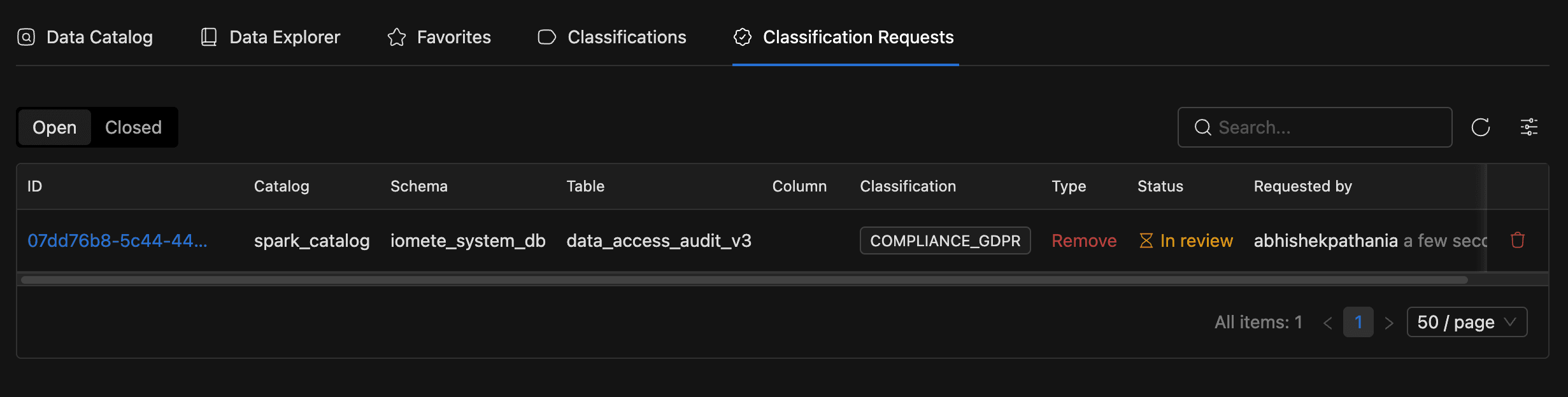
For a broader view of activity across your domain, open the Classification Requests tab. It lists every pending and recently closed request. With the Manage Data Catalog permission, you can submit requests and cancel your own. Administrators with the DATA_SECURITY_AND_AUDIT_MANAGER role approve or reject them. See Access Permissions for role details.