Searching for Data Assets
When you're looking for a specific table across hundreds of assets, the Data Catalog tab is the fastest way to find it. It searches table names, catalogs, schemas, columns, and tags using keyword and semantic matching.
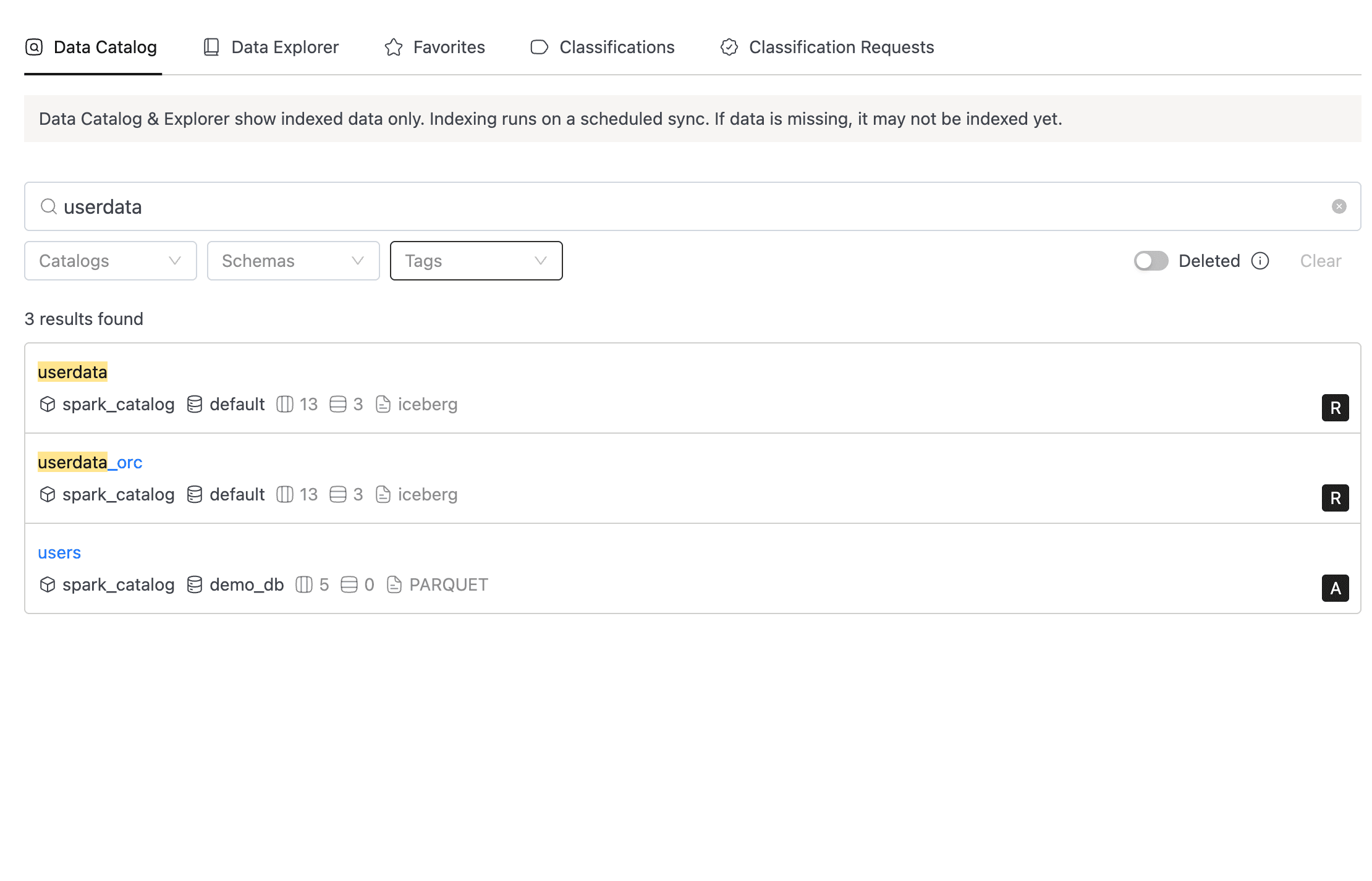
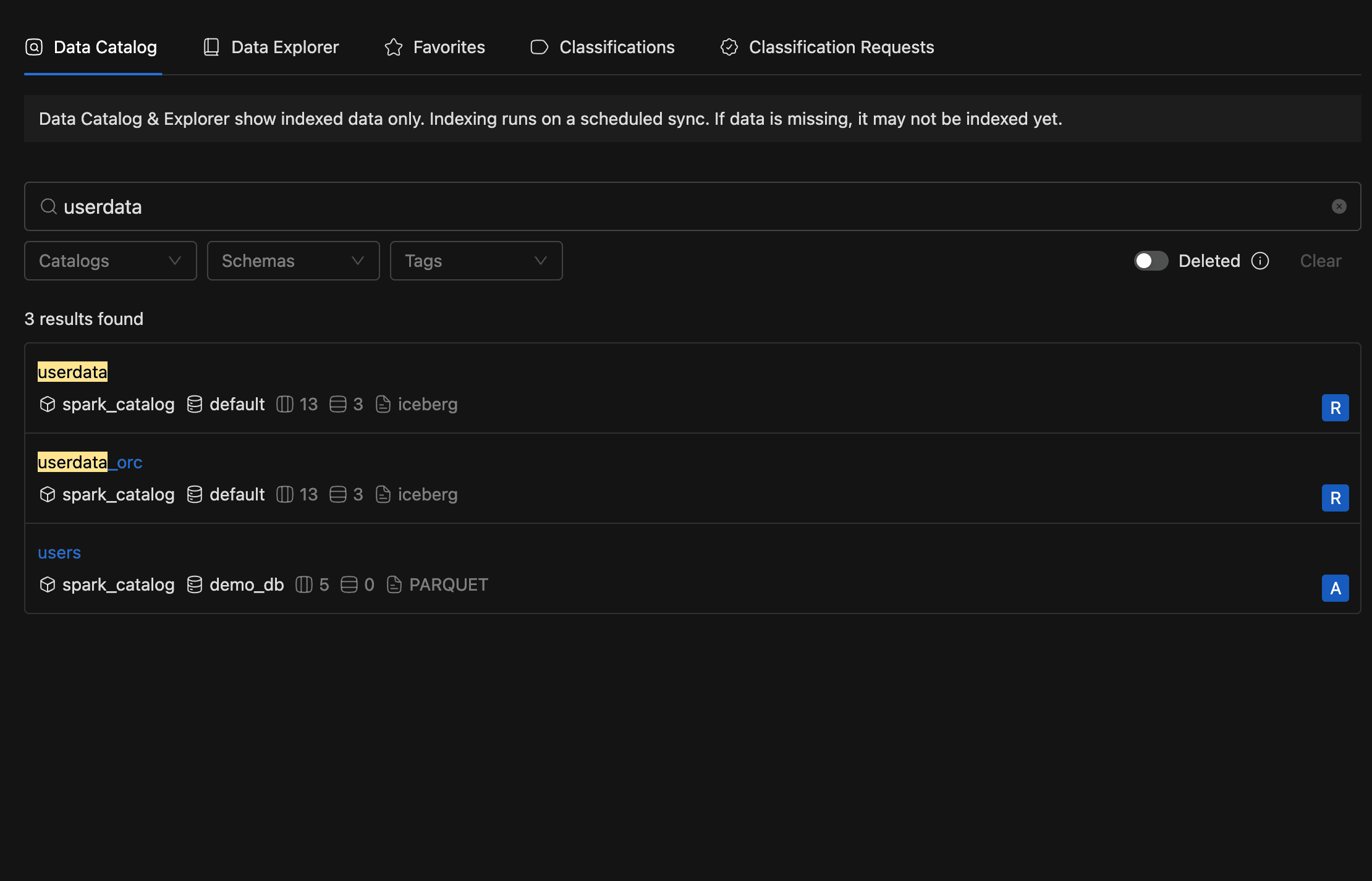
Running a Search
Finding what you need usually takes a few keystrokes and an optional filter or two.
- Open the Data Catalog tab (the default view).
- Type a query in the Search data assets field. Results update as you type.
- Narrow results with the filter dropdowns. Each supports multi-select:
- Catalogs: filter by catalog name
- Schemas: filter by schema or database name
- Tags: filter by classification tags
- Toggle the Deleted switch to include deleted tables (hidden by default).
- Click Clear to reset every filter at once.
The page shows a result count and paginates at 25 items per page.


Results aren't limited to exact keyword matches. A query like "customer orders" can surface a table named purchase_history if its description is semantically close.
Reading Search Result Cards
Each card gives you a quick snapshot of a table. Click any table name to open its detail page.
- Table name: highlighted match text, links to the detail page
- Catalog / Schema: where the table lives
- Columns / Rows: column count and record count
- Provider: table provider (e.g.,
iceberg,hive) - Tags: up to 3 classification tags, with a "+N more" badge for extras
- Owners: avatar group showing up to 2 owners, with a "+N" overflow indicator
Empty and Error States
A couple of edge cases are worth knowing about.
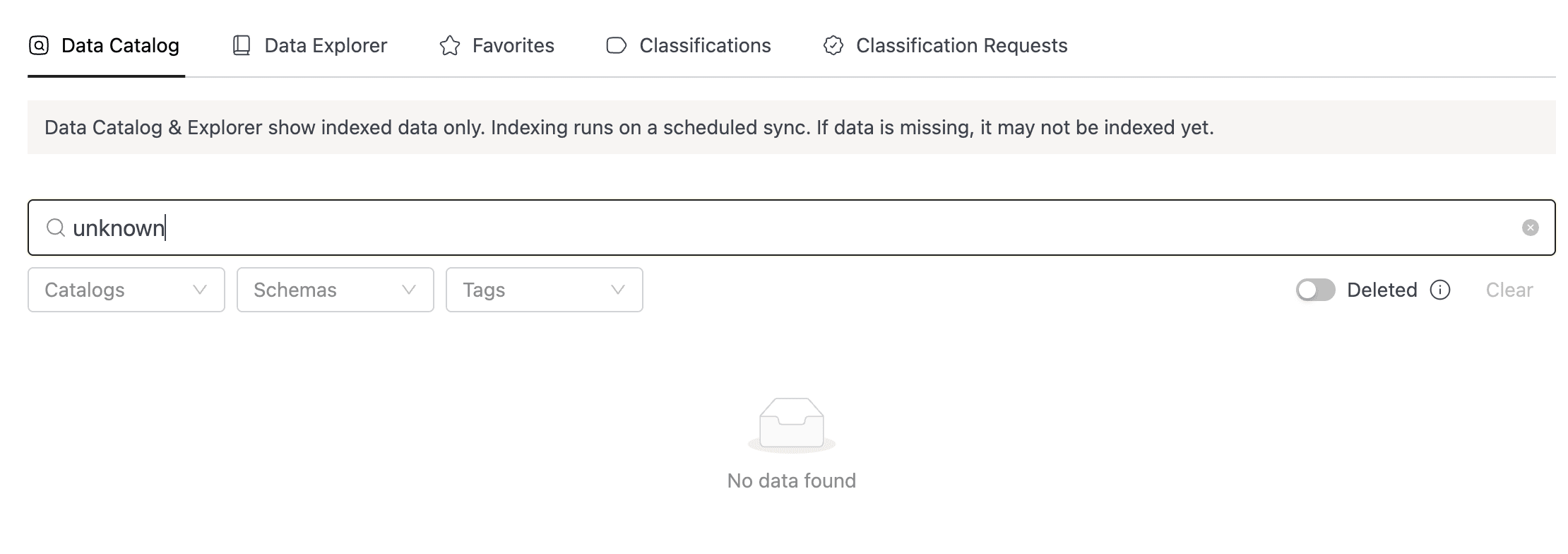
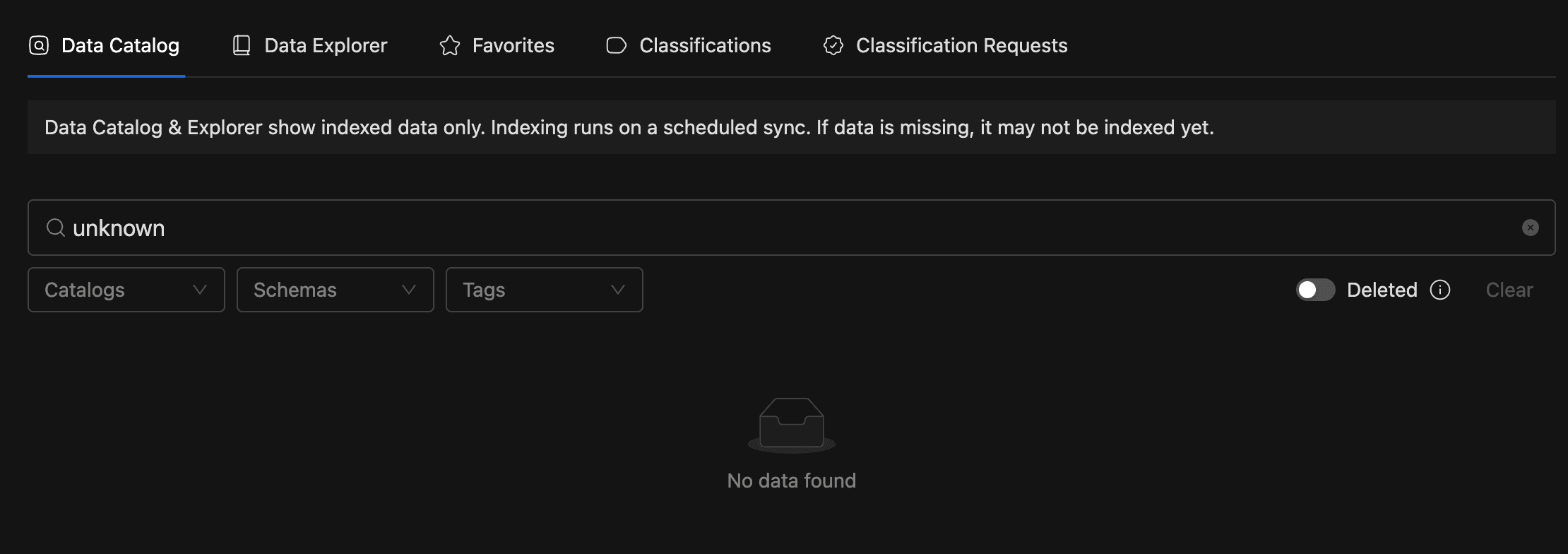
If nothing matches your query, the page displays "No data found." If no search index exists yet because the sync job hasn't run, you'll see a prompt to deploy the required Spark job instead.
If you follow a detail link to a deleted table, the page displays a "details not found" message. For recently created tables that don't appear in search yet, run the catalog sync job to rebuild the index.