Table Details and Metadata
Click any table name (from search results or the Data Explorer) to open its detail page.
Page Header
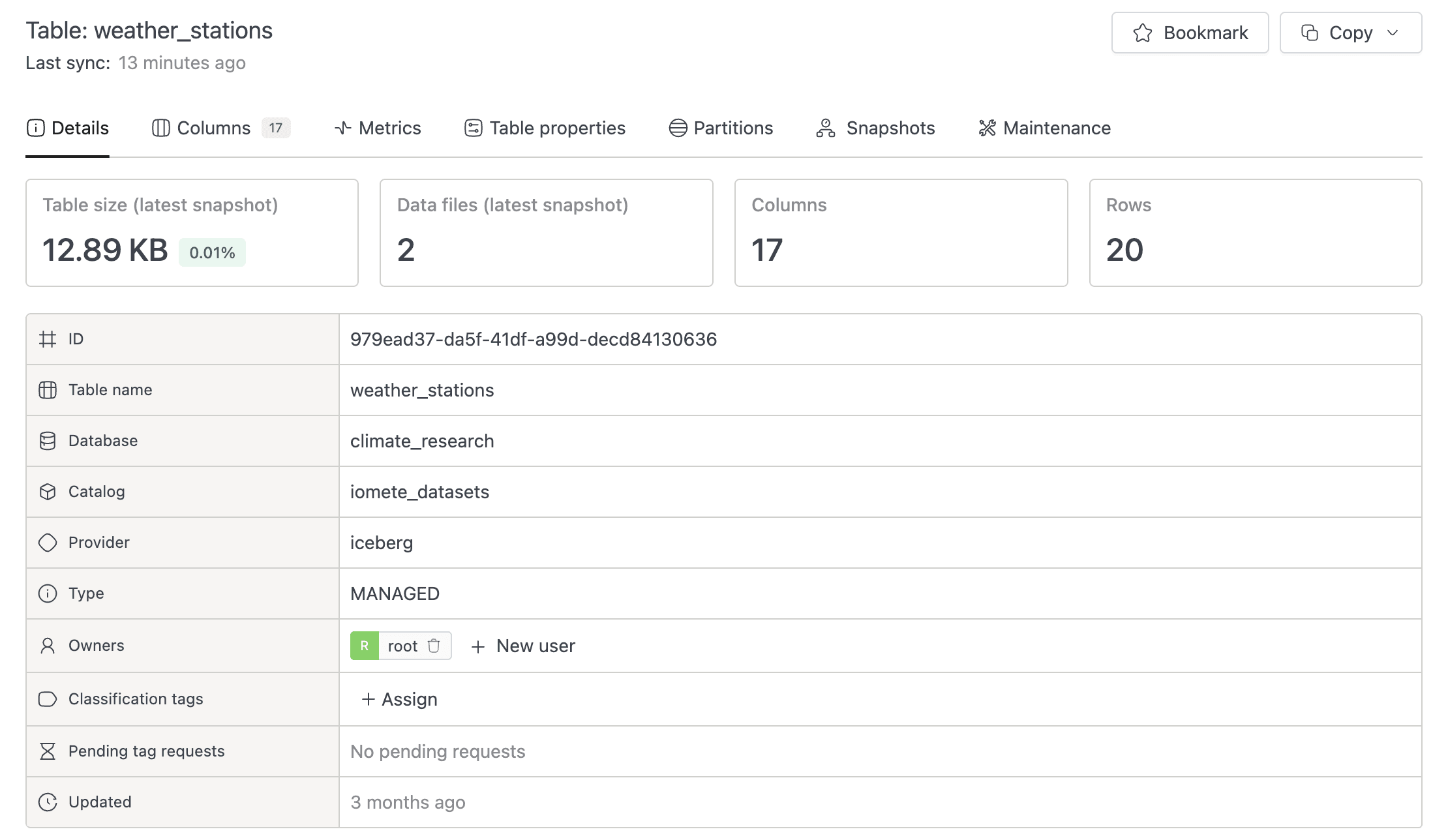
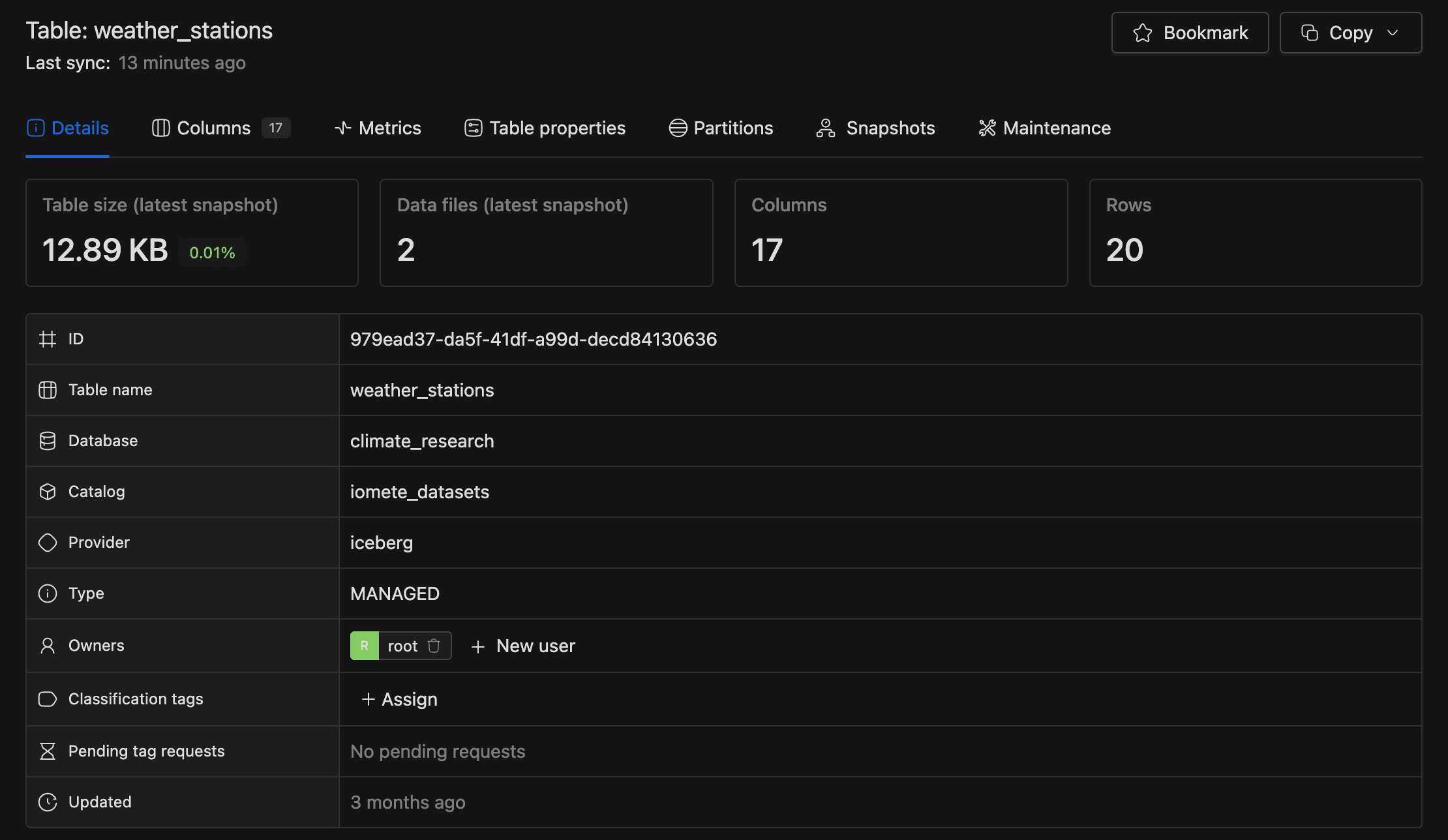
The header helps you confirm you're looking at the right table and quickly grab references for queries. From Data Catalog search, it displays "Table: {tableName}" with "Last sync: {relative time}" below it. From Data Explorer, you'll see breadcrumb navigation instead.
When accessed from Data Catalog search, the header also includes:
- Bookmark button (star icon toggle)
- Copy dropdown with three options:
- Copy name: copies
tableName - Copy full name: copies
catalogName.databaseName.tableName - Copy SELECT statement: copies
SELECT * FROM catalogName.databaseName.tableName LIMIT 100;
- Copy name: copies


Details Tab
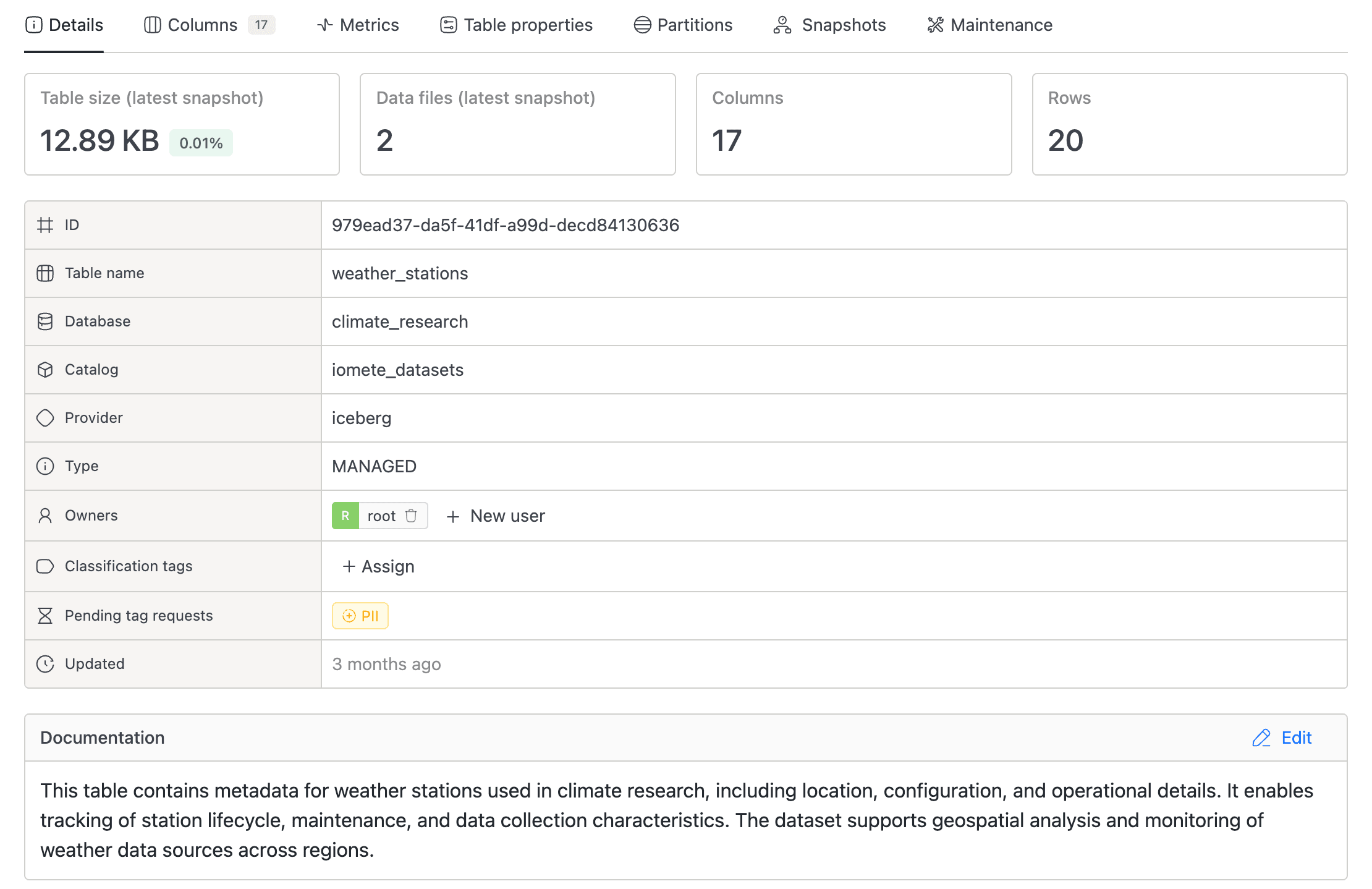
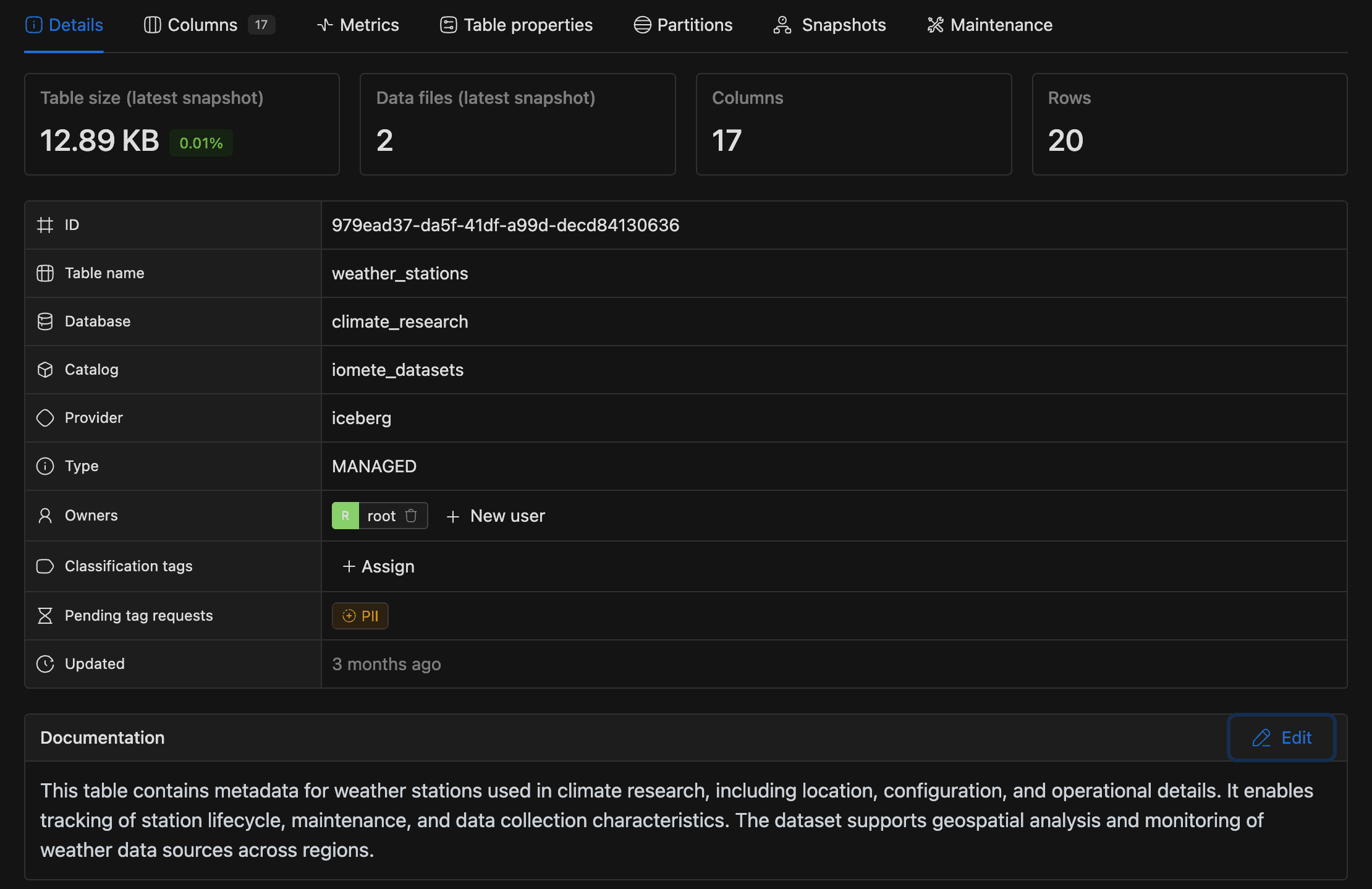
This tab opens by default when you view a table, giving you the key context up front. It has three sections.
Statistics (Iceberg tables only): four metric cards showing Table size (latest snapshot) (with a badge comparing it to the database size), Data files (latest snapshot), Columns, and Rows. Non-Iceberg tables don't display statistics, partitions, or additional metadata.
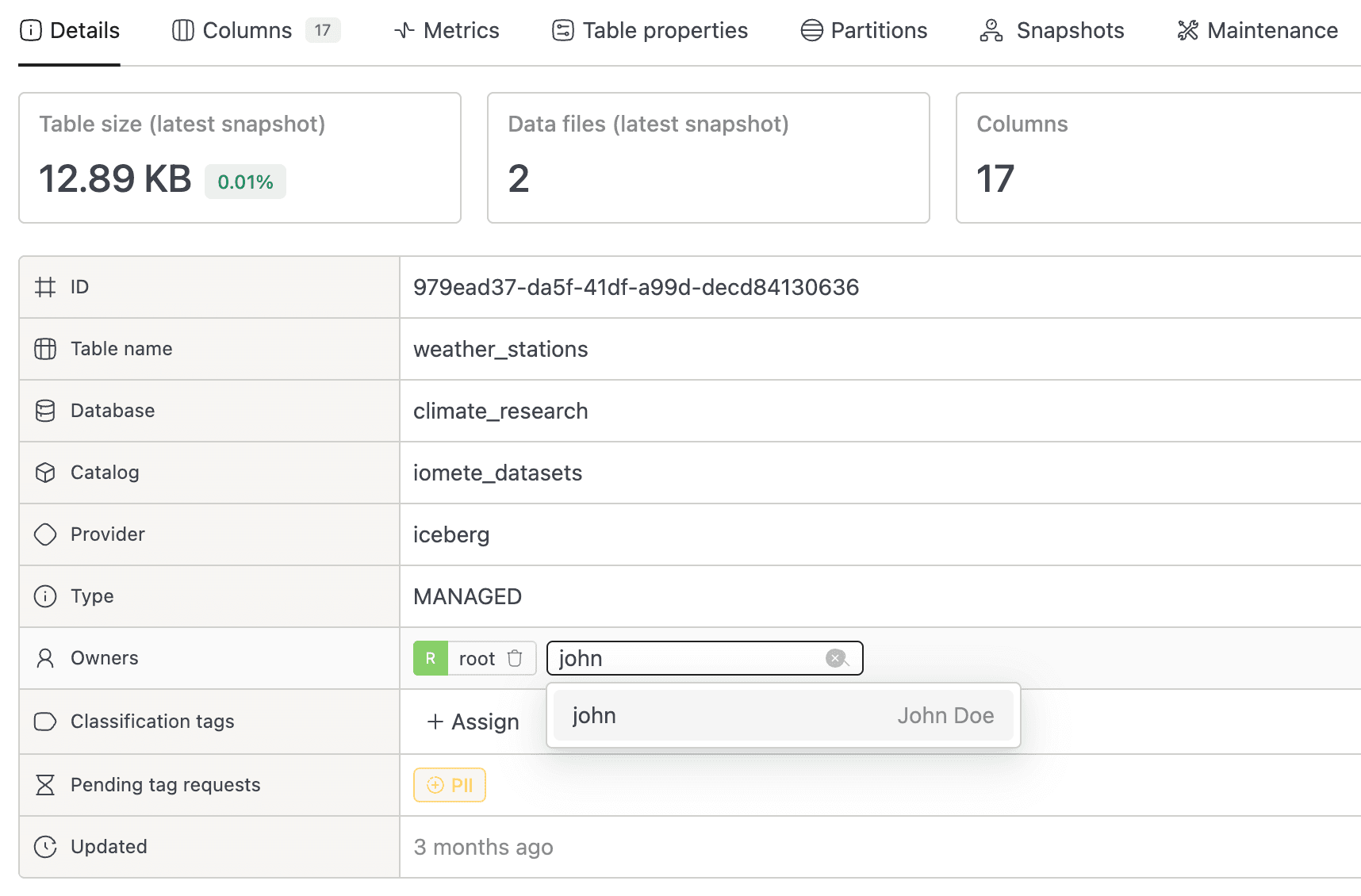
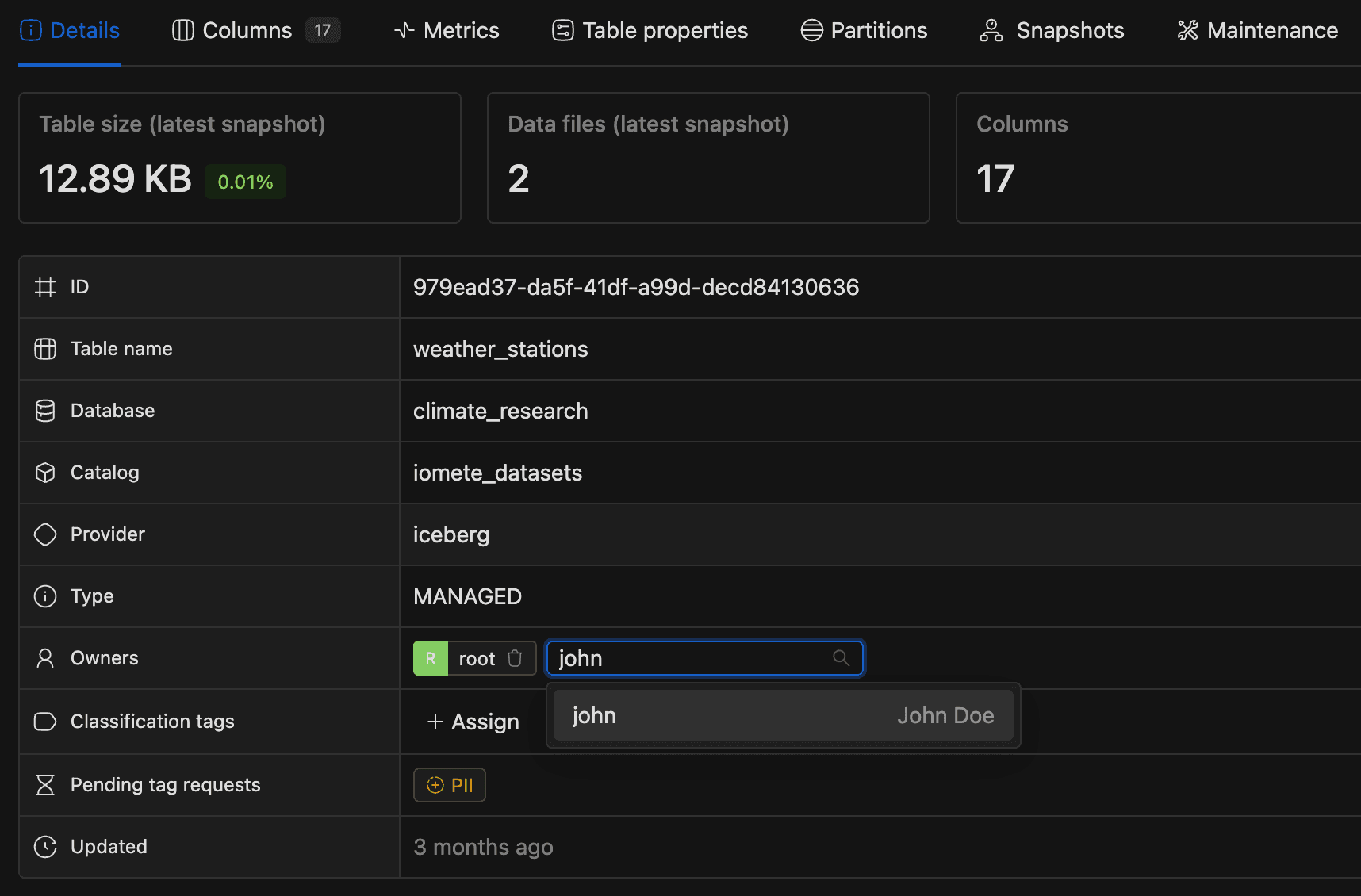
Table details: identity fields like ID, Table name, Database, Catalog, Provider, and Type. Below those you'll find Owners (editable; see Managing Table Owners) and Classification tags (via the request workflow). The section also shows Pending tag requests and Updated (relative time since last sync).
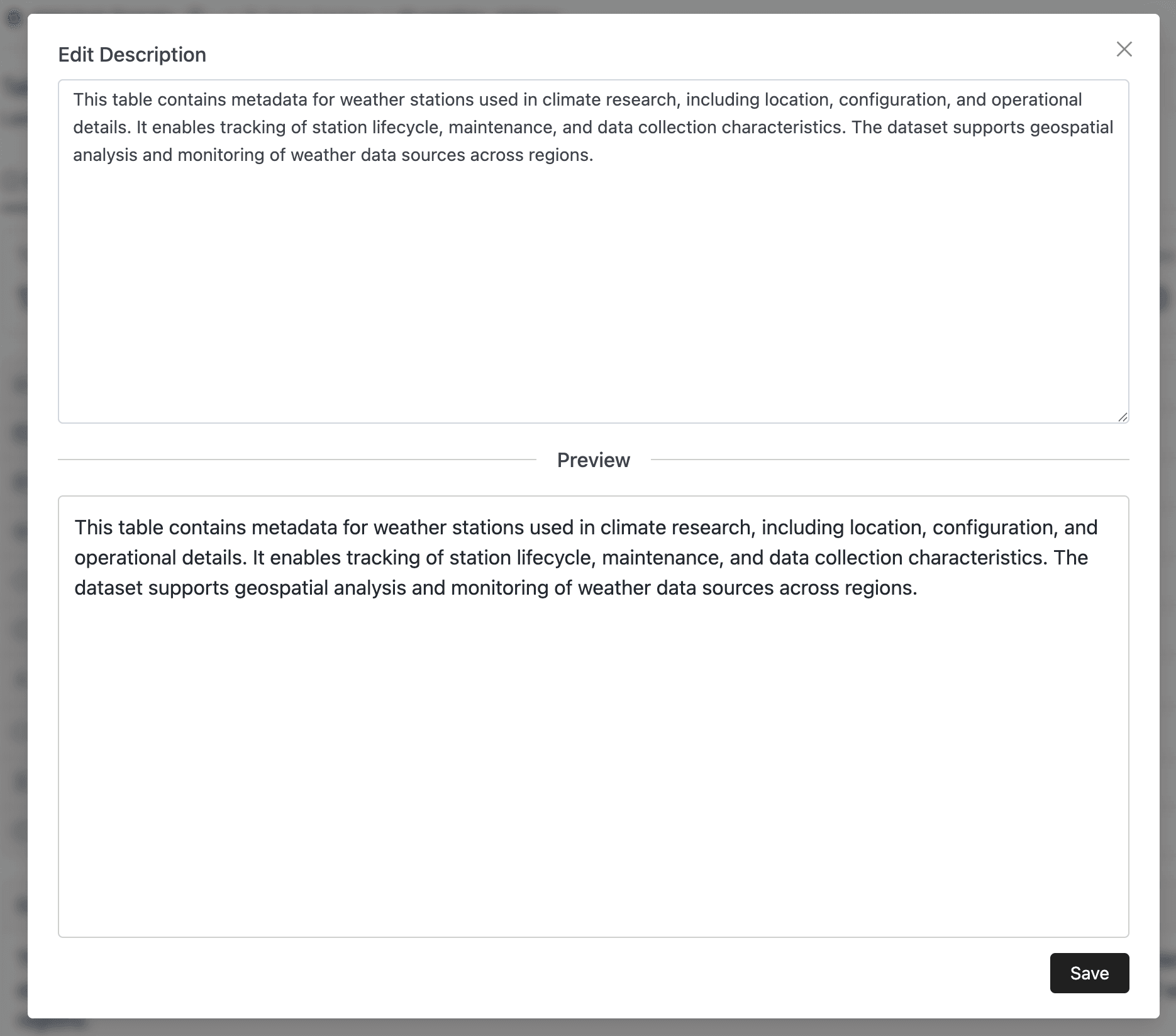
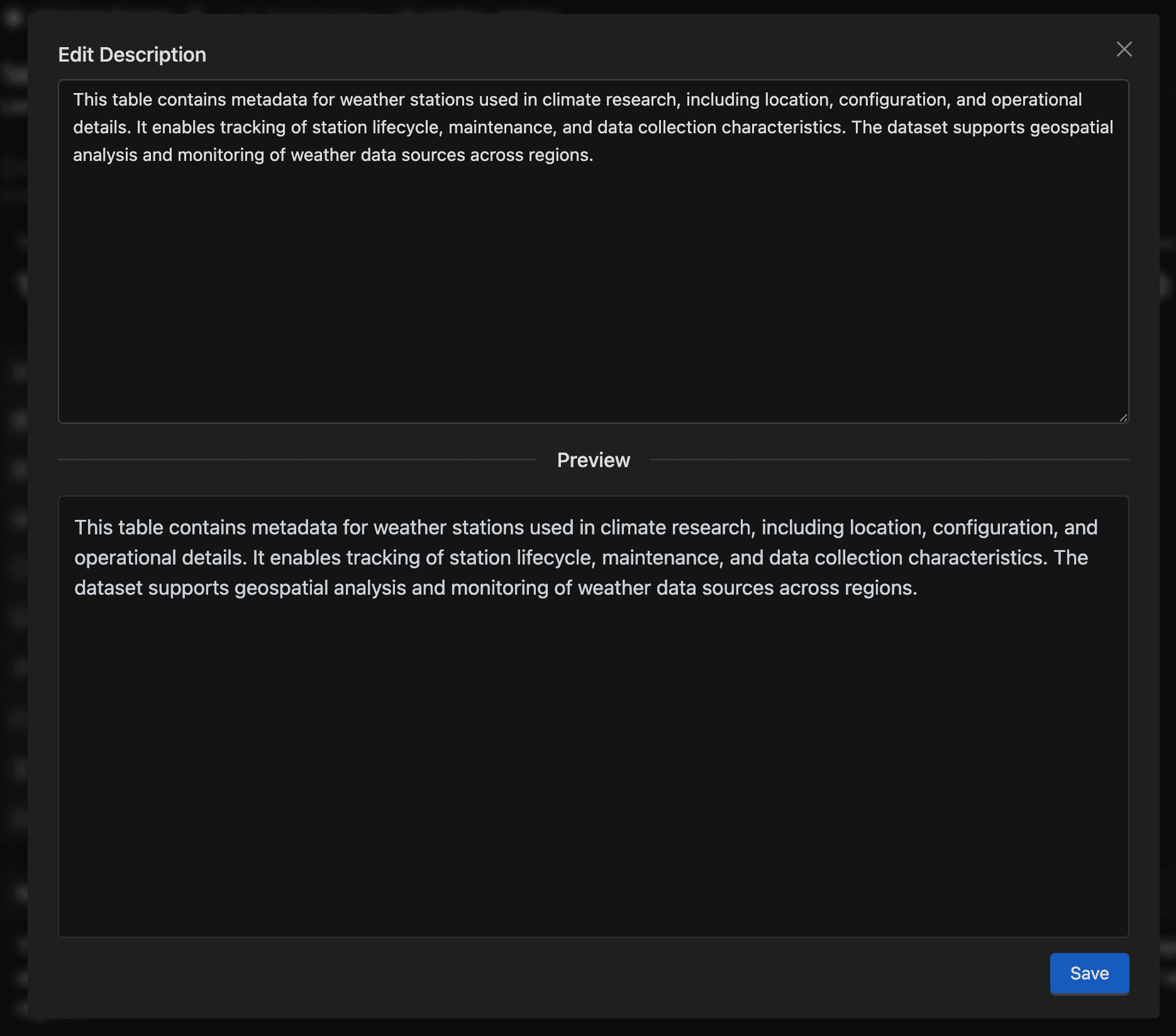
Documentation: the table description, rendered as Markdown. Click Edit to update it in a Markdown editor modal.
Columns Tab
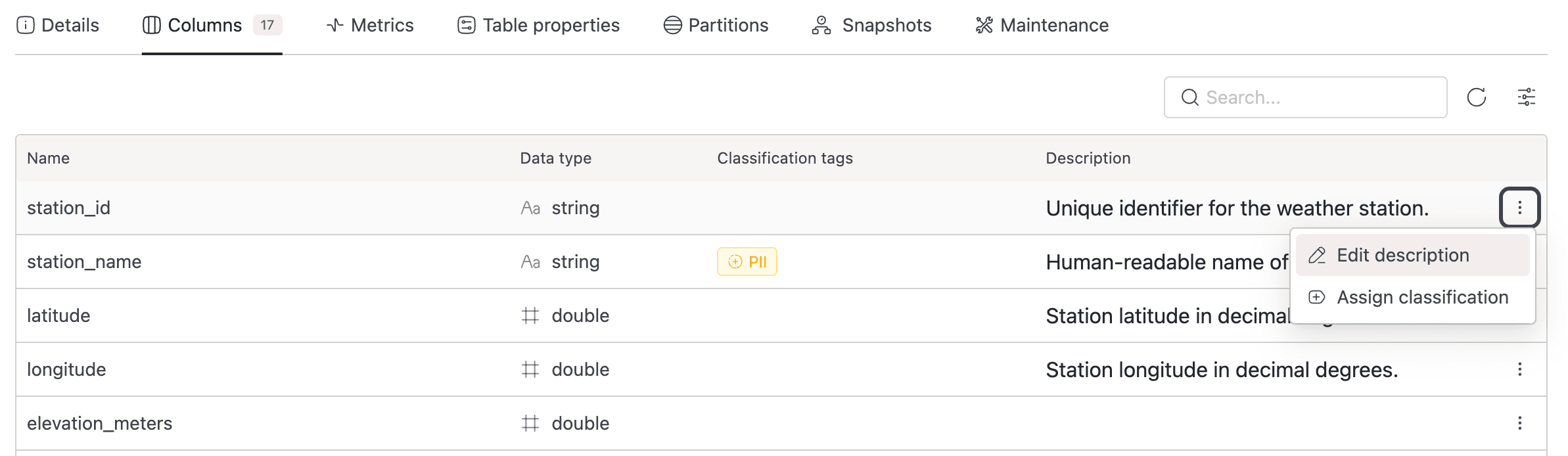
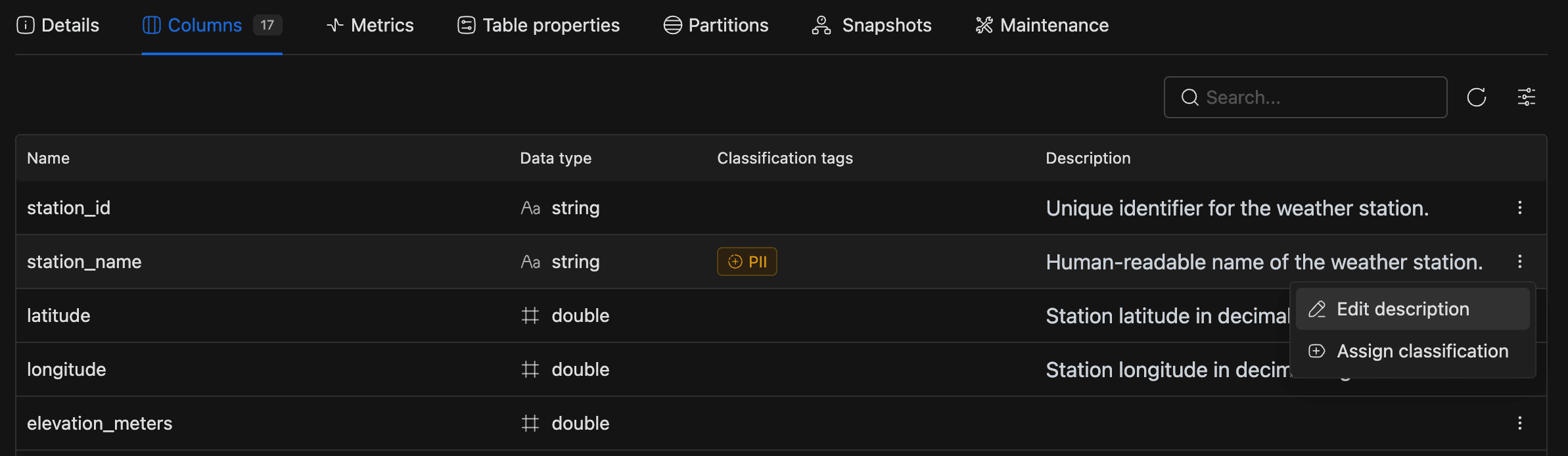
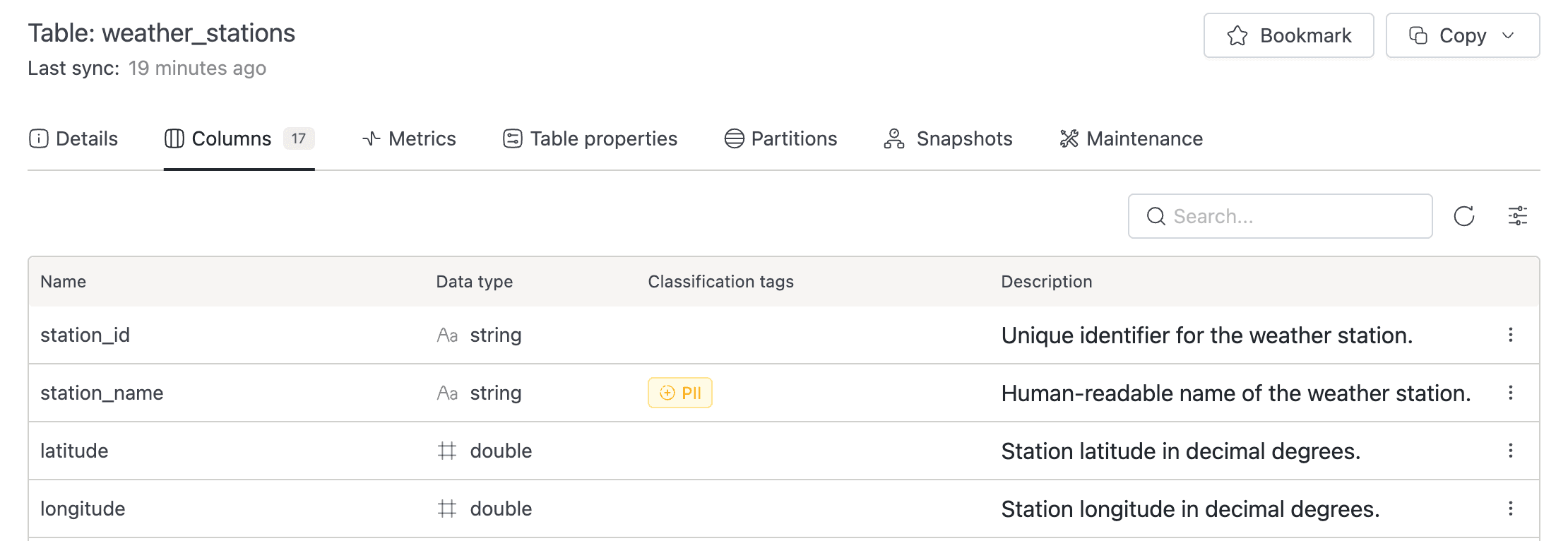
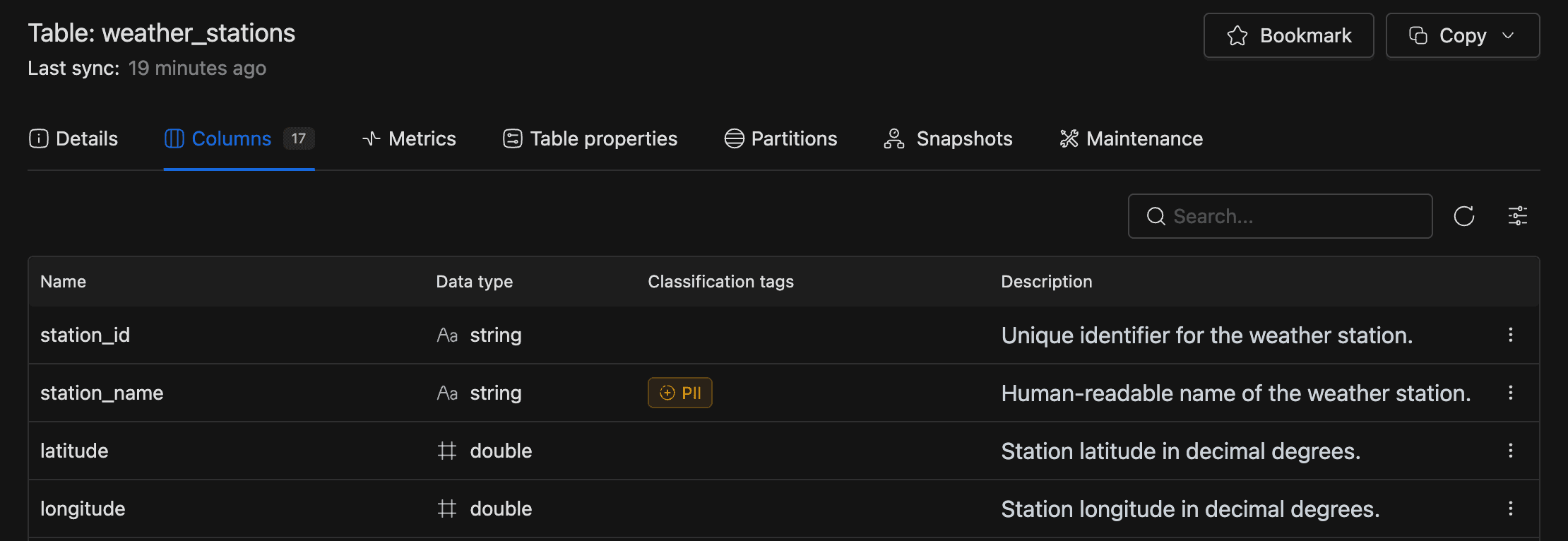
The Columns tab is where you go to inspect or annotate individual columns. It lists every column in a searchable table.
Each row displays the column's Name, Data type (with a type icon), Classification tags, and Description (rendered as Markdown). Use the actions dropdown on any row to Edit description or Assign classification. Both go through the request workflow. Filter by name with the search box at the top.
Metrics Tab
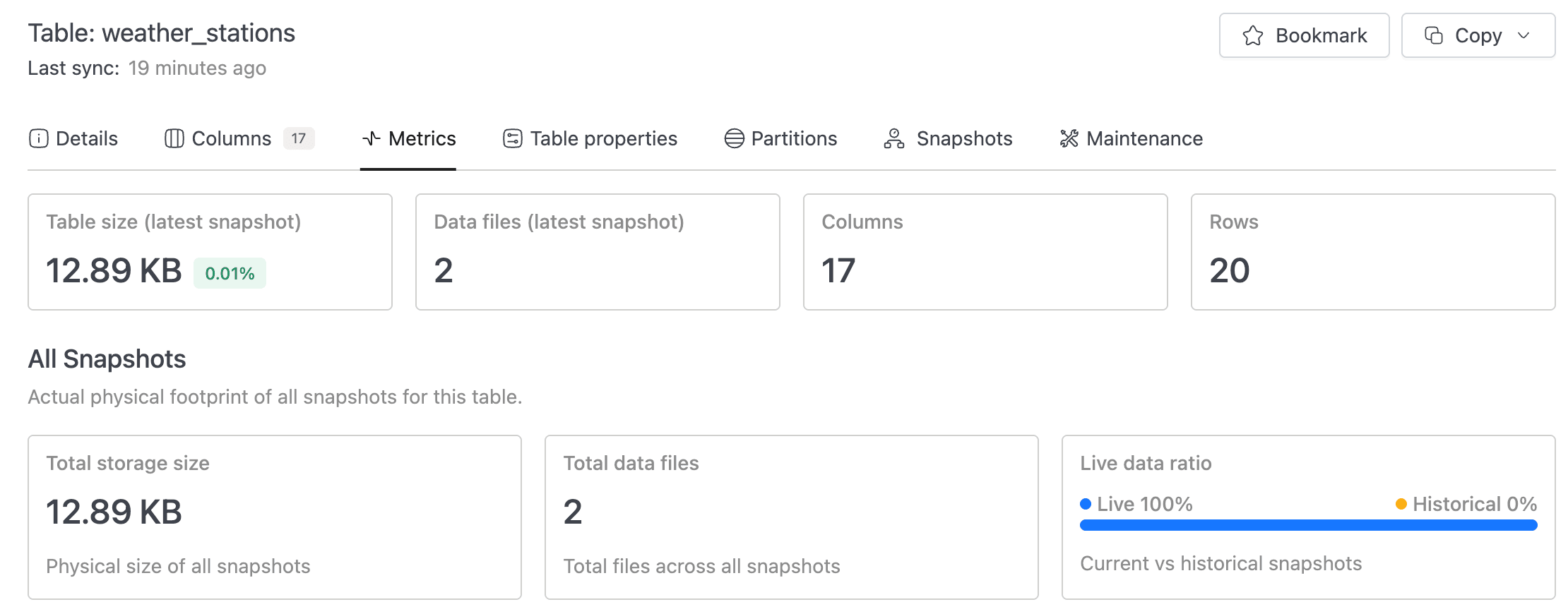
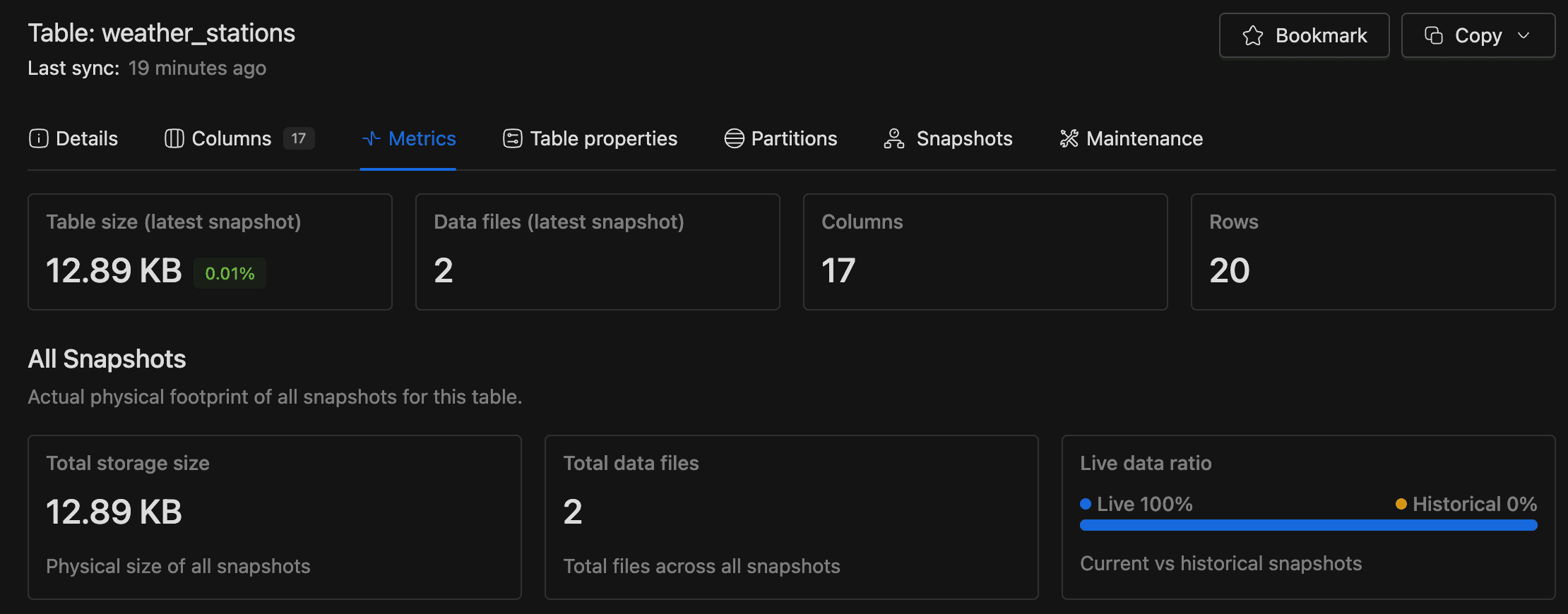
If you're tracking storage growth or diagnosing bloat, this tab surfaces the numbers you need. It's available only for Iceberg tables (other table types show a disabled tab with a tooltip).
The tab repeats the four statistics cards from the Details tab and adds an All Snapshots section. This section includes Total storage size (physical size across all snapshots), Total data files, and a Live data ratio pie chart that compares current snapshot data to historical data.
If total table size exceeds 100 GB and the live data ratio drops below 40%, a storage optimization alert recommends compaction or snapshot expiration to reduce costs.
Iceberg-Specific Tabs
Iceberg tables expose richer metadata than other formats, so they get three additional tabs:
- Table Properties: Iceberg table properties pulled from metadata.
- Partitions: partition layout and details.
- Snapshots: snapshot history with charts and a summary table. You can also create branches and tags from individual snapshots.
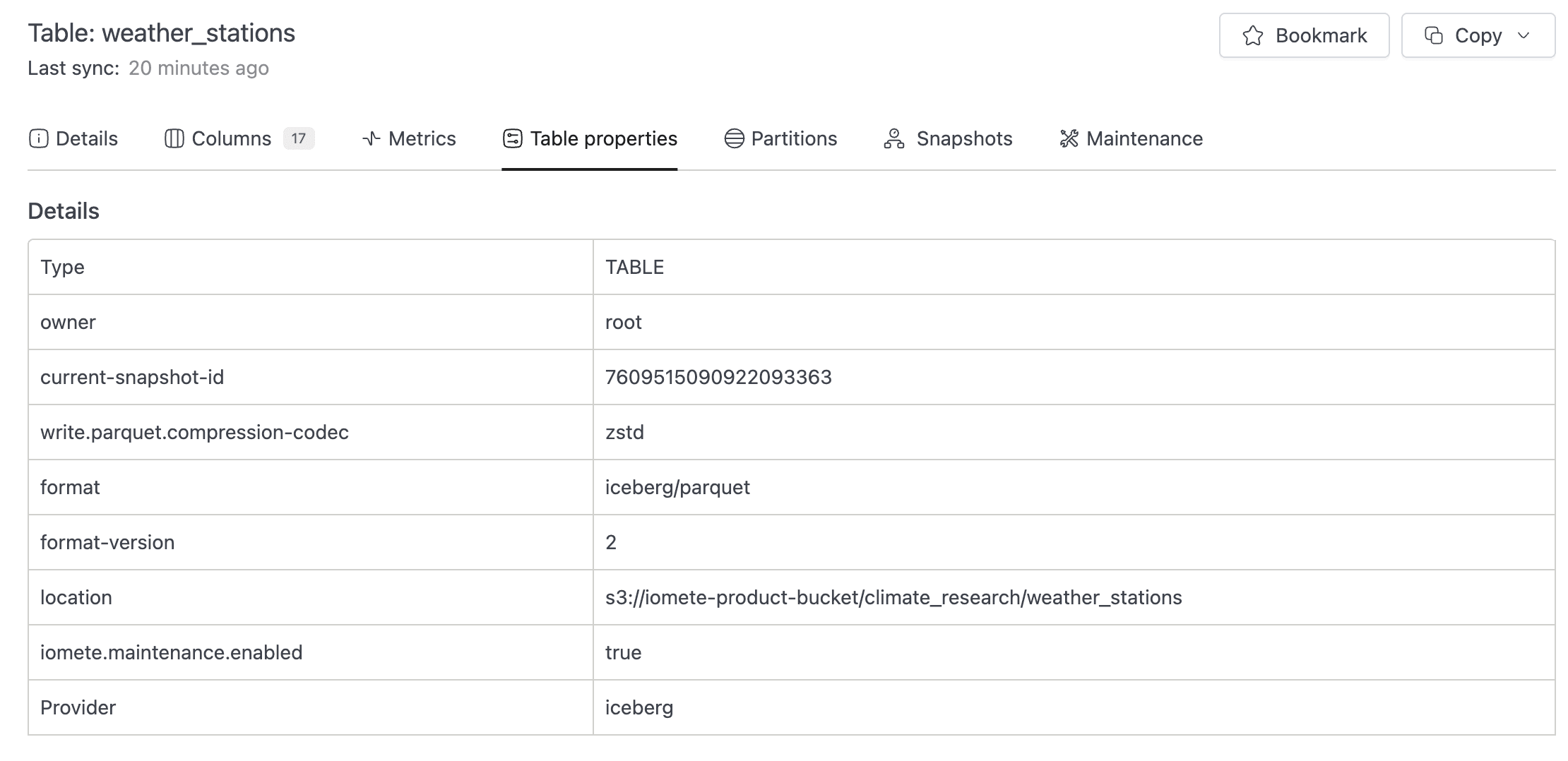
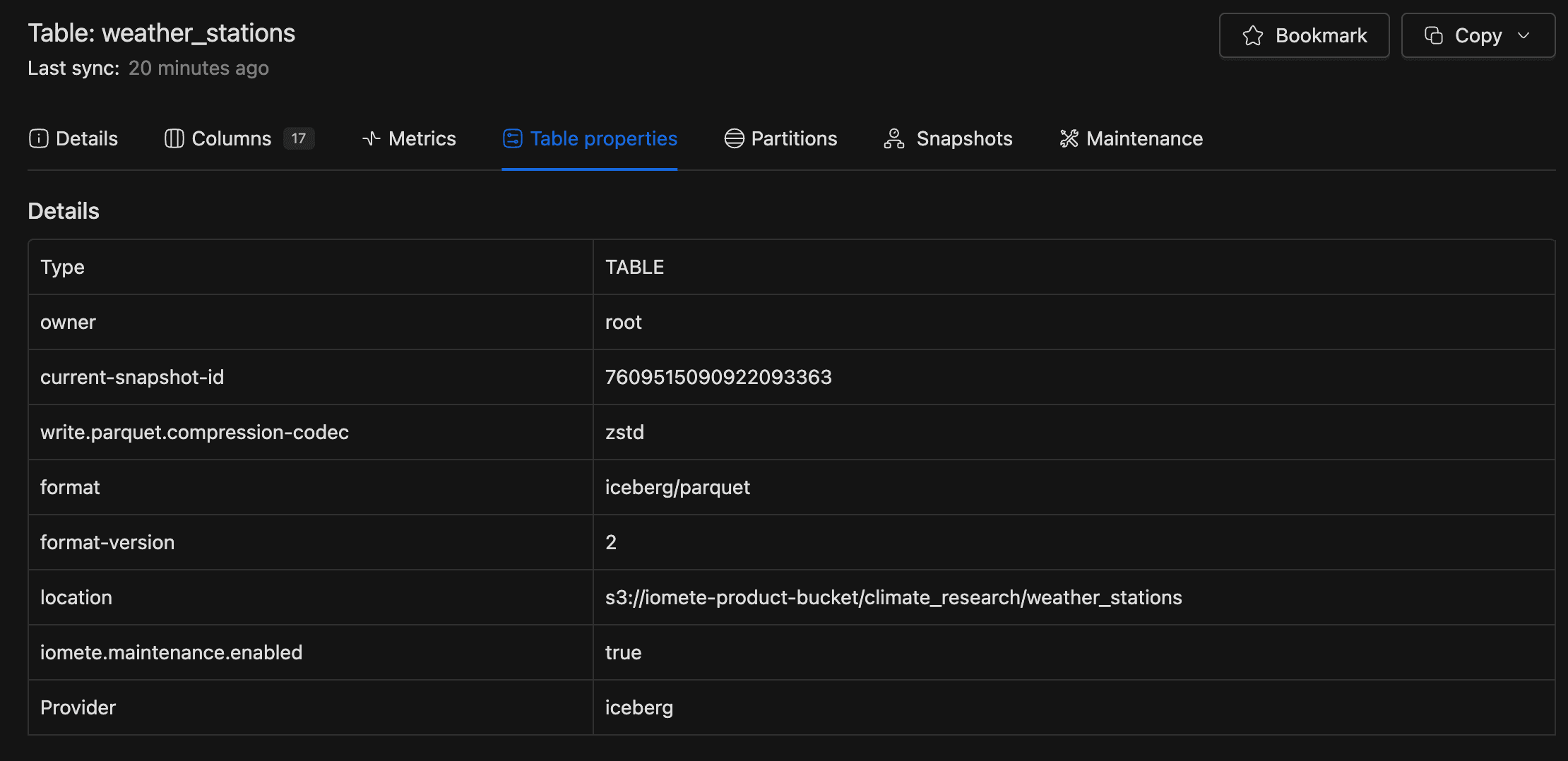
If automated maintenance is enabled, a Maintenance tab also appears with configuration and history. See Table Maintenance for details.
Managing Table Metadata
Good metadata makes tables easier to find and understand. Here's how to keep yours current.
Editing a Table Description
- On the table detail page, scroll to Documentation in the Details tab.
- Click Edit. A Markdown editor modal opens.
- Write or update the description.
- Click Save.
Managing Table Owners
Owners signal who's responsible for a table's data quality. The Owners field in the Details section displays current owners as closable tags. Click + New user to choose a user from the searchable dropdown, or click the X on an existing tag to remove an owner.
Editing a Column Description
- Open the Columns tab and find the column you want to update.
- Click its actions dropdown and select Edit description.
- Update the text in the Markdown editor.
- Click Save.