Classifications
Overview
Data Classifications help you label tables and columns (for example: PII, Confidential, Financial). These labels are used by security and masking policies.
Because classifications directly affect data access and visibility, they now follow a request and approval workflow.
Key changes:
- Classifications must be predefined by admins or security teams
- Users cannot create new classifications
- Adding or removing a classification requires approval
- Every change is tracked through Classification Requests
This prevents accidental exposure of sensitive data and avoids breaking pipelines due to unexpected policy changes.
What Changed
Previously, users could freely create and apply tags in the Data Catalog.
Now:
- Tags are replaced by Classification Tags
- Only admins can create and manage classifications
- Users can still apply classifications — but only through a request
- Admins review and approve or reject those requests
Why this matters:
Each classification may be connected to:
- Tag-based security policies
- Masking rules
- Tag-based masking
Adding or removing a classification can:
- Grant access to sensitive data
- Remove access from users
- Change how data is masked
So every change must be reviewed.
Roles and Responsibilities
Domain Members
- Browse existing classifications
- Request to add or remove classifications on tables or columns
- Track and manage classification requests
Admins / Security Admins
- Create and manage classifications
- Review classification requests
- Approve or reject requests
- See where each classification is used across data assets
Classifications (Admin Portal)
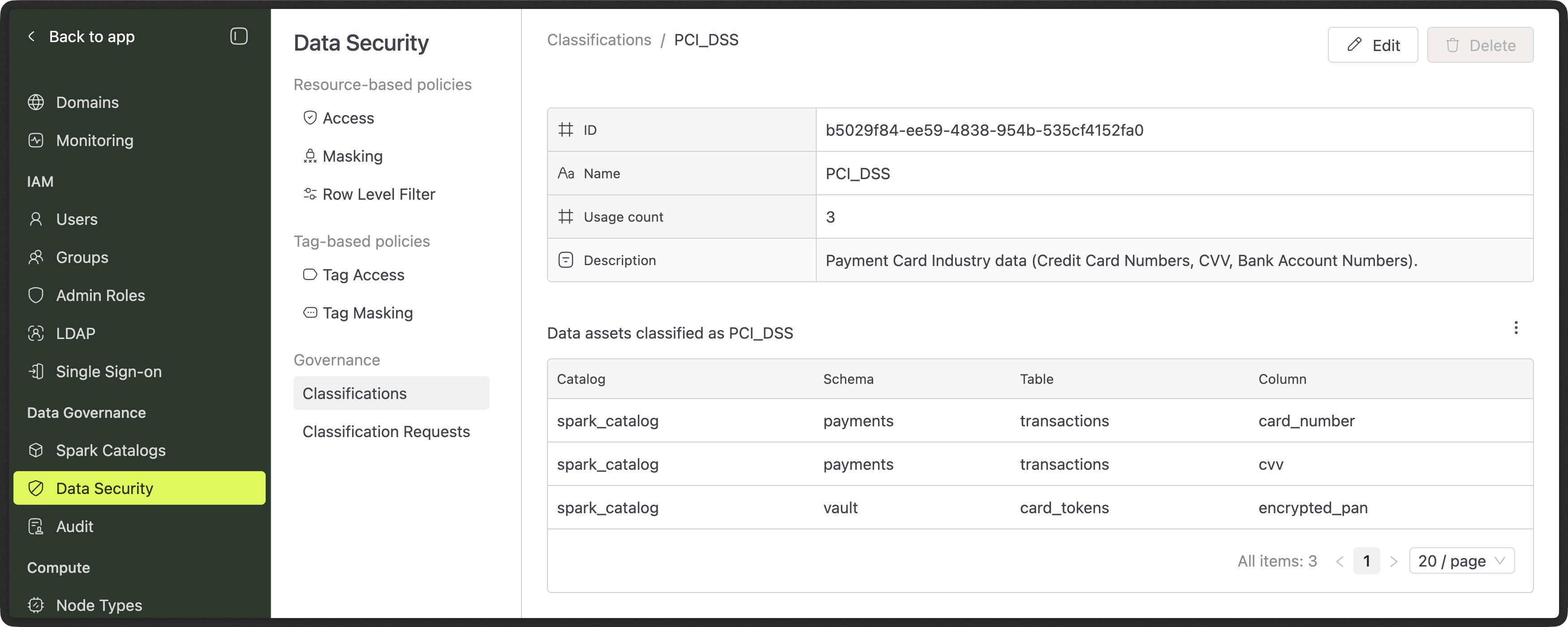
Classifications are managed from the Admin Portal → Data Security → Classifications.
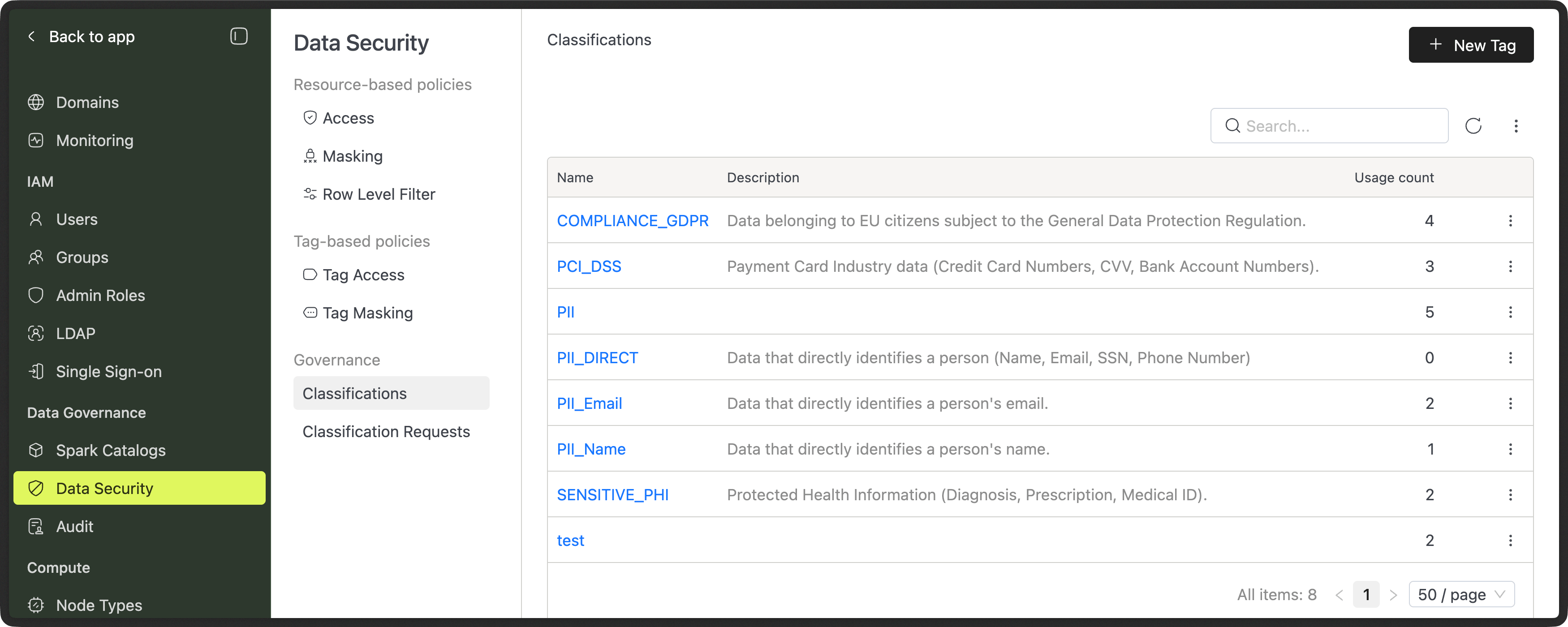
Each classification includes:
- Name
- Description
- Usage count (how many assets use it)
- List of attached tables and columns
Admins use this area to:
- Create classifications
- Understand impact before making changes
- See where sensitive labels are applied
Permission requirements:
- "Administration Manager" or "Data Security and Audit Manager" admin role is required to manage classifications.
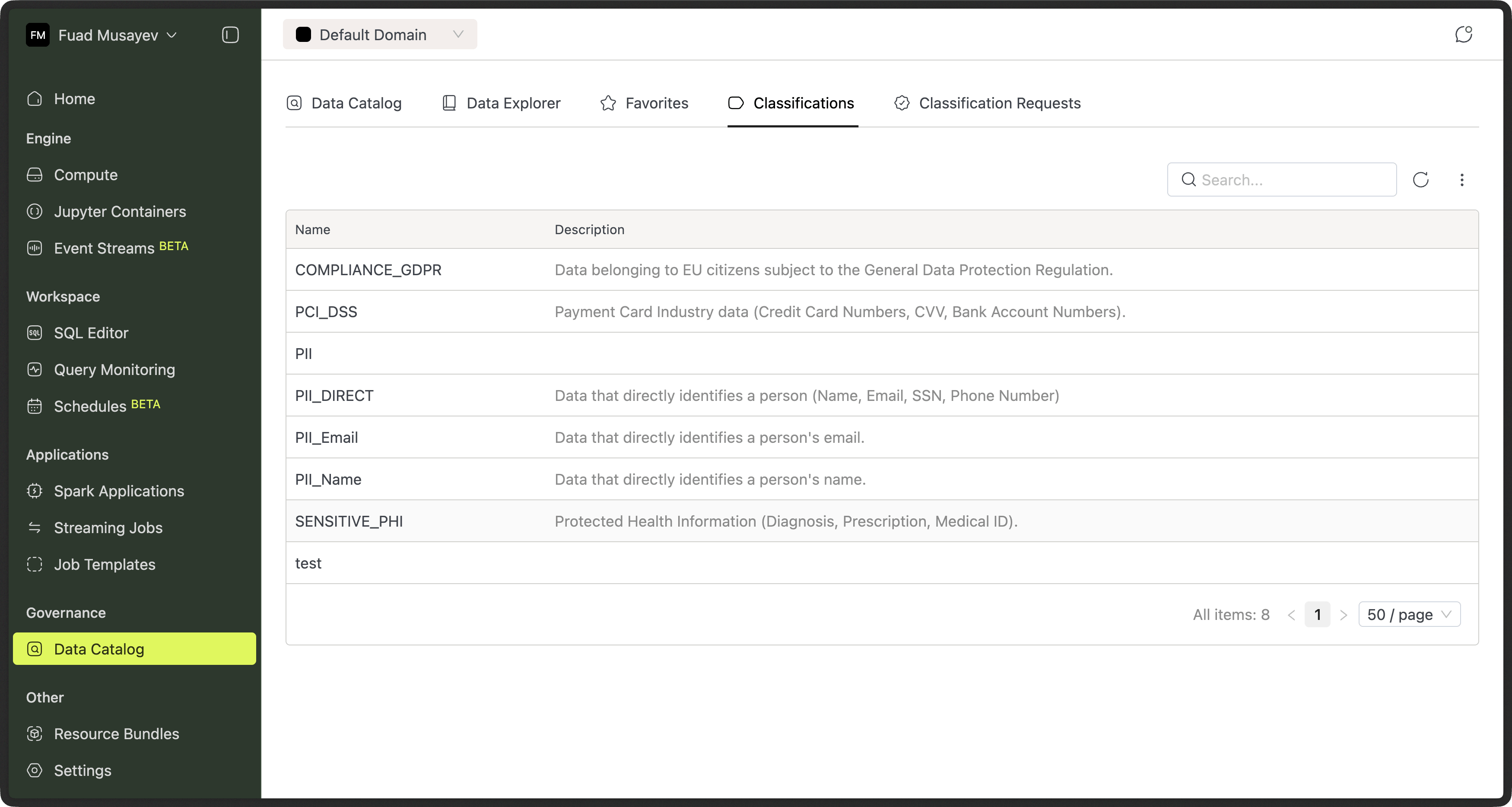
Browsing Classifications inside Domain (Data Catalog)
All users can view available classifications from the Classifications tab in the Data Catalog.
This is a read-only view.
You can:
- Search classifications
- Read descriptions
- Understand what each classification represents
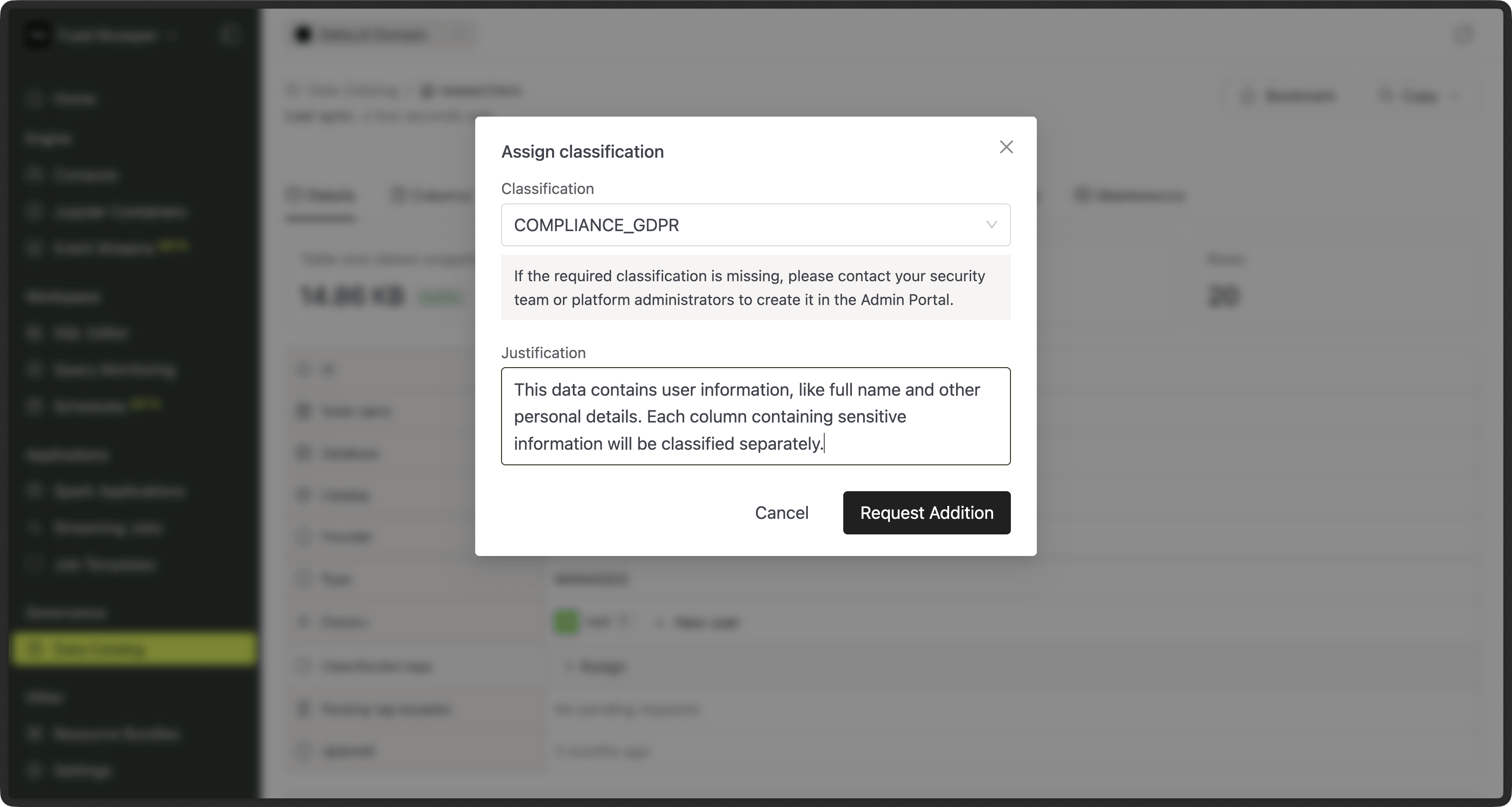
Requesting Classification Changes (Users)
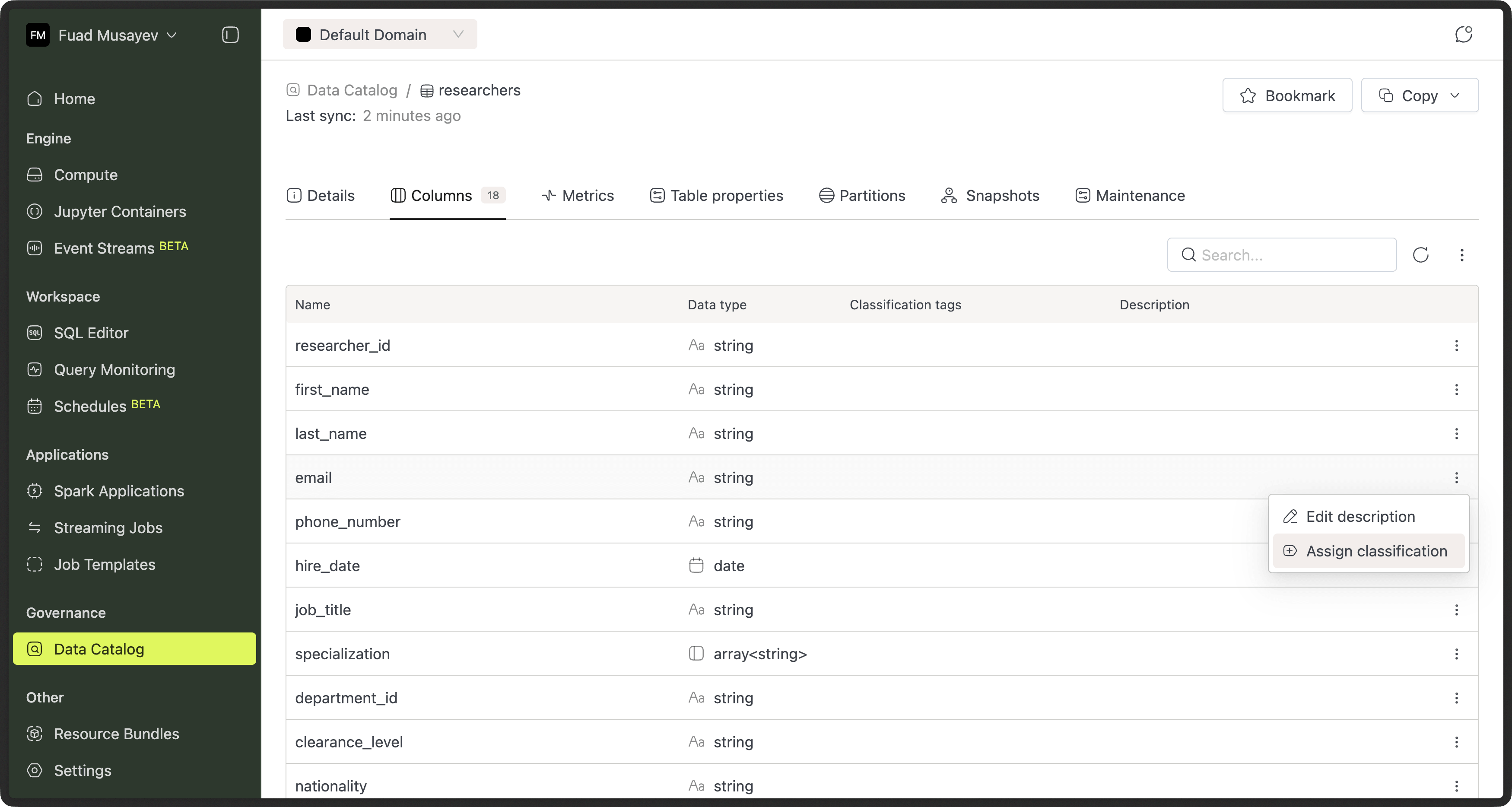
Domain members can request to:
- Add a classification to a table or column
- Remove a classification from a table or column
How to submit a request
- Open a table or column in the Data Catalog
- Choose the classification action (add or remove)
- Submit the request
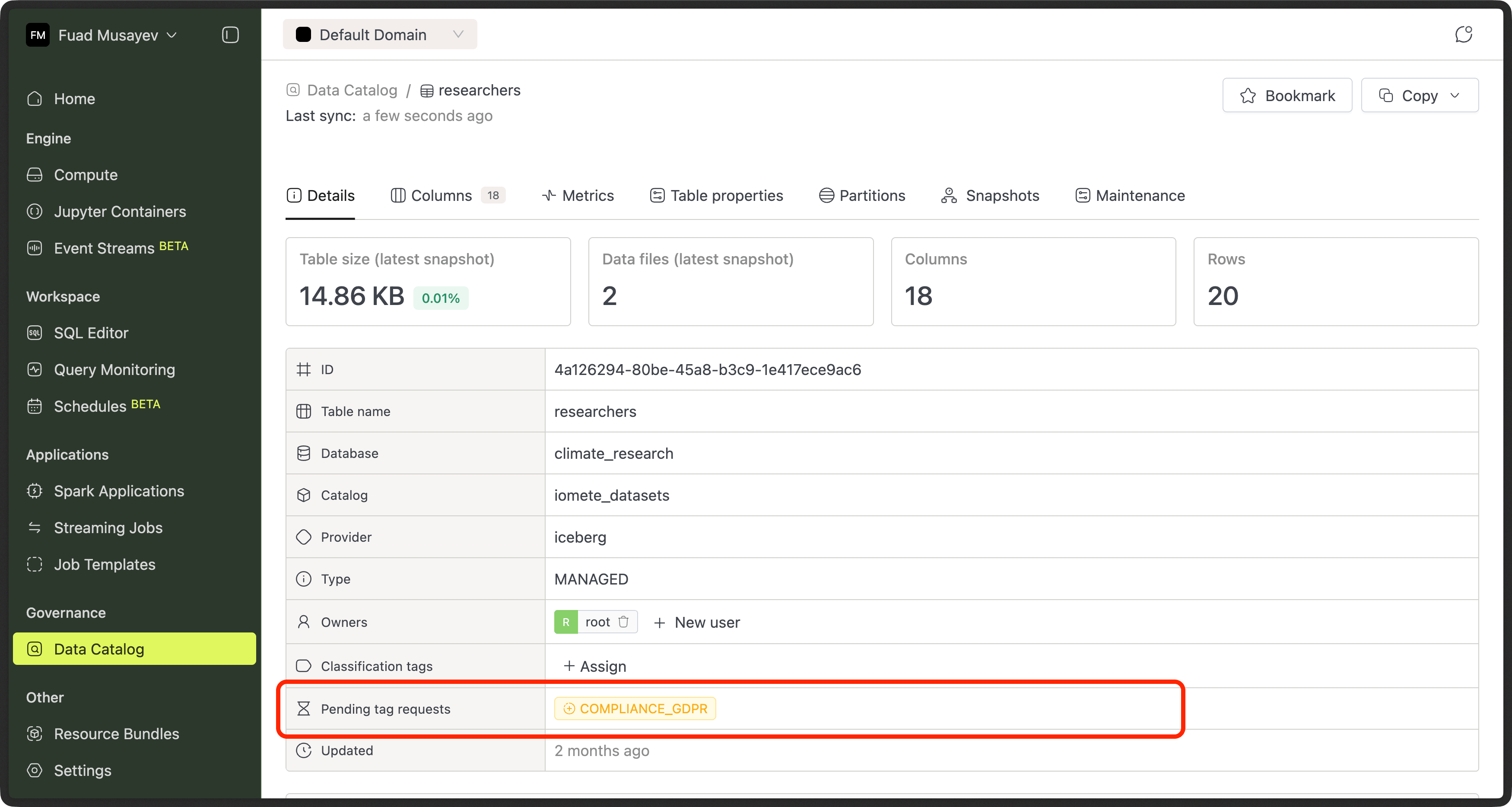
The change is not applied immediately.
Instead, a request is created for admin review.
Classification Requests
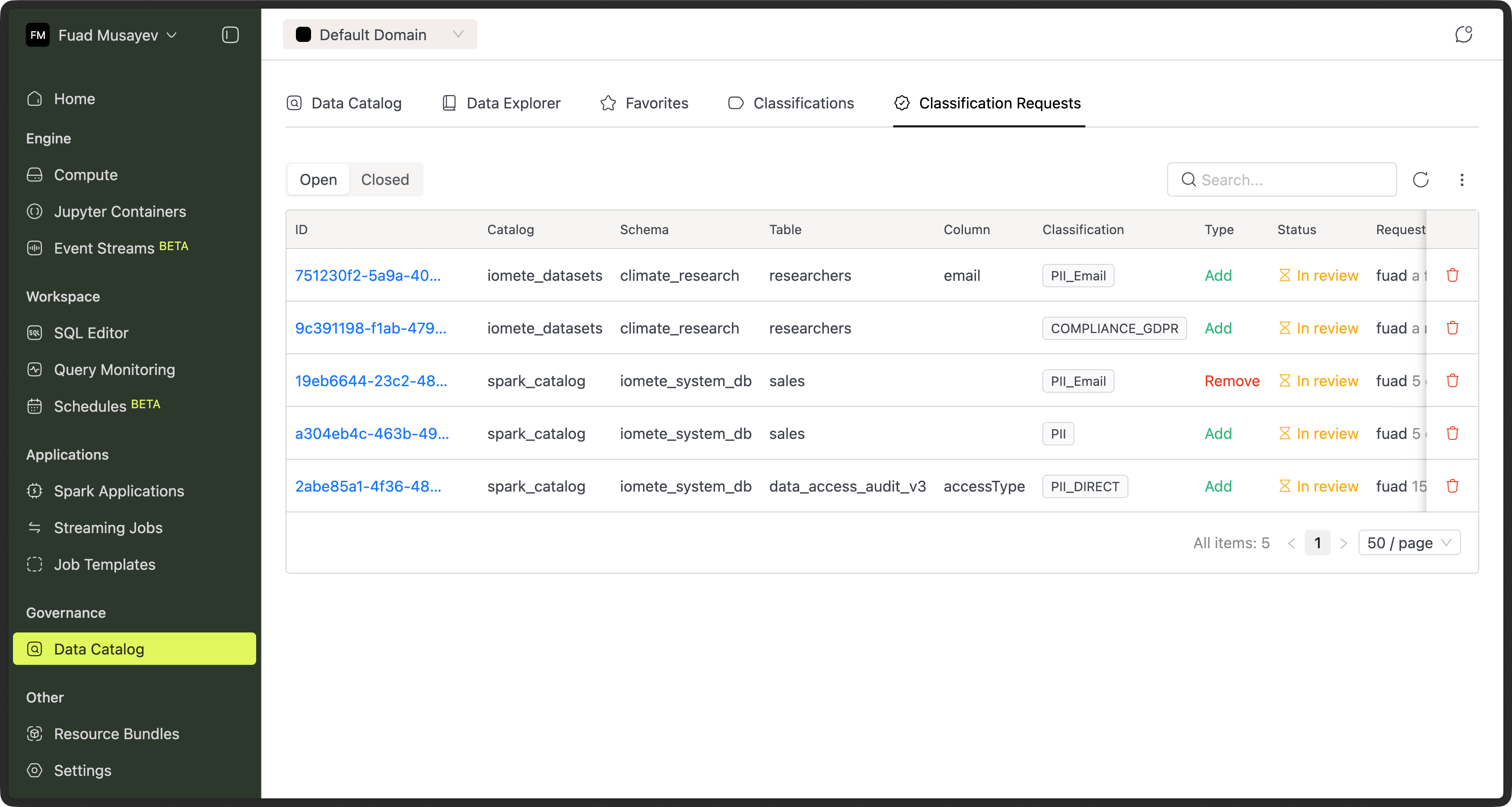
All requests are visible in the Classification Requests tab.
Users can:
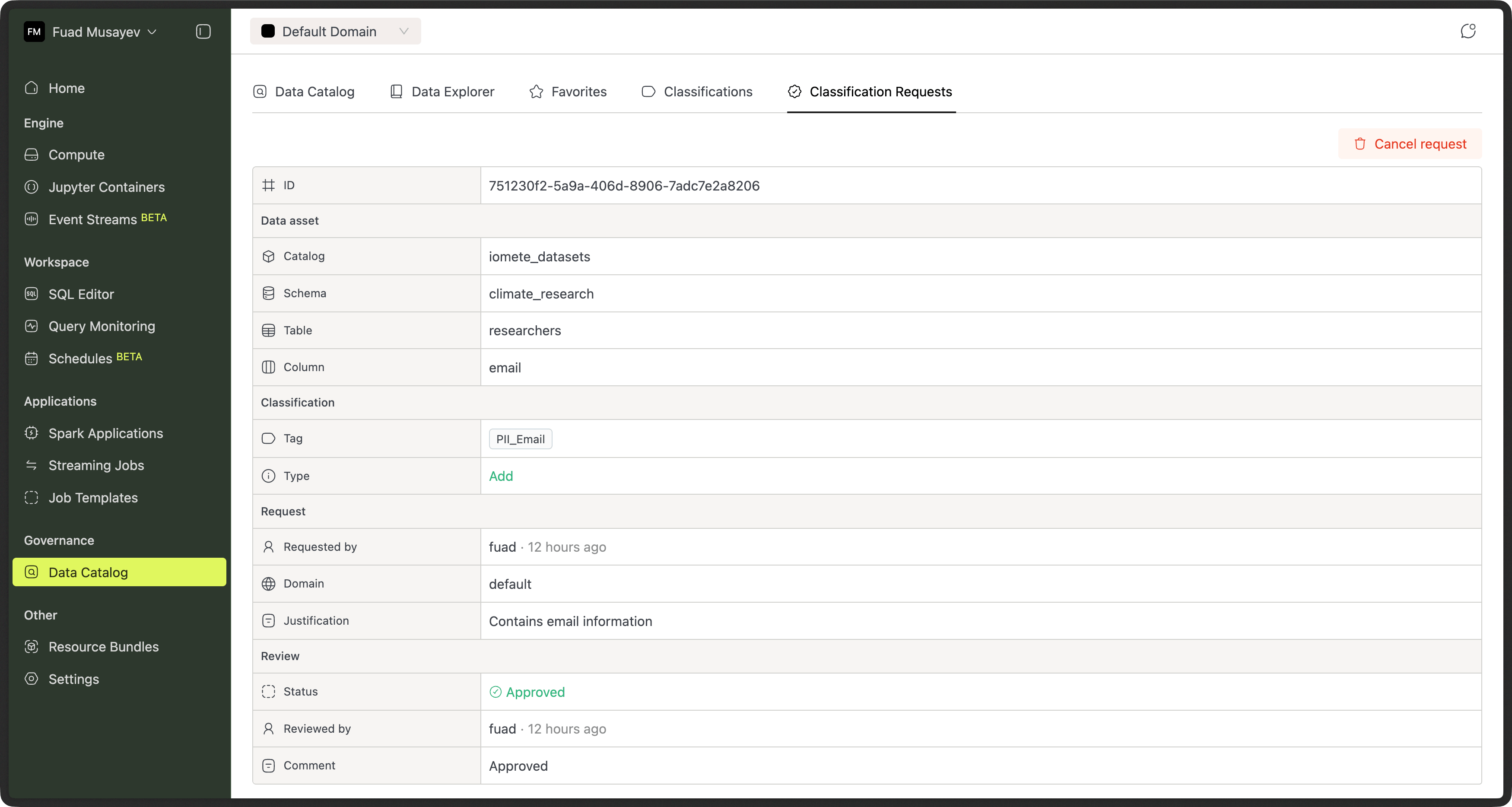
- Track request status (Pending / Approved / Rejected)
- View reviewer comments
- Cancel pending requests
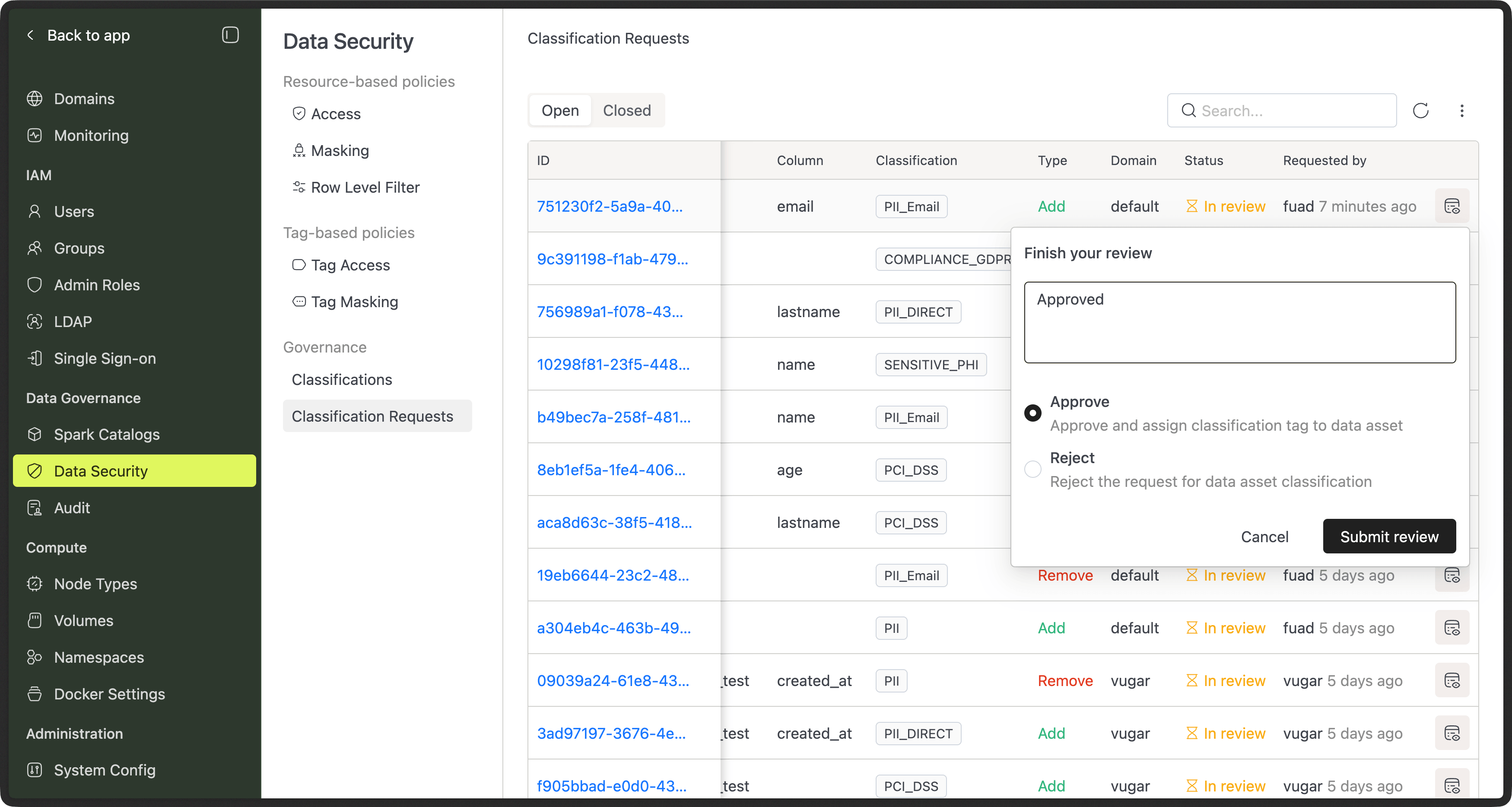
Admins can:
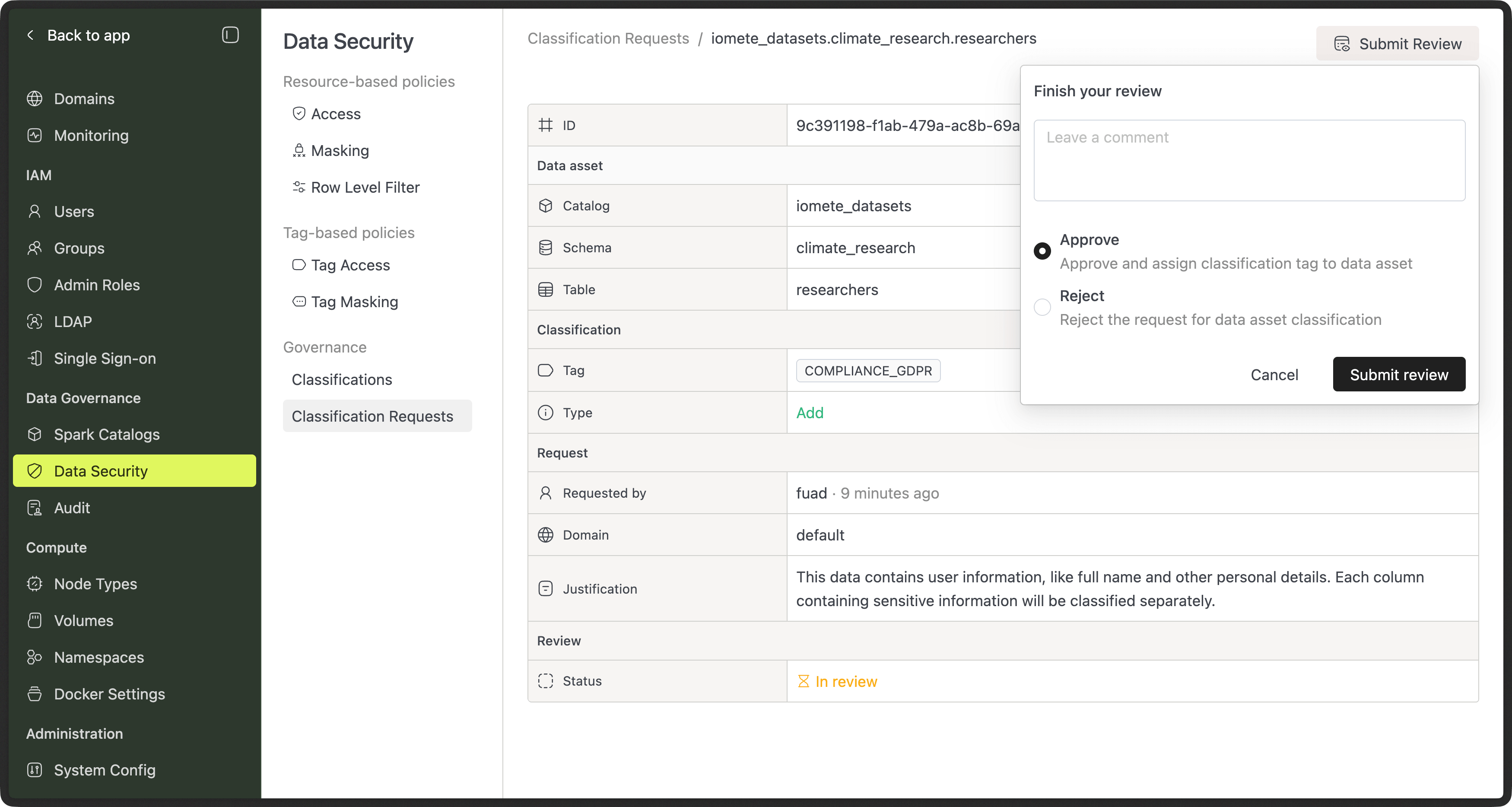
- Review requests
- Approve or reject
- Add comments explaining decisions
This creates a clear audit trail for every classification change.
Approval Flow (Admins)
Permission requirements:
- "Administration Manager" or "Data Security and Audit Manager" admin role is required to approve classification requests.
When a request is submitted:
- Admins or Security Admins receive it
- They review the affected assets and classification
- They approve or reject the request
- If approved, the classification is applied automatically
- If rejected, the requester sees the reason
This ensures sensitive changes are always reviewed.
API Changes
Data Catalog APIs have been updated to support:
- Classifications
- Request / approval workflow
- Usage tracking
New APIs (Added in 3.16.x)
A complete new set of endpoints for managing classification tags and change requests has been introduced:
| Admin scope |
|---|
/api/v1/admin/governance/classification-requests |
/api/v1/admin/governance/classification-requests/{id} |
/api/v1/admin/governance/classification-requests/{requestId}/review |
/api/v1/admin/governance/classification-tags |
/api/v1/admin/governance/classification-tags/{tagId} |
/api/v1/admin/governance/classification-tags/{tagId}/assets |
/api/v1/admin/governance/classification-tags/name/{tagName} |
/api/v1/admin/governance/classification-tags/name/{tagName}/assets |
| Domain scope |
|---|
/api/v1/domains/{domainId}/governance/classification-requests |
/api/v1/domains/{domainId}/governance/classification-requests/{id} |
/api/v1/domains/{domainId}/governance/classification-requests/{requestId}/cancel |
/api/v1/domains/{domainId}/governance/classification-requests/catalog/{catalog}/schema/{schema}/table/{table} |
/api/v1/domains/{domainId}/governance/classification-tags |
These APIs enable:
- Creating and reviewing classification change requests
- Managing classification tags (CRUD + asset lookup)
- Domain-level submission and cancellation of requests
Removed APIs (in 3.16.x)
| Removed v2 Data Catalog APIs | |
|---|---|
| DELETE | /api/v2/domains/{domain}/data-catalog/search/clear |
| PUT | /api/v2/domains/{domain}/data-catalog/tables/{id}/tags |
| DELETE | /api/v2/domains/{domain}/data-catalog/tables/{id}/tags/{tag} |
| PUT | /api/v2/domains/{domain}/data-catalog/tables/{tableId}/columns/{name}/tags |
| DELETE | /api/v2/domains/{domain}/data-catalog/tables/{tableId}/columns/{name}/tags/{tag} |
| POST | /api/v2/domains/{domain}/data-catalog/tags |
Example Workflow: Classifying PII Data
This example shows how a typical PII classification flows from discovery to enforcement.
Scenario:
A data analyst discovers that a customer table contains personally identifiable information (PII), such as email addresses and phone numbers. That data must be classified so masking and access controls can apply.
Step 1 — User Identifies Sensitive Columns
- Open the table in the Data Catalog.
- Review column contents (for example:
email,phone_number). - Select the relevant columns.
- Request to apply the PII classification.
At this point, nothing changes yet. A request is created for review.
Step 2 — Classification Request Is Created
The system creates a Classification Request that includes:
- Requested classification (PII)
- Target assets (table / columns)
- Requester
- Justification
- Timestamp
The requester can track progress in Classification Requests.
Step 3 — Admin Reviews the Request
An Admin or Security Admin opens the request and reviews:
- Which columns are affected
- Whether PII is appropriate
- Downstream impact (masking rules, access policies)
They can:
- Approve the request
- Reject the request with a comment
Example rejection comment:
“Phone number column confirmed, but email is already masked by another policy. Please verify.”
Step 4 — Classification Is Applied Automatically
If approved:
- The PII classification is attached to the selected columns
- Existing security and masking policies linked to PII take effect immediately
Typical outcomes:
- Unauthorized users lose access to raw values
- Masking is applied automatically
- Audit trail is updated
No manual policy changes are required.
Step 5 — User Sees Final Status
The requester sees the request marked Approved (or Rejected) along with reviewer comments.
Below is a migration guide for users who automated “add/remove tag” via the old Data Catalog tag endpoints and now must use the Classification Tag + Approval workflow.
Migration Guide: Data Catalog Tags → Classification Tags (3.15.x → 3.16.x)
Before (3.15.x)
Automation could directly mutate tags on tables/columns via Data Catalog endpoints, e.g.:
- PUT
/api/v2/domains/{domain}/data-catalog/tables/{id}/tags - DELETE
/api/v2/domains/{domain}/data-catalog/tables/{id}/tags/{tag} - (and similar column tag mutation endpoints)
Now (3.16.x)
Tagging is request-based and may require approval:
- Tags are managed as Classification Tags
- Adding/removing a tag is done by creating a Classification Change Request
- The request is reviewed (approve/reject) by an admin
- Automation must handle async status + approval flow
Endpoint mapping (Old → New)
Old (direct mutation):
- PUT
/api/v2/domains/{domain}/data-catalog/tables/{id}/tags(add) - DELETE
/api/v2/domains/{domain}/data-catalog/tables/{id}/tags/{tag}(remove)
New (request workflow):
- POST
/api/v1/domains/{domainId}/governance/classification-requestswithrequestType: ADD | REMOVE, plus target identifiers (catalogName,schemaName,tableName, optionalcolumnName)
Review/Approval (Admin)
- PUT
/api/v1/admin/governance/classification-requests/{requestId}/reviewwithstatus: APPROVED | REJECTED | ...
Track request status
- GET
/api/v1/domains/{domainId}/governance/classification-requests(list) - GET
/api/v1/domains/{domainId}/governance/classification-requests/{id}(details) - PUT
/api/v1/domains/{domainId}/governance/classification-requests/{requestId}/cancel(cancel)
Manage Classification Tags (Admin + visibility)
- POST
/api/v1/admin/governance/classification-tags(create) - GET
/api/v1/admin/governance/classification-tags(list) - GET
/api/v1/domains/{domainId}/governance/classification-tags(domain list)
Recommended automation flow (example)
This is a practical end-to-end flow for tagging a table, getting approval, and checking the status.
Step 0 — Ensure the classification tag exists (Admin)
If you previously created arbitrary “tags” on the fly, you now typically want to pre-create classification tags.
POST /api/v1/admin/governance/classification-tags
{
  "name": "pii",
  "description": "Personally Identifiable Information"
}
(Optional) Admin can list tags:
- GET
/api/v1/admin/governance/classification-tags
Step 1 — Submit a tagging request (Domain automation)
Create a request to ADD a classification tag.
POST /api/v1/domains/{domainId}/governance/classification-requests
{
  "requestType": "ADD",
  "tagName": "PII",
  "catalogName": "spark_catalog",
  "schemaName": "default",
  "tableName": "customers",
  "columnName": null,
  "justification": "Contains customer identifiers; must be classified as PII."
}
Notes for automation:
- Treat this as an async operation: the tag is not guaranteed to be active until approved.
- Save the returned request identifier (the request object includes an
id).
Step 2 — Poll request status (Domain automation)
Automation should periodically query the request status until terminal:
Terminal statuses: APPROVED, REJECTED, CANCELLED
Non-terminal: IN_REVIEW
GET /api/v1/domains/{domainId}/governance/classification-requests/{id}
Example response shape (high level; your spec defines fields like status, timestamps, and metadata):
{
  "id": "756989a1-f078-43d5-80c5-f626bb0e3290",
  "status": "IN_REVIEW",
  "classificationTagName": "PII",
  "classificationTagId": "d73d03f4-3d61-4b82-9711-4e3e0250dbc7",
  "requestType": "ADD",
  "recordKey": "spark_catalog.default.customers",
  "catalogName": "spark_catalog",
  "schemaName": "default",
  "tableName": "customers",
  "columnName": null,
  "createdAt": "2026-02-11T10:00:00Z",
  "requestedByUserId": "fuad",
  "requestedFromDomainId": "sales_domain"
}
Alternative: list requests by table:
- GET
/api/v1/domains/{domainId}/governance/classification-requests/catalog/{catalog}/schema/{schema}/table/{table}
Step 3 — Approve/Reject the request (Admin)
When ready, an admin reviews the request:
PUT /api/v1/admin/governance/classification-requests/{requestId}/review
{
  "status": "APPROVED",
  "comment": "Approved: confirmed PII data elements."
}
If rejected:
{
  "status": "REJECTED",
  "comment": "Rejected: no evidence of PII in the dataset."
}
Step 4 — Confirm the tag is applied
After approval, you should confirm the “asset-tag relationship” in one of these ways:
Option A (recommended): Validate via request status
If your service applies the tag as part of request approval, then:
status == APPROVEDimplies the tag change is effective (this is the simplest automation contract).
Option B: Query tag assets (Admin endpoints)
Admins can query assets linked to a tag:
- GET
/api/v1/admin/governance/classification-tags/{tagId}/assets - GET
/api/v1/admin/governance/classification-tags/name/{tagName}/assets
(Use this if your automation must prove association beyond status.)
Remove a tag (migration example)
Old (3.15.x):
- DELETE
/api/v2/domains/{domain}/data-catalog/tables/{id}/tags/{tag}
New (3.16.x):
POST /api/v1/domains/{domainId}/governance/classification-requests with requestType: REMOVE
{
  "requestType": "REMOVE",
  "tagName": "pii",
  "catalogName": "spark_catalog",
  "schemaName": "default",
  "tableName": "customers",
  "columnName": null,
  "justification": "Dataset no longer contains PII after anonymization rollout."
}