Getting Started with Spark Jobs
This guide aims to help you get familiar with getting started with writing your first Spark Job and deploying in the IOMETE platform.
In this guide, we will use a PySpark sample job but, you can use any other language like Scala, Java or other supported languages.
Quickstart
IOMETE provides a PySpark quickstart template for AWS or PySpark quickstart template for GCP as a starting point for your first Spark Job. Follow the instructions in the README file to set up and run it.
Sample Job
The template already contains a sample job that reads a CSV file from an S3 bucket, runs some transformations, and writes the output to an Iceberg Table.
Apache Iceberg is an open table format for Apache Spark that provides ACID transactions, scalable metadata handling, and a unified specification for both streaming and batch data.
Using the Template
This template is meant to be used as a starting point for your own jobs. You can use it as follows:
- Clone this repository
- Modify the code and tests to fit your needs
- Build the Docker image and push it to your Docker registry
- Create a Spark Job in the IOMETE console
- Run the Spark Job
- Modify the code and tests as needed
- Go to step 3
If you are starting with PySpark at IOMETE, explore the sample code without modifying it. It will help you understand the process of creating and running a Spark Job.
Project Structure
The project is composed of the following folders/files:
infra/: contains requirements and Dockerfile filesrequirements-dev.txt: contains the list of python packages to install for developmentrequirements.txt: contains the list of python packages to install for production. This requirements file is used to build the Docker imageDockerfile: contains the Dockerfile to build the spark job image
spark-conf/: contains the spark configuration files for development environmentspark-defaults.conf: contains the spark configurationlog4j.properties: contains the log4j configuration for the PySpark job. This file is used to configure the logging level of the job
test_data/: contains the test data for the job unit/integration testsjob.py: contains the spark job code. Template comes with a sample code that reads a csv file from S3 and writes the data to a table in the Lakehouse. Feel free to modify the code to fit your needs.test_job.py: contains the spark job tests. Template comes with a sample test that reads the test data fromtest_data/and asserts the output of the job. Feel free to modify the tests to fit your needs.Makefile: contains the commands to run the job and tests
Running the Job
First, create a virtual environment and install the dependencies:
virtualenv .env
source .env/bin/activate

# make sure you have Python 3.9 or higher
make install-dev-requirements
Also, set the SPARK_CONF_DIR environment variable to point to the spark_conf folder. This is needed to load the spark configuration files for local development:
export SPARK_CONF_DIR=./spark_conf
Then, you can run the job:
python job.py
Running the Tests
Make sure you have installed the dependencies and exported the SPARK_CONF_DIR environment variable as described in the previous section.
To run the tests, use the pytest command:
pytest
Deployment
Build Docker Image
In the Makefile, modify docker_image and docker_tag variables to match your Docker image name and tag.
For example, if you push your image to AWS ECR, your docker image name will be something like 123456789012.dkr.ecr.us-east-1.amazonaws.com/my-image.
Then, run the following command to build the Docker image:
make docker-push
Once the docker is built and pushed to your Docker registry, you can create a Spark Job in the IOMETE.
Creating a Spark Job
- In the left sidebar, under Applications, click Job Templates.
- On the Job Templates page, click in the top-right corner.
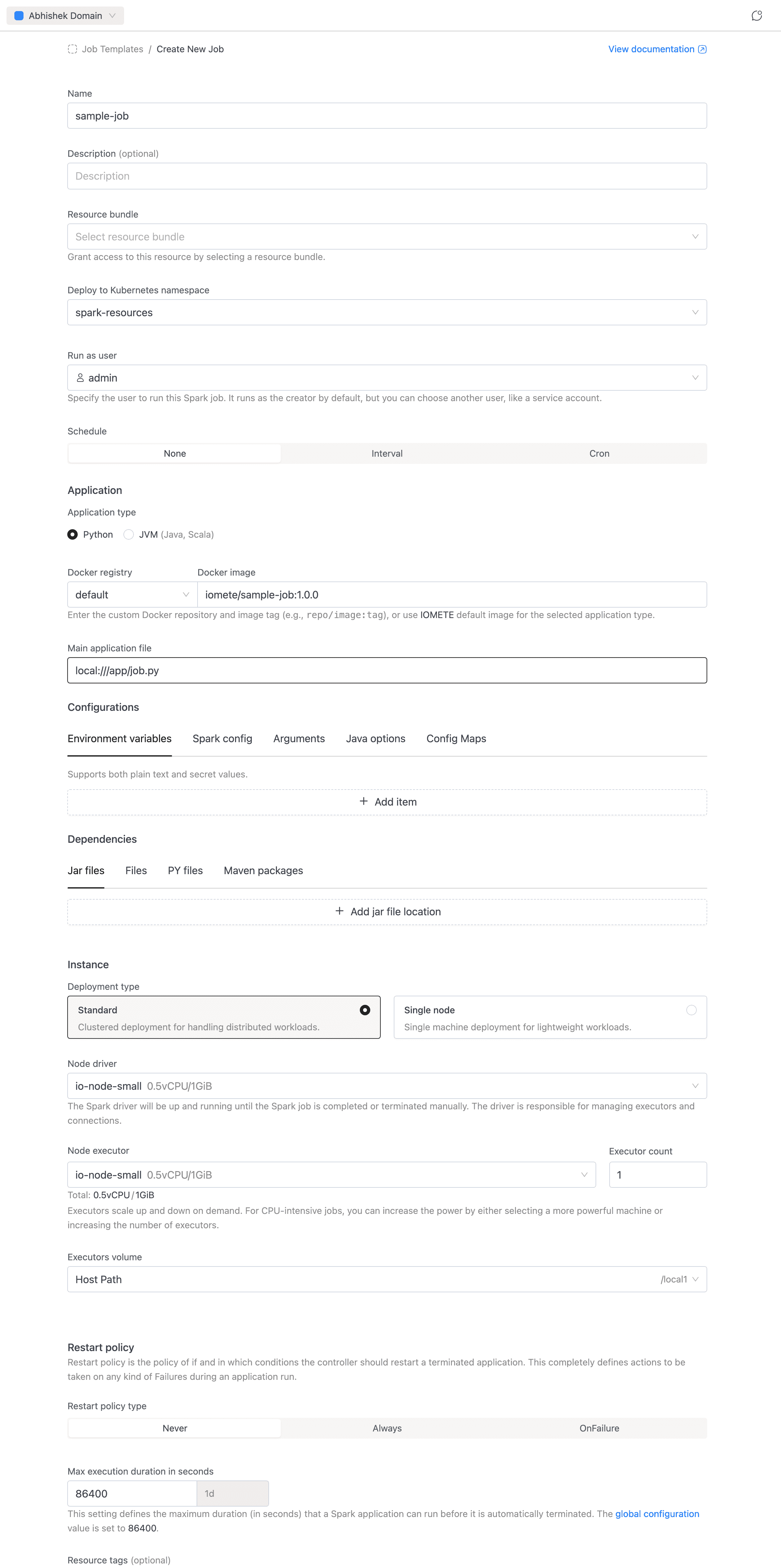
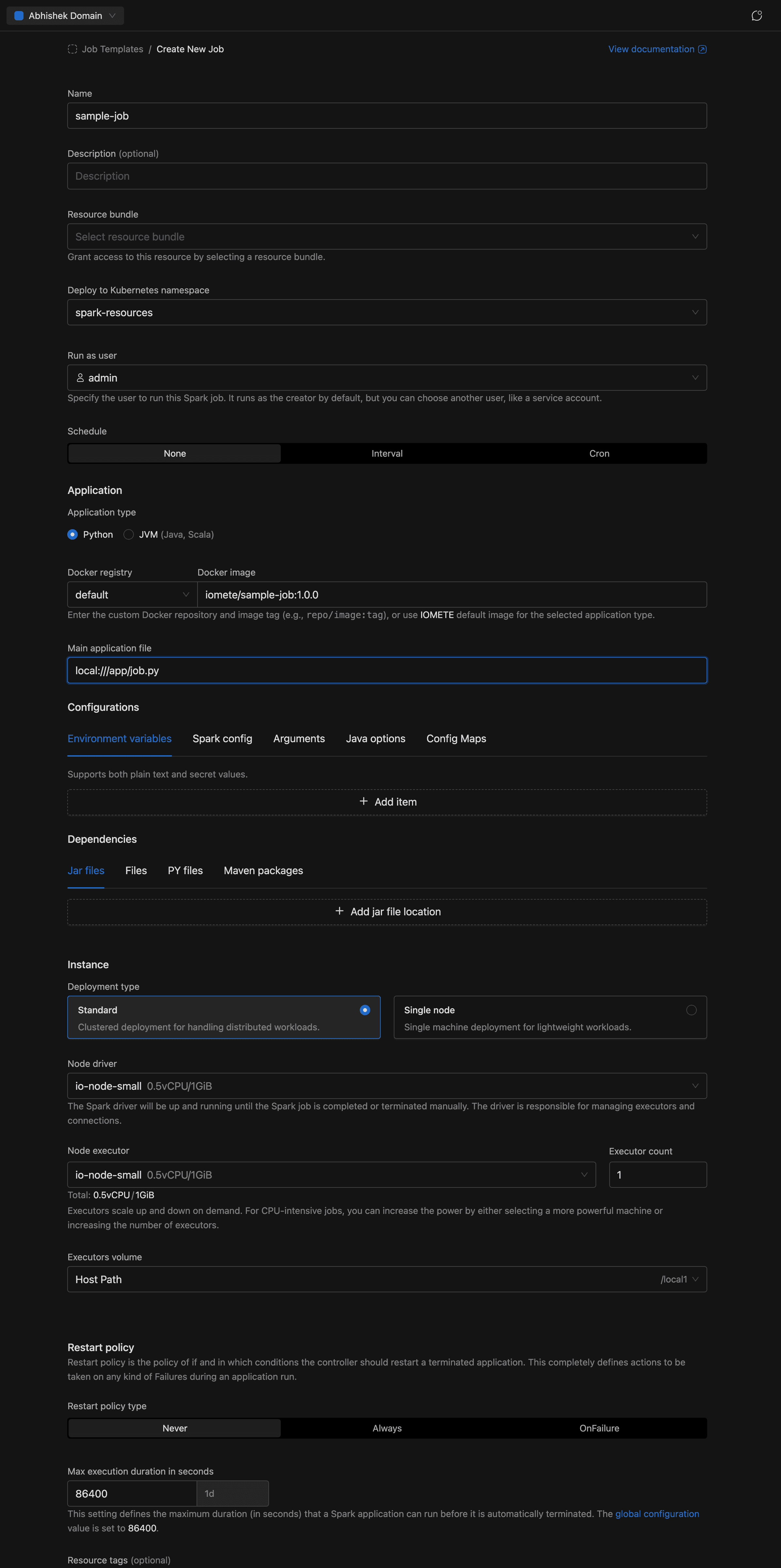
The create form has several sections. For a quickstart, focus on these essentials:
Name
- Name (required): Enter a name for the job, e.g.
sample-job. Allowed characters: alphanumeric, dashes, underscores, dots, and spaces. - Description (optional): A brief description of what the job does.
Application
- Application type: Select Python (default) or JVM (Java, Scala).
- Docker registry + Docker image: A compound input. Select the registry from the dropdown (use
defaultfor IOMETE's built-in registry or choose a private Docker registry), then enter the image and tag. For our sample job:iomete/sample-job:1.0.0 - Main class (JVM only): The fully qualified class name, e.g.
org.example.MyApp. Hidden for Python jobs. - Main application file (required): The entry point of the job. For our sample PySpark job:
local:///app/job.py. For JVM jobs, usespark-internalif the class is already in the classpath.
Instance
- Deployment type: Choose Standard (clustered, with separate driver and executors) or Single node (lightweight, single machine).
- Node driver (required): Select the node type for the Spark driver.
- Node executor + Executor count (Standard mode only): Select the node type for executors and how many to run.
- Volume: Select a volume for executor (or driver in Single node mode) storage.
The form also includes the following sections. These can be left at their defaults for your first job:
Resource bundle (required)
Select a resource bundle that defines the resource quotas available to this job.
Namespace
Select the Kubernetes namespace to deploy the job in. Auto-selects if only one namespace exists.
Run as user
Choose the user identity the job runs under. Defaults to the currently logged-in user.
Schedule
By default, jobs are manual (run on demand). You can set an Interval (e.g., every 5 minutes) or a Cron expression for recurring execution. Scheduled jobs also have a Concurrency policy (Allow, Replace, or Forbid) that controls overlap behavior.
Configurations
A tabbed section for environment variables, Spark config key-value pairs, application arguments, Java options, and config maps. See Application Config for details.
Dependencies
A tabbed section for additional jar files, data files, Python files, and Maven packages. See Application Config for details.
Restart policy
Controls automatic restart behavior: Never (default), Always, or OnFailure. When set to OnFailure, you can configure retry counts and intervals for both submission and runtime failures.
Max execution duration
The maximum time (in seconds) a job run is allowed to execute before it is terminated. Minimum 60 seconds. Required.
Resource tags
Optional key-value labels applied to the job's Kubernetes resources. Must follow Kubernetes label syntax.
Advanced settings
When available, configure the deployment flow (Legacy or Priority-Based) and execution priority (Normal or High).
Click to submit. You can also click the button next to Create to view the equivalent cURL command for API-based creation.
Running a Spark Job
Once the Spark Job is created, you are redirected to the job detail page. The detail page has three tabs:
- Details: Shows job configuration: name, schedule, compute resources, namespace, metadata, and advanced settings.
- Applications: Lists all job runs with status, filters, and the Run button.
- Notifications: Configure email notifications for job events (when enabled).
To run the job, go to the Applications tab and click the Run button. A new run will appear in the applications list.
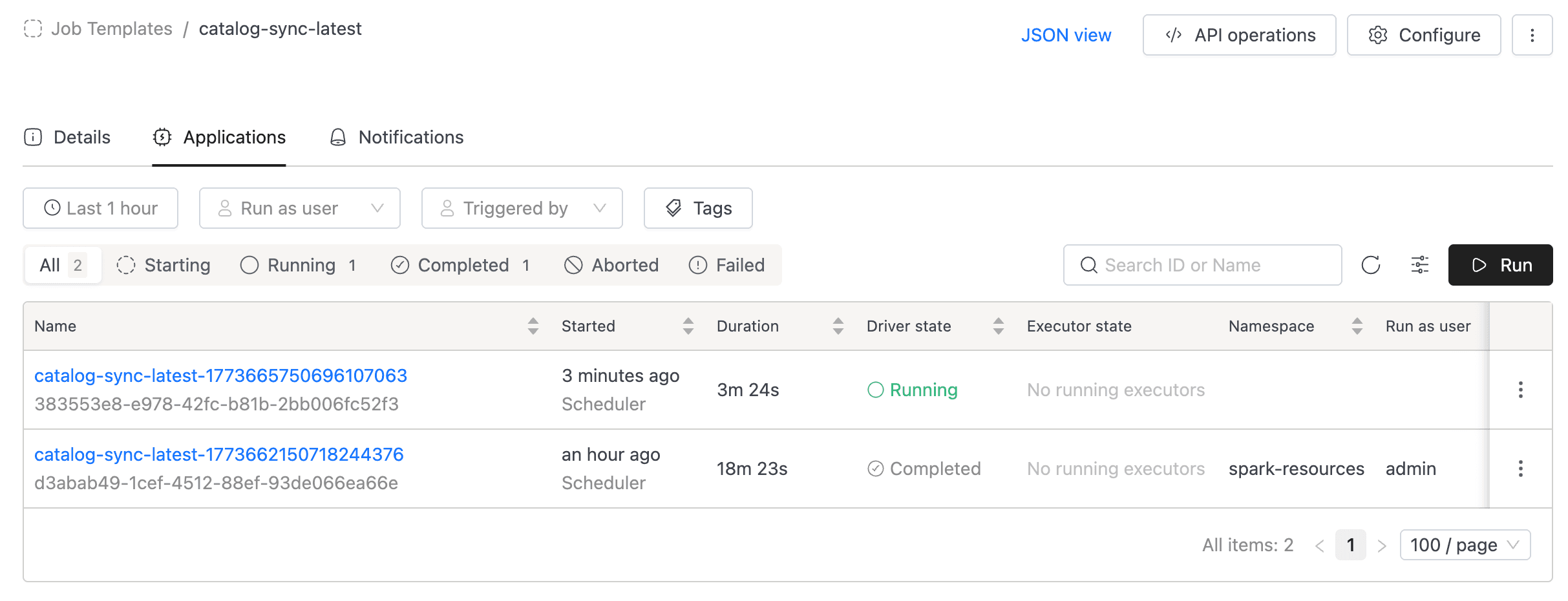
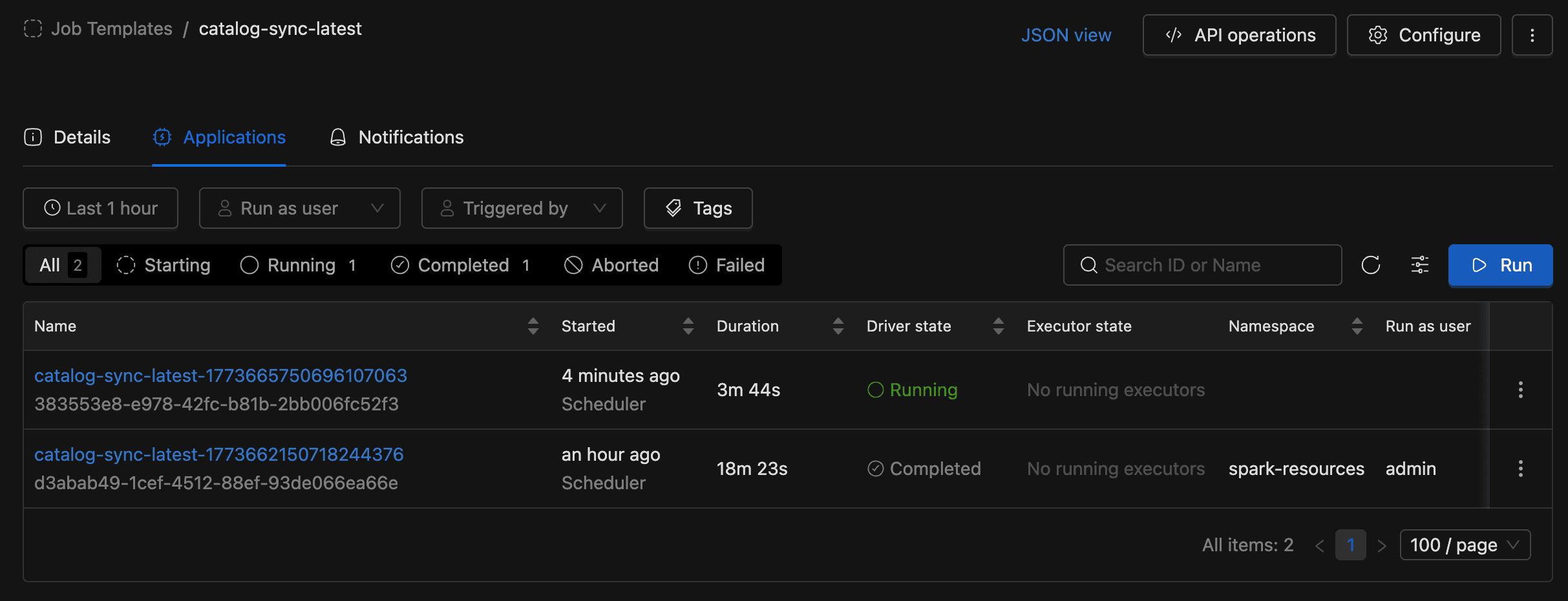
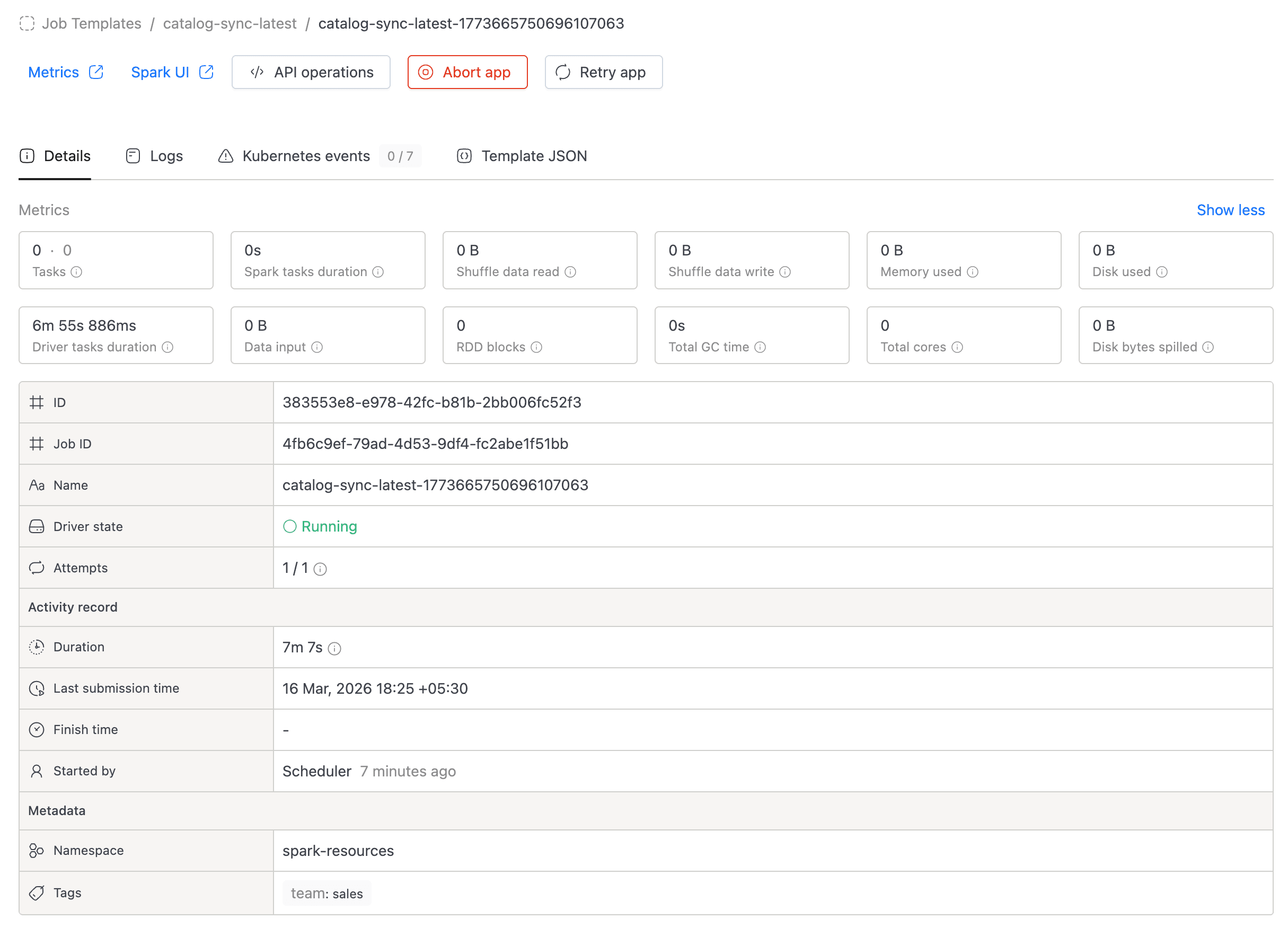
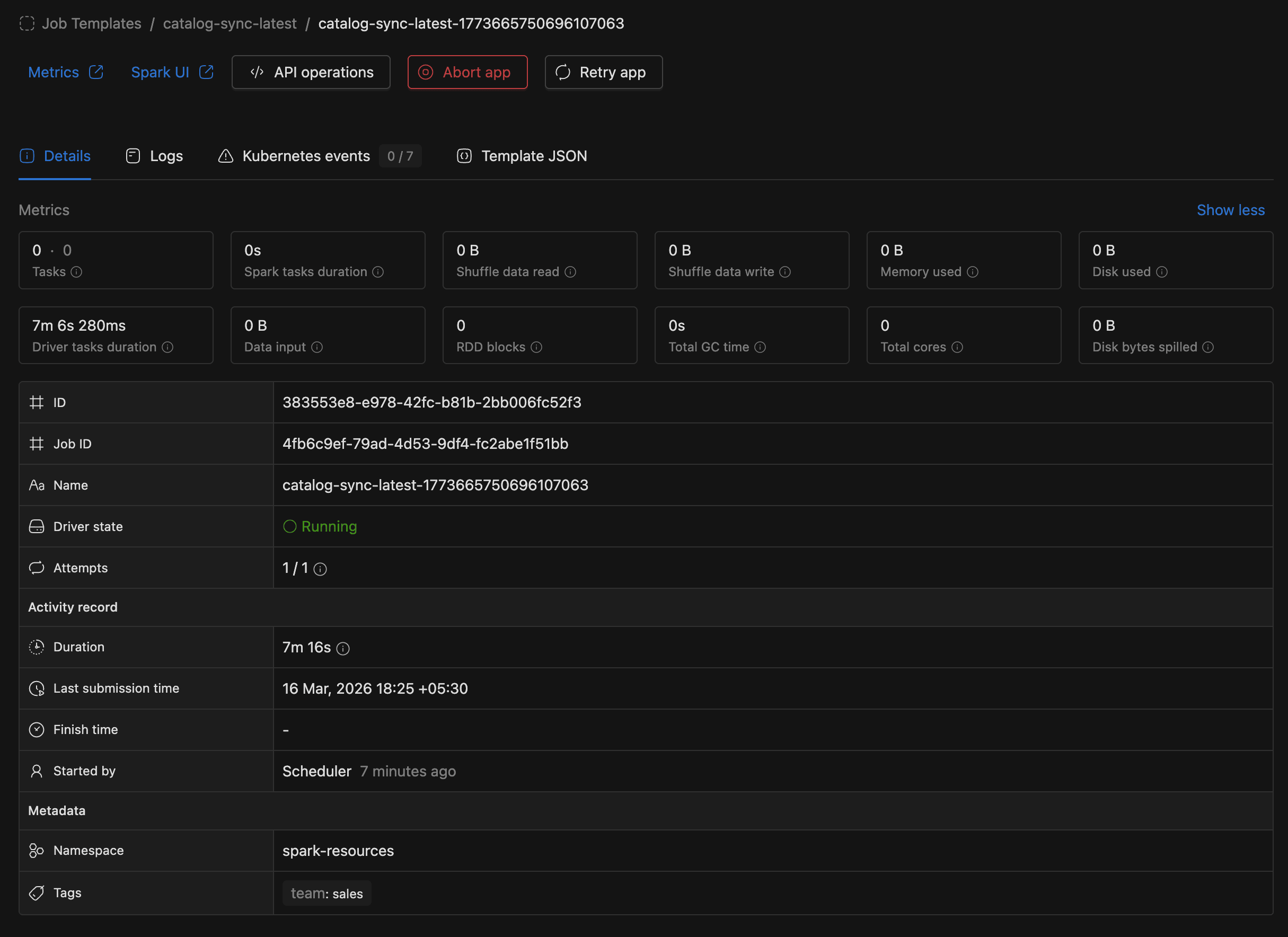
You can monitor the run status directly in the applications list. Click on a run to view its logs, metrics, and events.
Managing Spark Jobs
From the job main page, you can:
- Configure: Edit the job's settings (application, instance, schedule, etc.).
- Duplicate: Create a new job pre-filled with this job's configuration.
- Suspend / Resume: Pause or resume a scheduled job's automatic runs.
- Delete: Permanently remove the job.
- API operations: View cURL commands for getting job details, executing the job, listing runs, and deleting the job.


To use the API, you need an access token. Go to the Settings menu and switch to the Access Tokens tab.