SSO with OIDC
With OpenID Connect (OIDC) single sign-on, users sign in to IOMETE with their account at your identity provider (IdP), such as Okta, Microsoft Entra ID, Google, or Keycloak.
Before you start:
- You need the IAM Manager admin role. Other admin roles can view the SSO page but can't save or enable it.
- Every user who signs in with SSO must already exist in IOMETE. Add them on the Users page, sync them from LDAP, or provision them with SCIM. IOMETE doesn't create accounts on first sign-in.
Opening the OIDC Settings
In the Admin portal, go to IAM > Single Sign-on and click OpenID connect.
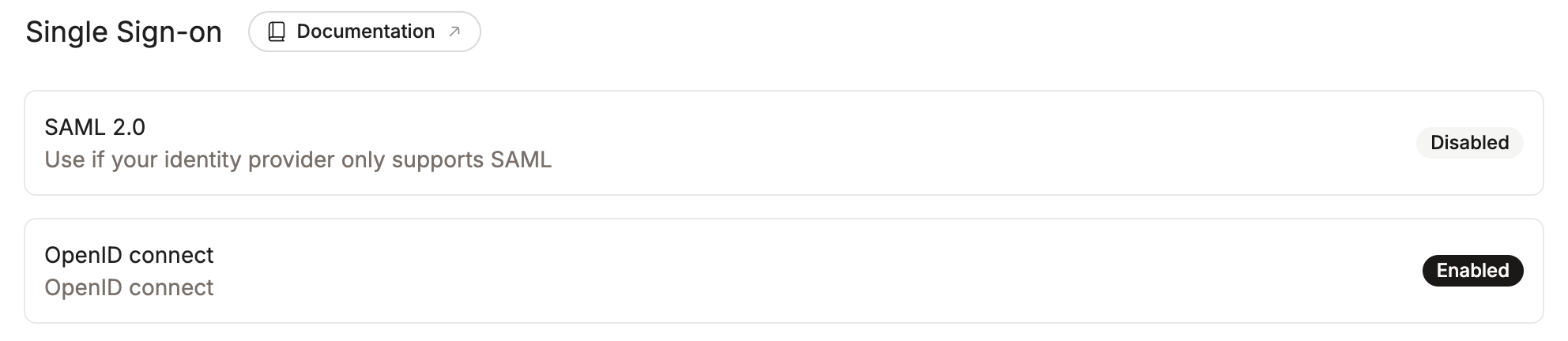
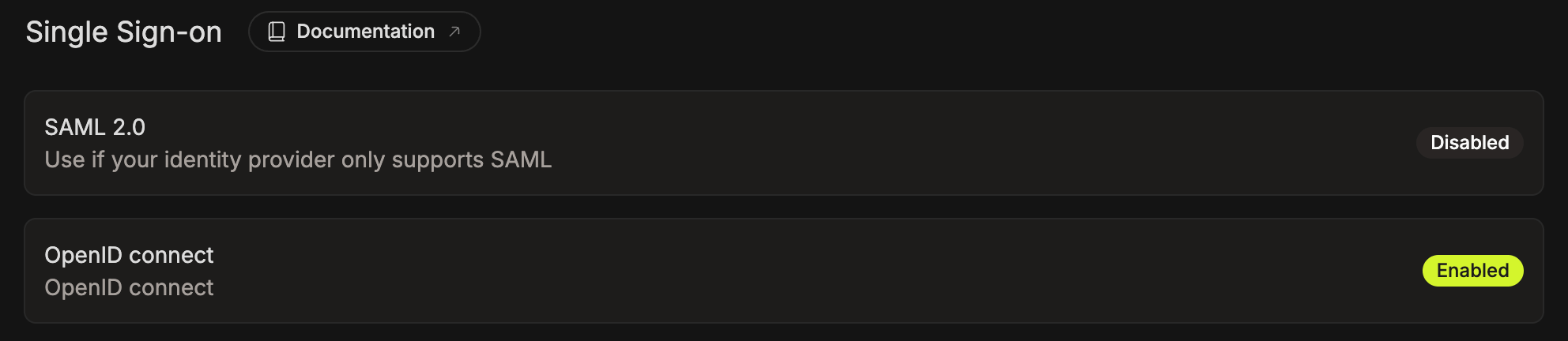
The page shows the IOMETE redirect URL. Copy it. You'll need it in the next step.
Creating the App in Your Identity Provider
In your IdP's admin console, create a new web application (sometimes called a client) for IOMETE:
- Choose OpenID Connect as the sign-in method, with the Authorization Code grant type.
- Paste the IOMETE redirect URL into the redirect URI (or callback URL) field.
- Allow the
openid,profile, andemailscopes. - Assign the users or groups who should be able to sign in to IOMETE.
- Copy these values from the app:
- Issuer URL: copy it exactly as your IdP shows it. Some include a path, for example
https://login.microsoftonline.com/<tenant-id>/v2.0for Microsoft Entra ID orhttps://keycloak.example.com/realms/<realm>for Keycloak. - Client ID
- Client secret
- Issuer URL: copy it exactly as your IdP shows it. Some include a path, for example
If your IdP asks how the app authenticates, choose client secret basic (client_secret_basic).
To find the IOMETE user, IOMETE takes the username your IdP sends (the preferred_username claim). Only if there is no username does it use the email instead. That one value must match the user's username or email in IOMETE. For example, if your IdP sends the username jdoe, the IOMETE user's username or email must be jdoe. A matching email alone isn't enough.
Configuring OIDC in IOMETE
Back on the OIDC page, fill in the form:
| Field | Description |
|---|---|
| IOMETE redirect URL | Read-only. The URL you added to your IdP app. |
| IDP URL | The issuer URL of your IdP, including any path but without a trailing slash. IOMETE adds /.well-known/openid-configuration to it to find your IdP's settings. |
| Client ID | The client ID of the app you created. |
| Client secret | The client secret of the app you created. |
| Scope | The scopes IOMETE asks for. The default openid profile email works for most IdPs. |
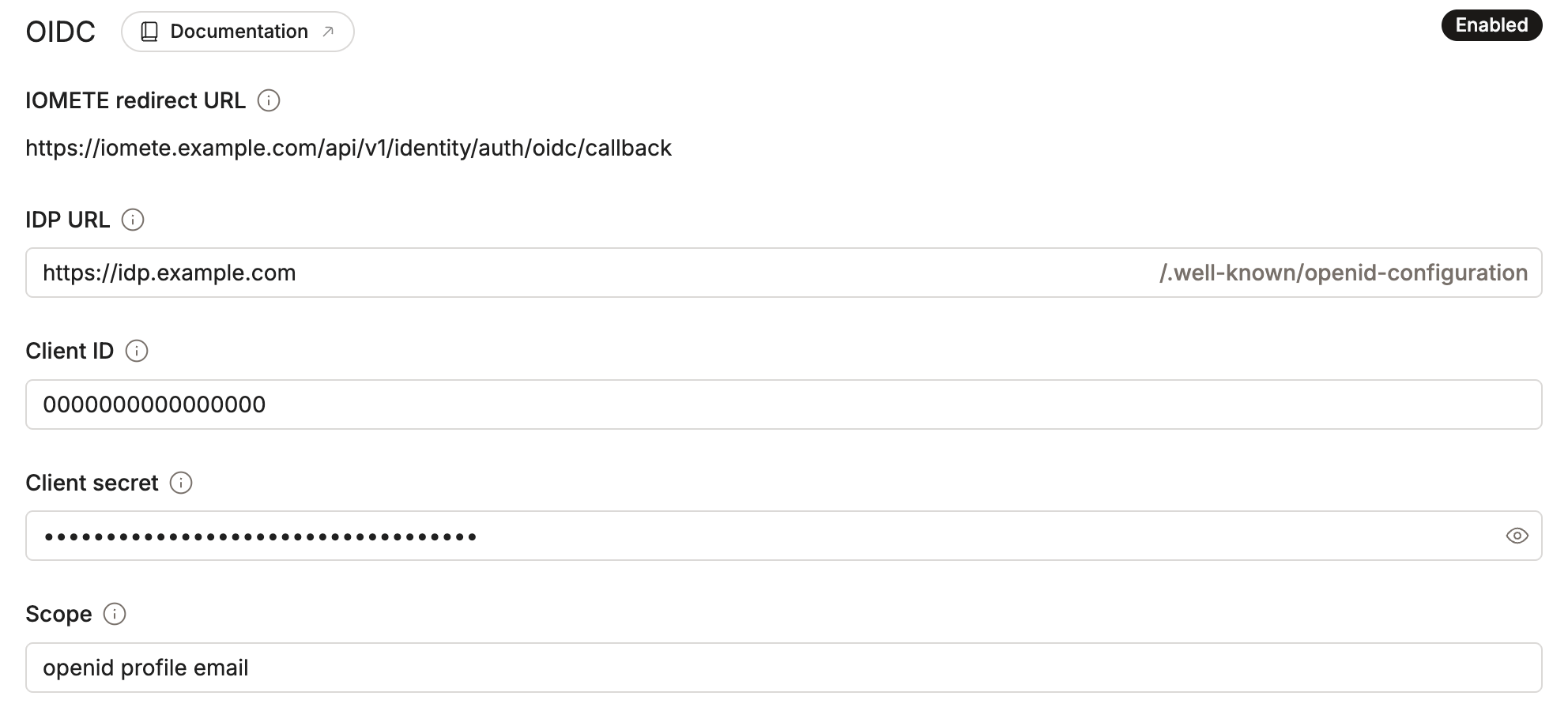
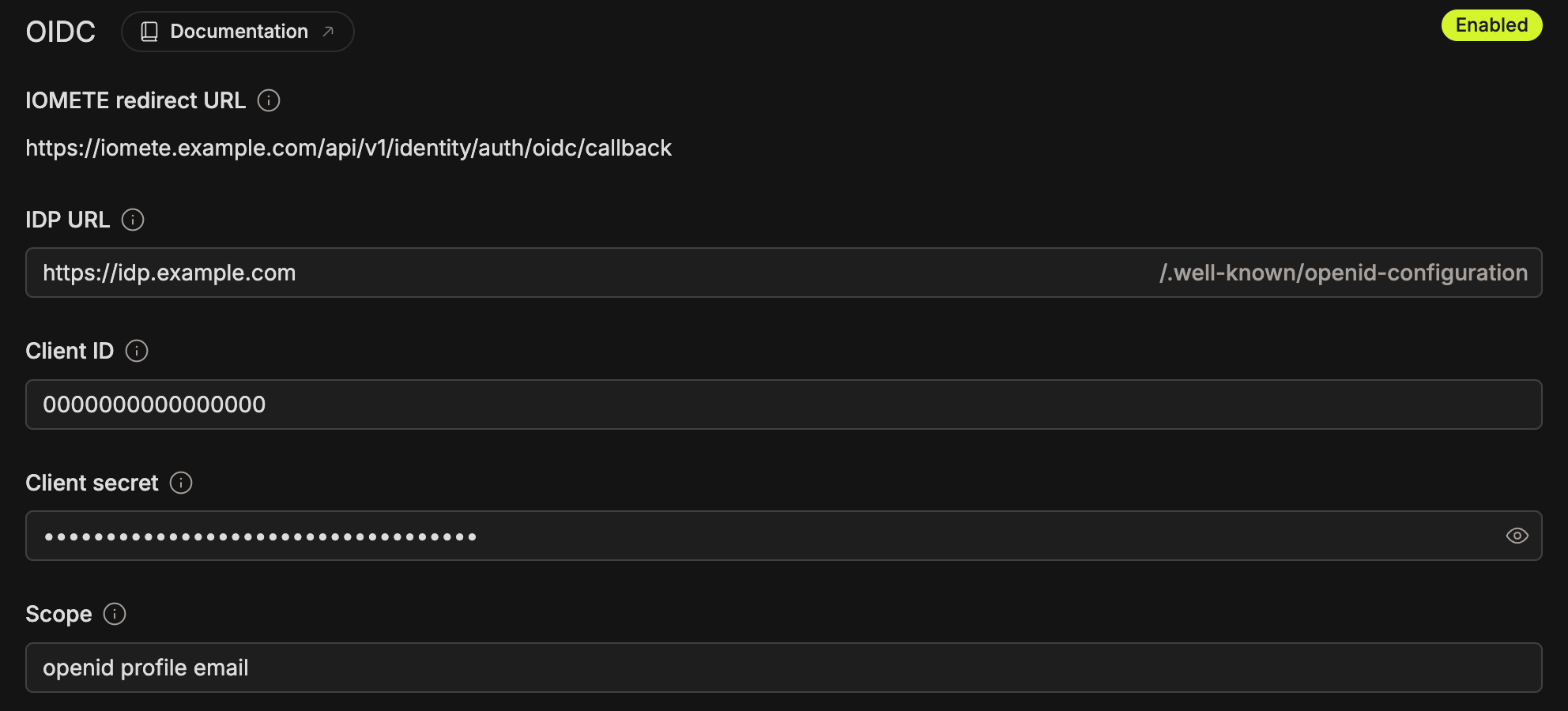
Click Save. The first time, the settings are saved but not active yet. To turn on SSO, click Enable OIDC SSO and confirm.
Once OIDC is enabled, every Save takes effect at the next sign-in. A wrong value breaks SSO for all users, so double-check before saving.
Only one SSO method can be active at a time. If SAML 2.0 is enabled, disable it before you enable OIDC.
Signing In with SSO
Once OIDC is enabled, the IOMETE sign-in page shows a Sign in with SSO button. Users click it, sign in at your IdP, and return to IOMETE.
Signing in with a username and password still works, so you won't lock yourself out while testing. The Admin portal sign-in page always uses a username and password.
To turn SSO off, click Disable OIDC SSO. To remove the settings completely, click Delete.
Troubleshooting
- "Access Restricted" after signing in: the user signed in at your IdP, but no IOMETE user matches. Check the username your IdP sends (
preferred_username), or the email if it sends no username, and make sure an IOMETE user has that value as their username or email. - "Authentication Failed": IOMETE couldn't complete the sign-in with your IdP. Check that the IDP URL, client ID, client secret, and redirect URL are correct. Also check that the scopes include
profileandemail, so your IdP sends a username or email. - Can't enable OIDC: another SSO method is already enabled. Disable SAML 2.0 first.