Database Migration
When you need to migrate your IOMETE database while keeping the IOMETE Control Plane intact, you can follow the steps outlined in this guide. This process involves
- Understanding control plane setup
- Downscaling IOMETE to remove connections to the database
- Migrating the database to a new location
- Updating values files to point to the new database location
- Upgrading the IOMETE Control Plane using the new values file
Understanding control plane setup
We define namespace variable and obtain running state of the control plane to understand which components are running and which are not. IOMETE has many resources, but components that have access to the database correspond to three categories of k8s resources:
- Deployments
- StatefulSets
- SparkApplication
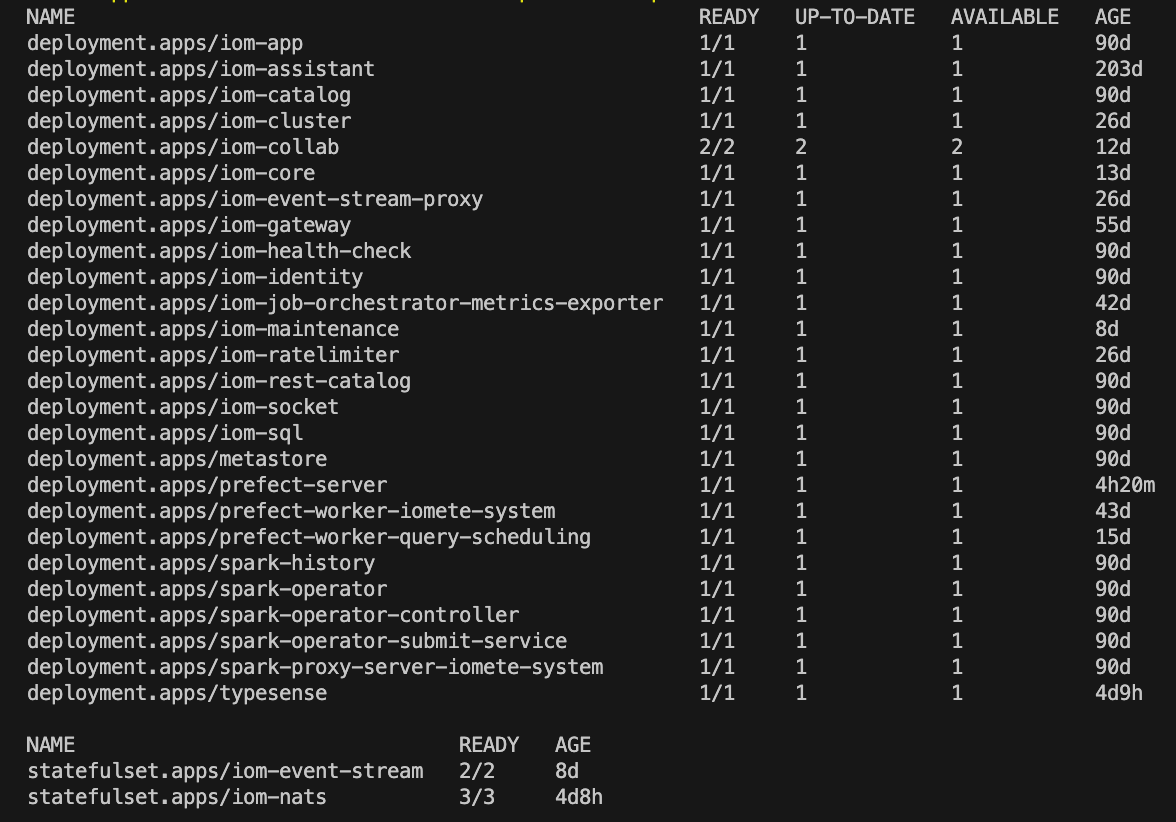
For first two categories, we can check the status of the control plane by running the following command:
NAMESPACE="iomete-system"
kubectl get deployments,statefulsets \
  -n $NAMESPACE \
  -l "app.kubernetes.io/name=iomete-data-plane-enterprise"
You should see an output similar to the following where all deployments and statefulsets that are labeled with app.kubernetes.io/name=iomete-data-plane-enterprise during IOMETE installation are listed:
For the single SparkApplication that comes with IOMETE deployment, we can check the status by running the following command:
NAMESPACE="iomete-system"
kubectl get sparkapplication iom-spark-connect  -n $NAMESPACE
This will list single SparkApplication named iom-spark-connect that is deployed as part of the IOMETE Control Plane and has access to the database. You should see an output similar to the following:

Downscaling IOMETE to Remove Connections to the Database
While deployments and statefulsets can be downscaled all the way down to 0, we cannot do the same for SparkApplications as executor count has to be at least 1. Therefore, we will delete the single SparkApplication, iom-spark-connect, and recreate it automatically by helm after the database migration is complete.
Downscaling Deployments and StatefulSets
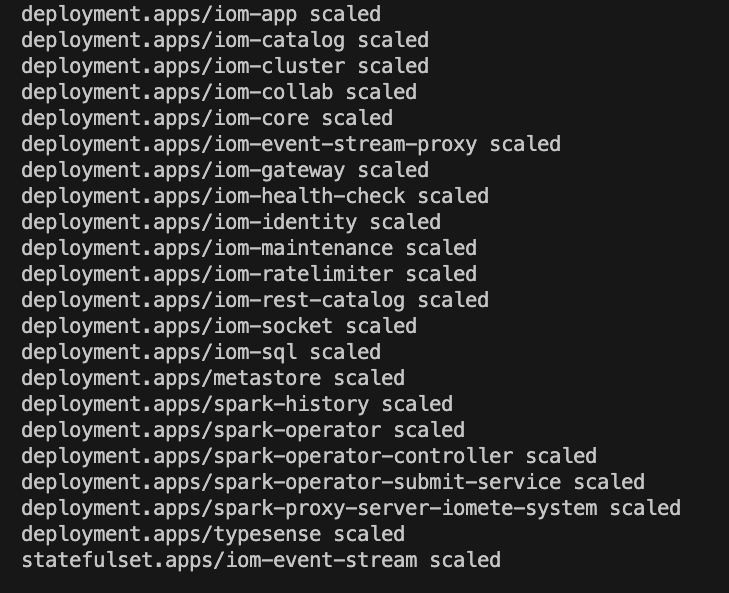
To downscale the deployments and statefulsets, we can run the following command:
NAMESPACE="iomete-system"
kubectl scale deployments,statefulsets \
  -n $NAMESPACE \
  -l "app.kubernetes.io/name=iomete-data-plane-enterprise" \
  --replicas=0
This will downscale all deployments and statefulsets that are labeled with app.kubernetes.io/name=iomete-data-plane-enterprise during IOMETE installation to 0, effectively removing their connections to the database. Command will print out the following output:
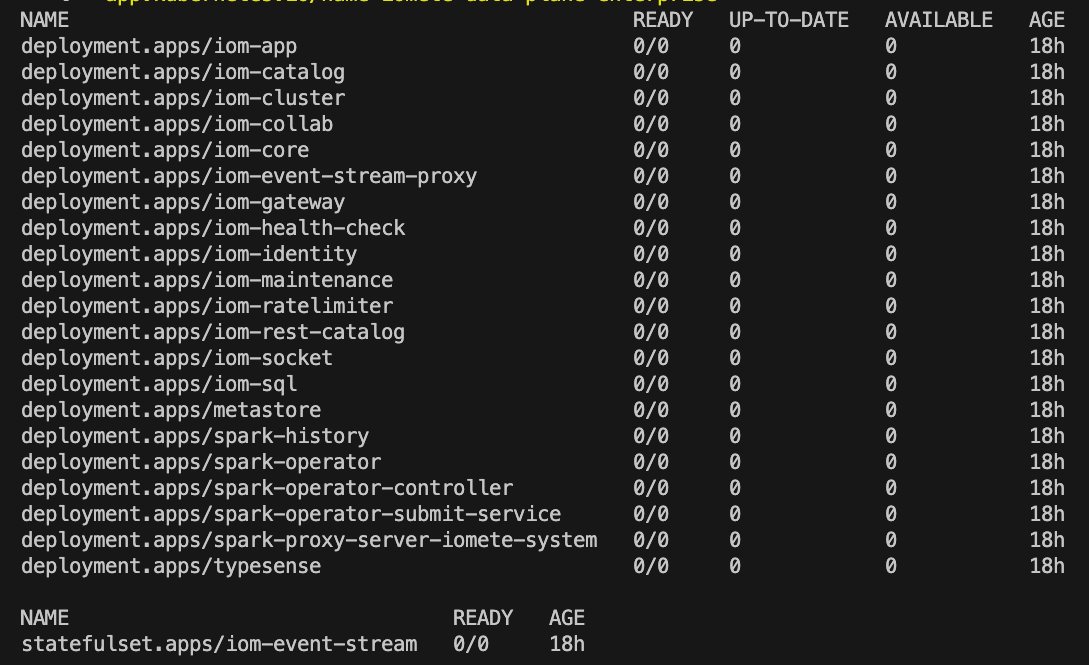
You should see an output similar to the following where all deployments and statefulsets that are scaled down to 0 replica if you run the command from the previous section again:
NAMESPACE="iomete-system"
kubectl get deployments,statefulsets \
  -n $NAMESPACE \
  -l "app.kubernetes.io/name=iomete-data-plane-enterprise"
Deleting SparkApplication
To delete the SparkApplication, we can run the following command:
NAMESPACE="iomete-system"
kubectl delete sparkapplication iom-spark-connect  -n $NAMESPACE
This will delete the SparkApplication named iom-spark-connect that is deployed as part of the IOMETE Control Plane and has access to the database. Command will print out the following output:

Migrating the Database to a New Location
At this point, you can proceed with migrating the database to a new location. The exact steps for this will depend on your infrastructure and database setup, but generally, you will need to:
- Backup the existing database.
- Restore the backup to the new database location.
Updating Values Files to Point to the New Database Location
After the database has been migrated to the new location, you will need to update the IOMETE Control Plane to point to the new database location. This involves updating the values.yaml files used for the data plane components to reflect the new database connection details.
...
database:
  type: postgresql
  host: <new-database-host>
  port: <new-database-port>
  user: <new-database-user>
  password: <new-database-password>
  prefix: "iomete_"
  adminCredentials:
    user: <new-database-admin-user>
    password: <new-database-admin-password>
...
Here we are not explicitly upscaling replicas for the deployments and statefulsets as part of this step. When we upgrade the IOMETE Control Plane using the new values files in the next step, Helm will automatically upscale the deployments and statefulsets back to their original replica count specified during the initial installation of IOMETE.
Upgrading the IOMETE Control Plane Using the New Values Files
Finally, you will need to upgrade the IOMETE Control Plane using the new values files to apply the changes and point to the new database location. You can do this by running the following command:
# Add IOMETE Helm repository and update
helm repo add iomete https://chartmuseum.iomete.com/
helm repo update

# Upgrade IOMETE Control Plane with new values file
NAMESPACE="iomete-system"
RELEASE_NAME="data-plane"
helm upgrade --install -n $NAMESPACE $RELEASE_NAME \
  iomete/iomete-data-plane-enterprise \
  -f values.yaml
At this point, Helm will automatically upscale the deployments and statefulsets back to their original replica count specified during the initial installation of IOMETE, and it will also recreate the SparkApplication named iom-spark-connect that we deleted earlier, ensuring that all components of the IOMETE Control Plane are up and running with the new database connection details.
You can verify the status of the control plane components again using the commands from the first section to ensure that everything is running smoothly after the upgrade. Note that it may take a few minutes for all components to be up and running after the upgrade, so you may need to run the status check commands multiple times until you see that all components are in a healthy state.
NAMESPACE="iomete-system"
kubectl get deployments,statefulsets \
  -n $NAMESPACE \
  -l "app.kubernetes.io/name=iomete-data-plane-enterprise"

kubectl get sparkapplication iom-spark-connect  -n $NAMESPACE