Tableau (Arrow Flight) - Connecting to IOMETE
Overview
The IOMETE Tableau connector connects Tableau to IOMETE through the Arrow Flight SQL JDBC driver. It adds an IOMETE (Arrow Flight SQL) connection dialog to Tableau and supports both live connections and extracts.
The connector and JDBC driver are installed separately. If you need the older Thrift Server connection instead, see Tableau (Thrift).
Supported Setup
| Component | Supported value |
|---|---|
| Tableau | Desktop or Server 2024.2 and later |
| Platforms | Windows, macOS, and Linux |
| Connection modes | Live and extract |
| Authentication | IOMETE username and access token |
| Transport | JDBC with TLS |
Prerequisites
Before you begin, make sure you have:
- A running IOMETE compute cluster
- An IOMETE username and personal access token
- Administrator access to the computer or Tableau Server nodes where you install the connector
- Tableau Desktop or Tableau Server 2024.2 or later
Downloading the Connector and Driver
Download these files before installing the connector:
- Open the Tableau connector releases page and select the latest
tableau-connector-v*release. - Download the
.tacoconnector,iomete-taco.cer, andSHA256SUMSfiles from that release. - Download the latest IOMETE Arrow Flight SQL JDBC driver from the iomete-artifacts repository. Driver files follow the naming convention
flight-sql-jdbc-driver-<upstream>-iomete.<release>.jar.
The .taco file does not include the JDBC driver, so Tableau needs both files in their respective installation directories.
Installing on Tableau Desktop
Place the files in the directories for your operating system:
| Platform | .taco connector | JDBC driver |
|---|---|---|
| macOS | ~/Documents/My Tableau Repository/Connectors/ | ~/Library/Tableau/Drivers/ |
| Windows | C:\Users\[user]\Documents\My Tableau Repository\Connectors | C:\Program Files\Tableau\Drivers |
Create a missing directory if needed, then restart Tableau Desktop after installing or replacing either file.
Installing on Tableau Server
Place the connector and driver in these directories on every Tableau Server node:
| Platform | .taco connector | JDBC driver |
|---|---|---|
| Linux | /opt/tableau/connectors | /opt/tableau/tableau_driver/jdbc |
| Windows | C:\Program Files\Tableau\Connectors | C:\Program Files\Tableau\Drivers |
On Linux, create /opt/tableau/connectors only if it is missing, then copy both files:
sudo mkdir -p /opt/tableau/connectors /opt/tableau/tableau_driver/jdbc
sudo cp "/path/to/<connector>.taco" /opt/tableau/connectors/
sudo cp "/path/to/<driver>.jar" /opt/tableau/tableau_driver/jdbc/
Check the Tableau Server run-as username:
tsm configuration get -k service.runas.username
The following commands use tableau, the default run-as username. Replace it if the previous command returns another username:
sudo chown tableau:tableau "/opt/tableau/connectors/<connector>.taco"
sudo chown tableau:tableau "/opt/tableau/tableau_driver/jdbc/<driver>.jar"
Files copied as root may remain 640 root:root, which prevents the run-as user from loading them.
Trusting the Connector Certificate
IOMETE currently signs the .taco file with a self-signed certificate. Tableau does not trust that certificate automatically, so import iomete-taco.cer into Tableau's Java truststore before opening the connector.
The same certificate signs each self-signed release. You only need to import it again if IOMETE rotates the certificate or a Tableau upgrade replaces the truststore.
If the certificate import does not work in a test environment, see Testing With Signature Verification Disabled.
macOS Desktop
Set TABLEAU_JRE to the JRE inside your Tableau application. The following example uses Tableau Desktop 2026.2 for Apple silicon, so adjust the application name and version for your installation:
TABLEAU_JRE="/Applications/Tableau Desktop (Apple silicon) 2026.2.app/Contents/Plugins/jre"
sudo cp "$TABLEAU_JRE/lib/security/cacerts" "$TABLEAU_JRE/lib/security/cacerts.bak"
sudo keytool -importcert -noprompt -alias iomete-taco \
  -file /path/to/iomete-taco.cer \
  -keystore "$TABLEAU_JRE/lib/security/cacerts" -storepass changeit
Windows Desktop
Run PowerShell as Administrator and adjust the Tableau version in the path:
$TableauJre = 'C:\Program Files\Tableau\Tableau <version>\Plugins\jre'
Copy-Item "$TableauJre\lib\security\cacerts" "$TableauJre\lib\security\cacerts.bak"
keytool -importcert -noprompt -alias iomete-taco `
  -file C:\path\to\iomete-taco.cer `
  -keystore "$TableauJre\lib\security\cacerts" -storepass changeit
Restart Tableau Desktop after importing the certificate.
Tableau Server on Linux
Identify the running version and list every candidate truststore:
tsm version
find /opt/tableau/tableau_server -name cacerts
Match the running version to its repository.<build> directory. If unsure, import the certificate into every cacerts under the current build.
Run the following commands with root privileges, replacing <build> with the current build directory name:
JRE="/opt/tableau/tableau_server/packages/repository.<build>/jre"
sudo cp -p "$JRE/lib/security/cacerts" "$JRE/lib/security/cacerts.bak"
sudo "$JRE/bin/keytool" -importcert -noprompt -alias iomete-taco \
  -file /path/to/iomete-taco.cer \
  -keystore "$JRE/lib/security/cacerts" -storepass changeit
Verify the alias and compare the truststore with the backup:
"$JRE/bin/keytool" -list -keystore "$JRE/lib/security/cacerts" \
  -storepass changeit -alias iomete-taco
ls -l "$JRE/lib/security/cacerts" "$JRE/lib/security/cacerts.bak"
The truststore ownership should remain root:root. Its mode should match the backup, normally 644, so Tableau services can read it. Do not change the owner to the Tableau Server run-as user.
Restart Tableau Server and wait for every service to return to a healthy state:
tsm restart
tsm status -v
Repeat these steps on every node in a multi-node cluster. A Tableau upgrade creates a new repository.<build> directory, so repeat the certificate import after each upgrade.
Tableau Server on Windows
Run PowerShell as Administrator. Check the running version and find the truststores under the default installation directory:
tsm version
Get-ChildItem 'C:\Program Files\Tableau\Tableau Server' -Filter cacerts -Recurse
Adjust the base path for a custom installation. Match the running version to its repository.<build> directory, then replace <build> below:
$TableauJre = 'C:\Program Files\Tableau\Tableau Server\packages\repository.<build>\jre'
Copy-Item "$TableauJre\lib\security\cacerts" "$TableauJre\lib\security\cacerts.bak"
& "$TableauJre\bin\keytool.exe" -importcert -noprompt -alias iomete-taco `
  -file C:\path\to\iomete-taco.cer `
  -keystore "$TableauJre\lib\security\cacerts" -storepass changeit
& "$TableauJre\bin\keytool.exe" -list `
  -keystore "$TableauJre\lib\security\cacerts" `
  -storepass changeit -alias iomete-taco
Restart Tableau Server and confirm that its services are healthy:
tsm restart
tsm status -v
Repeat the import for every current-build truststore, on every node, and after each Tableau upgrade.
Connecting to IOMETE
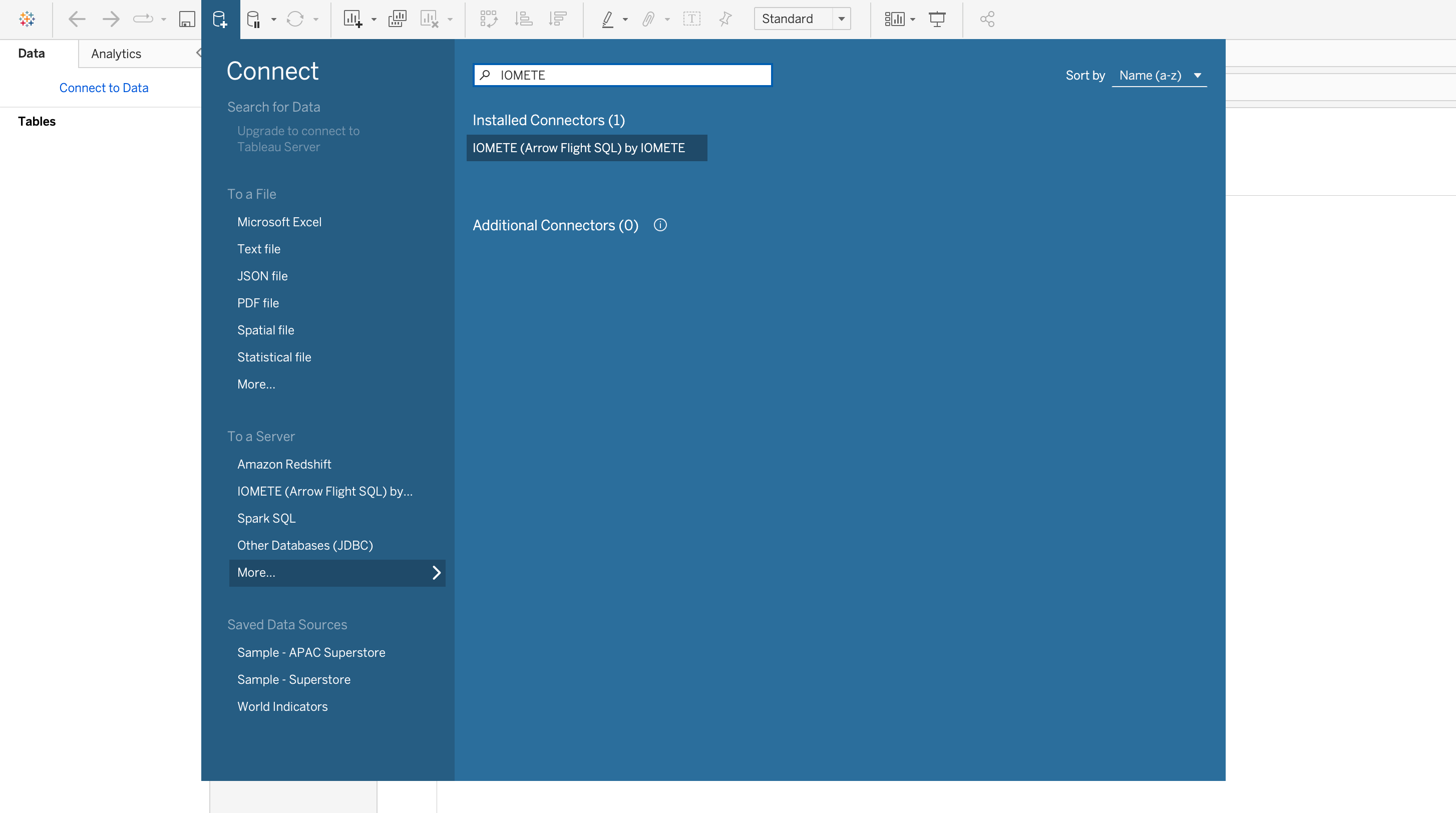
- Start Tableau and open Connect > To a Server > More.
- Select IOMETE (Arrow Flight SQL).
- Complete the connection dialog:
| Field | What to enter |
|---|---|
| Server | Your IOMETE hostname without https:// |
| Port | 443, unless your deployment uses another port |
| Compute Cluster | The name of your running IOMETE compute cluster |
| Namespace | Your IOMETE namespace name |
| Catalog | Optional. Leave blank to browse all accessible catalogs, or enter a catalog to limit discovery |
| Username | Your IOMETE username |
| Access Token | Your IOMETE personal access token |
| Query Timeout | Optional. Maximum query duration in seconds; blank means no timeout |
| Connection Timeout | Optional. Connection timeout in seconds; blank uses the driver's 10-second default |
| Client Thread Pool Size | Optional. Number of parallel Flight endpoint workers; blank uses the driver default of 1 |
| Disable Certificate Verification | Leave off unless the IOMETE endpoint uses a certificate Tableau does not trust |
TLS encryption is always enabled. Disable Certificate Verification skips validation of the IOMETE server's TLS certificate, but it does not disable encryption or bypass .taco signature verification.
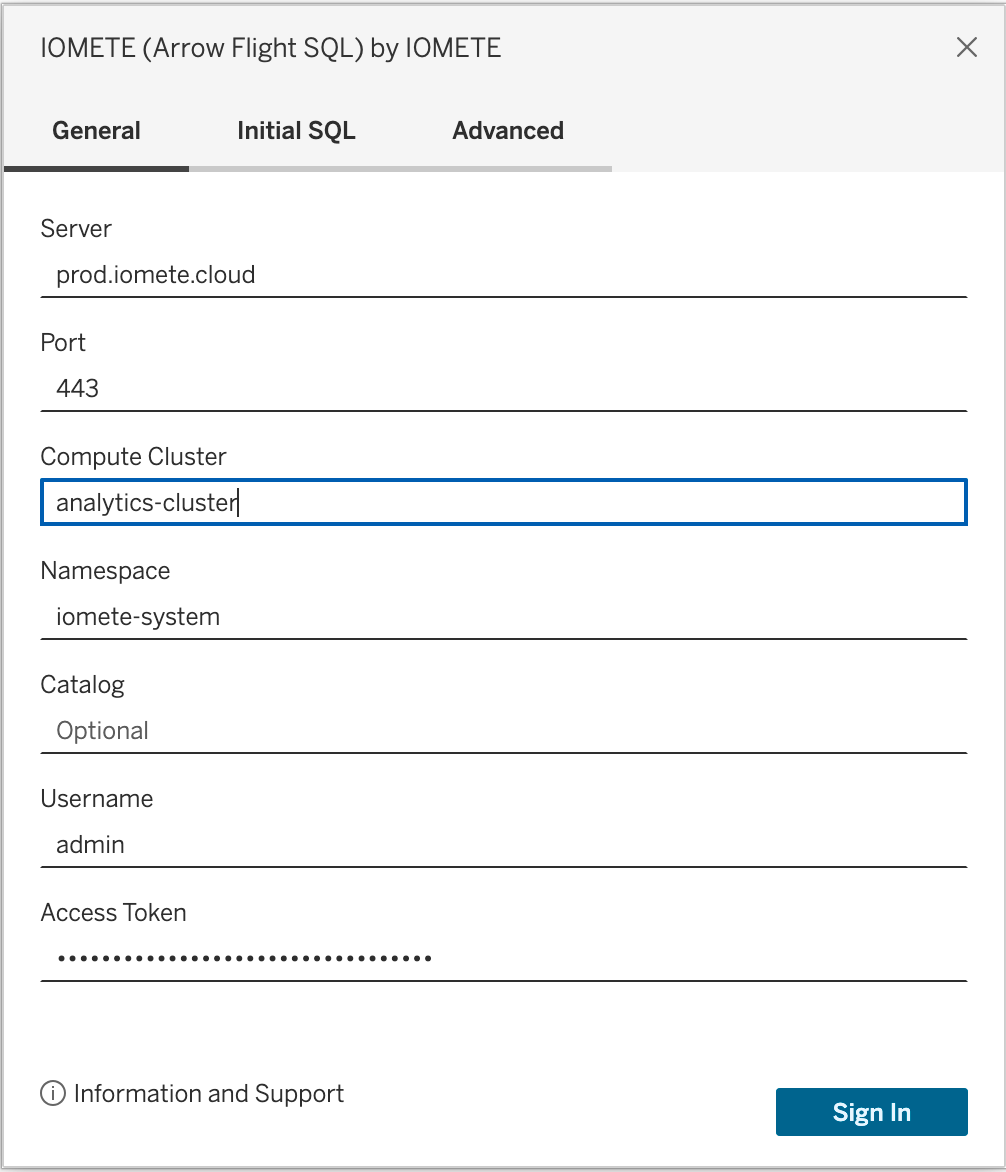
- Confirm that the compute cluster is running, then select Sign In.
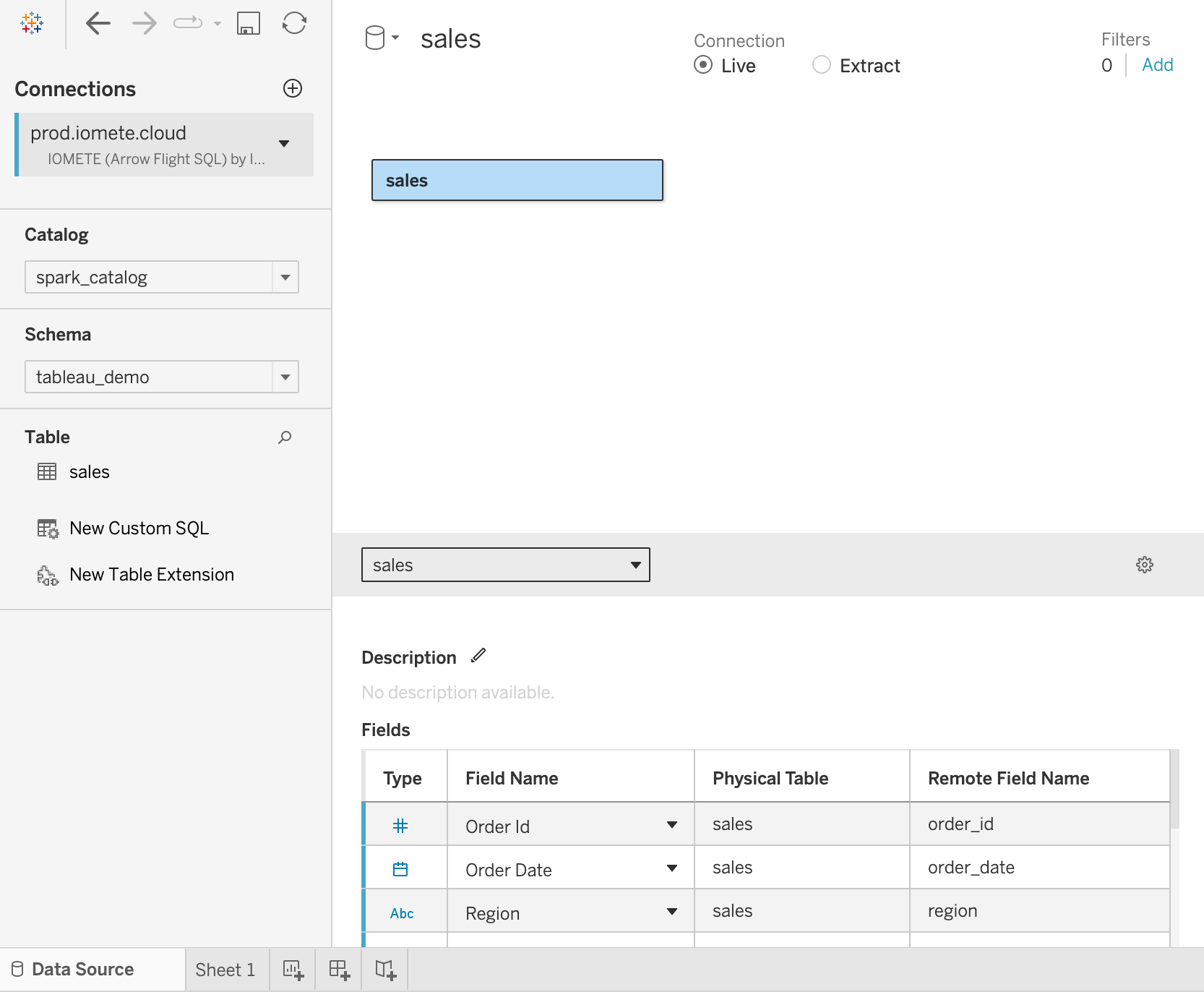
- Select a catalog and schema, then drag tables onto the canvas to start building a data source.
With the connection in place, continue to Building a Dashboard.
Testing With Signature Verification Disabled
If you cannot edit Tableau's truststore in a test environment, you can temporarily disable connector signature verification.
Disabling signature verification allows Tableau to load any unsigned or untrusted connector. Do not use this setting as a permanent alternative to trusting iomete-taco.cer.
On macOS, adjust the Tableau application name and version first:
TABLEAU_APP="/Applications/Tableau Desktop (Apple silicon) 2026.2.app"
"$TABLEAU_APP/Contents/MacOS/Tableau" \
  -DDisableVerifyConnectorPluginSignature=true
On Windows, run:
& 'C:\Program Files\Tableau\Tableau <version>\bin\tableau.exe' `
  '-DDisableVerifyConnectorPluginSignature=true'
On Tableau Server, disable verification through TSM and apply the pending change:
tsm configuration set -k native_api.disable_verify_connector_plugin_signature -v true --force-keys
tsm pending-changes apply
The Desktop flags last only for that launch, but the TSM setting survives restarts. Re-enable verification as soon as the test finishes:
tsm configuration set -k native_api.disable_verify_connector_plugin_signature -v false --force-keys
tsm pending-changes apply
Troubleshooting
The Connector Does Not Appear
Confirm that the .taco file is in the correct connector directory and restart Tableau. If the connector still does not appear, import iomete-taco.cer into Tableau's JRE truststore or use the testing-only signature verification bypass.
Tableau Cannot Find the Driver
Confirm that the latest flight-sql-jdbc-driver-<upstream>-iomete.<release>.jar file is in the driver directory for the computer or Tableau Server node running the connection. On Tableau Server, check every node.
The Connection Fails
Confirm that:
- The compute cluster is running.
- The server, port, compute cluster, and namespace match your IOMETE deployment.
- The username and access token are valid.
- The IOMETE endpoint's TLS certificate is trusted. Use Disable Certificate Verification only to diagnose a certificate validation problem.
Package Signature Verification Failed During Connection Creation
If Tableau reports Package signature verification failed during connection creation., set these variables to the current Linux build and installed connector:
JRE="/opt/tableau/tableau_server/packages/repository.<build>/jre"
TACO="/opt/tableau/connectors/<connector>.taco"
Then check the following:
-
Run the alias verification command against every
cacertsunder the current Tableau build. -
Compare each truststore's mode with its
.bakfile and keep the owner asroot:root. If the modes differ, runsudo chmod --reference="$JRE/lib/security/cacerts.bak" "$JRE/lib/security/cacerts". -
Confirm that the downloaded certificate matches the certificate embedded in the
.taco. The two SHA256 fingerprints must match, andjarsignermust reportjar verified:keytool -printcert -file /path/to/iomete-taco.cer | grep SHA256"$JRE/bin/keytool" -printcert -jarfile "$TACO" | grep SHA256"$JRE/bin/jarsigner" -verify -verbose -certs "$TACO"Tableau also requires a valid timestamp. If
jarsignerreports that the signature does not include one, download a corrected.taco; importing the certificate cannot add a timestamp. -
Run
tsm restart, then confirm that services are healthy withtsm status -v. -
Use Testing With Signature Verification Disabled only to confirm that signature verification is the failing step. Re-enable it immediately after the test.
The connection dialog's Disable Certificate Verification checkbox does not bypass .taco signature verification. It only disables validation of the IOMETE endpoint's TLS certificate.