Tableau - Connecting to IOMETE
Choose a Connection Method
IOMETE supports two ways to connect Tableau. Choose the guide that matches the protocol you want to use.
| Method | Connector | Guide |
|---|---|---|
| Arrow Flight (recommended) | IOMETE Arrow Flight SQL connector | Arrow Flight |
| Thrift | Tableau's built-in Spark SQL connector or the CData Spark SQL connector | Thrift |
Building a Dashboard
With either connection in place, you're ready to turn your IOMETE data into visualizations.
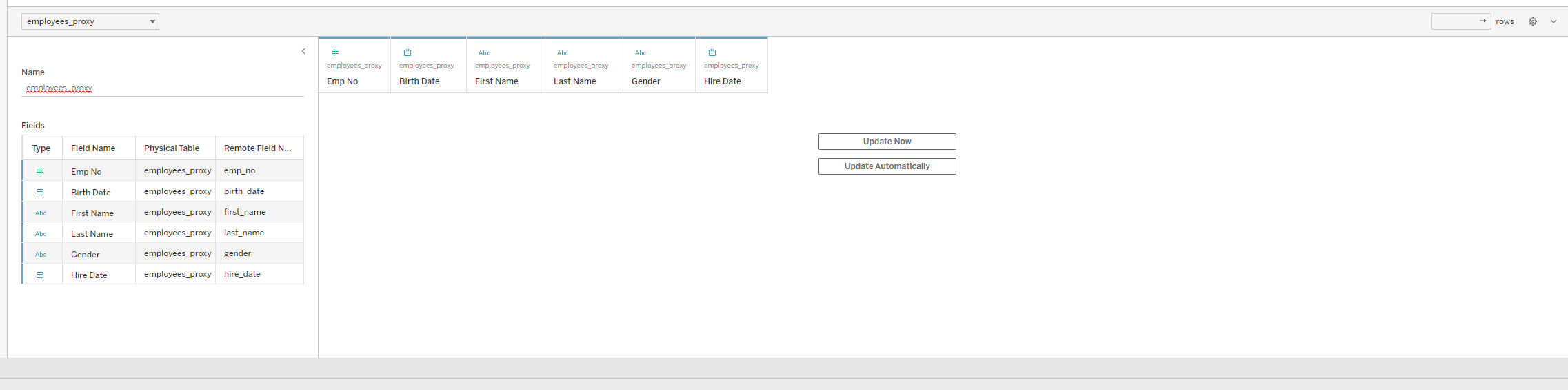
- Select a schema, drag tables into the canvas, then click Sheet 1 to open a new sheet.
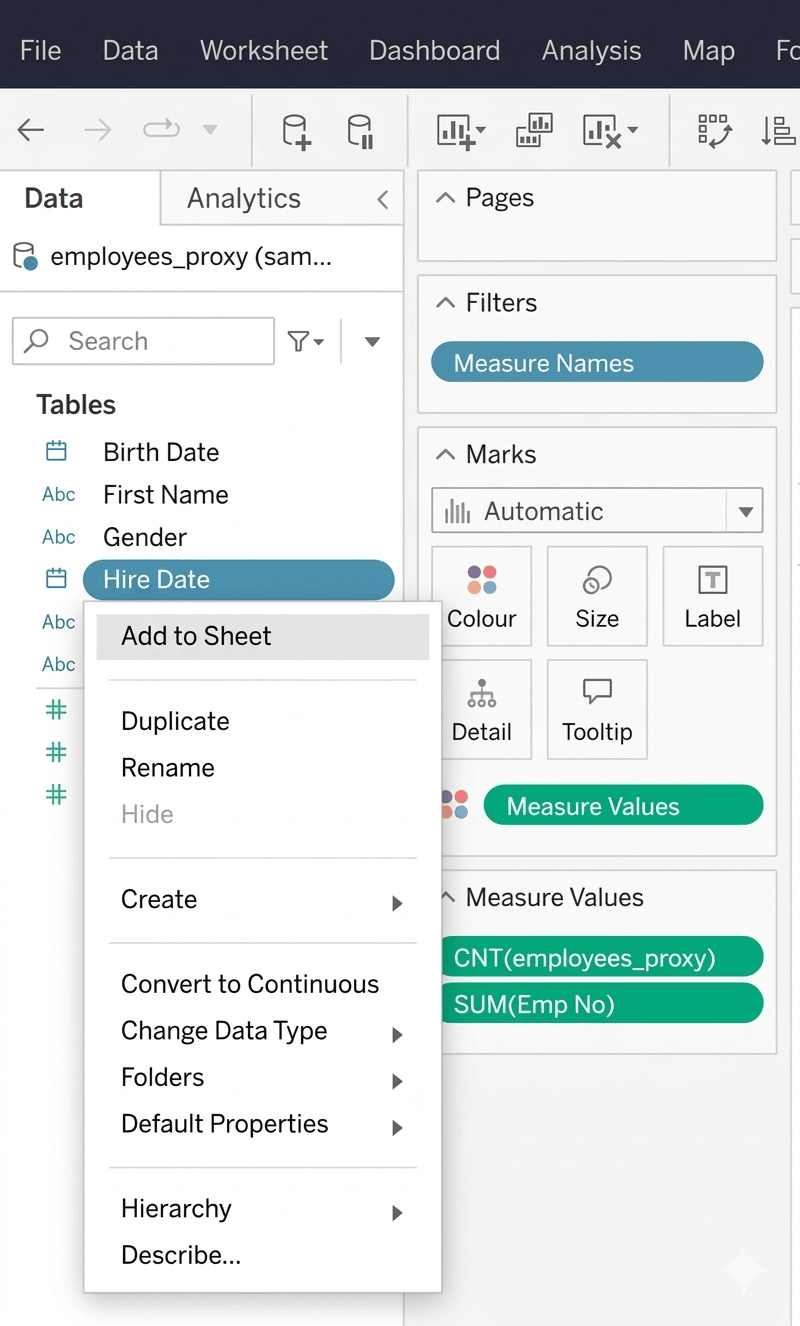
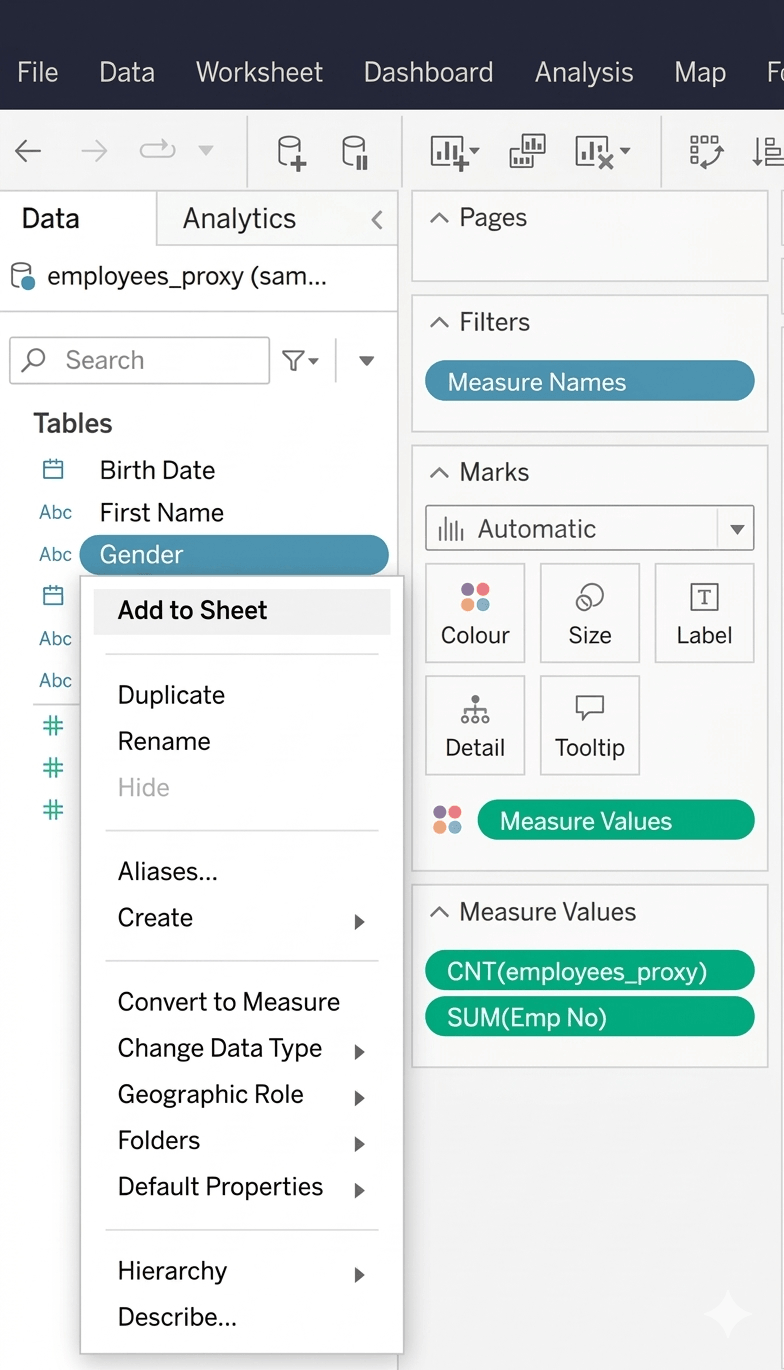
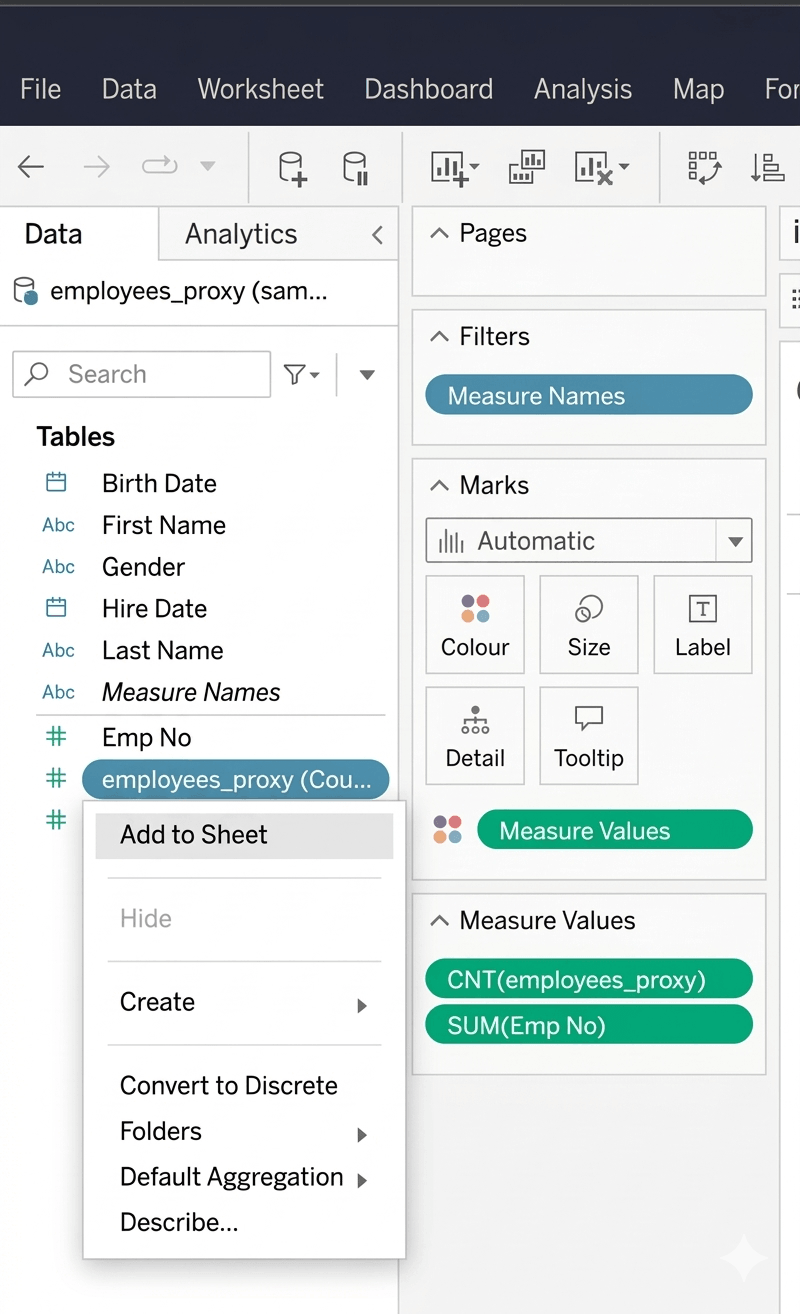
- Right-click a dimension or measure and select Add to Sheet.
- Drag additional fields into rows, columns, or filters to refine the report.
- Pick a visualization type and customize the layout to finish your dashboard.
