Power BI (Arrow Flight) - Connecting to IOMETE
Overview
The IOMETE Power BI connector connects Power BI to IOMETE through the IOMETE Arrow Flight SQL ODBC driver. It adds an IOMETE Arrow Flight Connector data source to Power BI and supports both Import and DirectQuery.
You build reports in Power BI Desktop. To refresh published reports from the Power BI Service, you also install the driver and connector on an on-premises data gateway. Both setups use the same connector bundle. If you need the older Thrift Server connection instead, see Power BI (Thrift).
Prerequisites
Before you begin, make sure you have:
- A running IOMETE compute cluster
- An IOMETE username and personal access token
- Administrator access to every Windows machine where you install the driver: your Power BI Desktop machine and, for scheduled refresh, every gateway node
- Power BI Desktop, and for scheduled refresh, an on-premises data gateway. DirectQuery through a gateway requires standard mode.
Downloading the Connector Bundle
- Download
iomete-odbc-connector.zipfrom the iomete-artifacts repository. - Extract the ZIP file. It contains
IOMETEConnector.mez, the Power BI connector, andarrow-odbc-iomete.zip, the ODBC driver.
Installing the ODBC Driver
Install the driver on every machine that runs IOMETE queries: your Power BI Desktop machine and every gateway node.
- Extract
arrow-odbc-iomete.ziptoC:\Program Files\IOMETE Connector. - In
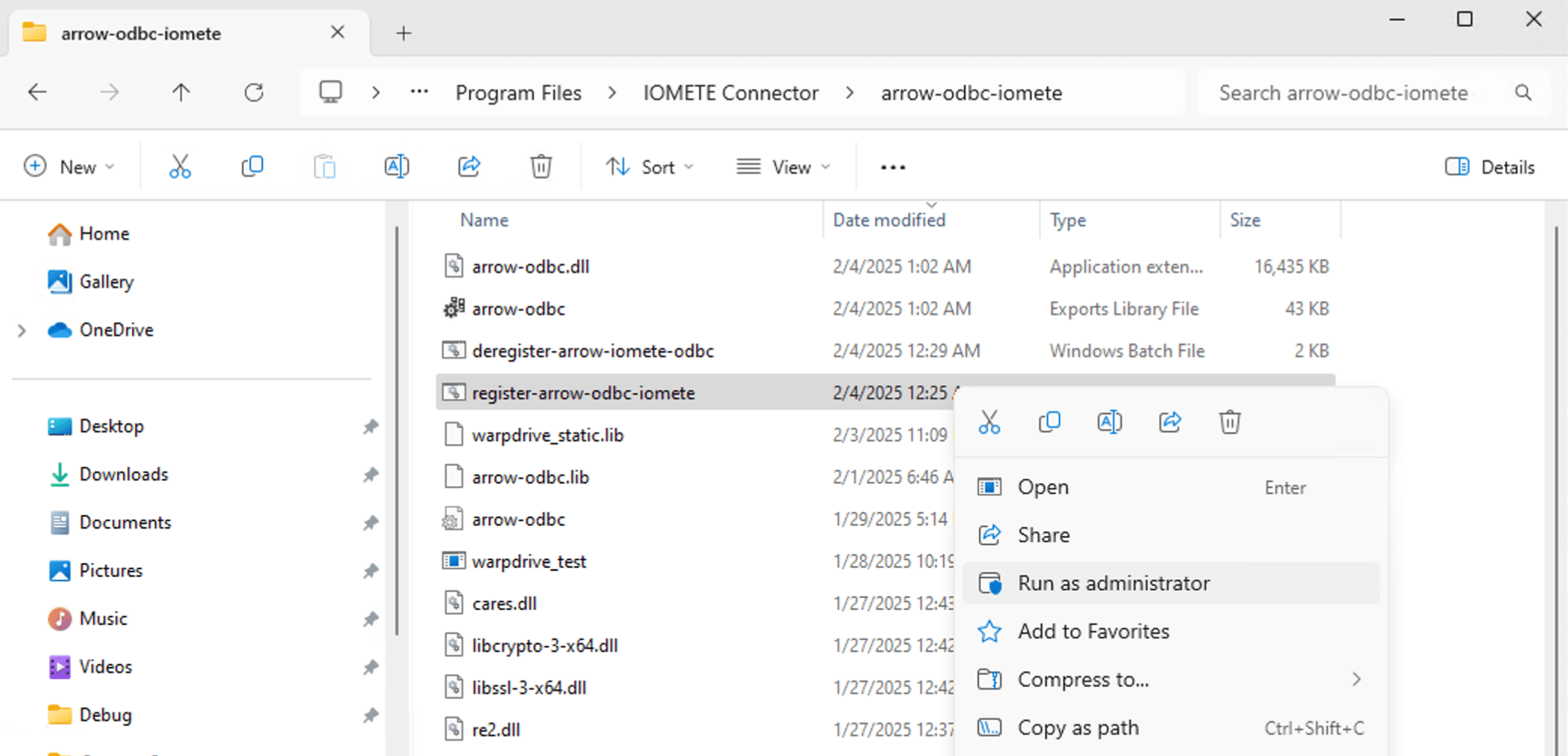
C:\Program Files\IOMETE Connector\arrow-odbc-iomete, right-clickregister-arrow-odbc-iometeand select Run as administrator. The script registers the driver with Windows.
Connecting From Power BI Desktop
-
Copy
IOMETEConnector.meztoC:\Users\<YourUser>\Documents\Power BI Desktop\Custom Connectors, replacing<YourUser>with your Windows username. Create the folder if it does not exist, then restart Power BI Desktop.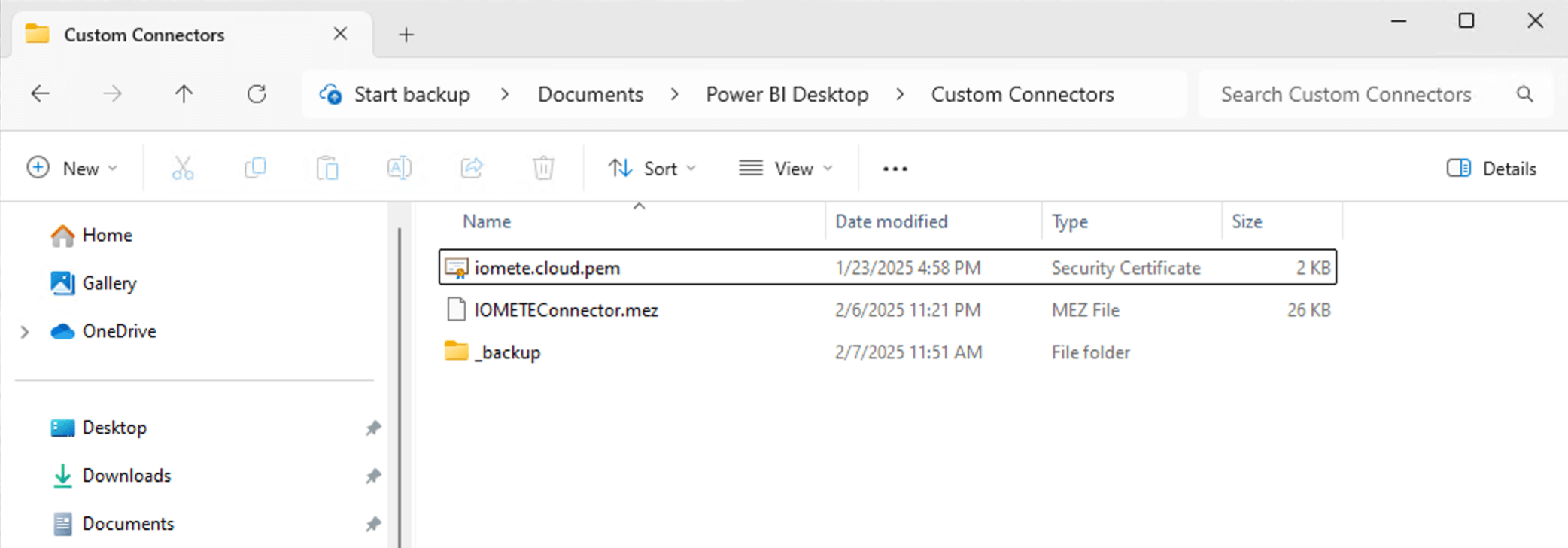
-
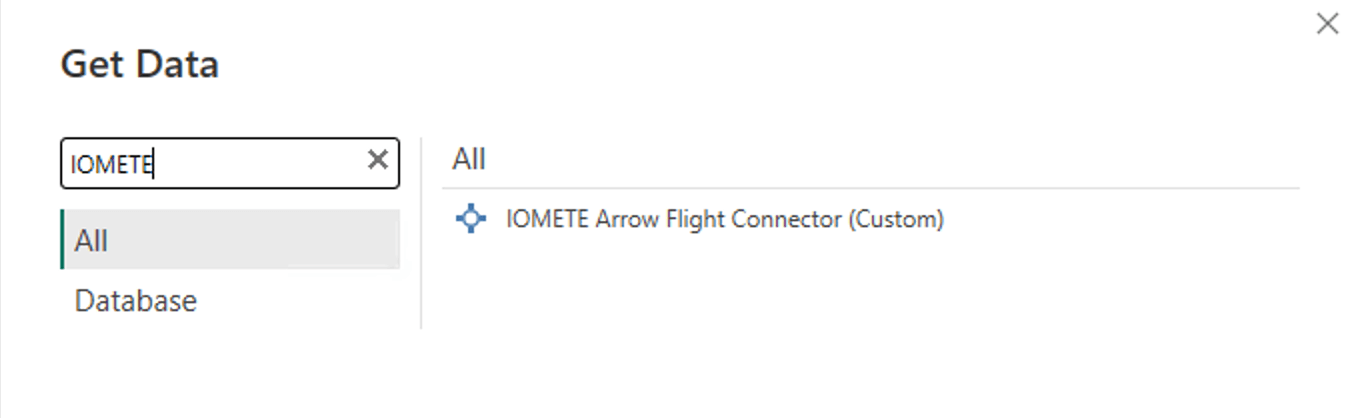
In Power BI Desktop, select Get Data → More..., search for IOMETE Arrow Flight Connector, and select Connect. If the connector is not listed, see Troubleshooting.
-
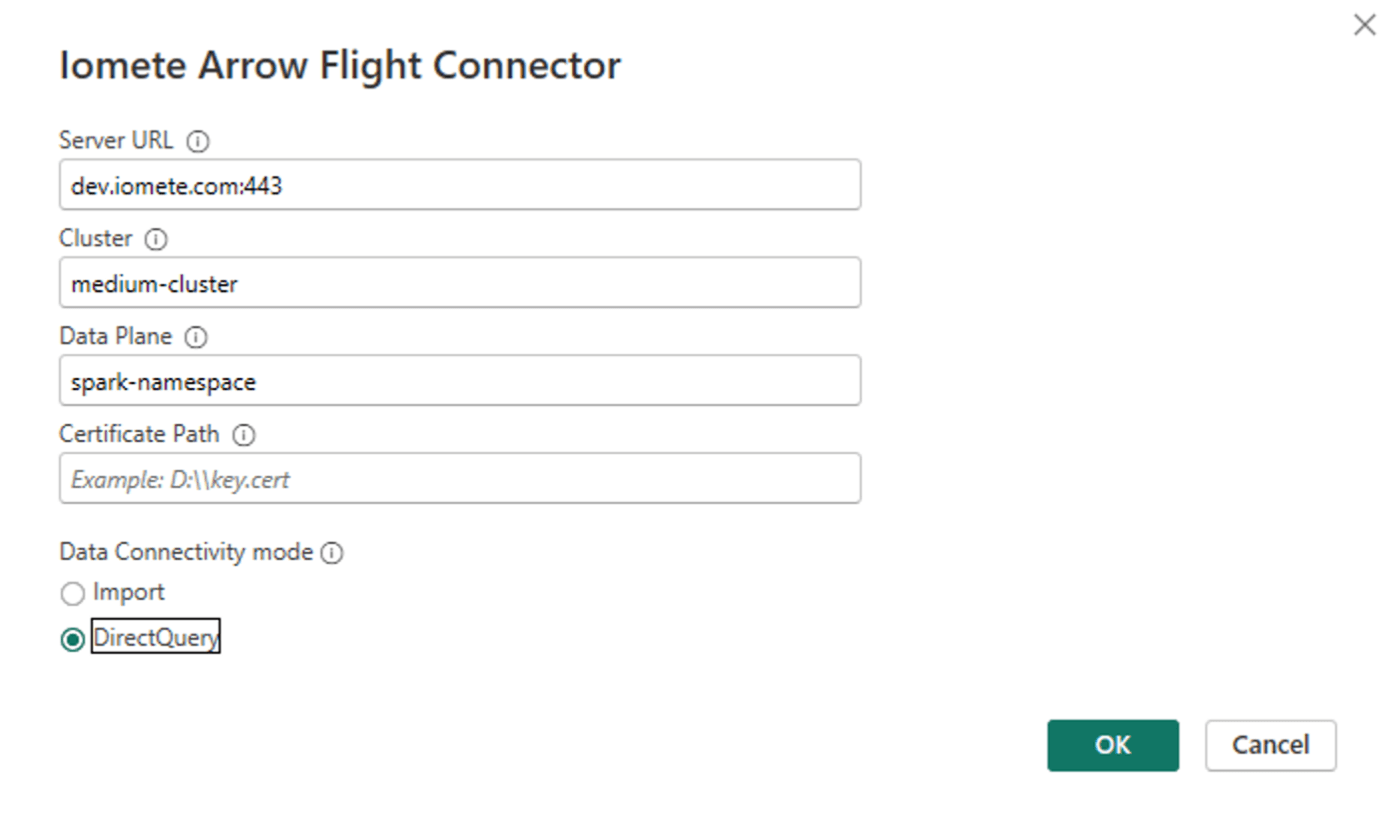
Fill in the connection settings and select OK.
-
Enter your IOMETE username and access token, and select Connect.
The Navigator then lists the catalogs and tables you can access, and you can start building your report.
Connection Settings
| Field | Value | Example |
|---|---|---|
| Server URL | Host and port of your IOMETE Arrow Flight endpoint | dev.iomete.com:443 |
| Cluster | Name of the compute cluster | medium-cluster |
| Data Plane | Kubernetes namespace where the compute cluster runs | spark-resources |
| Certificate Path | Optional. Leave blank to use the Windows certificate store. See Trusting the Server Certificate. | C:\certs\iomete-ca.pem |
| Data Connectivity mode | Import copies data into the report; DirectQuery queries IOMETE live | DirectQuery |
Refreshing Through an On-premises Data Gateway
The Power BI Service refreshes published reports through the on-premises data gateway, so every gateway node needs the driver and the connector. The gateway runs as a Windows service, NT SERVICE\PBIEgwService by default, so it cannot see files in your user profile or certificates in your personal certificate store.
Setting Up Each Gateway Node
Repeat these steps on every node of the gateway cluster, and use the same connector version everywhere:
- Install the ODBC driver.
- Copy
IOMETEConnector.mezto a folder the gateway service account can read, for exampleC:\Program Files\IOMETE Connector\Custom Connectors. - In the on-premises data gateway app, open Connectors, and under Load custom data connectors from folder, select that folder.
IOMETEConnectorthen appears in the list of loaded connectors. - Make sure the node trusts the IOMETE server certificate. See Trusting the Server Certificate.
- Restart the gateway from Service Settings in the gateway app.
Then, once per gateway cluster, allow custom connectors in the Power BI Service. Go to Settings → Manage connections and gateways → On-premises data gateways, open your gateway cluster's Settings, and select Allow user's custom data connectors to refresh through this gateway cluster.
Creating the Gateway Connection
The gateway matches a connection to a report on Server URL, Cluster, and Data Plane, so the connection must use exactly the values in your report. The easiest way to get them right is to start from the published report:
- Publish your report to the Power BI Service and open its semantic model's settings.
- Under Gateway and cloud connections, expand your gateway cluster, and next to the IOMETE data source, select Manually add to gateway. Power BI opens a new connection with IOMETE Arrow Flight Connector selected and the Server URL, Cluster, and Data Plane copied from your report. Leave Certificate Path blank.
- Select Basic authentication and enter your IOMETE username and access token.
- Create the connection. Power BI tests it before saving.
- Back in Gateway and cloud connections, map the IOMETE data source to the new connection, and select Apply.
You can also create the connection from Settings → Manage connections and gateways, but then you must type the values exactly as they appear in your report.
The connection test always uses the gateway node's Windows certificate store, even when your report sets a Certificate Path. If your nodes trust the server only through a PEM file, the test fails, so select Skip test connection before creating the connection. Scheduled refresh still uses the Certificate Path from your report.
Trusting the Server Certificate
The driver always verifies the TLS certificate of your IOMETE server. Certificate Path only decides which certificate authority (CA) the driver trusts for that check. It is not a client certificate and never contains a private key.
| Certificate Path | The driver trusts | Use it when |
|---|---|---|
| Blank (recommended) | The certificates already in the Windows certificate store | The root CA that issued your server certificate is in the Windows certificate store |
| Path to a PEM file | Only the certificates in that file | You cannot change the Windows certificate store, or you want to trust a single CA |
The driver only uses root CA certificates that are already in the store. Browsers work differently: Windows downloads a publicly trusted root CA the first time a browser needs it. So a newly installed machine, such as a fresh gateway node, can fail to verify a certificate from a public CA that every browser accepts. To check, run certlm.msc and look under Trusted Root Certification Authorities → Certificates for the root CA named by the OpenSSL command below.
If the root CA is missing, whether it's public or your organization's own, import it into Trusted Root Certification Authorities for the local computer. Do this in certlm.msc, or from an administrator PowerShell window:
Import-Certificate -FilePath C:\certs\root-ca.pem -CertStoreLocation Cert:\LocalMachine\Root
The local computer store works for both Power BI Desktop and the gateway service account, whereas the current user store is invisible to the gateway.
If you use a PEM file instead, it must contain the root CA certificate as Base64 text starting with -----BEGIN CERTIFICATE-----. Put the file at the same path on every machine that runs the report, including every gateway node, and make sure the user running Power BI or the gateway service can read it.
To see which CA issued your server certificate, run this from any machine with OpenSSL, replacing <server-host>:<port> with your Server URL. If your Server URL has no port, the connector uses 443. The last i: line names the root CA:
openssl s_client -connect <server-host>:<port> -showcerts </dev/null | grep -E 's:|i:'
Upgrading From an Earlier Connector Version
Connector versions earlier than 24.0.0-iomete.2 required Certificate Path and could not be used with an on-premises data gateway. To check which version you have, open the connection dialog in Power BI Desktop: if the field reads Certificate Path instead of Certificate Path (optional), you have an earlier version.
After you replace IOMETEConnector.mez with the current version:
- Power BI Desktop asks for your credentials again the next time you refresh. You can remove the old entry under File → Options and settings → Data source settings.
- Recreate any gateway connections that were created with the earlier version.
- Republish reports that you edit in Power BI Desktop. A report published with an earlier version keeps its old data source until you republish it, so it cannot be mapped to a connection created with the current version.
- Earlier versions ignored Certificate Path and always used the Windows certificate store. The current version uses the file you enter, so if your reports pass a path that does not point to a valid PEM file, clear it or fix the file before you refresh.
Troubleshooting
When a report works in Power BI Desktop but fails through the gateway, the cause is usually something installed for your Windows user instead of for the gateway service account. Check the gateway node setup first.
Power BI Desktop Does Not List the Connector
- Check that
IOMETEConnector.mezis inDocuments\Power BI Desktop\Custom Connectors, and restart Power BI Desktop after copying it. If your Documents folder is redirected to OneDrive, use that Documents folder. - Power BI Desktop blocks uncertified connectors by default. Go to File → Options and settings → Options → Security, and under Data Extensions, select (Not Recommended) Allow any extension to load without validation or warning. Select OK and restart Power BI Desktop.
Connection Fails With "Could not finish writing before closing"
The driver shows this generic error when the connection closes before login finishes, and the real cause isn't passed on. It most often means a wrong Server URL, Cluster, or Data Plane, such as a data plane that doesn't contain the cluster. It can also come from an invalid access token or an untrusted server certificate. Check the three connection values first, then your credentials, then Trusting the Server Certificate.
Connection Fails With "No client transport implementation for arrow-flight-reuse-connection"
ODBC driver versions earlier than 24.0.0-iomete.3 show this error on IOMETE 4.0 and later, in both Test Connection and queries. Download and install the current driver.
"Data source name not found and no default driver specified"
The ODBC driver is not registered on the machine running the query. Install the ODBC driver on that machine. For gateway refreshes, install it on every gateway node.
Saving Gateway Credentials Fails
Power BI tests the connection on a gateway node before it saves the credentials, so the test depends on that node's setup, not on your Desktop machine. The banner only says that Power BI was unable to connect to the data source. Expand it to see the driver's error.
- "3 arguments were passed to a function that expects 4": the node runs an earlier connector version. Install the current
IOMETEConnector.mezon every gateway node, restart the gateway, and recreate the connection. See Upgrading From an Earlier Connector Version. - Any other error: check that the driver is registered on every node and that the server's CA is in the local computer certificate store. If your nodes trust the server only through a PEM file, the test cannot pass, so select Skip test connection.
IOMETE Arrow Flight Connector Is Not Listed as a Connection Type
The gateway hasn't loaded the connector, or the cluster doesn't allow custom connectors. In the gateway app, check that Connectors lists IOMETEConnector. In the Power BI Service, check that Allow user's custom data connectors to refresh through this gateway cluster is selected in the gateway cluster's settings. Then wait a minute for the gateway to report in, and reload the page. See Setting Up Each Gateway Node.
Refresh Does Not Use the Gateway Connection
If the semantic model settings show the IOMETE data source without a mapped connection, the Server URL, Cluster, or Data Plane on the gateway connection differs from the values in your report. They must match character for character, including the port, so dev.iomete.com and dev.iomete.com:443 count as different data sources. Recreate the connection with Manually add to gateway, as described in Creating the Gateway Connection.
Connection Fails With "Could not open certificate"
The file in Certificate Path does not exist or cannot be read on the machine running the query. On a gateway, that means every gateway node, and the gateway service account needs read access to the file. Fix the path, or clear Certificate Path to use the Windows certificate store.
Connection Fails With a Certificate Verification Error
The driver could not verify the server certificate. Check that:
- The CA that issued the server certificate is trusted where the query runs. On a gateway, it must be in the local computer store, because the gateway cannot see your user store.
- A PEM file in Certificate Path contains the CA certificate, not the server's own certificate, and is Base64 text starting with
-----BEGIN CERTIFICATE-----. - Server URL uses the host name on the server certificate, not an IP address or an alias the certificate does not cover.
See Trusting the Server Certificate.
Sign-in Fails
Check your IOMETE username and that your personal access token has not expired or been revoked. The gateway stores its own copy of the credentials, so after you rotate a token, update the credentials on the gateway connection as well.