The Complete Guide to IOMETE's LDAP Integration and Automatic Sync

Part 1: The "Teach" (Why This Will Save You Hours)
Let's be honest: managing user accounts across all your different tools is a nightmare.
A new engineer starts. You add them to GitHub, AWS, your BI tool, and... IOMETE. A week later, someone leaves, and you have to play "whack-a-mole" to deactivate their accounts, praying you didn't miss one. This isn't just inefficient; it's a security risk.
What if your IOMETE platform could just... know who works at your company? What if it automatically updated when someone joined, left, or changed teams?
That's exactly what LDAP integration does.
What is LDAP, Really? (And Why Bother?)
Think of your company's Lightweight Directory Access Protocol (LDAP) server—or more commonly, Active Directory (AD)—as the single, official "guest list" for your entire organization.
Instead of IOMETE keeping its own separate, manually-managed list at the door, it just checks the main one. When you integrate IOMETE with LDAP, you're simply telling it: "Don't ask me for users. Ask that server."
The benefits are immediate:
- A Single Source of Truth: No more "ghost" accounts or wondering who has access to what. If a user is in your company's AD, they can be in IOMETE. If they're removed from AD, they're gone.
- Role-Based Access: You can map your existing AD groups like "Data-Scientists" or "Finance-Analytics" directly to roles inside IOMETE. No more managing permissions user by user.
- The "Set It and Forget It" Magic: This is the best part. IOMETE doesn't just sync once. You can set it to automatically poll your LDAP server every few minutes or hours. A new hire is added to the "Data-Scientists" group in Active Directory? They get the right permissions in IOMETE before they even open their laptop. No tickets, no manual work.
Part 2: The "Guide" (Let's Get This Done Over One Coffee)
Alright, so you're sold on the "why." You're ready to make this someone else's problem.
Let's get this done. The good news is this entire setup is just one single page in the IOMETE console. We're just going to fill it out from top to bottom.
But first, the only "hard" part: you need a few pieces of info from your IT department. Sending an email with this list will save you a ton of guesswork.
Your 5-Minute "Cheat Sheet" (What to ask your IT Admin):
- Connection URL (the server's address)
- Bind DN (the "login username" for IOMETE)
- Bind Credential (the password for that user)
- Users DN (the "folder path" for users)
- Groups DN (the "folder path" for groups)
Got those? Awesome. The rest is easy.
Open up your IOMETE console, head to Admin Portal > IAM, and click the LDAP tab.
Let's look at this page. The first three fields are just for "getting in the door." This is where you paste in your Connection URL, Bind DN, and Bind Credential.
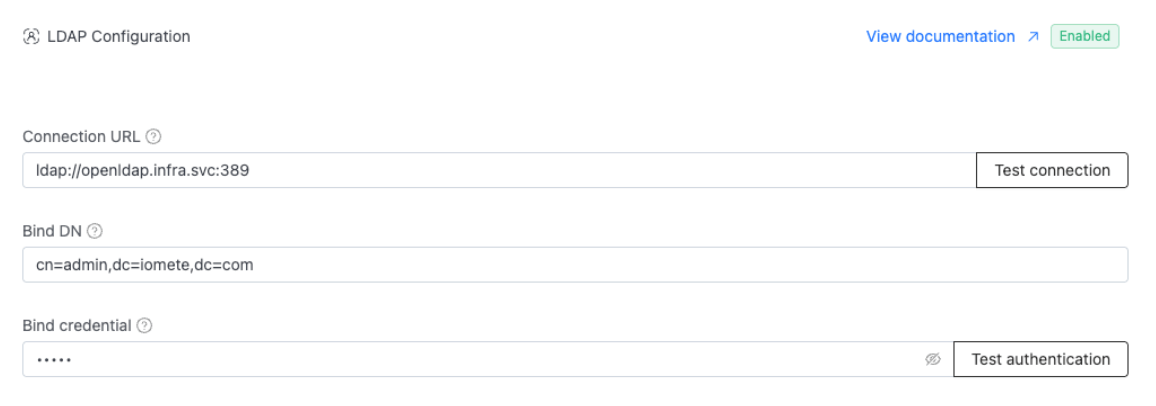
Before you move on, do yourself a favor and click the "Test connection" and "Test authentication" buttons. Once you see those two green success messages, you know you're live. That's the first big hurdle, and you're already past it.
Now, IOMETE is "in the building," but it's like a new employee on their first day. It doesn't know where anyone sits or what their name is. We just need to give it a map.
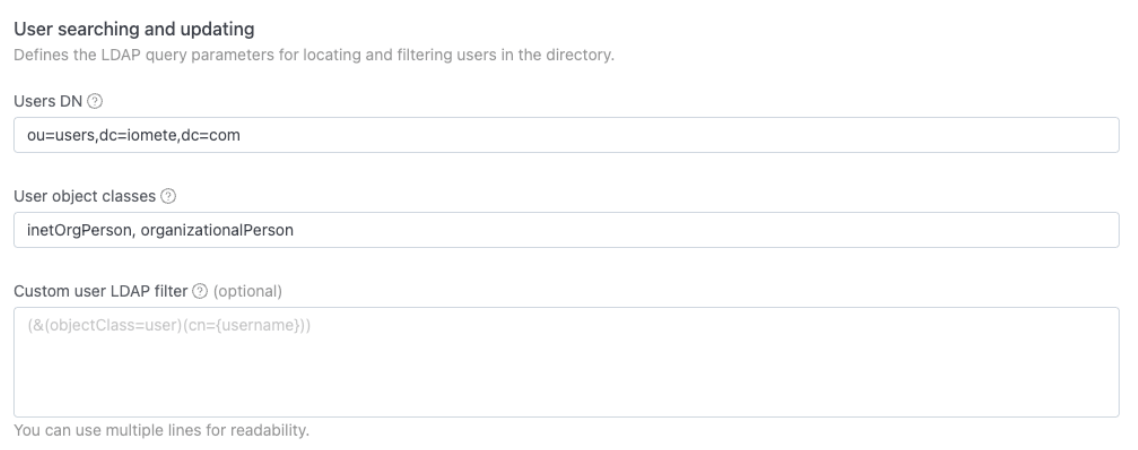
The next two sections, "User searching" and "Group searching," are that map. This is where you paste in the Users DN and Groups DN paths you collected.
You'll also see a box for "User object classes." That's just a fancy way of telling IOMETE to only sync people, not printers or conference rooms. The magic words are almost always inetOrgPerson,organizationalPerson.
We're almost there. IOMETE knows where the people are, but it doesn't know how to "read their name tags." Your Active Directory, for example, calls a username sAMAccountName, but IOMETE is looking for a field called username.
The "User attribute mappings" section is just a simple translation guide.
For 99% of setups, this is the golden ticket. Just fill it in exactly like this:
- username ->
sAMAccountName - email ->
mail - firstName ->
cn - lastName ->
sn
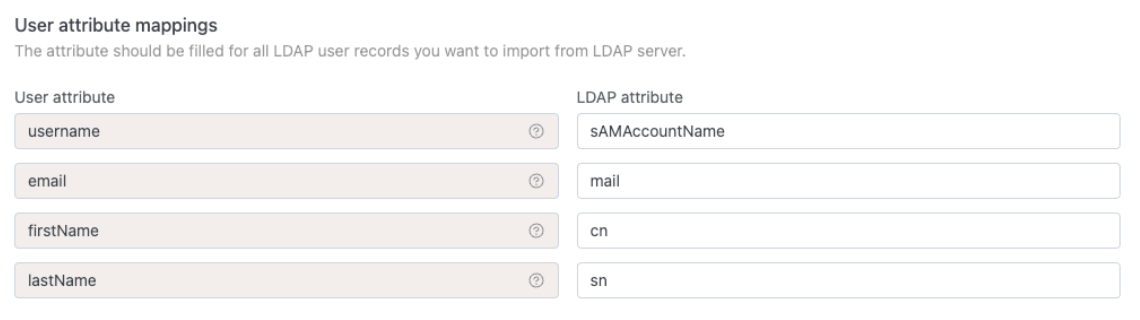
This is the most critical part. Getting that sAMAccountName right is the key to the whole thing.
The Real Magic: Syncing Your Teams (And All Their Nested Groups)
Okay, IOMETE knows who your users are. Now for the fun part.
This is where you stop managing individual user permissions forever. By syncing groups, you can build all your IOMETE permissions around roles you've already set up in Active Directory (AD).
But here's a classic, frustrating problem: what if your groups are nested?
What if your 'Data-Scientists' group is a member of the main 'Analytics' group, which is a member of the 'All-Engineering' group? Most simple LDAP syncs are "flat"—they'd only see 'All-Engineering' and would have no idea the 'Data-Scientists' group even exists.
This is where IOMETE has a trick up its sleeve.
A Pro-Tip for Big Companies: How to Sync Nested Groups
We're going to use a special Active Directory "magic string" (its real name is an OID: 1.2.840.113556.1.4.1941) that tells AD to "walk the chain" and find every group, even if it's a group-inside-a-group-inside-a-group.
Think of it as opening the full set of nesting dolls, not just looking at the first one.
So, in the "Group searching and updating" section, let's set this up:
- First, check the box to enable Group searching and updating.
- Just like before, paste in your Groups DN path (e.g.,
ou=groups,dc=mycompany,dc=com).
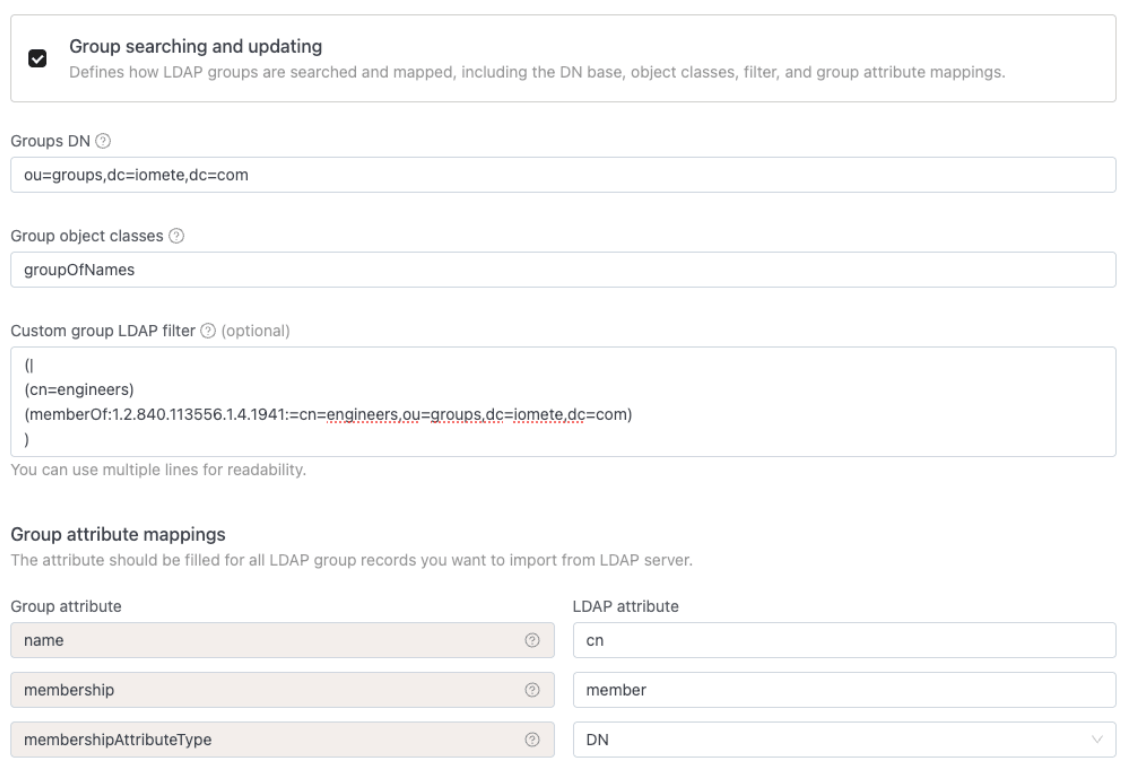
Now, in the "Custom group LDAP filter" box, you're going to put something like this:
(|
(cn=engineers)
(memberOf:1.2.840.113556.1.4.1941:=cn=engineers,ou=groups,dc=iomete,dc=com)
)
Let's quickly break down why this filter is so smart:
(|...): This is an "OR" operator. It tells LDAP to find objects that match either of the conditions inside.(cn=engineers): This is Condition 1. It finds the parent group itself—the one named "engineers".(memberOf:1.2.840.113556.1.4.1941:=...): This is Condition 2. This is that "magic string" (LDAP_MATCHING_RULE_IN_CHAIN) that finds all groups nested (directly or indirectly) inside the "engineers" group.
By combining these with "OR", you're telling IOMETE: "Go find the 'engineers' group, and also find every single group you can find inside it, no matter how deep."
Finally, just fill in the Group Attribute Mappings:
- name:
cn(This is just the group's name) - membership:
member(This tells IOMETE how to see who is in a group) - membershipAttributeType:
DN(This tells IOMETE that the group's member list uses the full path to the user, likecn=johndoe,ou=users..., not just their short usernamejohndoe)
And that's it. You've now mapped your users and your complete, nested team structure.
And now, for the grand finale. The whole reason we're doing this.
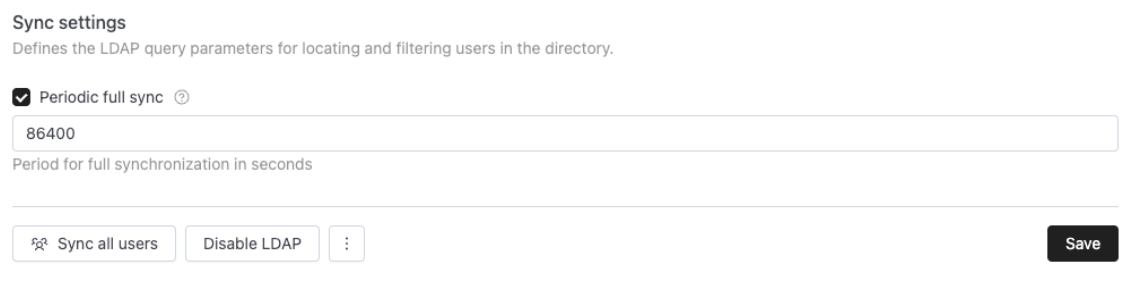
Scroll all the way down to the bottom to "Sync settings." This is where we put the whole thing on autopilot.
Go ahead and flip the big toggle for "Periodic full sync" to ON.
You've got one timer here. Here's what it means in plain English:
- Full sync interval: This is your "deep clean." It re-scans everything. I like to set this to
86400(once a day, maybe in the middle of the night).
This means your new data scientist, just hired by HR, will be able to log into IOMETE with the right permissions before they even finish their onboarding call.
That's It. Hit Save, then Enable LDAP and You're Done.
Click the Save button at the bottom of the page.
You've just automated your user management.
If you're feeling impatient and want to see it work right now, look on the left side of the screen. You'll see a new set of action buttons. Just click Sync all users to run your first sync manually.
Congratulations. You just saved yourself hours of future work.